WordPress plugins make it easy to extend your website’s functionality without writing custom code. Whether you want to improve SEO, add contact forms, optimize performance, or customize your website, the right plugin can help you achieve your goals quickly.
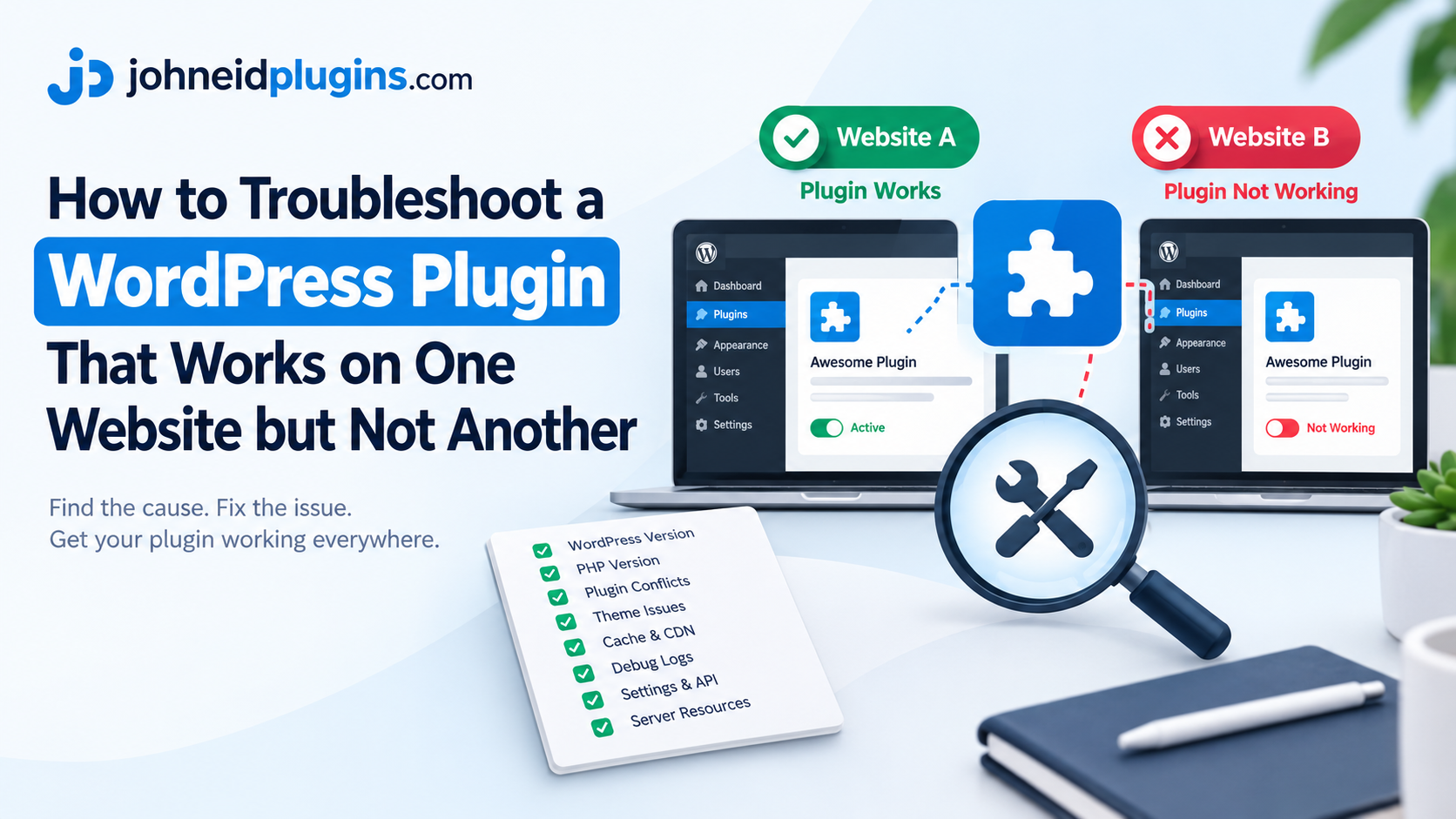
However, a frustrating situation can occur when a plugin works perfectly on one WordPress website but refuses to work correctly on another. You might install the same plugin, activate it, and configure its settings on both websites, only to discover that one site works as expected while the other displays errors or fails to perform certain functions.
Why does a WordPress plugin work on one website but not another?
In most cases, the problem comes from differences between the two websites. These differences may include WordPress versions, PHP configurations, active plugins, themes, server resources, caching systems, or plugin settings.
The good news is that you usually do not need to reinstall WordPress or abandon the plugin to resolve the issue. By comparing the two websites and following a systematic troubleshooting process, you can often identify the cause and restore the plugin’s functionality.
In this guide, we will explain how to troubleshoot a WordPress plugin that works on one website but not another, identify the most common causes of plugin failures, and explore practical solutions you can apply safely.
1. Compare the WordPress Versions on Both Websites
One of the first things to check is the WordPress version installed on each website.
Although WordPress plugins are designed to work within the WordPress ecosystem, not every plugin version supports every WordPress release. A plugin may rely on functions, hooks, or features that are available only in certain versions of WordPress.
For example, suppose a plugin works correctly on Website A, which runs a newer WordPress release, but fails on Website B, which uses an older version. The plugin might depend on a function that is unavailable on Website B.
The opposite situation is also possible. A plugin that has not been updated recently may encounter compatibility problems after a website upgrades to a newer WordPress version.
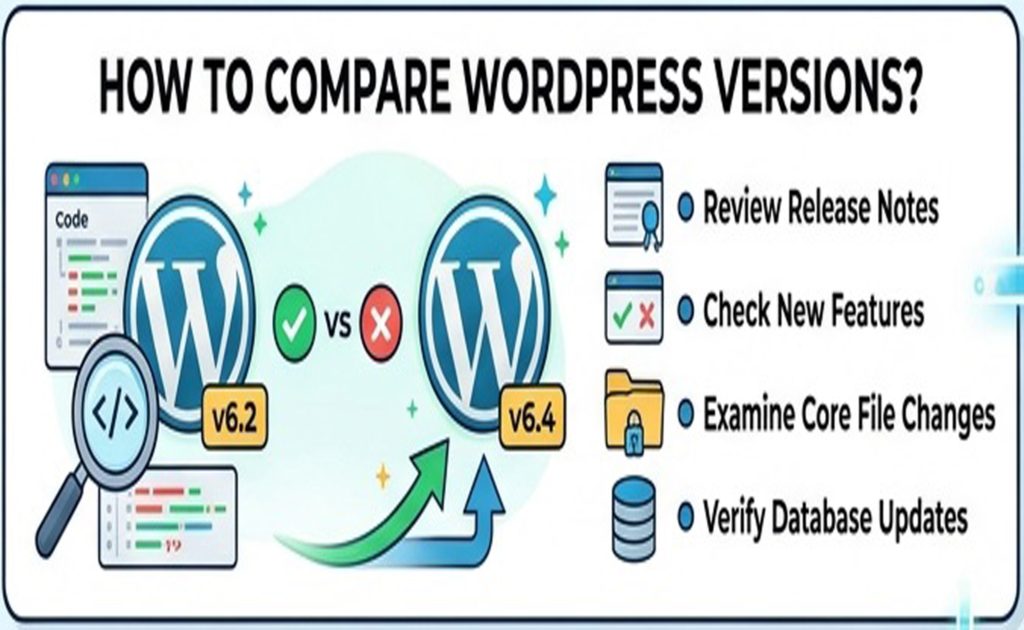
How to check your WordPress version
Follow these steps on both websites:
- Log in to your WordPress dashboard.
- Navigate to Dashboard → Updates.
- Check the installed WordPress version.
- Compare the versions of both websites.
- Review the plugin’s documentation for its supported WordPress versions.
If the websites use different WordPress versions, investigate whether that difference explains the problem.
How to fix the issue
If one website runs an outdated WordPress version, create a backup and update it to a supported release after checking compatibility with its theme and other plugins.
You should also update the affected plugin to a version that supports your WordPress installation.
Avoid updating a live website without preparation, particularly if it runs an online store or another business-critical service.
For more information, consult the official WordPress documentation.
2. Check the PHP Version and Server Configuration
PHP is the programming language that powers WordPress and most of its plugins. Different websites can run different PHP versions even when they use the same hosting company.
This is one of the most important reasons a WordPress plugin may work on one website but fail on another.
For example, Website A might use a PHP version supported by the plugin, while Website B runs an incompatible version. The plugin could produce a fatal error, fail to activate, or stop working when a particular feature is used.
Other server-level differences can also cause problems, including missing PHP extensions, restrictive execution settings, and insufficient memory limits.
How to check your PHP version
On each website:
- Open the WordPress dashboard.
- Navigate to Tools → Site Health.
- Select the Info tab.
- Expand the Server section.
- Review the PHP version, memory limit, and other available server details.
Compare the information from both websites.
You can also check your PHP version through your hosting control panel.
How to fix PHP compatibility problems
If the websites use different PHP versions, review the plugin’s technical requirements.
If the failing website uses an unsupported PHP version, ask your hosting provider about switching to a compatible, supported version.
Do not assume that installing the newest PHP version will automatically solve every plugin issue. Older plugins may contain code that is incompatible with newer PHP releases.
Similarly, do not downgrade PHP without checking the compatibility and security implications for the entire website.
Important: Choose a PHP version supported by your WordPress installation, plugin, theme, and hosting environment. The goal is to establish compatibility across the complete website, not simply to match the PHP version of another site.
You can review the current recommendations on the official WordPress requirements page.
3. Identify Conflicts Between WordPress Plugins
Plugin conflicts are another common explanation for why the same plugin behaves differently across two websites.
WordPress plugins are developed by different authors, and their code may interact with the same functions, scripts, database records, or website components.
A plugin can work perfectly on a website with five active plugins but fail on another website with fifteen active plugins.
For example, imagine that you install a form plugin on two websites. On the first website, form submissions work correctly. On the second, the form appears on the page, but the submit button does nothing.
The problem might be caused by another plugin that loads a conflicting JavaScript library or modifies the form’s behavior.
Other potential sources of conflicts include:
- Caching and optimization plugins.
- Security and firewall plugins.
- Page builders and visual editors.
- SEO plugins that modify related metadata.
- Plugins that provide overlapping functionality.
- Plugins that modify scripts, stylesheets, or database operations.
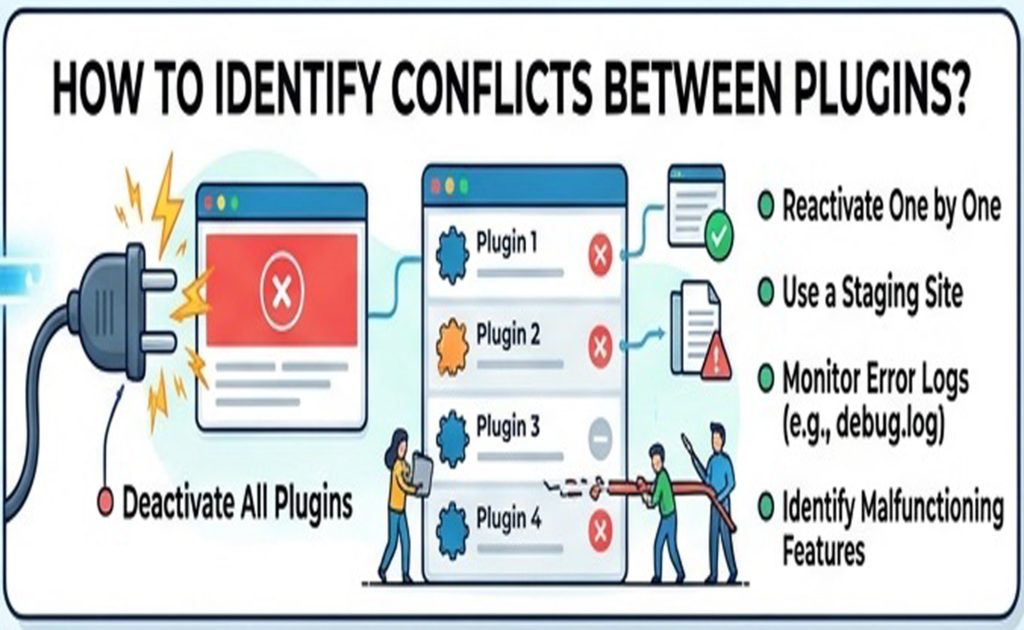
How to identify a plugin conflict
The safest approach is to troubleshoot on a staging website.
First, create a backup of the affected website. Then follow these steps:
- Open Plugins → Installed Plugins.
- Record which plugins are currently active.
- Enable troubleshooting mode using the Health Check & Troubleshooting plugin, where available.
- Test the affected plugin with other plugins disabled in the troubleshooting session.
- If the problem disappears, enable the other plugins one at a time.
- Test the affected feature after activating each plugin.
- Identify the combination that causes the problem.
Troubleshooting mode is useful because it allows you to investigate plugin and theme issues without making the same changes visible to ordinary visitors.
If the affected plugin works when tested alone but fails when another plugin is enabled, you have strong evidence of a conflict.
How to fix a plugin conflict
Once you identify the conflicting plugin, check whether either plugin has a setting that prevents the conflict.
You can also:
- Update both plugins to compatible versions.
- Disable the overlapping feature in one plugin.
- Contact the developers for assistance.
- Replace an abandoned or incompatible plugin if necessary.
Do not permanently deactivate important security, backup, or business-critical plugins without understanding the consequences.
For additional guidance, read the official WordPress plugin conflict troubleshooting guide.
4. Test Whether Your WordPress Theme Is Causing the Problem
Your WordPress theme controls much of your website’s appearance, but it can also affect how plugins function.
Some themes include custom JavaScript, CSS, templates, and additional functionality. If this code conflicts with a plugin, certain features may stop working.
For instance, a plugin might work correctly with a standard WordPress theme but fail when used with a heavily customized theme.
This can happen with contact forms, pop-ups, page builders, sliders, navigation menus, and other interactive features.
How to test for a theme conflict
On a staging website:
- Back up the website before making changes.
- Temporarily deactivate other plugins if necessary to isolate the issue.
- Activate a default WordPress theme, such as Twenty Twenty-Five, if available and compatible with your installation.
- Test the affected plugin again.
- Compare the results with those obtained using your original theme.
If the plugin starts working with the default theme, your original theme or its interaction with another component may be responsible.
For a more accurate diagnosis, test the theme and plugin separately before testing them together.
How to resolve theme compatibility issues
Start by updating your theme to a supported version.
Next, check the theme developer’s documentation and support resources for known compatibility issues.
If the problem persists, contact the theme developer with details about the plugin and the behavior you observed.
You may also need to adjust custom JavaScript, template overrides, or theme-specific settings.
Avoid editing a parent theme’s files directly because future updates can overwrite your changes. If custom code is necessary, use a child theme or another appropriate customization method.
5. Check Plugin Settings and Configuration Differences
Sometimes, the plugin is working correctly on both websites, but its configuration differs.
This is easy to overlook when you manage several WordPress installations.
Even when the same plugin is installed on both sites, the settings may not be identical. One website might have a feature enabled while the other has it disabled.
Configuration differences can affect:
- API keys and external service connections.
- License activation.
- Email delivery settings.
- User permissions and access restrictions.
- Shortcodes and block settings.
- Custom post types and display rules.
- Webhook URLs and callback settings.
- Conditional logic and feature toggles.
For example, an email marketing plugin may work correctly on Website A because its API key is valid. On Website B, the plugin may be installed and activated, but its connection fails because the API key is missing or invalid.
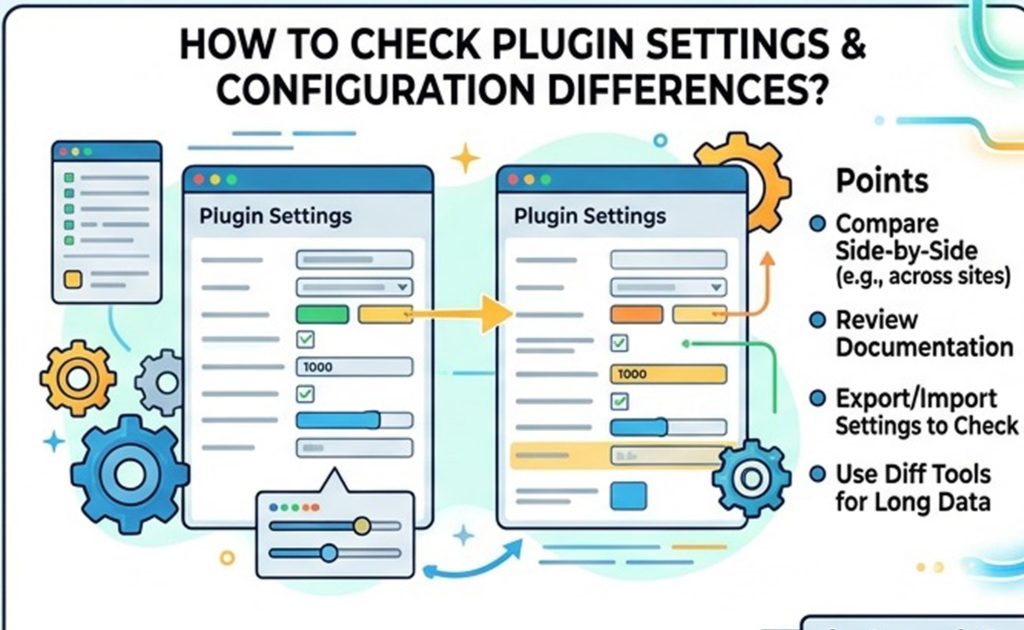
How to compare plugin settings
Open the plugin’s settings page on both websites.
Compare each relevant option, paying particular attention to connection details, feature activation, permissions, and any warning messages.
If the plugin connects to an external service, verify that the account, API credentials, domain authorization, and service permissions are correct.
Also check whether the plugin requires a separate setup process after activation.
How to fix configuration issues
Correct the settings on the failing website and test the affected feature again.
If the plugin provides an export and import function, you may be able to transfer supported settings between websites.
However, do not copy the entire WordPress database or overwrite production settings simply to make two websites identical. Doing so can damage site-specific configurations or replace important information.
Always review exported settings before importing them, particularly if they contain credentials, domain-specific URLs, or integration details.
6. Clear WordPress Cache and Browser Cache
Caching can make it appear that a WordPress plugin is broken even when its code and configuration are correct.
WordPress websites may use several caching layers, including browser caching, page caching, object caching, server-level caching, and content delivery networks (CDNs).
If one website serves outdated cached content while another displays the latest version, their behavior may differ.
For example, you might update a plugin or change its settings, but the affected website continues displaying an old page. Alternatively, a JavaScript file may be cached after an update and fail to work with the plugin’s current code.
How to troubleshoot caching problems
Follow these steps:
- Clear your browser cache or test the website in a private browsing window.
- Purge the cache using your WordPress caching plugin.
- Clear the cache through your hosting control panel, if available.
- Purge the CDN cache if your website uses a service such as Cloudflare.
- Test the affected plugin again.
You can also open your browser’s developer tools and inspect the Network tab to check whether relevant scripts, stylesheets, or requests are returning errors.
If the plugin starts working after the cache is cleared, investigate the caching configuration rather than assuming the plugin itself was defective.
Prevent caching-related plugin issues
Avoid aggressive JavaScript optimization until you have confirmed that the plugin works correctly.
Features such as script combination, delayed JavaScript execution, and deferred loading can interfere with interactive plugin functionality.
If testing identifies a specific optimization rule as the cause, configure an appropriate exclusion for the affected script or feature.
Clear the relevant caches after changing the settings, then test the website again.
7. Inspect WordPress Debug Logs for PHP Errors
If the plugin still fails, inspect the error logs.
A WordPress plugin may encounter a PHP fatal error, call an unavailable function, exceed a memory limit, or fail while communicating with another component.
The visible symptom might be a blank page, a critical error message, a missing feature, or a plugin that fails to activate.
Error logs help you move beyond guesswork and identify what happened when the problem occurred.
How to enable WordPress debugging
Before changing configuration files, create a backup and preferably reproduce the issue on a staging website.
Open your WordPress installation’s wp-config.php file through your hosting File Manager or an appropriate secure file-management tool.
Add the following settings before the line that says /* That's all, stop editing! Happy publishing. */, if equivalent constants are not already defined:
define( 'WP_DEBUG', true );
define( 'WP_DEBUG_LOG', true );
define( 'WP_DEBUG_DISPLAY', false );
These settings enable WordPress debugging, write supported debug messages to a log file, and prevent those messages from being displayed directly on public pages.
Reproduce the plugin error and inspect:
wp-content/debug.log
Look for entries that identify the plugin’s directory, the file where the error occurred, or the function that triggered the failure.
You can also review your hosting provider’s PHP error logs because some server-level errors may not appear in the WordPress debug log.
For more information, consult the official WordPress debugging documentation.
Security reminder: Debug logs can contain sensitive information. Restrict access to them and disable debugging when troubleshooting is complete. Remove or secure any exposed logs before returning the site to normal operation.
8. Check File Permissions and Plugin Installation Integrity
Another possible cause is a damaged or incomplete plugin installation.
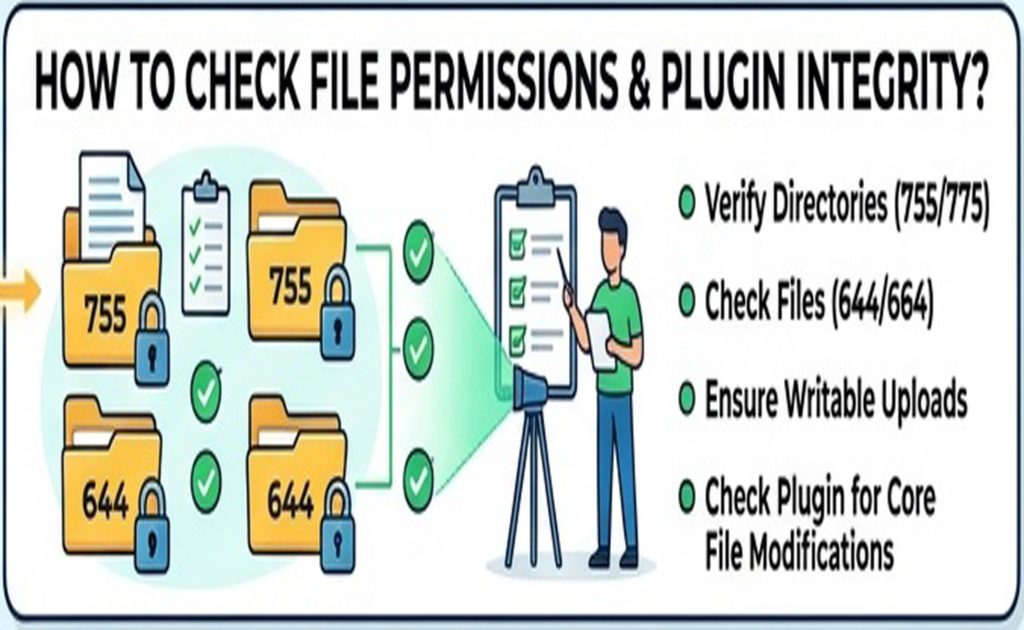
For example, a plugin update might have been interrupted, leaving some files missing or outdated. File permissions may also prevent WordPress from reading plugin files or writing data required by a feature.
These issues are particularly worth investigating if the plugin fails to activate, displays missing-file errors, or behaves differently after a failed update.
How to check the installation
First, compare the installed plugin versions on both websites.
Then review the plugin’s files and directories through your hosting File Manager or another suitable tool.
Check for:
- Missing files or directories.
- Incomplete plugin updates.
- Unexpected changes to plugin files.
- Incorrect file ownership or permissions.
- Errors related to writing files or directories.
If you suspect that the installation is corrupted, download a fresh copy from the plugin’s official source and reinstall it using the recommended procedure.
Before replacing files, make a backup and check whether the plugin stores custom code or important configuration in its installation directory.
Do not delete plugin data tables or reset plugin settings unless you understand the consequences.
File permissions should follow your hosting provider’s recommendations. Avoid setting permissions to 777, as this can create serious security risks.
9. Verify API Connections, Licensing, and External Services
Many WordPress plugins depend on external services to perform their functions.
Examples include payment gateways, email delivery platforms, analytics services, cloud APIs, license servers, and third-party integrations.
A plugin can therefore work on one website but fail on another because the external service treats the two installations differently.
Possible causes include:
- An invalid or expired API key.
- A license that has not been activated on the second domain.
- Incorrect webhook configuration.
- Firewall rules blocking outgoing requests.
- SSL certificate or HTTPS configuration problems.
- API rate limits or account restrictions.
- Different callback URLs or domain authorization settings.
How to diagnose external integration problems
Open the plugin’s settings and look for connection errors.
Confirm that the correct API credentials are configured on the affected website. Review the external service’s dashboard for authorization problems, failed requests, or domain restrictions.
If the plugin offers a connection test, run it and record the result.
You can also inspect the browser’s Network tab for failed browser requests and check the server logs for errors involving outbound HTTP requests.
Remember that not every failed integration request is caused by the plugin. The external service, network configuration, hosting firewall, or credentials may be responsible.
How to resolve the issue
Refresh or replace invalid credentials using the external service’s official dashboard.
Update domain authorization settings where necessary and confirm that the plugin’s required endpoints are accessible.
If the service is temporarily unavailable, check its status information and try again after the issue has been resolved.
Never share API secrets, passwords, or license credentials in a public support forum.
10. Compare Memory Limits and Other Server Resources
A plugin may work on one website but fail on another because the second environment has fewer available resources.
This can happen when a plugin processes large amounts of data, generates reports, imports products, creates backups, or performs complex database operations.
The affected website might display a memory exhaustion error, time out during an operation, or fail to complete a task.
How to check resource limitations
Navigate to Tools → Site Health → Info and inspect the available server information.
You should also review your hosting dashboard for PHP memory limits, execution time limits, and any resource usage restrictions.
Check your server logs for messages related to exhausted memory, terminated processes, or request timeouts.
How to resolve resource problems
If the plugin exceeds an applicable limit, ask your hosting provider whether the relevant resource allocation can be adjusted.
You can also reduce the amount of data processed in a single operation, disable unnecessary background tasks, or optimize the plugin’s configuration.
Increasing resource limits is not always the best solution. If a plugin contains inefficient code or triggers excessive database queries, the underlying performance problem may need to be addressed.
Test any configuration changes carefully, especially on shared hosting environments.
11. Use a Systematic Troubleshooting Checklist
If you have tried several solutions without identifying the cause, compare both websites using a consistent checklist.
This approach helps you isolate differences instead of making multiple changes at once.
| Item to compare | What to check | Why it matters |
|---|---|---|
| WordPress version | Installed core version | Determines compatibility with plugin code |
| Plugin version | Exact installed release | Different releases may contain different fixes |
| PHP version | Server PHP configuration | Affects supported functions and code execution |
| Active plugins | Installed and active extensions | Helps identify conflicts |
| Active theme | Theme and version | May introduce JavaScript, template, or code conflicts |
| Plugin settings | Features, permissions, and integrations | Different configurations can produce different results |
| Cache settings | Browser, server, plugin, and CDN caches | May serve outdated files or content |
| Error logs | PHP and WordPress errors | Can reveal the underlying failure |
| File integrity | Missing or damaged plugin files | Identifies installation problems |
| External connections | API keys, licenses, and webhooks | Detects integration failures |
| Server resources | Memory and execution limits | Identifies resource-related errors |
Start with the differences most closely related to the symptom you are experiencing.
For example, if the plugin fails immediately upon activation, check PHP compatibility and error logs first. If the plugin activates but a button does not work, inspect JavaScript errors, plugin conflicts, and caching.
The key is to change one variable at a time and test after each change. This makes it easier to identify the actual cause and reduces the risk of creating additional problems.
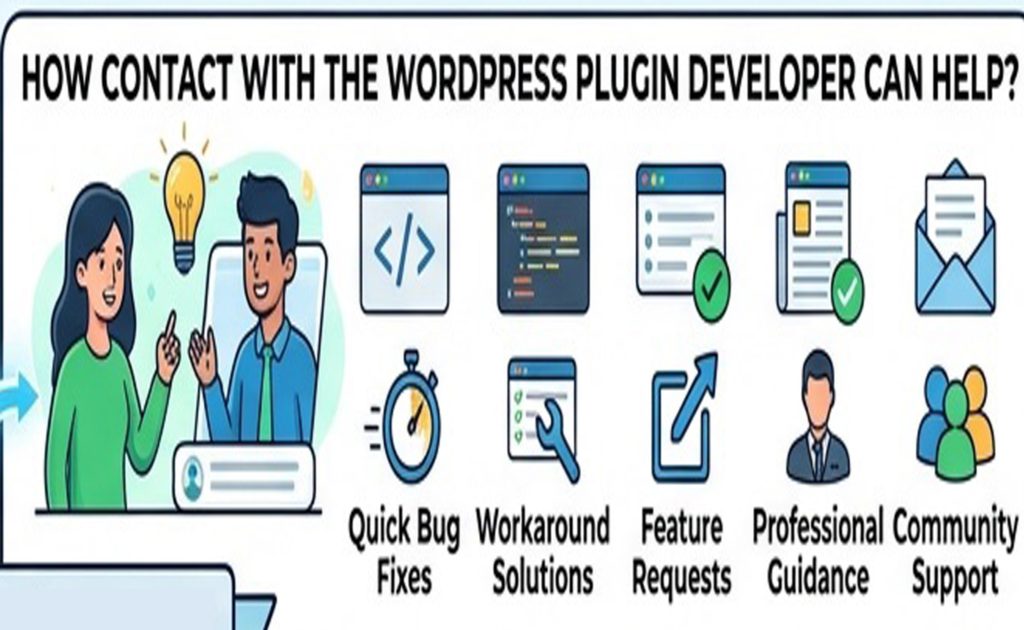
12. Contact the Plugin Developer if the Problem Persists
Sometimes, troubleshooting reveals a genuine software bug or a compatibility issue that cannot be resolved through configuration changes.
If you have checked the main causes and the plugin still does not work, contact its developer or support team.
Provide enough information for the developer to reproduce the issue.
Include:
- The plugin name and installed version.
- The WordPress version on both websites.
- The PHP version and hosting environment.
- The active theme and relevant plugins.
- A clear description of the expected behavior.
- The actual behavior on the failing website.
- The exact error message, if available.
- The troubleshooting steps you have already completed.
Explain that the same plugin works on one website but not the other, and identify any differences you discovered.
For example, if the plugin works when tested alone but fails when a particular plugin is activated, include that finding.
A clear report helps the developer narrow down the problem more efficiently.
If the plugin is available through the official WordPress plugin directory, you can also review its documentation and support discussions for similar reports.
Frequently Asked Questions (FAQs)
Why does a WordPress plugin work on one website but not another?
The most common reasons include differences in WordPress versions, PHP configurations, active plugins, themes, plugin settings, caching systems, and server resources. External API connections and licensing restrictions can also cause different behavior between websites.
Compare both installations and test the failing plugin in a controlled environment to identify the cause.
Can two WordPress websites use the same plugin differently?
Yes. Installing the same plugin on two websites does not guarantee identical behavior. Each website has its own settings, theme, plugins, database, server configuration, and external integrations.
A plugin may also offer different features depending on its license, account permissions, or configuration.
How can I tell whether another plugin is causing a conflict?
Test the affected plugin with other plugins disabled in a staging environment or an appropriate troubleshooting session. Then activate the other plugins one at a time and check the affected feature after each activation.
If the problem appears only when a particular plugin is active alongside the affected plugin, a conflict is likely.
Should I reinstall a WordPress plugin that is not working?
Reinstalling can help if the plugin’s files are missing or corrupted. However, it will not necessarily fix problems caused by incompatible PHP versions, plugin conflicts, incorrect settings, or server restrictions.
Investigate the likely cause first, and back up the website before replacing plugin files.
Can a PHP version cause WordPress plugin compatibility issues?
Yes. A plugin may rely on PHP features that are unavailable in an older version, or its code may be incompatible with a newer version.
Check the plugin’s documented PHP requirements and compare them with the PHP version running on your website.
Is it safe to deactivate plugins while troubleshooting?
Temporarily deactivating plugins is a useful diagnostic technique, but it can affect website functionality. For example, disabling an ecommerce, security, or caching plugin may change how your website operates.
Use a staging environment whenever possible. Alternatively, use a troubleshooting tool that isolates changes to your administrator session when supported.
What should I do if the plugin causes a critical error?
First, restore access to the website by following your hosting provider’s recovery procedure or deactivating the affected plugin through the WordPress dashboard, hosting File Manager, or another appropriate method.
Then inspect the error logs, verify compatibility, and test the plugin in a staging environment before attempting to reactivate it.
Conclusion
When a WordPress plugin works on one website but not another, the problem usually lies in differences between the two environments rather than the plugin’s name or purpose.
WordPress versions, PHP configurations, active plugins, themes, caching systems, installation integrity, external connections, and server resources can all influence how a plugin behaves.
The most effective troubleshooting strategy is to compare both websites, reproduce the problem in a controlled environment, and investigate one possible cause at a time.
Start by checking WordPress and PHP versions. Next, investigate plugin and theme conflicts, compare settings, clear caches, and review error logs. If necessary, inspect file permissions, external integrations, and server resource limits.
Always create a backup before making significant changes, and use a staging website whenever possible to protect your live site’s functionality.
By following these steps, you can identify why a WordPress plugin works on one website but not another, reduce unnecessary troubleshooting, and determine whether the solution involves a configuration change, a compatibility fix, or assistance from the plugin developer.