Introduction
Importing data into WordPress manually can become time-consuming when a website contains hundreds or thousands of records. Whether you manage products, customer information, staff directories, events, locations, or custom post types, entering each record individually is inefficient and increases the risk of human error.
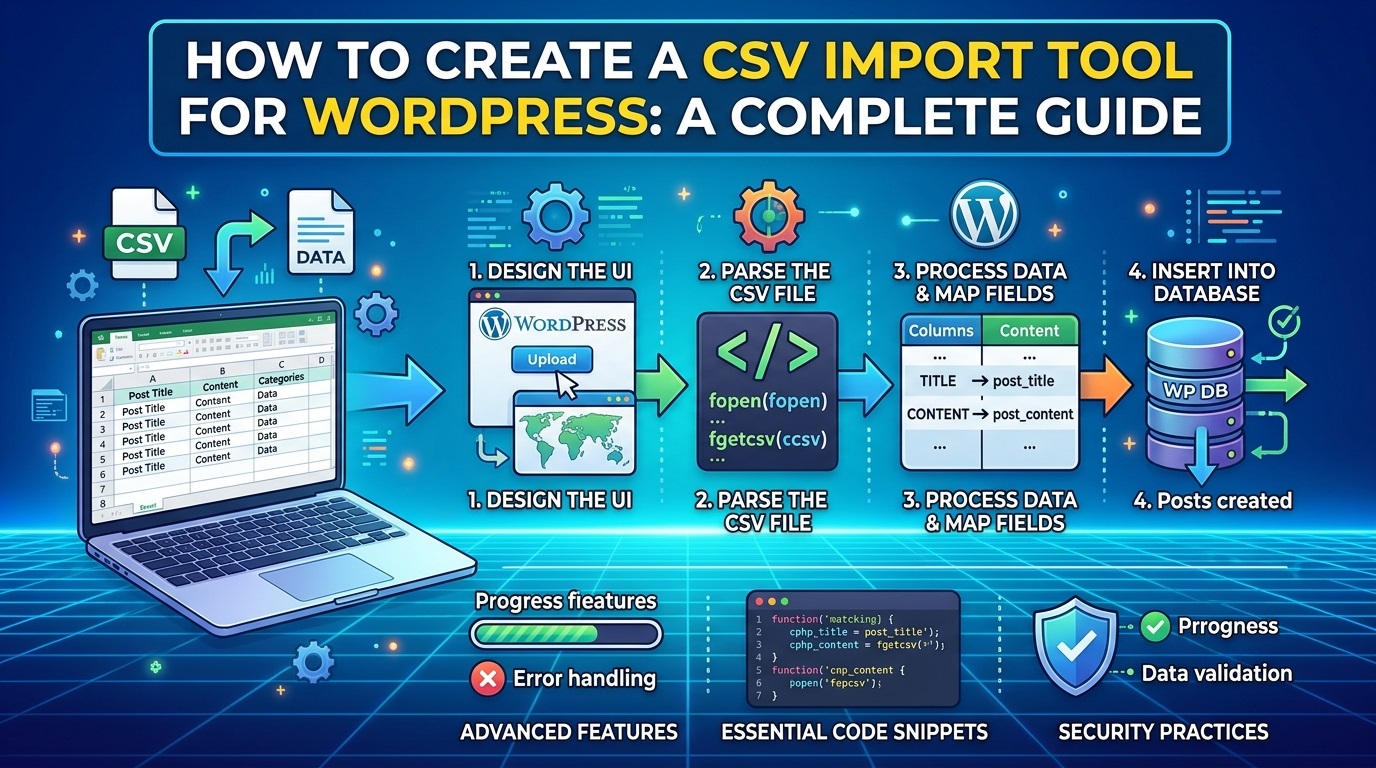
A CSV import tool for WordPress solves this problem by allowing administrators to upload a Comma-Separated Values (CSV) file and import its contents into a WordPress website automatically. Instead of copying information from a spreadsheet into individual fields, users can prepare their data in Microsoft Excel, Google Sheets, or another spreadsheet application and transfer it in a structured format.
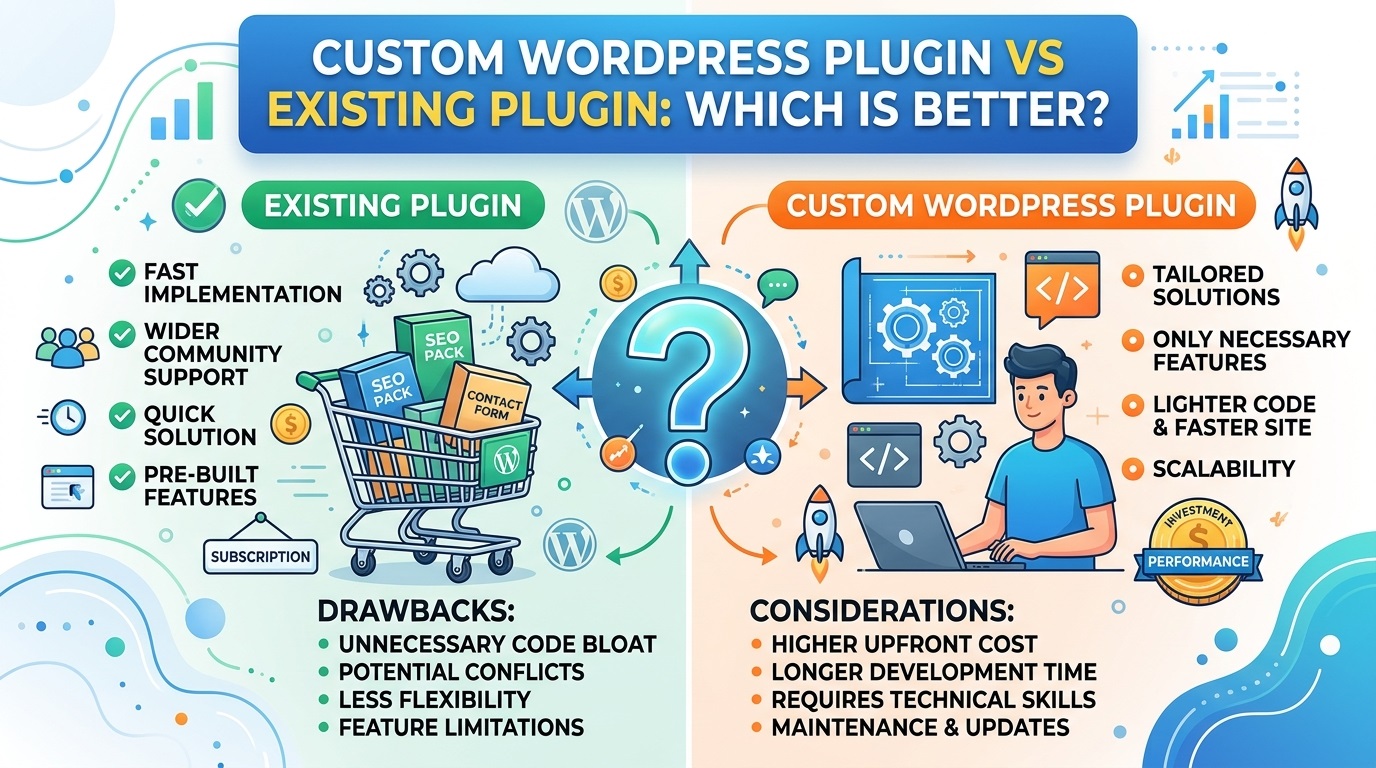
Creating a custom CSV importer is particularly useful when an existing plugin does not support your data structure, business requirements, or custom fields. A tailored solution can provide column mapping, validation, duplicate detection, import previews, error reports, and support for custom post types.
In this guide, you will learn how to create a CSV import tool for WordPress using PHP and the WordPress Plugin API. You will also discover important security considerations, recommended development practices, and ways to improve the importer for large datasets.
What Is a CSV Import Tool for WordPress?
A CSV import tool is a software component that reads tabular data from a CSV file and transfers it into a database or another destination within WordPress.
CSV stands for Comma-Separated Values. It is a simple text-based format in which each line usually represents a record and individual fields are separated by commas.
For example, a CSV file containing employee information might look like this:
name,email,department
John Smith,john@example.com,Development
Sarah Ahmed,sarah@example.com,Marketing
David Khan,david@example.com,Support
A WordPress importer can read these rows and use the information to create posts, populate custom fields, or update existing records, depending on how the tool is designed.
CSV importers are useful for:
- Importing blog posts and pages.
- Creating custom post type entries.
- Importing product catalog information.
- Updating metadata and custom fields.
- Migrating data from spreadsheets or another content management system.
- Importing directories, locations, events, and other structured records.
The exact functionality depends on the importer. For example, a tool designed for blog posts will have different validation rules from one designed to import WooCommerce products.
Why Build a Custom CSV Importer?
WordPress offers several existing import solutions, and using an established plugin may be the best option for a straightforward project. However, custom development becomes valuable when you need more control over the import process.
1. Support for custom data structures
A custom importer can work with your own post types, taxonomies, metadata fields, and business-specific records.
2. Flexible column mapping
Users can map CSV headings such as product_name or event_date to the appropriate WordPress fields without manually editing the source file.
3. Better validation and error reporting
A well-designed tool can identify missing values, invalid email addresses, incorrect dates, and duplicate records before saving anything.
4. Controlled updates
An importer can distinguish between creating new records and updating existing records. This is important when the same file is imported more than once.
5. Integration with other plugins
Custom import functionality can be integrated with membership systems, directories, booking applications, and other WordPress plugins.
Before developing a new solution, review the official WordPress Importer plugin and the WordPress Plugin Directory. An existing tool may already meet your requirements.
Step 1: Plan the CSV Import Tool
Before writing PHP code, define what the importer should do.
For a basic implementation, establish the following requirements:
- The importer should be available only to authorized administrators.
- Users should be able to upload a CSV file.
- The tool should read the CSV header and data rows.
- Required fields should be validated.
- Imported records should be saved using WordPress APIs.
- Invalid rows should produce understandable error messages.
- The process should not expose sensitive information or execute uploaded content.
You should also decide whether the importer will create new posts, update existing posts, populate custom fields, or support several operations.
For this tutorial, the example importer will create WordPress posts using three CSV columns: title, content, and status.
A sample file will look like this:
title,content,status
First Imported Article,This is the first imported article.,draft
Second Imported Article,This is the second imported article.,draft
Using draft status during initial testing is a sensible precaution because it allows administrators to review imported content before publication.
Step 2: Create a WordPress Plugin
The cleanest approach is to implement the importer as a standalone plugin rather than placing all the code in your theme’s functions.php file.
A standalone plugin is easier to maintain and continues working if you change themes.
Create the following directory:
wp-content/plugins/custom-csv-importer/
Inside this directory, create a file named:
custom-csv-importer.php
Add this plugin header:
<?php
/**
 * Plugin Name: Custom CSV Importer
 * Description: Imports posts from CSV files through an administrator-only tool.
 * Version: 1.0.0
 * Requires PHP: 7.4
 * Requires at least: 6.0
 * License: GPL-2.0-or-later
 * Text Domain: custom-csv-importer
 */

if ( ! defined( 'ABSPATH' ) ) {
    exit;
}
The ABSPATH check prevents the file from running directly outside a normal WordPress loading context.
The PHP and WordPress version declarations are examples, not a guarantee that the finished plugin supports every version listed. Test against the versions you intend to support, and adjust the requirements to match your implementation.
For additional guidance, consult the official WordPress plugin header documentation and Plugin Handbook.
Step 3: Add an Import Page to the WordPress Dashboard
The importer needs an interface through which authorized users can upload files.
WordPress provides the admin_menu hook for registering dashboard menu items. An example implementation is shown below:
add_action( 'admin_menu', 'cci_register_import_page' );

function cci_register_import_page() {
    add_management_page(
        'CSV Importer',
        'CSV Importer',
        'manage_options',
        'cci-csv-importer',
        'cci_render_import_page'
    );
}

function cci_render_import_page() {
    if ( ! current_user_can( 'manage_options' ) ) {
        wp_die(
            esc_html__(
                'You do not have permission to access this page.',
                'custom-csv-importer'
            )
        );
    }
    ?>
    <div class="wrap">
        <h1><?php esc_html_e( 'CSV Importer', 'custom-csv-importer' ); ?></h1>

        <p>
            <?php
            esc_html_e(
                'Upload a CSV file containing title, content, and status columns.',
                'custom-csv-importer'
            );
            ?>
        </p>

        <form method="post"
              action="<?php echo esc_url( admin_url( 'admin-post.php' ) ); ?>"
              enctype="multipart/form-data">

            <input type="hidden"
                   name="action"
                   value="cci_import_csv">

            <?php wp_nonce_field( 'cci_import_csv_action', 'cci_import_nonce' ); ?>

            <label for="cci_csv_file">
                <?php esc_html_e( 'Select CSV file', 'custom-csv-importer' ); ?>
            </label>

            <input type="file"
                   id="cci_csv_file"
                   name="cci_csv_file"
                   accept=".csv,text/csv"
                   required>

            <?php submit_button( __( 'Import CSV', 'custom-csv-importer' ) ); ?>
        </form>
    </div>
    <?php
}
This code adds a CSV Importer page under Tools in the WordPress administration dashboard.
Three important elements are included:
manage_optionsrestricts access to users who have the relevant capability.wp_nonce_field()adds a nonce field to help protect the form against cross-site request forgery.enctype="multipart/form-data"enables file uploads.
The HTML accept attribute helps users select the appropriate file type, but it is not a security control. The server must validate the uploaded file independently.
See the official WordPress administration menus documentation for more information.
Step 4: Process the Uploaded CSV File
The form submits its data to admin-post.php. WordPress uses the submitted action value to identify the handler.
Register the handler as follows:
add_action( 'admin_post_cci_import_csv', 'cci_handle_csv_import' );

function cci_handle_csv_import() {
    if ( ! current_user_can( 'manage_options' ) ) {
        wp_die( 'You are not allowed to import data.' );
    }

    check_admin_referer(
        'cci_import_csv_action',
        'cci_import_nonce'
    );

    if (
        ! isset( $_FILES['cci_csv_file'] ) ||
        ! is_array( $_FILES['cci_csv_file'] )
    ) {
        wp_die( 'Please select a CSV file.' );
    }

    $file = $_FILES['cci_csv_file'];

    if (
        ! isset( $file['error'], $file['tmp_name'] ) ||
        UPLOAD_ERR_OK !== $file['error'] ||
        ! is_uploaded_file( $file['tmp_name'] )
    ) {
        wp_die( 'The uploaded file could not be processed.' );
    }

    $max_size = 5 * 1024 * 1024;

    if (
        ! isset( $file['size'] ) ||
        $file['size'] > $max_size
    ) {
        wp_die( 'The CSV file must not exceed 5 MB.' );
    }

    $extension = strtolower(
        pathinfo( $file['name'], PATHINFO_EXTENSION )
    );

    if ( 'csv' !== $extension ) {
        wp_die( 'Please upload a file with a .csv extension.' );
    }

    $handle = fopen( $file['tmp_name'], 'r' );

    if ( false === $handle ) {
        wp_die( 'Unable to read the uploaded file.' );
    }

    // Parse and validate the CSV rows here.

    fclose( $handle );

    wp_safe_redirect(
        add_query_arg(
            'cci_import',
            'completed',
            admin_url( 'tools.php?page=cci-csv-importer' )
        )
    );
    exit;
}
This example checks the user’s permissions, verifies the nonce, confirms that PHP received an uploaded file, limits its size, and checks the extension before opening the file.
Important: An extension check alone does not establish that a file is valid CSV. A production implementation should also validate the file’s structure, encoding, headers, row count, and field values. Consider the server’s upload limits and the maximum amount of processing your hosting environment can handle.
The example intentionally leaves the parsing stage for the next step.
Step 5: Read CSV Headers and Rows
PHP provides functions for reading CSV files without requiring you to write your own comma-splitting algorithm.
The fgetcsv() function reads a record and converts its fields into an array. It can handle quoted fields containing commas and other CSV-specific details.
For example:
$handle = fopen( $file['tmp_name'], 'r' );

if ( false === $handle ) {
    wp_die( 'Unable to open the CSV file.' );
}

$headers = fgetcsv( $handle, null, ',', '"', '' );

if ( false === $headers || empty( $headers ) ) {
    fclose( $handle );
    wp_die( 'The CSV file is empty or invalid.' );
}

$headers = array_map(
    static function ( $header ) {
        return strtolower( trim( (string) $header ) );
    },
    $headers
);

$required_headers = array( 'title', 'content', 'status' );

if ( array_diff( $required_headers, $headers ) ) {
    fclose( $handle );
    wp_die(
        'The CSV file must contain title, content, and status columns.'
    );
}

while ( false !== ( $row = fgetcsv( $handle, null, ',', '"', '' ) ) ) {
    if ( count( $row ) !== count( $headers ) ) {
        // Record a row-level error and continue or stop as appropriate.
        continue;
    }

    $data = array_combine( $headers, $row );

    if ( false === $data ) {
        continue;
    }

    // Validate and import the current record here.
}

fclose( $handle );
The example uses an explicit empty escape parameter to avoid relying on PHP’s legacy default escape behavior. Confirm compatibility with the PHP versions you support.
For a production importer, you should also consider a UTF-8 byte-order mark (BOM), blank lines, alternate delimiters, line endings, malformed records, and duplicate column names. Reject duplicate headers instead of silently allowing one column to overwrite another.
Read the official PHP fgetcsv() documentation for the supported arguments and behavior.
Step 6: Validate and Sanitize Imported Data
Data validation is one of the most important parts of a CSV importer.
A valid CSV file can still contain incorrect, unexpected, or malicious values. The importer should validate every field according to its intended use before creating or updating WordPress content.
For the example importer, validate the title, content, and status separately:
$title = sanitize_text_field( $data['title'] );
$content = wp_kses_post( $data['content'] );
$status = sanitize_key( $data['status'] );

$allowed_statuses = array( 'draft', 'pending' );

if ( '' === $title ) {
    // Report an error: title is required.
    continue;
}

if ( ! in_array( $status, $allowed_statuses, true ) ) {
    // Report an error: unsupported post status.
    continue;
}
This approach applies different rules to different kinds of information.
Sanitize text fields
Use sanitize_text_field() for ordinary text such as names, titles, and short labels. It removes unwanted characters and markup rather than preserving arbitrary HTML.
Handle rich content carefully
Use wp_kses_post() when the imported content should allow HTML permitted in WordPress post content. If your application requires plain text only, use a stricter approach.
Validate enumerated values
A status field should accept only the values the importer supports. Sanitizing a value does not automatically make it valid.
Validate dates, numbers, and email addresses
Use appropriate validation for each field. For example, validate an email address with is_email() and validate dates against an explicitly chosen format.
Review the WordPress data validation documentation and sanitization documentation when implementing your own field rules.
Validation and sanitization serve different purposes: validation determines whether a value is acceptable, while sanitization transforms data into an appropriate representation.
Step 7: Insert Records Using WordPress APIs
After validating a row, use the WordPress APIs to create the corresponding record.
For the example post importer, the following code creates a draft or pending post:
$post_id = wp_insert_post(
    array(
        'post_title'   => $title,
        'post_content' => $content,
        'post_status'  => $status,
        'post_type'    => 'post',
    ),
    true
);

if ( is_wp_error( $post_id ) ) {
    // Record the error for the administrator.
    continue;
}

// Record a successful import.
The second argument, true, instructs wp_insert_post() to return a WP_Error object if the operation fails. This allows the importer to handle errors instead of assuming every record was saved successfully.
Using WordPress APIs is preferable to inserting rows directly into database tables. WordPress functions apply the expected content-handling behavior and help keep your implementation compatible with the platform.
Consult the official wp_insert_post() reference.
Importing custom post types
If your website uses a custom post type such as event, book, or portfolio, change the post_type value to the registered post type.
The post type must already be registered, and the importing user must have the necessary capabilities. For a more flexible importer, provide an administrator-controlled post type selection and verify that the chosen type is permitted.
Importing custom fields
Additional CSV columns can be mapped to post metadata using update_post_meta():
update_post_meta(
    $post_id,
    '_event_location',
    sanitize_text_field( $data['location'] )
);
Only map fields that your plugin explicitly supports. Do not let arbitrary CSV headings determine unrestricted metadata operations.
For a full implementation, combine the upload handler, parser, validation rules, and insertion logic into a single import workflow. The examples in this guide illustrate the main components; they are not a complete, ready-to-deploy plugin on their own.
Step 8: Prevent Duplicate Records
Duplicate handling becomes essential when users may upload the same CSV file multiple times.
Without a duplicate policy, repeated imports can create multiple posts with identical titles or repeat records that should exist only once.
Common approaches include:
Unique external identifier: Add a column such as external_id and store it in post metadata. Before inserting a record, look for an existing record with that identifier.
Unique business key: For certain datasets, a validated SKU, registration number, or other stable identifier may be suitable.
Update existing records: If a match exists, update the relevant fields instead of creating a new post.
Skip duplicates: Ignore matching rows and report them in the import summary.
Do not rely on titles alone if titles can legitimately repeat or change. Choose an identifier that remains stable across imports.
For larger datasets, repeated metadata queries can become expensive. Consider an indexed lookup strategy or a dedicated table with a unique database constraint when the application requires reliable large-scale matching.
Step 9: Add an Import Preview
An import preview allows users to review data before it is written to WordPress.
A useful preview should show:
- The number of detected data rows.
- The recognized CSV column headings.
- A sample of the first several records.
- Missing required fields.
- Invalid values and formatting issues.
- Potential duplicates.
- The expected number of new and updated records.
A two-stage workflow is preferable for important datasets.
First, upload and validate the file without modifying content. Then display the preview and ask the administrator to confirm the import.
For a robust implementation, store the validated import as a temporary, server-side import job and associate it with the authorized user. When the user confirms, recheck the job’s permissions, expiry, and integrity before processing it. Avoid trusting editable client-side preview data as the source of truth.
A preview reduces mistakes such as importing the wrong columns, publishing unfinished content, or uploading a file containing incorrect records.
Step 10: Report Errors and Import Results
An effective CSV import tool should explain what happened after processing a file.
A basic import summary could contain:
- Total rows detected.
- Records imported successfully.
- Existing records updated.
- Duplicate rows skipped.
- Rows rejected by validation.
- Database or WordPress API errors.
For each rejected row, provide the row number and a useful explanation, such as:
- Row 4: title is missing.
- Row 7: unsupported post status.
- Row 11: column count does not match the header.
- Row 15: WordPress could not create the post.
Avoid showing raw PHP errors, server paths, database credentials, or other sensitive details to ordinary users. Log diagnostic information securely when necessary, and display a safe, understandable message in the dashboard.
For large files, save error reports in a controlled location and provide a secure way for the authorized user to retrieve them. Do not place sensitive reports in a publicly accessible uploads directory.
Step 11: Secure the Importer
Because a CSV importer accepts externally supplied files and data, security must be part of the design from the beginning.
Check permissions
Verify the user’s capabilities both when displaying the page and when processing the upload. Hiding an interface is not a substitute for server-side authorization.
Verify nonces
Use WordPress nonce functions to help protect administrative requests against CSRF. Nonces do not replace authorization checks.
Limit file size and row count
Restrict the maximum upload size, number of rows, number of columns, and maximum field length. These limits help prevent excessive memory use and processing time.
Use WordPress APIs
Avoid constructing raw SQL statements from CSV values. If direct database access is necessary, use the appropriate WordPress database methods and prepared queries.
Escape output
When displaying filenames, CSV headings, row values, or error messages, escape them for the relevant output context. For example, use esc_html() for plain text and esc_attr() for HTML attribute values.
Prevent spreadsheet formula injection
CSV exports and error reports can be opened in spreadsheet applications. Values beginning with formula-triggering characters may be interpreted as formulas by some applications. If the importer later produces downloadable CSV reports, consider a documented spreadsheet-safe output policy for untrusted values.
Protect uploaded data
Process temporary files safely, remove unnecessary copies, and avoid exposing personally identifiable information in logs. Do not assume that changing a filename extension makes a file safe.
The official WordPress security documentation provides further guidance on nonces, capabilities, escaping, validation, and related security practices.
Step 12: Handle Large CSV Files Efficiently
Importing a small CSV file is usually straightforward. Importing tens of thousands of records requires more careful architecture.
Processing an entire dataset in one request can exceed PHP execution time, memory limits, or hosting-provider resource limits.
Consider these improvements:
Batch processing: Import a limited number of rows per request, save the current position, and continue in subsequent batches.
Background jobs: Use a reliable background-processing mechanism when imports are too large for normal dashboard requests.
Progress reporting: Show processed rows, successful records, skipped rows, and remaining work.
Retry handling: Distinguish temporary failures from permanent validation errors and avoid creating duplicates when retrying a batch.
Resource limits: Set realistic limits for file size, row length, execution time, and the number of records processed per batch.
Import locking: Prevent two administrators or browser tabs from processing the same import job simultaneously.
For batch processing, save progress on the server rather than relying exclusively on a browser session. If using asynchronous requests, verify the user’s capability and the appropriate nonce on each request.
For additional background, review the WordPress HTTP API and asynchronous request guidance, and consider whether a scheduled task or a dedicated queue is appropriate for your hosting environment.
Step 13: Test the CSV Import Tool
Before using an importer on a live website, test it in a staging environment with a backup available.
Use a range of test files, including:
- A valid CSV with several records.
- A file with missing required columns.
- A file containing blank titles.
- Rows containing commas and quotation marks inside fields.
- A file with invalid status values.
- A file with duplicate records.
- An empty file and a header-only file.
- A file containing unusual Unicode characters.
- A file exceeding the configured size or row limit.
- A file with malformed records or unexpected column counts.
Also test permission restrictions, expired or missing nonces, interrupted imports, and database errors.
Verify the results in the WordPress dashboard and confirm that the importer has not created unintended public content.
Test with the PHP versions and WordPress releases you intend to support. If your plugin imports custom post types or metadata managed by other plugins, test those integrations independently.
Common Problems and Their Solutions
The CSV file uploads but no records are imported
Check that the column names match the importer’s expected headings. Confirm that the file contains data rows after the header and that the parser is reading the correct delimiter.
Some fields appear in the wrong columns
The CSV may contain unquoted commas, malformed quotation marks, or inconsistent column counts. Generate the file using a spreadsheet application’s CSV export function and inspect the problematic rows.
Special characters display incorrectly
Check the file encoding. UTF-8 is generally a good default for modern WordPress projects, but byte-order marks and other encodings may require additional handling.
Duplicate posts appear
Implement a stable unique identifier and define whether matching records should be skipped or updated.
The import stops halfway through
The request may have exceeded a hosting resource limit. Reduce the batch size, investigate server logs, and consider a background-processing architecture.
The importer rejects a valid file
Check whether the validation rules are too strict, whether the file uses a different delimiter, or whether the headers contain unexpected whitespace or a byte-order mark.
Imported content appears publicly
Set the initial status to draft or another appropriate non-public status, and verify that the importer does not accept unrestricted status values from the CSV.
Best Practices for a Professional WordPress CSV Import Plugin
If you plan to distribute the importer to other WordPress users, treat it as a maintainable software product rather than a one-off script.
- Follow WordPress coding standards.
- Use translatable strings for dashboard messages.
- Separate file parsing, validation, and database operations into clear functions or classes.
- Provide a sample CSV template.
- Document the accepted headers, formats, and required fields.
- Include a preview and confirmation step.
- Record a useful import summary.
- Make duplicate handling explicit.
- Support batch processing when required.
- Test accessibility and the administrative interface.
- Keep dependencies and supported PHP versions documented.
- Provide clear error messages and recovery guidance.
If the plugin will handle sensitive customer data, also consider data retention, access control, privacy requirements, and deletion of temporary files.
Conclusion
Creating a CSV import tool for WordPress can significantly reduce the time required to move structured information into a website. By combining PHP’s CSV parsing functions with WordPress administration hooks, validation functions, and content APIs, developers can build an importer tailored to their website’s requirements.
The most important work is not simply reading a CSV file. A reliable importer must validate its structure, protect administrative actions, handle malformed data, prevent duplicates, report failures, and manage large files without overwhelming the server.
Start with a small importer that creates draft posts from a well-defined CSV template. Add column mapping, import previews, custom fields, update operations, and background processing as your requirements grow.
With careful planning, thorough testing, and adherence to WordPress security practices, a custom CSV import plugin can become a useful and maintainable part of a WordPress website’s data-management workflow.


Leave a Reply