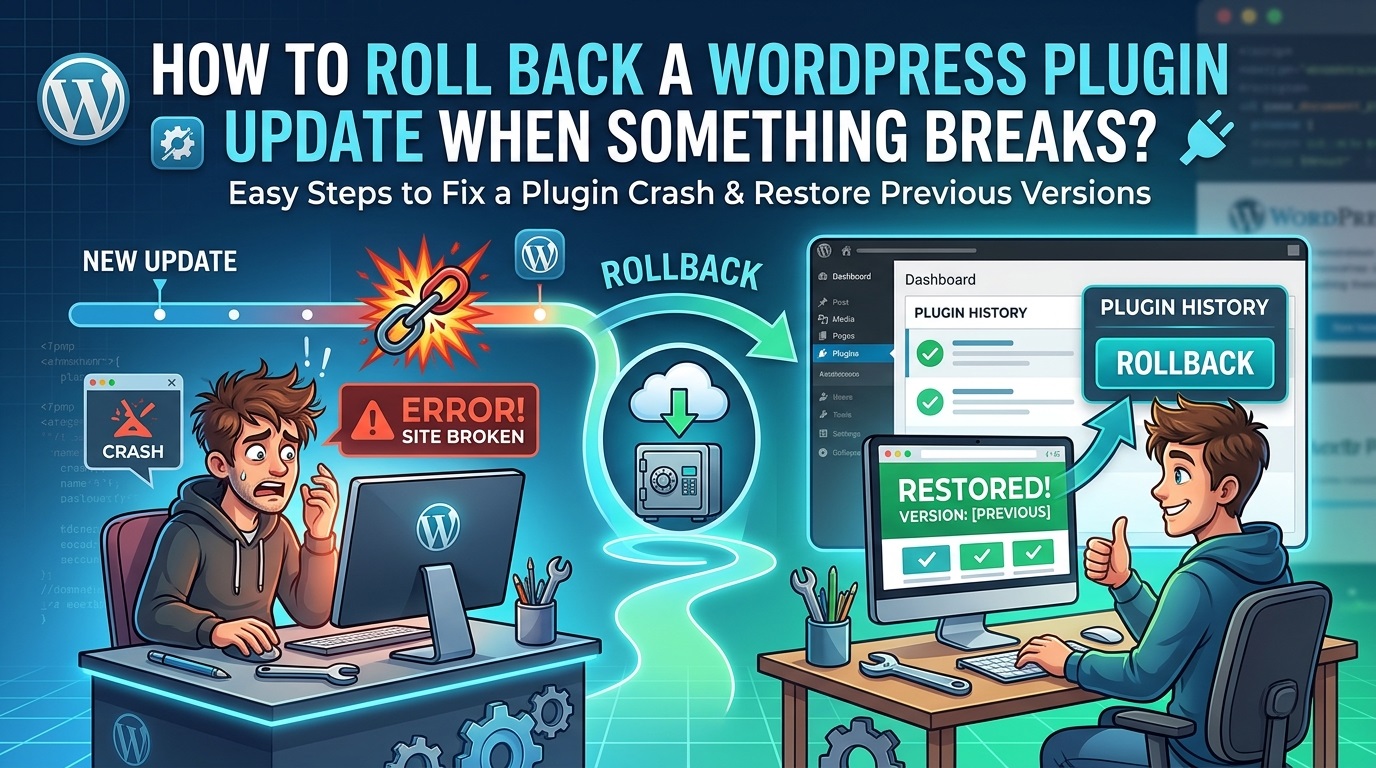
A WordPress plugin update is supposed to improve your website by fixing bugs, strengthening security, introducing new features, and improving compatibility. However, sometimes an update causes unexpected problems. Your website may display a critical error, the WordPress dashboard may stop working, a contact form may fail, or a previously functional feature may suddenly disappear.
When this happens, knowing how to roll back a WordPress plugin update can help you restore your website without rebuilding it from scratch.
Rolling back a plugin means replacing its current version with an earlier version that worked correctly. Depending on your situation, you can use a plugin rollback tool, restore a backup, reinstall an earlier release manually, or use your hosting provider’s recovery tools.
However, rolling back is not always the correct long-term solution. An older plugin version may contain security vulnerabilities, compatibility problems, or bugs that were fixed in a newer release. The safest approach is to restore functionality first, identify the cause of the problem, and then install a corrected version as soon as possible.
This guide explains how to roll back a WordPress plugin update safely, troubleshoot common errors, and prevent similar problems in the future.
What Does Rolling Back a WordPress Plugin Update Mean?
A plugin rollback is the process of returning an installed WordPress plugin to a previous version.
For example, suppose you have a contact form plugin running version 4.2.0. After updating to version 4.3.0, the form stops submitting messages. If version 4.2.0 worked correctly, reinstalling that release may restore the form’s functionality.
A rollback can help when an update introduces:
- PHP compatibility errors.
- Conflicts with another plugin or your active theme.
- Broken shortcodes or widgets.
- Problems with plugin settings.
- JavaScript errors that affect frontend functionality.
- Changes to the WordPress administration interface.
- Unexpected database or integration problems.
It is important to understand that a rollback changes the plugin’s code files, but it does not necessarily reverse database changes, scheduled tasks, external service changes, or modifications made by the update process.
For that reason, always create a backup before replacing plugin files.
Why Can a WordPress Plugin Update Break a Website?
Understanding the possible cause makes it easier to choose the right recovery method.
1. PHP Compatibility Problems
Plugins use PHP to execute server-side functionality. If an update introduces code that is incompatible with your server’s PHP version, the plugin may generate fatal errors or warnings.
The opposite can also happen: an older plugin may not work correctly after your hosting provider upgrades PHP.
Before rolling back, review the official PHP supported versions page and check your hosting environment.
2. Conflicts With Other Plugins
Two plugins may use the same JavaScript library, modify the same database records, or interfere with the same WordPress hooks. A newly updated plugin may expose a conflict that did not previously occur.
For example, a caching plugin update could interfere with an optimization plugin, or an updated form plugin could conflict with a security rule.
3. Theme Compatibility Issues
A plugin may change its template structure, CSS classes, JavaScript events, or public functions. If your theme depends on the previous implementation, the update may cause a visual or functional problem.
4. Incomplete Updates
A failed connection, exhausted server resources, file permission restrictions, or a hosting interruption can leave plugin files in an inconsistent state.
In this situation, reinstalling the same version or a clean copy may be more appropriate than rolling back to an older release.
5. Database Changes
Some plugins update database tables, settings, or stored data when a new version is activated. Rolling back the PHP files does not automatically reverse these database changes.
If the plugin uses a database schema that changed in the new version, the older version may not understand the updated structure. This is why a complete backup is particularly important for plugins that manage ecommerce orders, membership records, bookings, or other critical information.
Before Rolling Back: Protect Your WordPress Website
Before attempting a rollback, take a few precautions to reduce the risk of data loss.
Create a Full Website Backup
Back up both your WordPress files and your database. The files include plugins, themes, uploads, and configuration files. The database contains posts, pages, users, plugin settings, and other site information.
Use your hosting provider’s backup system or a reputable backup solution. Confirm that the backup completed successfully and that you know how to restore it.
If your website processes orders, registrations, bookings, or customer submissions, consider the possibility that restoring an older database could remove transactions or other information created after the backup.
Record the Current Plugin Version
Open Plugins → Installed Plugins in your WordPress dashboard and identify the plugin’s current version. Record the version you intend to restore.
Also, note the time the problem started and any error messages that appeared after the update.
Check Whether the Problem Is Site-Wide
Visit several pages of your website and test the feature affected by the update.
Determine whether the problem affects:
- The entire website.
- Only the WordPress dashboard.
- A specific page or shortcode.
- A particular device or browser.
- One plugin feature, such as a form or slider.
This information helps you distinguish a plugin failure from a caching, theme, server, or browser problem.
Check for a Known Issue
Visit the plugin developer’s website, changelog, support forum, or issue tracker. Other users may have reported the same problem, and the developer may already have released a fix.
For plugins hosted on WordPress.org, review the WordPress.org plugin directory and the plugin’s support and development information.
If a corrected version is available, installing it may be safer than returning to an older release.
Method 1: Roll Back a Plugin Using the WP Rollback Plugin
For many plugins hosted in the official WordPress.org directory, a rollback utility provides one of the simplest ways to install an earlier release.
The WP Rollback plugin is designed to let administrators select an available previous version of a supported plugin or theme and reinstall it through the dashboard.
Step 1: Install WP Rollback
If your WordPress dashboard is accessible, navigate to Plugins → Add New Plugin.
Search for WP Rollback, verify that you have selected the intended plugin from its official listing, and install and activate it.
You can find it through the WP Rollback listing on WordPress.org.
If your dashboard is inaccessible, you will need to restore access through your hosting control panel, use a backup, or replace the affected plugin files manually.
Step 2: Open the Installed Plugins Page
Navigate to Plugins → Installed Plugins.
For supported plugins, WP Rollback adds a rollback option to the plugin management interface. Locate the plugin that caused the problem and select the rollback option.
The exact interface may vary by version.
Step 3: Select a Previous Version
Choose a version that was known to work correctly with your website.
Do not automatically select the oldest available version. Prefer a recent, stable release that is compatible with your WordPress installation and PHP environment.
Before proceeding, review any available release notes to understand what changed between versions.
Step 4: Confirm the Rollback
Follow the on-screen instructions to initiate the rollback. Depending on the tool and release, you may see a confirmation screen describing the version change.
Make sure you have a backup before confirming the operation.
Wait for the process to finish. Avoid closing the browser or interrupting the installation while files are being replaced.
Step 5: Test Your Website
After the rollback, visit the affected page and repeat the action that failed.
For example, submit a contact form, open the WordPress settings page, test the image slider, or verify the plugin’s shortcode.
Also, check your WordPress dashboard for new error messages.
Important: WP Rollback does not support every plugin or every release. It is most useful when a compatible previous version is available through its supported sources. Premium plugins, custom plugins, and plugins distributed outside WordPress.org may require a different method.
Method 2: Manually Install an Earlier Plugin Version
If the rollback utility does not support your plugin, you can manually replace the plugin files with a previous release.
This approach is useful for plugins that provide downloadable version archives. However, it requires access to your WordPress files and careful handling.
Step 1: Locate the Previous Version
For plugins hosted on WordPress.org, open the plugin’s official directory page.
Look for the Advanced View or development information section, then locate the available previous versions under the appropriate release-download controls. Interface labels may change over time.
Download the exact version you want to install.
For premium plugins, use the developer’s official website or customer account. Avoid unofficial download websites because plugin ZIP files can contain modified or malicious code.
Step 2: Back Up the Existing Plugin
Use your hosting file manager, SFTP client, or another trusted file-management method to access your WordPress installation.
The plugin directory is usually located at:
wp-content/plugins/
Locate the affected plugin’s folder and download a copy before making changes.
If the dashboard still works, you may deactivate the plugin before replacing its files. If the plugin causes a fatal error, deactivate it through the hosting file manager or another supported recovery method first.
Do not delete the existing plugin until you have a backup and a clear replacement plan.
Step 3: Deactivate the Plugin
If possible, navigate to Plugins → Installed Plugins and deactivate the affected plugin.
If the dashboard is unavailable, you can rename the plugin directory temporarily through your hosting file manager or SFTP. For example, rename:
example-plugin
to:
example-plugin-disabled
This can prevent WordPress from loading the plugin under its original directory name.
Use the actual plugin directory name in your installation. Renaming a folder is not guaranteed to resolve every error, and a plugin that performs database operations may require additional recovery steps.
Step 4: Replace the Plugin Files
Extract the downloaded ZIP archive on your computer.
Upload the correct plugin folder to:
wp-content/plugins/
Ensure the plugin’s main PHP file is in the expected directory. Avoid accidentally creating a nested folder such as:
wp-content/plugins/example-plugin/example-plugin/example-plugin.php
The correct structure depends on the plugin, but its main plugin file must remain where WordPress expects it.
Do not overwrite unrelated plugin directories or WordPress core files.
Step 5: Reactivate and Test
Open the WordPress dashboard and navigate to Plugins → Installed Plugins.
Activate the restored version if it is not already active. If WordPress displays a database upgrade or compatibility notice, stop and investigate before continuing.
Test the affected functionality, review the error logs, and confirm that the website works normally.
If the older version fails to activate or reports a database compatibility problem, restore the previous state from your backup rather than repeatedly switching versions without understanding the cause.
Method 3: Restore a Backup From Your Hosting Provider
Restoring a backup can be the most reliable recovery method when a plugin update has caused widespread damage or modified database structures.
Many hosting providers offer automatic backups, restore points, or manual recovery options through their control panels.
Step 1: Open Your Hosting Control Panel
Sign in to your hosting account and locate the backup or restore section.
The feature name varies by provider. It may be called Backups, Restore Points, JetBackup, or something similar.
Step 2: Choose a Suitable Restore Point
Select a backup from a time when the website was working correctly.
Check whether the provider allows you to restore individual files, a plugin directory, the database, or the entire website.
If the update changed only the plugin files, a file-only restoration may avoid unnecessary changes to newer database content. However, if the update also changed the database, restoring files alone may not resolve the issue.
Step 3: Understand the Impact of Database Restoration
Restoring the entire database may remove content created after the selected backup.
For example, a WooCommerce store may lose orders or customer updates if an older database is restored without preserving newer records.
For business-critical sites, ask your hosting provider or developer to assess the safest recovery procedure before restoring the database.
Step 4: Complete the Restoration
Follow the provider’s instructions and wait for the restoration to finish.
Afterward, check the homepage, administrative dashboard, affected plugin, forms, checkout process, and other critical functions.
Confirm that the plugin version matches the expected release and that the website is not showing errors.
Method 4: Recover When the WordPress Dashboard Is Inaccessible
Sometimes an update causes a fatal error that prevents you from accessing the WordPress administration area.
You can still attempt recovery through your hosting account.
Disable the Affected Plugin Through File Manager
- Sign in to your hosting control panel.
- Open the website’s file manager or connect using SFTP.
- Navigate to
wp-content/plugins/. - Identify the affected plugin folder.
- Rename the folder temporarily.
- Open your WordPress dashboard again.
If the plugin was responsible for the fatal error, WordPress may become accessible after the folder is renamed.
Once you regain access, inspect the error message and decide whether to install a corrected version, reinstall the same release, or roll back.
Use WordPress Recovery Mode
When WordPress detects certain fatal PHP errors, it may send a recovery-mode email to the site administrator.
The message can include a special link that allows you to enter recovery mode and manage the component responsible for the error.
Check the administrator email address configured for your website, including spam and junk folders.
For additional guidance, consult the official WordPress Recovery Mode documentation.
Recovery mode is not guaranteed to be available for every failure, so file-manager access and a reliable backup remain important.
Method 5: Use WP-CLI to Manage Plugin Versions
Experienced developers may prefer WP-CLI, the command-line interface for WordPress, when working on staging environments or servers with shell access.
WP-CLI supports plugin installation, activation, deactivation, and related maintenance tasks. Its exact rollback workflow depends on the plugin source and how the previous version is obtained.
Read the official WP-CLI plugin command documentation before using these commands.
For example, to deactivate a plugin, you can use:
wp plugin deactivate example-pluginReplace example-plugin with the actual plugin slug.
To install a downloaded archive containing the intended previous version, use a command such as:
wp plugin install /path/to/example-plugin-previous.zip --forceReplace the example path with the real location of the ZIP file.
The --force option allows an existing plugin installation to be overwritten, so verify the target site, archive, and backup before executing the command. Do not assume this operation reverses database changes.
If the plugin is already installed, confirm the appropriate behavior for your WP-CLI version and plugin package before running commands on a production website.
How to Verify That the Rollback Fixed the Problem
A successful rollback should restore the affected functionality without introducing additional errors.
Use the following checklist.
Test the Original Problem
Repeat the exact action that failed immediately after the update. If a form stopped submitting, submit a test form. If an image slider disappeared, check the slider on desktop and mobile.
Review WordPress and PHP Errors
Check the PHP error log in your hosting control panel.
If necessary, temporarily enable WordPress debugging in accordance with the official debugging documentation.
For a controlled troubleshooting session, a typical configuration is:
define( 'WP_DEBUG', true );
define( 'WP_DEBUG_LOG', true );
define( 'WP_DEBUG_DISPLAY', false );
These settings belong in the appropriate location in wp-config.php, before the line that ends editing. If debugging constants are already defined, edit the existing definitions instead of adding duplicates.
Keep errors hidden from public visitors, protect the generated log file, and disable debugging when troubleshooting is complete. Logs can expose sensitive paths or other operational information.
Clear Relevant Caches
Clear your WordPress caching plugin’s cache, server cache, CDN cache, and browser cache where applicable.
A stale cached page may continue displaying the old behavior even after the plugin has been restored.
Check Plugin Settings
Verify the plugin’s settings page, saved configuration, and integrations.
Do not assume that a successful file rollback restores settings that were altered during the update.
Check the Website on Different Devices
Test the affected feature in more than one browser or device where practical. This helps identify problems caused by cached JavaScript, responsive CSS, or browser-specific behavior.
Common Problems During a Plugin Rollback
The Rollback Option Is Missing
Not every plugin supports one-click rollback. Premium plugins, custom-built plugins, and plugins hosted outside the official directory may require manual installation.
Obtain the previous release from the original developer or restore a known-good backup.
The Website Still Shows a Critical Error
The plugin update may not be the only cause. Another plugin, the active theme, PHP configuration, or a database change may also be involved.
Check the error log and temporarily disable the suspected plugin. Avoid disabling unrelated plugins on a live business website without considering the impact.
The Plugin Works, but Its Settings Page Is Broken
The update may have changed how settings are stored or loaded. Rolling back the files might not reverse those changes.
Review the developer’s migration notes and compare the database state with a backup. Avoid manually editing database records unless you understand the plugin’s schema.
The Plugin Automatically Updates Again
WordPress or a management service may update the plugin after you restore the previous release.
Review Plugins → Installed Plugins, the plugin’s automatic-update setting, and any hosting or centralized management tools that control updates.
You can temporarily disable automatic updates for the affected plugin while investigating, but do not leave an outdated vulnerable version installed indefinitely.
The Previous Version Is Incompatible With Your WordPress Installation
A previous release may not support your current WordPress or PHP version. It may also depend on a library or function that has since changed.
Check the plugin’s compatibility information and release notes. If no safe compatible version exists, restore the site from a suitable backup and seek a corrected release from the developer.
Best Practices to Prevent Plugin Update Problems
Rolling back is a useful emergency recovery method, but prevention can reduce the likelihood of future failures.
Maintain Regular Backups
Use automated backups and verify that restoration works. Store a separate copy of important backups when possible.
For ecommerce and membership websites, use a backup strategy that accounts for frequently changing database records.
Test Updates on a Staging Website
A staging site is a separate copy of your production website where you can test plugin updates before making them live.
Update the plugin on staging, then test important features, integrations, and administrative screens. This is particularly valuable for custom plugins and websites with complex functionality.
Read Changelogs Before Updating
Review the plugin’s release notes to identify changes involving database migrations, PHP requirements, deprecated functions, or modified settings.
If the update contains security fixes, evaluate the urgency of applying it rather than delaying indefinitely.
Keep WordPress, PHP, Themes, and Plugins Compatible
Maintain supported versions of WordPress and PHP, and use actively maintained themes and plugins.
Review the WordPress Plugin Handbook for guidance on plugin architecture, development practices, and compatibility considerations.
Update One Component at a Time
When practical, avoid updating many unrelated plugins simultaneously on a critical website. Updating components individually makes it easier to identify which change caused a problem.
For routine maintenance, follow a consistent sequence: create a backup, apply the update, test critical functionality, and review the logs.
Monitor Security Advisories
An older plugin version may contain vulnerabilities that were corrected by the update you rolled back. Check the developer’s security announcements and reputable vulnerability databases before keeping the old version active.
If a rollback is necessary, treat it as a temporary measure and plan to move to a secure, supported release.
When Should You Contact a WordPress Developer?
Consider professional assistance if the website remains inaccessible, the rollback affects database structures, the plugin manages critical transactions, or you cannot identify the source of the failure.
You should also seek help if the plugin has no supported previous release, its files appear to have been modified unexpectedly, or the error persists after the rollback.
A developer can compare error logs, inspect plugin changes, test compatibility, and determine whether a code fix is safer than continuing to use an older release.
If you need assistance, a WordPress specialist can also help with plugin installation, customization, compatibility testing, and recovery planning.
Frequently Asked Questions
Can I roll back a WordPress plugin without losing data?
Often, yes. Replacing plugin files does not necessarily delete plugin data stored in the WordPress database. However, the result depends on the plugin and whether the update modified its database structure or settings.
Always back up the files and database before rolling back.
Is it safe to use an older plugin version?
Only if the version is compatible with your environment and does not expose your website to unacceptable security risks. Older releases may contain known vulnerabilities or bugs.
Use a rollback as a temporary recovery measure whenever possible.
Can I roll back a plugin if I cannot access WordPress admin?
Yes. You may be able to disable the plugin by renaming its directory through your hosting file manager or SFTP. You can then restore an earlier version or use your hosting provider’s backup system.
Does rolling back a plugin also roll back its database changes?
No, not automatically. A plugin rollback normally replaces code files. Database migrations, stored settings, and external service changes may remain in place.
Restoring a database requires additional care because it can remove newer content.
Should I disable automatic updates after a rollback?
You can temporarily pause automatic updates for the affected plugin while investigating the issue. However, monitor the developer’s releases and restore updates once a compatible fix is available.
Do not leave a vulnerable plugin version active indefinitely.
What if the same problem happens after reinstalling the older version?
The issue may be related to another plugin, your theme, server configuration, caching, or a database change. Review error logs, test on staging, and consult the plugin developer if the cause remains unclear.
Conclusion
Learning how to roll back a WordPress plugin update can help you recover quickly when an update breaks your website. The most suitable method depends on whether you can access the WordPress dashboard, whether an earlier release is available, and whether the update changed database structures.
For supported plugins, a rollback utility can simplify the process. Manual installation offers more control, while hosting backups provide a broader recovery option when the website is seriously damaged. Developers with command-line access can also use WP-CLI to manage plugin files and installation tasks.
Regardless of the method, create a backup first, verify the result carefully, and investigate the underlying cause. Most importantly, do not treat an older plugin version as a permanent solution if it contains security vulnerabilities or compatibility problems.
With regular backups, staging tests, careful updates, and reliable troubleshooting procedures, you can reduce downtime and keep your WordPress website secure and functional.
Leave a Reply