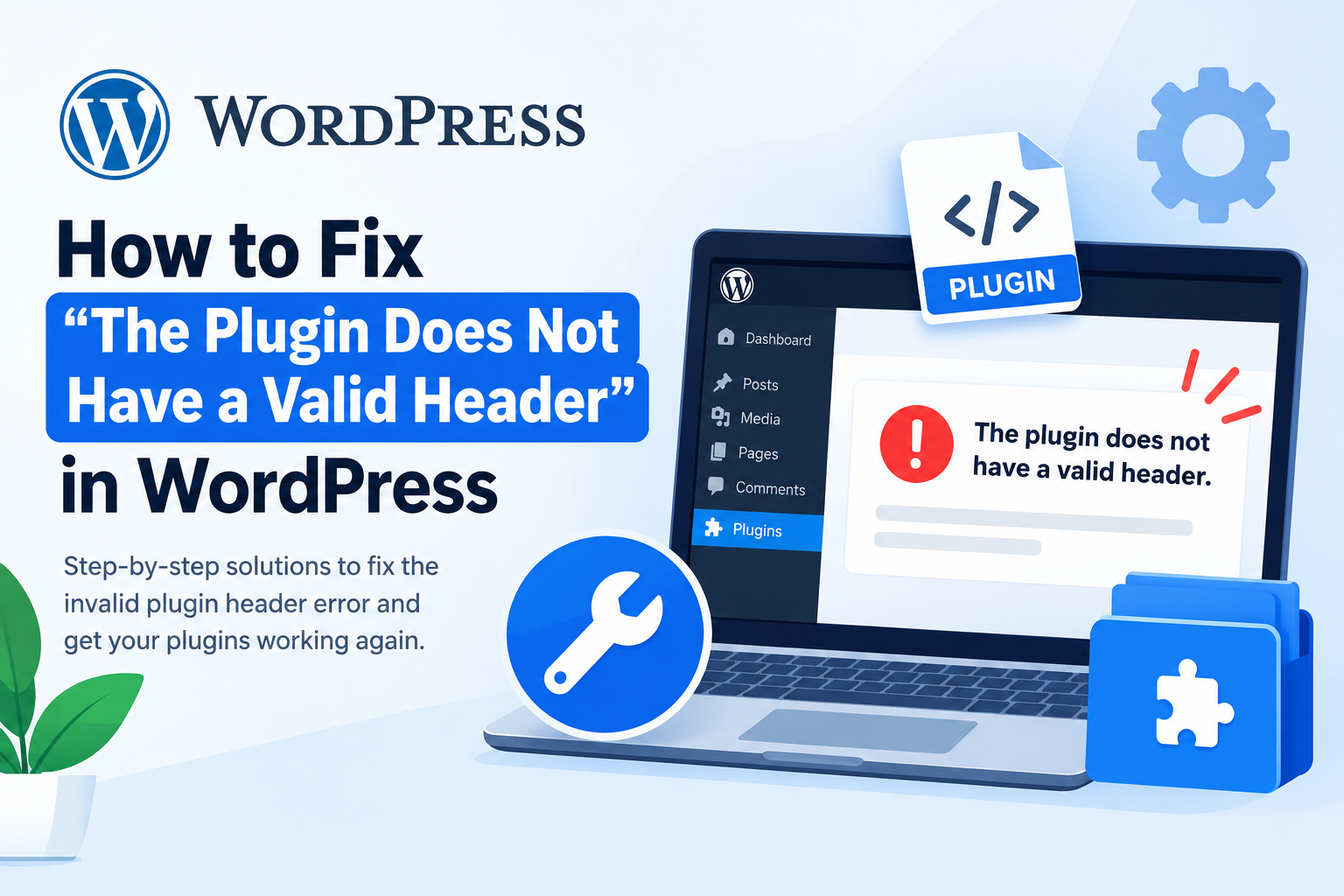
Have you encountered the error “The plugin does not have a valid header” while installing or activating a plugin in WordPress? This error can be frustrating, especially when you need a particular plugin to run your website smoothly. It may appear after uploading a plugin ZIP file, installing a plugin from the WordPress dashboard, or attempting to activate an existing plugin.
The good news is that this error is usually fixable without rebuilding your website or reinstalling WordPress. In most cases, the problem is related to an incomplete plugin installation, an incorrect directory structure, missing plugin header information, or a temporary issue with WordPress’s plugin cache.
In this guide, you’ll learn how to fix “The Plugin Does Not Have a Valid Header” in WordPress using several proven troubleshooting methods. We’ll explain the common causes, provide step-by-step instructions, and show you how to prevent the error from happening again.
Whether you’re a beginner or an experienced WordPress administrator, these solutions will help you identify the problem and restore normal plugin functionality.
What Does “The Plugin Does Not Have a Valid Header” Mean?
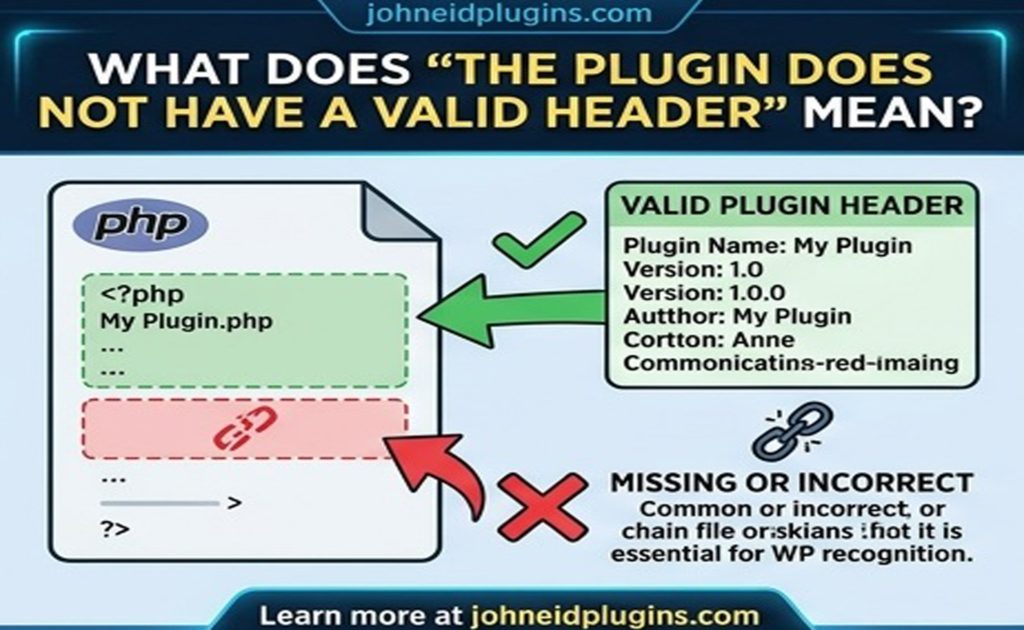
WordPress plugins contain specific information that helps WordPress identify and manage them. This information is stored in a PHP comment block called the plugin header.
A standard plugin header includes details such as:
- Plugin name
- Plugin version
- Plugin description
- Plugin author
- Plugin website
- Required WordPress or PHP versions, when specified
WordPress reads this information to recognize a PHP file as a plugin. If it cannot locate the expected plugin information, it may display the error:
“The plugin does not have a valid header.”
According to the WordPress Developer Resources, this message can occur when WordPress cannot find the plugin’s metadata in its installed plugin list. Although a missing or incorrectly formatted header is a common cause, the error can also result from an incorrect plugin path, duplicated plugin files, or a stale plugin cache.
Therefore, you should investigate both the plugin files and the installation process instead of assuming that the header itself is always the problem.
Common Causes of the Invalid Plugin Header Error
Before applying a fix, understanding the possible causes can save you time.
1. Incomplete or Corrupted Plugin Installation
A plugin ZIP file may not download correctly because of an interrupted connection, a server restriction, or a problem with the original package. If important files are missing, WordPress may fail to recognize the plugin.
2. Incorrect Plugin Directory Structure
WordPress expects plugins to be organized correctly inside the plugins directory. If the main plugin file is buried inside unnecessary nested folders, WordPress might not recognize it as expected.
3. Missing or Incorrect PHP Plugin Header
If the main PHP file does not contain a valid plugin header, WordPress may treat it as an ordinary PHP file rather than a plugin.
4. Duplicate Plugin Headers
Some plugin packages contain example files, development directories, or duplicate copies of the plugin. If multiple files contain plugin headers, WordPress may identify the wrong file or display confusing installation errors.
5. WordPress Plugin Cache Issues
WordPress maintains information about installed plugins. In some circumstances, the plugin list may become outdated after a plugin is installed or its files are modified.
6. File Permissions or Server Restrictions
Incorrect filesystem permissions, hosting restrictions, or failed file operations can prevent WordPress from installing or reading plugin files correctly.
Now that you understand the possible causes, let’s explore the solutions.
How to Fix “The Plugin Does Not Have a Valid Header” in WordPress
Follow these methods in order. Start with the simplest solutions before modifying files or changing server settings.
Method 1: Refresh the WordPress Plugins Page
Sometimes, WordPress displays the error because its plugin information has not refreshed correctly after installation.
This is particularly relevant when you install a plugin and click the Activate button immediately.
Follow these steps:
- Log in to your WordPress admin dashboard.
- Navigate to Plugins → Installed Plugins.
- Refresh the page in your browser.
- Locate the plugin you just installed.
- Click Activate if the plugin appears in the list and is inactive.
If the plugin activates successfully, the issue may have been temporary.
You can also close the installation screen and reopen the Plugins page instead of activating the plugin directly from the installation process.
Why this works: WordPress may need to refresh its cached plugin information after new files have been added. Reloading the Plugins page can resolve some cases without requiring further changes.
If the error persists, continue to the next method.
Method 2: Delete and Reinstall the Plugin
Reinstalling the plugin is one of the easiest ways to fix an incomplete or corrupted installation.
A fresh installation replaces missing or damaged files with a clean copy.
Important: Before deleting a plugin, check whether it stores important configuration data or whether its removal process deletes plugin-specific data. Back up your website first, particularly if the plugin manages essential functionality.
Follow these steps:
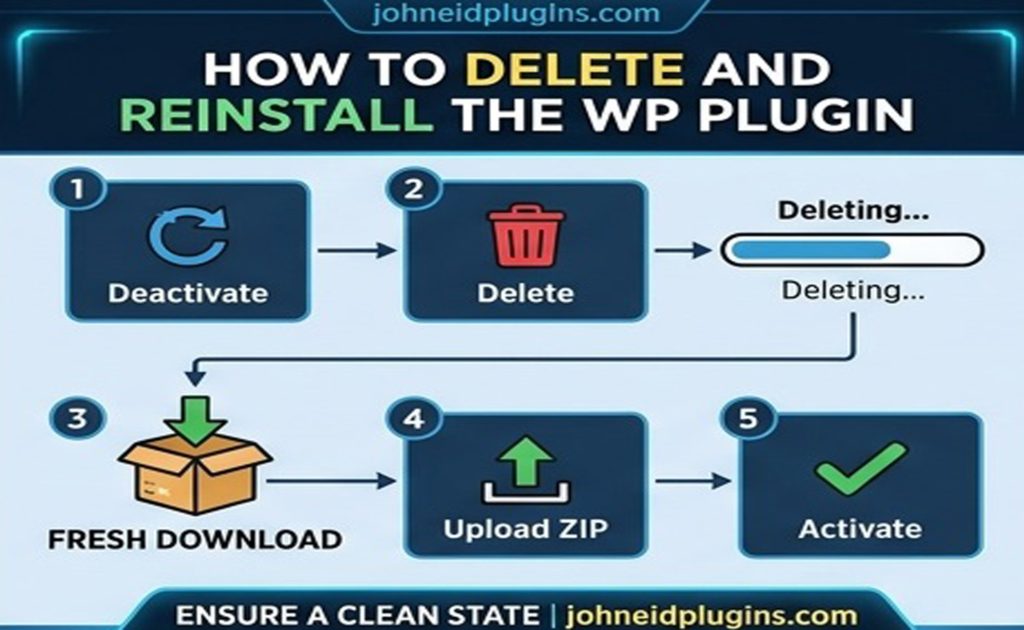
- Open your WordPress dashboard.
- Navigate to Plugins → Installed Plugins.
- Deactivate the affected plugin if it is currently active.
- Delete the plugin if it is safe to do so.
- Download a fresh copy from the official WordPress plugin directory or the plugin developer’s official website.
- Navigate to Plugins → Add New Plugin → Upload Plugin.
- Select the downloaded ZIP file.
- Click Install Now.
- Once installation finishes, click Activate Plugin.
Avoid using a plugin package downloaded from an untrusted website. Modified or incomplete ZIP files can introduce additional problems, including security vulnerabilities.
If reinstalling fixes the issue, the original package or installation process was likely responsible.
Method 3: Check the Plugin Folder Structure
An incorrect directory structure is another common reason WordPress fails to recognize a plugin.
Normally, WordPress plugins are installed inside:
wp-content/plugins/
For example, a plugin named sample-plugin might use this structure:
wp-content/plugins/sample-plugin/sample-plugin.php
Here, sample-plugin.php is the main plugin file containing the plugin header.
However, some ZIP archives include an additional directory level. For example:
wp-content/plugins/sample-plugin/sample-plugin/sample-plugin.php
This structure may indicate that the plugin folder has been nested unnecessarily.
How to fix the folder structure:
- Connect to your website using an FTP client or your hosting provider’s File Manager.
- Open the
wp-content/plugins/directory. - Locate the affected plugin folder.
- Open the folder and inspect its contents.
- Find the main PHP file containing the plugin header.
- If the plugin has been extracted into an unnecessary nested folder, correct the structure according to the plugin developer’s instructions.
For example, if the intended structure is:
wp-content/plugins/sample-plugin/sample-plugin.php
Make sure the main plugin file is located at that path.
Do not move files randomly. Some plugins intentionally use nested directories for their source code, libraries, or assets. The important requirement is that the main plugin file must be located where WordPress expects it.
After correcting the directory structure, return to Plugins → Installed Plugins, refresh the page, and try activating the plugin again.
Method 4: Verify the Plugin Header in the Main PHP File
If you’re developing a custom plugin or maintaining a plugin created by someone else, inspect the main PHP file to ensure it contains a valid header.
A basic WordPress plugin header looks like this:
<?php
/**
 * Plugin Name: Sample Plugin
 * Description: A simple custom WordPress plugin.
 * Version: 1.0.0
 * Author: Example Developer
 * License: GPL-2.0-or-later
 */

if ( ! defined( 'ABSPATH' ) ) {
    exit;
}

// Plugin functionality goes here.
The most important field is:
Plugin Name: Sample Plugin
WordPress uses this information to recognize the file as a plugin.
To check the header:
- Open your plugin’s main PHP file using a code editor.
- Confirm that the file starts with a PHP opening tag.
- Check that the plugin header is present near the beginning of the file.
- Ensure the header is written inside a PHP comment block.
- Save the file and upload the corrected version if necessary.
The plugin name should appear in the standard header format, for example:
Plugin Name: Sample Plugin
Do not place the header inside a PHP function, class, or conditional statement. Keep it in the file-level comment near the beginning of the main PHP file.
If you’re editing a third-party plugin, make a backup first. Changes to plugin files may be overwritten during updates.
Note: WordPress recognizes plugin metadata in PHP comments; you generally do not need to add every optional header field. A correctly formatted plugin name is the essential starting point.
Method 5: Check for Duplicate Plugin Headers
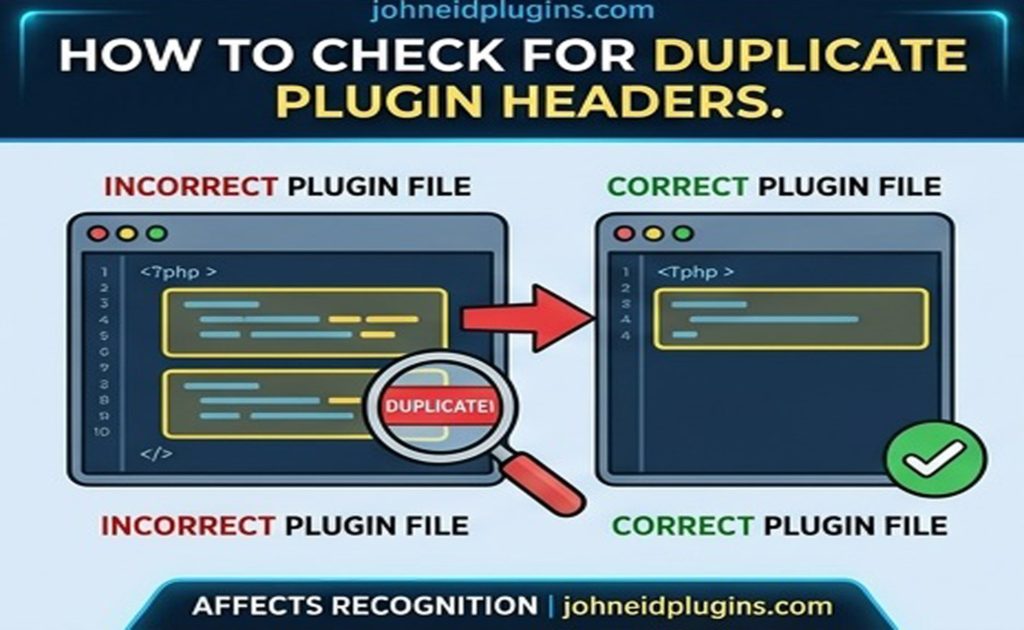
A less obvious cause of this error is a plugin package containing multiple files with plugin headers.
For example, a plugin ZIP archive might include a development directory named trunk, a copy of the plugin inside another folder, or an example plugin intended for developers.
These files may cause WordPress to detect unexpected plugin metadata.
Consider this example:
sample-plugin/
├── sample-plugin.php
├── includes/
├── assets/
└── trunk/
    └── sample-plugin.php
If both PHP files contain valid plugin headers, WordPress may identify the additional file as another plugin or create confusion during installation and activation.
How to troubleshoot this issue:
- Open the plugin directory using your hosting File Manager or FTP client.
- Search for additional PHP files containing a
Plugin Name:header. - Check whether the package contains duplicate copies of the plugin.
- Review the plugin developer’s documentation to determine whether the extra files are intentional.
- If you created the plugin, remove unintended duplicate plugin files from the distributable package.
- Reinstall the corrected package and try activating it again.
Do not delete files from a third-party plugin simply because they contain a plugin header. Some packages have legitimate extensions or example files.
If you cannot determine which files are necessary, download a clean package or contact the plugin developer.
Method 6: Clear the WordPress Object Cache
WordPress can maintain cached information about installed plugins. If the cache contains outdated information after a plugin installation or file modification, activation may fail.
The official WordPress Developer Resources specifically identify plugin caching as one possible cause of the invalid header error.
Try these steps:
- Open Plugins → Installed Plugins.
- Refresh the page.
- If your website uses a persistent object-cache plugin, clear its cache using the plugin’s supported controls.
- If your hosting provider offers server-side object caching, clear it through the appropriate hosting controls.
- Return to the Plugins page and try activating the plugin again.
If you manage a custom WordPress installation and have appropriate technical knowledge, you can also investigate the plugin cache programmatically.
For example, WordPress provides functions for reading and writing object-cache entries:
$cached_plugins = wp_cache_get( 'plugins', 'plugins' );This example reads the cached plugin information; it does not clear the cache by itself.
Avoid manually changing WordPress’s internal plugin cache unless you understand the implications. Cache handling varies depending on the installation, and an incorrect modification can create additional problems.
If you are unsure, use your caching plugin’s built-in cache-clearing option or ask your hosting provider for assistance.
Method 7: Check File and Folder Permissions
WordPress needs appropriate filesystem permissions to read plugin files and install updates.
If permissions are incorrect, WordPress may be unable to access the plugin’s main PHP file or complete the installation properly.
For many Linux-based hosting environments, common permission settings are:
- Directories:
755 - Files:
644
These are general examples, not universal requirements. Your hosting provider may use different ownership or permission configurations.
How to check permissions:
- Open your hosting control panel.
- Launch File Manager or connect through FTP.
- Navigate to
wp-content/plugins/. - Locate the affected plugin folder.
- Check the permissions of the folder and its PHP files.
- Correct them if necessary, following your host’s recommendations.
Avoid setting all files and folders to 777. This grants excessive permissions and may expose your website to security risks.
If the plugin files belong to the wrong system user, changing permission numbers alone may not resolve the problem. Your hosting provider may need to correct the file ownership.
Once the permissions are correct, refresh the WordPress Plugins page and test activation again.
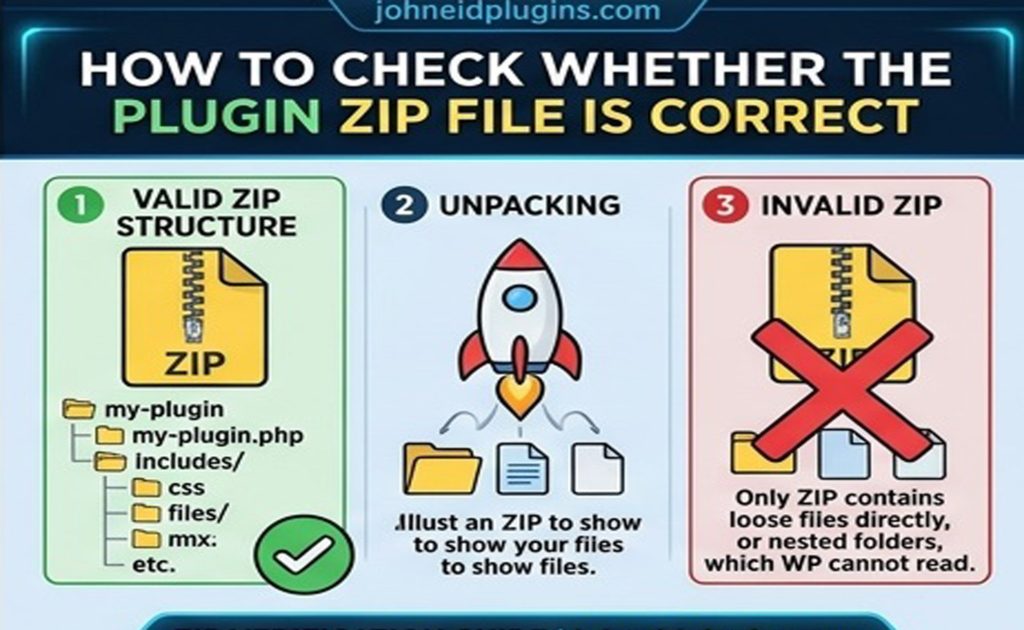
Method 8: Check Whether the Plugin ZIP File Is Correct
Sometimes, the downloaded file is not a valid plugin archive.
This can happen when a download returns an error page instead of the expected ZIP file, the download is interrupted, or you download the wrong package from the developer’s website.
A plugin installation may also fail if you upload the entire product package rather than the actual installable plugin ZIP.
Try the following:
- Delete the incomplete plugin installation if it is safe to do so.
- Download the plugin again from its official source.
- Check whether the download is a ZIP archive.
- If the developer provides installation instructions, follow them carefully.
- Upload the correct ZIP file through Plugins → Add New Plugin → Upload Plugin.
- Install the plugin and activate it from the Installed Plugins page.
For premium plugins, the download may contain documentation, licensing information, and several additional archives. You may need to extract the main package and locate the specific ZIP file intended for WordPress installation.
If a fresh download repeatedly fails, check whether your hosting environment blocks outbound requests or restricts filesystem operations.
Method 9: Investigate Hosting Restrictions and Server Logs
If none of the previous methods work, the problem may be related to your hosting environment.
Some servers restrict outbound connections, impose filesystem limitations, or encounter errors when downloading and extracting plugin packages.
These problems are particularly relevant when WordPress reports the error immediately after an installation attempt.
To investigate further:
- Check your hosting provider’s error logs.
- Review any WordPress debug logs available for the failed operation.
- Confirm that the web server can access the plugin directory.
- Ask your hosting provider whether outbound connections or plugin downloads are restricted.
- If necessary, install the plugin manually using a clean, trusted package.
You can also enable WordPress debugging temporarily to collect additional information.
In your wp-config.php file, the following settings can help record PHP errors:
define( 'WP_DEBUG', true );
define( 'WP_DEBUG_LOG', true );
define( 'WP_DEBUG_DISPLAY', false );
Add or update these constants carefully. If they already exist, modify the existing definitions instead of adding duplicates.
With logging enabled, errors may be written to:
wp-content/debug.log
This file may contain sensitive technical information, so do not publish it publicly. Disable debugging when you finish troubleshooting, and remove or securely protect the log if it is no longer needed.
If the error persists, share the relevant log entries with your hosting provider or plugin developer.
How to Prevent the Invalid Plugin Header Error in WordPress
Once the plugin is working again, take a few precautions to reduce the likelihood of encountering the same issue.
Download Plugins From Trusted Sources
Use the official WordPress plugin directory or the developer’s official website. Avoid modified or unverified plugin packages.
Keep WordPress and Plugins Updated
Install compatible updates and maintain regular backups. Updates can fix known installation problems, although you should test important changes on a staging site when possible.
Verify Plugin Packages Before Installation
For custom or premium plugins, make sure you select the correct installation ZIP file rather than a complete product bundle or development archive.
Maintain a Clean Plugin Directory
Remove obsolete plugin copies only after confirming that they are no longer needed. Avoid keeping multiple versions of the same plugin in the plugins directory.
Back Up Your Website Regularly
Create backups of your WordPress files and database before making substantial changes to plugin files, permissions, or server settings.
These practices help maintain a more reliable WordPress environment and make future troubleshooting easier.
Frequently Asked Questions (FAQs)
1. Why does WordPress say “The plugin does not have a valid header”?
WordPress displays this error when it cannot identify the expected plugin metadata in its installed plugin list. Common causes include an incorrect plugin path, missing header information, an incomplete installation, duplicate plugin files, or stale cached plugin data.
2. Can I fix the invalid plugin header error without coding?
Yes. Most users can resolve the issue by refreshing the Plugins page, reinstalling the plugin, checking its folder structure, or clearing the relevant cache. Editing PHP files is usually necessary only when the plugin header itself is missing or incorrectly formatted.
3. Will reinstalling a plugin delete my website data?
Not necessarily. Many plugins store their settings and data in the WordPress database, so reinstalling their files may preserve that information. However, some plugins delete their data when uninstalled or provide options to remove their database tables. Always check the plugin’s documentation and back up your website before deleting it.
4. Where should the WordPress plugin header be located?
The plugin header should appear in a PHP comment near the beginning of the plugin’s main PHP file. It should include a valid Plugin Name: field so WordPress can identify the plugin.
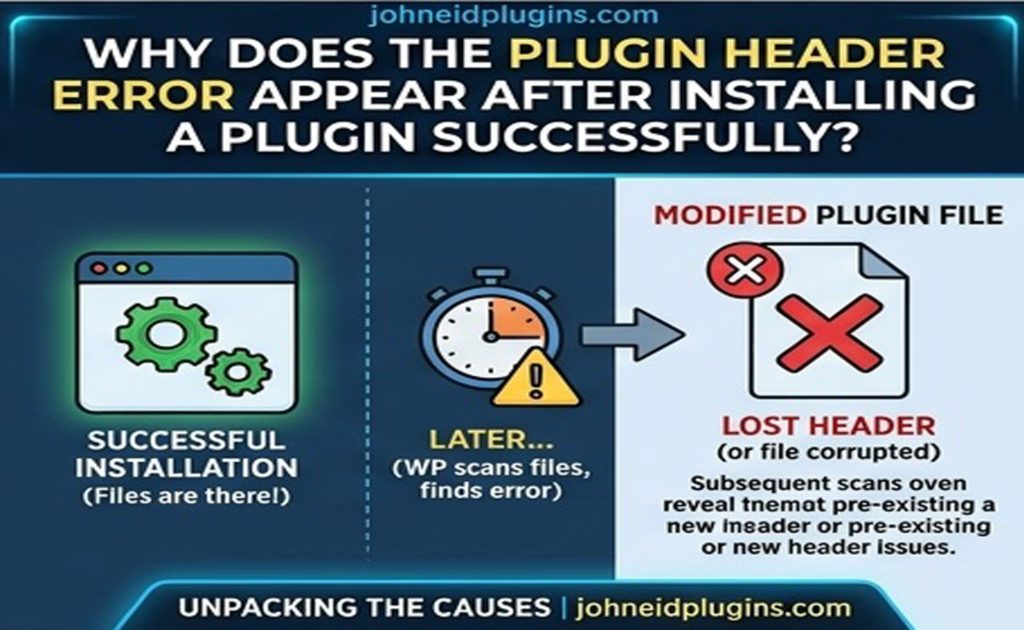
5. Why does the error appear after installing a plugin successfully?
The plugin installation may have completed, but WordPress might encounter a problem when refreshing its plugin information or activating the plugin. Refreshing the Installed Plugins page and checking the installation structure are useful first steps.
6. Can incorrect file permissions cause this error?
Yes. Incorrect permissions or file ownership can prevent WordPress from accessing plugin files properly. Check the filesystem configuration and consult your hosting provider before making broad permission changes.
7. What should I do if the error continues after reinstalling the plugin?
Inspect the plugin’s directory structure, verify the main PHP header, check for duplicate plugin files, and clear relevant caches. If the issue remains, review server logs and contact the plugin developer or hosting provider.
Conclusion
The “The Plugin Does Not Have a Valid Header” error in WordPress can usually be resolved by identifying the underlying problem rather than making extensive changes to your website.
Start by refreshing the Installed Plugins page and reinstalling the plugin from a trusted source. If that does not work, inspect the directory structure, verify the main PHP file’s header, check for duplicate plugin files, and clear the relevant cache. File permissions and hosting restrictions are additional factors to investigate when simpler solutions fail.
Always back up your website before deleting plugins or modifying server files. If the error persists after following these steps, consult your hosting provider or the plugin developer with the relevant error logs.
With a systematic troubleshooting approach, you can resolve most invalid plugin header errors and restore your WordPress website’s functionality without unnecessary downtime.