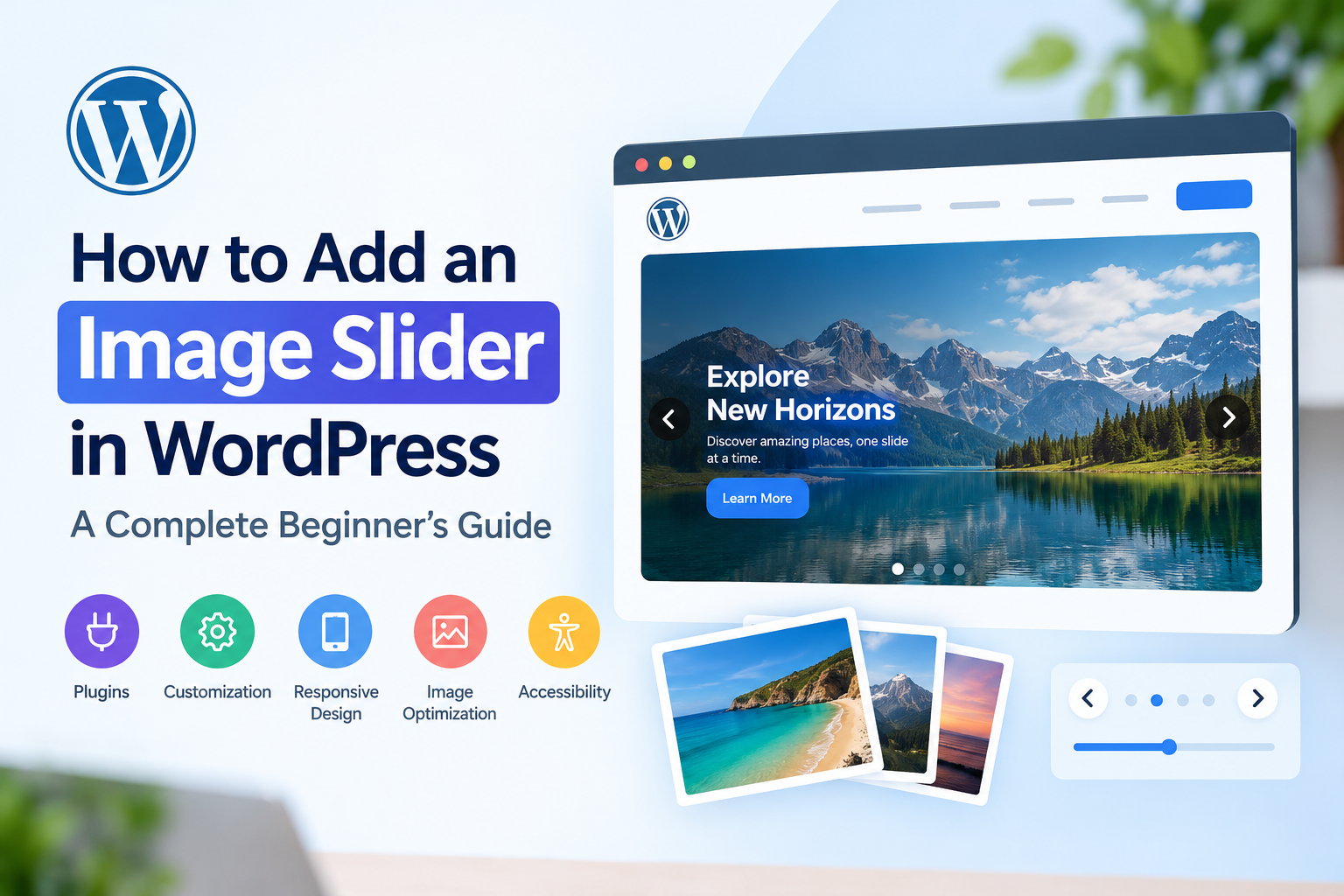
Images play an important role in making websites visually appealing and engaging. Whether you run a business website, an online store, a photography portfolio, or a personal blog, presenting images effectively can help visitors understand your content and explore your website.
One popular way to display multiple images in a limited space is by adding an image slider. A slider allows visitors to browse a collection of images using navigation arrows, pagination dots, or touch gestures. Depending on its configuration, it can also display captions, promotional messages, and clickable buttons.
If you are wondering how to add an image slider in WordPress, you do not necessarily need coding experience. WordPress offers built-in editing tools, and numerous plugins provide additional slider functionality.
In this complete beginner’s guide, you will learn how WordPress image sliders work, how to create one using different methods, how to customize its appearance, and how to optimize it for mobile devices, accessibility, and website performance.
By the end of this tutorial, you will understand how to choose the right approach and create an image slider that supports your website’s goals.
What Is an Image Slider in WordPress?
An image slider is a website component that displays a series of images within a defined area. Visitors can move between images manually or, when enabled, allow the slider to advance automatically.
Image sliders are commonly used on homepages, landing pages, product pages, portfolios, and service websites.
For example, an online store might use a slider to showcase seasonal promotions, while a photographer might use one to display selected projects. A business website could feature important services, and an agency might use a carousel to display client logos.
Although the terms are sometimes used interchangeably, sliders and carousels can have slightly different layouts.
An image slider typically displays one main image at a time, with visitors moving from one slide to another.
An image carousel commonly presents several items in a horizontal row, allowing visitors to browse through a collection.
A hero slider is a large visual section, usually near the top of a webpage, that may combine images with headlines and call-to-action buttons.
A logo carousel displays multiple client, partner, sponsor, or brand logos in a compact layout.
The right format depends on the content you want to display and how visitors will interact with it.
Why Should You Add an Image Slider to WordPress?
An image slider can help organize visual content and improve the presentation of a webpage. However, it should serve a clear purpose rather than being added simply for decoration.
1. Showcase Multiple Images in Less Space
A slider allows you to present several images within a single section instead of displaying every image vertically.
This can be useful for photography portfolios, product collections, property listings, and featured projects.
Visitors can browse the images without having to scroll through a long page.
2. Highlight Important Products and Services
Businesses can use image sliders to draw attention to featured products, new services, seasonal offers, or important announcements.
For example, an online clothing store might showcase its latest collection, while a travel agency could display popular holiday destinations.
If you include text or buttons, make sure the message is clear and the next step is easy to understand.
3. Improve Visual Storytelling
Images can communicate information quickly and make complex subjects easier to understand.
A slider can present a sequence of related photographs, illustrate a process, or show different stages of a project.
For example, an interior design company might use a series of images to showcase completed rooms, while a construction business could display project photographs.
4. Display Client and Partner Logos
A logo carousel can help businesses present their professional relationships.
Agencies, consultants, and service providers can use this format to display client or partner logos, provided they have permission to use them.
5. Create More Flexible Page Layouts
A well-designed slider can fit into a homepage, landing page, or portfolio without requiring a separate section for every image.
However, sliders are not always the best choice. If visitors need to compare several images simultaneously, a standard image gallery may be more effective.
Choose a format that helps visitors find and understand the information they need.
What Do You Need Before Creating an Image Slider?
Before building your first slider, prepare the following:
- A WordPress website: You need access to the WordPress dashboard and permission to edit the relevant page.
- Images: Select relevant, high-quality images that suit the purpose of the slider.
- A slider creation method: You can use a suitable built-in block, a plugin, or a custom implementation.
- A destination page: Decide where the slider should appear, such as your homepage, product page, or portfolio.
- A basic understanding of the WordPress editor: You should know how to edit, save, and preview a page.
If you are new to WordPress, the official WordPress documentation provides helpful information about managing pages, media, themes, and plugins.
Once you have prepared these items, you can choose the method that best fits your website.
Method 1: Create an Image Slideshow Using WordPress Blocks
The simplest option may be to use the image-related blocks available in your WordPress editing environment.
Depending on your WordPress setup, installed plugins, and available editor features, you may be able to use a slideshow block or create a gallery using built-in blocks.
For example, WordPress.com documents how to create a slideshow using its Slideshow block. Availability can differ between WordPress.com plans and self-hosted WordPress.org websites, so check which blocks your installation provides.
Follow these general steps.
Step 1: Open the Page Editor
Log in to your WordPress dashboard.
Navigate to Pages and select the page where you want to display the slideshow. You can also create a new page if needed.
Click the option to edit the page.
Step 2: Insert a Slideshow or Gallery Block
Click the plus (+) button to open the block inserter.
Search for a suitable slideshow block. If one is available, select it and insert it into the page.
If your editor does not provide a slideshow block, you may be able to use a gallery block or install a plugin that adds slider functionality.
Remember that a standard gallery and a rotating image slider are not necessarily the same thing.
Step 3: Add Your Images
Upload images from your computer or select existing files from your WordPress Media Library.
Choose images that are relevant to the page and arrange them in the desired order.
For a professional appearance, use images with consistent dimensions or aspect ratios where practical.
Step 4: Configure the Available Settings
Depending on the block, you may be able to adjust image size, alignment, captions, navigation, transitions, or autoplay.
Preview the slideshow to see how it appears within the page layout.
Step 5: Save and Preview the Page
Click Save, Update, or Publish, depending on the page’s current status.
Preview the page on the front end to confirm that the images display correctly.
Important: If your WordPress installation does not provide a suitable slideshow block, use the plugin method described below.
Method 2: Add an Image Slider Using a WordPress Plugin
For greater flexibility, a dedicated slider plugin is often the most convenient option.
Slider plugins can provide features such as multiple slide layouts, responsive controls, image captions, transition effects, navigation arrows, and shortcode or block integration.
The exact features vary between plugins.
Step 1: Choose a Suitable Slider Plugin
Visit the official WordPress Plugin Directory to explore available options.
Several established options include:
- Smart Slider 3: Provides a visual editor for building image and other types of sliders.
- MetaSlider: Offers tools for creating image slideshows and other slider formats.
- General Slider: Provides slider creation through blocks, shortcodes, and supported integrations.
- JohnEid Image Slider and Logo Carousel: Provides a way to create image slider and logo carousel with a shortcode to display on post or page.
These are examples rather than a definitive ranking. Review each plugin’s current features, documentation, compatibility information, and support before making a choice.
When evaluating a plugin, consider its ease of use, responsiveness, accessibility, performance, customization options, and maintenance history.
Choose one that meets your requirements without adding unnecessary complexity.
Step 2: Install and Activate the Plugin
After selecting a plugin, follow these steps:
- Log in to your WordPress dashboard.
- Navigate to Plugins → Add New Plugin.
- Search for the plugin by name.
- Review its description and compatibility information.
- Click Install Now.
- Wait for the installation to finish.
- Click Activate.
The plugin should now be available in your WordPress administration area.
If you downloaded a plugin ZIP file from a trusted source, you can generally use the Upload Plugin option instead.
For further guidance, consult the official documentation on installing and managing WordPress plugins.
Only install plugins from trustworthy sources, and avoid unofficial packages that may contain modified or malicious code.
Step 3: Create a New Slider
Once the plugin is activated, locate its menu in your WordPress dashboard.
Depending on the plugin, the menu might be called Sliders, Image Slider, Carousel, or something similar.
Open the relevant section and select an option such as Add New or Create Slider.
Enter a descriptive name, such as:
- Homepage Image Slider
- Featured Products
- Company Portfolio
- Travel Destination Gallery
- Client Logo Carousel
Using clear names will help you manage multiple sliders later.
Some plugins allow you to choose a layout or template at this stage. Select a design that suits your website and the type of images you want to display.
Step 4: Add Images to the Slider
Most slider plugins let you upload images or select them from the WordPress Media Library.
To add images:
- Open the slide editor.
- Select the option to add a slide or image.
- Upload a new image or choose an existing file.
- Repeat the process for the remaining images.
- Arrange the images in the desired order.
- Add captions or links if needed.
- Save your changes.
Try to maintain a consistent visual style across the images.
For example, a product slider may benefit from photographs with similar backgrounds and dimensions, while a travel slider might use a consistent landscape format.
Avoid adding too many images simply because the plugin allows you to do so. Focus on the content that matters most to your visitors.
Step 5: Customize the Slider Design
After adding images, adjust the available settings to match your website’s appearance.
Common options include:
Slider dimensions: Set the width and height according to the layout and the proportions of your images.
Navigation arrows: Allow visitors to move between slides manually.
Pagination: Use dots, numbers, or other indicators to show slide position.
Transition effects: Choose a simple slide or fade effect if supported.
Captions: Add short descriptions that explain the content of each image.
Links and buttons: Direct visitors to a relevant product, service, or page.
Autoplay: Enable automatic transitions only if they serve a clear purpose.
The exact settings depend on your chosen plugin. Avoid enabling every effect by default; a simpler design is often easier to use.
Step 6: Save the Slider
Once you have configured the images and settings, save or publish the slider inside the plugin.
Some plugins provide a preview so you can inspect the design before adding it to a page.
Check the result and make any necessary adjustments.
Method 3: Display the Slider on a WordPress Page
Creating a slider does not automatically mean it will appear on your website. You need to insert it into the relevant page or template.
The method depends on the plugin and your WordPress setup.
Option A: Insert the Slider Using a WordPress Block
Some slider plugins provide a dedicated block for the WordPress editor.
To use it:
- Open the page where you want the slider.
- Click the plus (+) button.
- Search for the plugin’s block name.
- Insert the block into the page.
- Select the slider you created.
- Adjust any available block settings.
- Save and preview the page.
This method is convenient because it allows you to select the slider directly within the editor.
Option B: Insert the Slider Using a Shortcode
A shortcode is a small piece of text that WordPress uses to display particular functionality.
Many slider plugins generate a shortcode for each slider.
For example, a plugin might provide a shortcode resembling:
[example_slider id="123"]
This is an illustrative example, not a universal shortcode. You must use the exact shortcode generated by your chosen plugin.
To insert it:
- Open the page editor.
- Click the plus (+) button.
- Search for the Shortcode block.
- Insert the block.
- Paste the shortcode provided by the plugin.
- Save or update the page.
- Preview the published result.
Some page builders also support shortcodes through dedicated widgets or modules.
Option C: Use a Page Builder
If your website uses a page builder, check whether it supports your slider plugin.
Some plugins provide dedicated widgets or modules for popular page builders. Others can be inserted through a shortcode element.
Choose the supported method described in the plugin’s documentation.
Where Should You Place the Slider?
Consider the purpose of the slider before choosing its location.
A large hero slider may work near the top of a homepage. A product slider might belong on a category or product page. A portfolio slider could appear alongside a project description.
Place the slider where it helps visitors understand the page, rather than adding it everywhere.
How to Make Your WordPress Image Slider Mobile-Friendly
A responsive slider adjusts to different screen sizes, including desktop monitors, tablets, and smartphones.
Mobile usability matters because images, text, and navigation controls can behave differently on smaller screens.
Follow these practices to improve the experience.
Use Suitable Image Dimensions
Select image dimensions that suit the intended layout.
Wide images may work well for desktop hero sections, but important content can be cropped on mobile devices.
Keep the main subject visible and use responsive image or cropping settings when available.
Check Text Readability
If your slider includes headings or captions, confirm that they remain readable on smaller screens.
Avoid long text overlays and ensure sufficient contrast between text and its background.
If the plugin offers device-specific settings, use them to adjust typography or hide nonessential elements on mobile.
Make Navigation Easy to Use
Navigation arrows and pagination controls should be easy to identify and activate.
Test the slider using touch gestures where supported, and ensure that controls do not overlap important content.
Test Multiple Screen Sizes
Do not rely solely on the desktop preview.
Open the page on a smartphone or use browser developer tools to test different viewport sizes.
Check the layout, image cropping, text, navigation, and spacing.
A slider should remain usable without forcing visitors to zoom in or scroll horizontally.
How to Optimize Image Sliders for Better Website Performance
Image sliders can affect page performance, particularly when they contain large images or unnecessary animations.
A slow-loading slider may delay the display of important content and frustrate visitors.
The following techniques can help reduce performance problems.
1. Compress Your Images
Large image files take longer to download.
Use an appropriate image format and compression level to reduce file size without noticeably degrading visual quality.
JPEG, WebP, and AVIF can be suitable for photographs, depending on your workflow and compatibility requirements. PNG is useful for certain graphics that require transparency.
You can learn more about image optimization for the web.
2. Resize Images Before Uploading
Avoid using images that are significantly larger than the space in which they will be displayed.
Choose dimensions based on your actual layout, device requirements, and image quality needs.
Consistent image proportions can also prevent awkward cropping and excessive blank space.
3. Limit the Number of Slides
More images do not necessarily create a better experience.
Use a focused selection of relevant images instead of adding every available photograph.
A smaller, carefully selected collection can be easier to navigate and may reduce the amount of media loaded by the page.
4. Use Lazy Loading Appropriately
Lazy loading allows certain images to load when they are approaching the visible area of a webpage.
This can be useful for images farther down a long page. However, the main image in a prominent homepage slider may need to load promptly because it contributes to the initial visual experience.
Test the behavior rather than applying the same loading strategy to every image.
5. Avoid Unnecessary Animations
Complex transitions and additional scripts can increase the work required from the browser.
Choose simple effects and disable features that do not provide meaningful value.
6. Measure Your Results
After adding the slider, test the page using Google PageSpeed Insights.
Review the results and address relevant issues, such as oversized images, delayed loading, or excessive JavaScript.
For more general recommendations, consult the official WordPress performance optimization documentation.
Remember that page performance depends on several factors, including your theme, hosting environment, caching setup, and other installed plugins. A slider is only one part of the overall website.
Image Slider Accessibility Best Practices
An image slider should be usable by as many visitors as possible, including people who navigate websites using keyboards or assistive technologies.
Accessibility should be considered during setup rather than treated as an optional finishing touch.
Add Appropriate Alt Text
Alternative text describes meaningful image content for visitors who cannot see it.
For example, an image showing a modern office building might use the description “Modern office building with glass windows.”
Write descriptions that accurately reflect the image. Avoid inserting keywords that do not describe its content.
Decorative images may require empty alternative text, depending on how they are implemented.
Support Keyboard Navigation
Visitors should be able to operate important slider controls using a keyboard.
Test whether users can navigate to the controls and activate them without relying on a mouse.
Provide Control Over Autoplay
Automatically moving content can be distracting or make text difficult to read.
If autoplay is enabled, provide a clear way to pause or stop it. Avoid excessively fast transitions, and consider disabling autoplay when it is not necessary.
Use Readable Text and Controls
Ensure sufficient contrast between text and backgrounds.
Buttons and navigation controls should have clear labels and be easy to identify.
For more detailed guidance, consult the W3C Web Accessibility Initiative’s carousel tutorial.
Common WordPress Image Slider Problems and Solutions
Even after following the correct steps, you may encounter issues with your slider.
Here are several common problems and ways to troubleshoot them.
The Slider Does Not Appear
Check whether the slider has been saved and whether the plugin is activated.
If you used a shortcode, verify that you copied the correct shortcode and identifier.
Also confirm that you inserted it using a method supported by your plugin.
Images Are Missing
Check whether the images are available in your Media Library and assigned to the correct slides.
If an image URL is broken, reselect the image or upload it again.
The Slider Looks Incorrect on Mobile
Review the plugin’s responsive settings and check the width of the surrounding page container.
Test the image cropping, text size, and navigation controls on smaller screens.
The Website Loads Slowly
Compress your images, remove unnecessary slides, and disable effects that are not needed.
Test the page again after each change to identify which adjustments make a difference.
The Slider Conflicts With Another Plugin
Plugin conflicts can occur when different components use incompatible scripts or styles.
Back up your website before troubleshooting. If possible, reproduce the problem on a staging site and test relevant components individually.
Consult the plugin’s support documentation before making code changes.
Frequently Asked Questions
1. Can I Add an Image Slider to WordPress Without Coding?
Yes. Many WordPress plugins provide visual interfaces that let you create sliders, add images, customize settings, and display the result using a block or shortcode.
A basic slider usually does not require you to write HTML, CSS, or JavaScript.
2. What Is the Best WordPress Image Slider Plugin?
The best plugin depends on your requirements.
Compare available options based on ease of use, responsiveness, design flexibility, accessibility, performance, compatibility, and support.
Test the free version when available before deciding whether you need additional features.
3. Can I Add an Image Slider to My Homepage?
Yes. You can usually place a slider on your homepage using a supported WordPress block, shortcode, page-builder integration, or theme functionality.
The exact process depends on your chosen plugin and homepage setup.
4. Do Image Sliders Affect SEO?
Image sliders do not automatically improve search rankings.
Their SEO impact depends on factors such as image optimization, page performance, accessibility, content quality, and how the slider is implemented.
Use descriptive image alt text where appropriate, ensure important content is accessible, and avoid making essential information available only through difficult-to-access interactive elements.
5. Can I Use an Image Slider on Mobile Devices?
Yes, provided the slider and surrounding layout support responsive behavior.
Test the slider on different screen sizes to confirm that images, captions, and controls remain usable.
6. Are Image Sliders Better Than Image Galleries?
Neither format is universally better.
Sliders work well when visitors should view images sequentially. Galleries are often better when users need to see several images simultaneously or compare them directly.
Choose the format that best supports the page’s purpose.
7. Can I Add Links to Images in a Slider?
Many slider plugins allow you to attach links to individual images or slides.
You can use these links to direct visitors to products, services, articles, or landing pages.
Make sure linked content is relevant and that visitors can understand where each link will take them.
8. Should I Enable Autoplay?
Autoplay may be appropriate for some promotional displays, but it is not necessary for every slider.
Automatic movement can distract visitors and interfere with reading. If you enable it, provide a pause control and allow visitors to navigate manually.
9. Can I Create a Slider Without a Plugin?
Yes. Depending on your requirements, you can use built-in editor features, custom HTML and CSS, JavaScript, or functionality provided by your theme.
However, a custom implementation requires additional attention to responsiveness, accessibility, browser compatibility, and maintenance.
For beginners, an appropriate plugin is often the simplest option.
Conclusion
Adding an image slider in WordPress can be a straightforward way to showcase photographs, highlight products, present services, and organize visual content.
You can create a basic slideshow using available editor blocks or install a dedicated plugin for additional layouts and customization options.
The general process involves selecting your images, creating the slider, configuring its appearance, and inserting it into the appropriate page using a supported block, shortcode, or page-builder integration.
For the best results, choose images carefully, test the slider on mobile devices, optimize image files, and provide accessible navigation. Monitor your website’s performance after publishing and remove unnecessary effects or features.
Most importantly, use sliders when they genuinely improve the visitor experience. A well-designed slider can support your website’s goals, but a simple image or gallery may sometimes communicate information more effectively.
By following the steps and best practices in this guide, you can create a functional, responsive, and visually appealing image slider without needing advanced technical knowledge.