Introduction
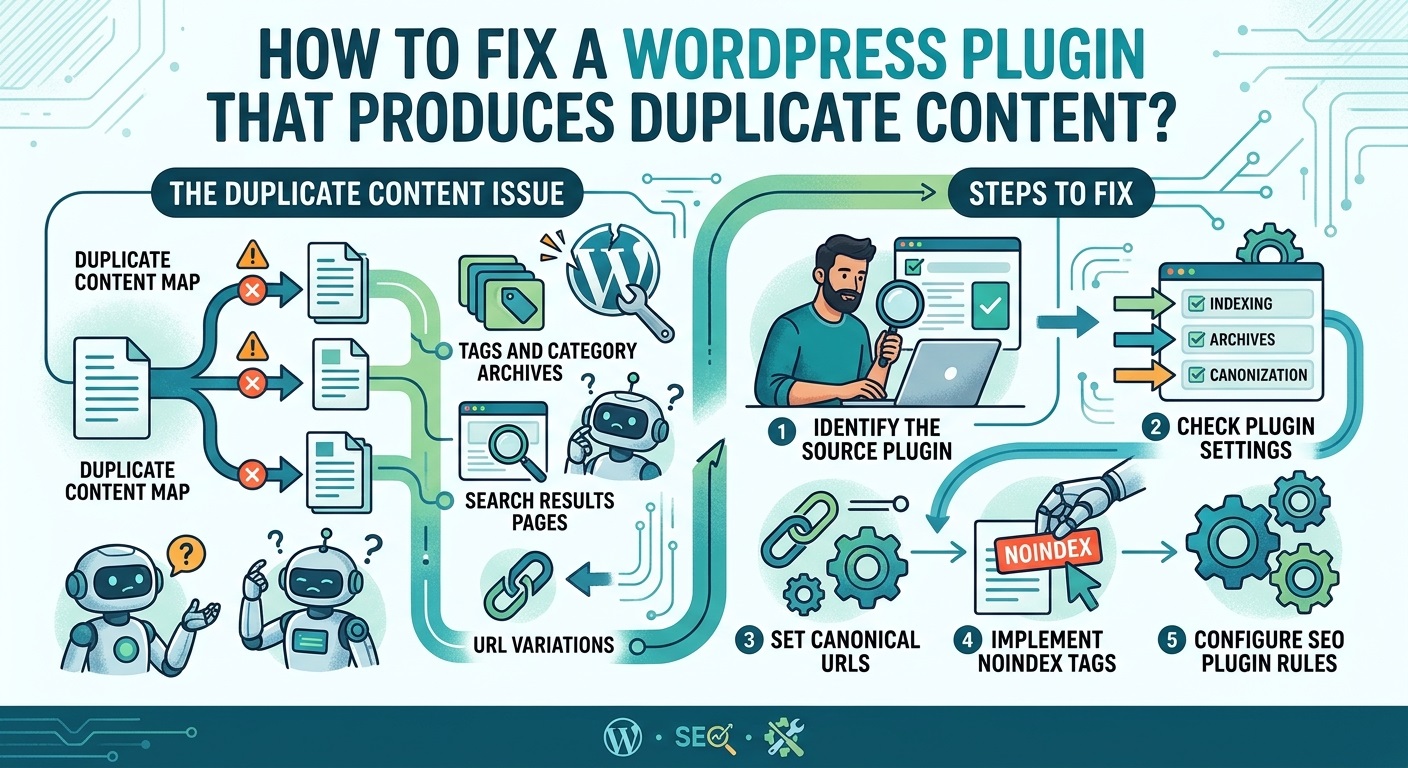
Duplicate content is a common SEO problem that can affect WordPress websites when plugins generate multiple URLs containing identical or substantially similar content. Website owners may discover that the same article appears under different URLs, product descriptions are repeated across multiple pages, or archive pages display content that already exists elsewhere on the website.
Although duplicate content does not automatically result in a Google penalty, it can create indexing problems, confuse search engines, waste crawl resources, and make it difficult for search engines to determine which version of a page should appear in search results.
WordPress plugins are designed to extend website functionality. SEO plugins, page builders, membership plugins, eCommerce extensions, content management tools, translation plugins, and automated publishing systems can all influence how website content is generated and displayed.
Sometimes, a plugin creates duplicate pages intentionally because it needs separate URLs for filtering, pagination, printing, or other functionality. In other situations, incorrect plugin settings, incompatible extensions, outdated code, or improper URL handling can accidentally produce duplicate content.
For example, a website might display the same blog post through several different URLs:
https://example.com/how-to-use-wordpress/https://example.com/how-to-use-wordpress/?ref=homepagehttps://example.com/category/tutorials/how-to-use-wordpress/https://example.com/how-to-use-wordpress/?output=1
If search engines discover these URLs and consider them separate pages, they may have difficulty identifying the preferred version.
The good news is that most plugin-related duplicate content problems can be diagnosed and corrected without rebuilding the website.
This guide explains how to identify the source of duplicate content, troubleshoot problematic WordPress plugins, configure canonical URLs, resolve duplicate metadata, and prevent the problem from returning.
1. Understand Why WordPress Plugins Produce Duplicate Content
Before attempting to fix duplicate content, it is important to understand how plugins can generate it.
WordPress uses a flexible content management system that allows plugins to create custom post types, custom taxonomies, archives, query parameters, and dynamically generated pages.
When a plugin handles these functions incorrectly, it can expose multiple URLs containing the same content.
Some common causes include the following.
Incorrect Plugin URL Generation
Certain plugins generate additional URLs for existing pages. For example, a filtering plugin might create separate URLs when visitors select different categories or sorting options.
If these URLs display identical content without appropriate canonicalization, search engines may discover several versions of the same page.
Duplicate Page Generation
Some page duplication, landing page, and template plugins allow users to create copies of existing pages. If the copied pages are published without meaningful changes, they can create duplicate content.
Incorrect Canonical Tags
Canonical tags tell search engines which URL represents the preferred version of similar or duplicate pages.
If an SEO plugin generates incorrect canonical URLs, search engines may receive conflicting information about which page should be indexed.
Plugin Conflicts
Two plugins may attempt to manage the same SEO functionality.
For example, an SEO plugin and another content management extension might both generate canonical tags, meta descriptions, or structured data.
The resulting HTML may contain conflicting information.
Automatic Content Publishing
Content importers, RSS aggregators, product feed extensions, and automated publishing plugins can import identical articles or descriptions from multiple sources.
Without appropriate content management and indexing settings, these imports can create duplicate pages.
Understanding the cause helps prevent unnecessary changes to your website.
2. Identify Duplicate Content on Your WordPress Website
The first troubleshooting step is to determine whether duplicate content actually exists.
Sometimes, different URLs are simply alternative representations of the same page. In other situations, the website contains completely separate pages with identical content.
Start by examining the affected URLs.
Check Duplicate URLs Manually
Open the suspected URLs in separate browser tabs.
Compare their:
- Page titles.
- Main headings.
- Article content.
- Product descriptions.
- Meta descriptions.
- Canonical tags.
- Internal links.
- Page source HTML.
If the URLs display identical or substantially similar content, investigate whether they are necessary variations or accidental duplicates.
Pay particular attention to query parameters such as:
?sort=latest?filter=popular?ref=homepage?print=1?page=1
These parameters are not automatically problematic. Their SEO impact depends on whether they generate distinct, useful content and how search engines are instructed to handle them.
Use Google Search Console
Google Search Console is an important tool for identifying duplicate URL and indexing problems.
Open your website’s Search Console account and navigate to the Pages indexing report.
Look for statuses such as:
- Duplicate without user-selected canonical.
- Duplicate, Google chose different canonical than user.
- Alternate page with proper canonical tag.
- Crawled – currently not indexed.
- Discovered – currently not indexed.
These statuses provide useful information about how Google processes different versions of your pages.
The URL Inspection tool can also help you examine an individual URL and compare Google’s selected canonical URL with the canonical URL specified by your website.
You can access Google Search Console to investigate indexing issues.
Use a Website Crawling Tool
A website crawler can identify duplicate titles, duplicate descriptions, similar page content, and multiple URLs pointing to identical pages.
Tools such as Screaming Frog SEO Spider can help identify these problems.
A crawl is particularly useful when your website contains hundreds or thousands of posts, pages, products, and archive URLs.
3. Check Which WordPress Plugin Is Creating Duplicate Content
After identifying duplicate URLs, determine which plugin is responsible.
Do not immediately deactivate every plugin. A systematic approach can help isolate the problem without unnecessarily interrupting website functionality.
Review Recently Installed Plugins
Think about when the duplicate content problem first appeared.
Did it begin after installing a new plugin, updating an existing extension, changing SEO settings, or importing content?
Review your recently installed and updated plugins.
Pay particular attention to:
- SEO plugins.
- Page builder plugins.
- Content duplication plugins.
- WooCommerce extensions.
- Translation plugins.
- URL redirection plugins.
- Content importers.
- RSS feed plugins.
- Filtering and search extensions.
- Membership plugins.
If the issue started immediately after installing or updating a particular extension, investigate that plugin first.
Deactivate Plugins One at a Time
Create a complete website backup before testing plugins.
If possible, use a staging website rather than testing directly on your production website.
Deactivate the suspected plugin and check whether the duplicate URLs or duplicate HTML output disappear.
If the problem disappears, the plugin may be responsible.
However, do not assume that every duplicate URL will immediately disappear after deactivation. Some plugins create database records, rewrite rules, or stored content that remains after the plugin is disabled.
Reactivate the plugin and examine its settings to identify the actual cause.
Enable WordPress Troubleshooting Mode
If several plugins are involved, troubleshooting mode can help isolate conflicts.
The Health Check & Troubleshooting plugin provides a troubleshooting environment in which administrators can disable plugins for their own session without affecting normal visitors.
This is useful when two extensions generate overlapping SEO information.
4. Fix Incorrect Canonical URLs Generated by a Plugin
Canonical URL problems are among the most important causes of plugin-related duplicate content.
A canonical tag identifies the preferred URL for a page when multiple URLs contain identical or substantially similar content.
For example, suppose your original article is:
However, a plugin generates another version:
Both URLs display the same article.
The preferred URL should generally contain a canonical reference pointing to the original article.
A typical canonical tag looks like this:
<link rel="canonical" href="https://example.com/wordpress-plugin-guide/" />Check Existing Canonical Tags
Open the affected page in your browser.
Right-click and select View Page Source.
Search for:
rel="canonical"Check whether the page contains a canonical URL and whether it points to the correct destination.
Pay attention to these problems:
- Missing canonical tags.
- Multiple canonical tags.
- Canonical tags pointing to unrelated pages.
- Canonical tags pointing to redirected URLs.
- Canonical tags referencing non-preferred URL formats.
- Canonical tags generated by multiple plugins.
Correct Canonical Settings
If an SEO plugin is responsible, open its settings and inspect the canonical URL configuration.
Many SEO plugins automatically generate self-referencing canonical tags.
For example, a normal article should generally point to its own preferred URL, while an unnecessary duplicate version may need to reference the original page.
Avoid adding canonical tags blindly to every duplicate URL. Different situations require different solutions.
Google explains canonicalization in its documentation about consolidating duplicate URLs.
Avoid Multiple Canonical Tags
Installing two SEO plugins simultaneously can result in multiple canonical tags.
For example, one plugin might generate:
<link rel="canonical" href="https://example.com/article/" />Another plugin might generate:
<link rel="canonical" href="https://example.com/category/article/" />These conflicting signals can make it difficult for search engines to identify the preferred URL.
Use one primary SEO plugin to manage canonical URLs unless you have a specific technical reason for another system to handle them.
5. Check Whether Two SEO Plugins Are Generating Duplicate Metadata
Another common problem occurs when multiple plugins attempt to control the same SEO elements.
For example, you might have:
- Yoast SEO.
- Rank Math SEO.
- All in One SEO.
- A separate schema markup plugin.
- A theme that automatically generates SEO metadata.
Using multiple tools for different purposes is not necessarily a problem. However, allowing several plugins to generate the same canonical tags, page titles, meta descriptions, or structured data can create conflicts.
How to Identify Duplicate Metadata
Inspect the HTML source of an affected page.
Search for:
<title><meta name="description"<link rel="canonical"Check whether these elements appear more than once.
Also inspect structured data scripts:
<script type="application/ld+json">Multiple structured data blocks are not automatically incorrect. A page may legitimately contain Article, Organization, Breadcrumb, and other schema types. The problem occurs when conflicting or redundant information describes the same entity or content.
How to Fix the Conflict
- Identify which plugin is responsible for each SEO element.
- Choose one primary SEO plugin.
- Disable overlapping functionality in other plugins.
- Check your theme’s SEO settings.
- Clear website and CDN caches.
- Inspect the page source again.
Do not remove useful structured data simply because multiple schema blocks exist. Validate the resulting markup with Google’s Rich Results Test.
6. Fix Duplicate Content Created by WordPress Archives
WordPress automatically supports several content archive types.
Depending on your website configuration, the same post may appear on:
- The main blog page.
- Category archives.
- Tag archives.
- Author archives.
- Date-based archives.
- Custom post type archives.
This behavior is normal. However, problems can occur when plugins create additional archives or expose duplicate versions of existing content.
For example, a plugin might generate a custom archive page that displays the same posts as a category archive.
Review Archive Settings
Open your SEO plugin settings and examine the indexing configuration for:
- Categories.
- Tags.
- Author archives.
- Date archives.
- Custom post types.
- Custom taxonomies.
Decide which archive pages provide genuine value to visitors and should be available in search results.
If an archive offers useful navigation and distinct information, indexing may be appropriate.
If it provides no meaningful value and merely repeats existing content, consider setting it to noindex.
Avoid Disabling Every Archive
A common mistake is disabling all category and tag archives to solve duplicate content.
This can damage website navigation and remove useful landing pages from search results.
Instead, evaluate each archive type individually.
For example, a well-maintained WordPress tutorials category containing relevant posts may deserve indexing, while an automatically generated tag archive containing only one or two unrelated articles may not.
7. Resolve Duplicate Content Created by Pagination Plugins
Pagination plugins divide large collections of content into multiple pages.
For example:
https://example.com/blog/https://example.com/blog/page/2/https://example.com/blog/page/3/
These pages should display different portions of the content collection.
However, incorrectly configured pagination can cause every page to display the same posts.
This can happen when a plugin uses incorrect query parameters, fails to modify the WordPress query, or generates pagination links that point to the wrong destination.
Check Pagination Functionality
Open the first page of your blog archive.
Click the second and third pagination links.
Verify that:
- Each URL is different.
- Each page displays the correct posts.
- Pagination links point to the correct pages.
- The page titles and content are appropriate.
- The pages do not redirect to the same archive.
Fix Incorrect Query Handling
If a custom plugin generates pagination, its developer should inspect how it handles the WordPress query.
A typical WordPress pagination implementation uses functions such as:
the_posts_pagination();For custom queries, the developer must ensure that the current page number is passed correctly and that the query uses the appropriate pagination parameters.
One important SEO detail: do not automatically canonicalize every paginated page to page one. When pages contain distinct portions of a collection, each page should generally have its own canonical URL.
See Google’s pagination and incremental page loading guidelines for additional information.
8. Fix Duplicate Content Generated by WooCommerce Plugins
WooCommerce websites can experience duplicate content because products may be accessible through multiple category paths, filtering options, sorting parameters, and product variations.
For example:
A filtering extension might generate:
Both pages may display the same product or substantially similar product information.
Review Product Permalinks
Open WordPress Settings and navigate to Permalinks.
Check the product permalink configuration and confirm that product URLs follow a consistent structure.
Avoid unnecessary changes to established product URLs because changing them can affect existing search listings and external links.
Review Product Categories
A product can belong to several categories.
That is not automatically duplicate content. The important consideration is whether the plugin generates separate URLs that display identical product information without a clear purpose.
Review category and product archive settings to ensure that each indexed page provides meaningful content.
Configure Product Variations
Product variation plugins may create URLs for different sizes, colors, or other attributes.
If these URLs contain essentially identical product descriptions, investigate whether they should be consolidated under the main product URL or whether the variations provide genuinely distinct search value.
Do not remove useful product variations simply to reduce the number of URLs.
Check Filtering and Sorting Parameters
Filtering extensions sometimes create large numbers of URL combinations.
For example:
?color=black?color=black&size=large?orderby=price?orderby=rating
If these pages do not offer unique search value, configure the plugin to avoid unnecessary indexing.
Google provides useful guidance on eCommerce URL structure.
9. Fix Duplicate Content Created by Translation Plugins
Multilingual plugins can create additional versions of existing pages.
For example:
example.com/about-us/example.com/fr/about-us/example.com/de/about-us/
These URLs are not necessarily duplicate content problems because they may contain translations for different audiences.
However, incorrect translation settings can cause multiple language URLs to display the same original content.
Check Translation Configuration
Open your translation plugin settings.
Check:
- Default language.
- Additional languages.
- Language-specific URL structures.
- Automatic translation settings.
- Translation fallback behavior.
- Canonical URL configuration.
- Language switcher links.
If a translated page displays the original language because no translation exists, determine whether the plugin should display a fallback or whether the untranslated URL should be excluded from indexing.
Configure Hreflang Correctly
Multilingual websites can use hreflang annotations to indicate language and regional alternatives.
For example:
<link rel="alternate" hreflang="en"
href="https://example.com/about-us/" />

<link rel="alternate" hreflang="fr"
href="https://example.com/fr/about-us/" />
Each language version should have an appropriate canonical URL.
Do not point every translated page to the English version simply because the content is similar. Properly translated pages can be separate, valuable search destinations.
Read Google’s documentation on localized versions of pages.
10. Investigate Duplicate Content Created by RSS and Import Plugins
RSS aggregators and automated content importers can create duplicate content when they import articles from external websites or repeatedly import the same source.
For example, a content import plugin might import an article every time a scheduled task runs, even though an identical article already exists.
This can create multiple posts with different publication dates or slightly modified titles.
Check Imported Posts
Open your WordPress Posts dashboard.
Look for:
- Repeated article titles.
- Identical article bodies.
- Posts with different publication dates.
- Repeated source URLs.
- Multiple copies of imported images.
- Similar posts created by scheduled imports.
Configure Duplicate Detection
Check whether your import plugin provides options for:
- Matching source URLs.
- Preventing duplicate imports.
- Matching existing post titles.
- Updating existing posts instead of creating new ones.
- Controlling scheduled imports.
- Skipping previously processed content.
If the plugin supports source URL tracking, use it to identify previously imported articles.
Handle Existing Duplicates Carefully
Do not immediately delete every similar post.
Some posts may have accumulated backlinks, traffic, or user engagement.
Compare their content and performance before deciding whether to:
- Keep both pages because they serve different purposes.
- Merge useful information into one article.
- Redirect an obsolete page.
- Remove a genuinely unnecessary duplicate.
11. Check Whether a Plugin Is Creating Duplicate Custom Post Types
Some WordPress plugins register custom post types to manage specific content.
Examples include:
- Portfolio items.
- Testimonials.
- Events.
- Courses.
- Products.
- Properties.
- Job listings.
- Landing pages.
Problems can occur when multiple plugins register similar custom post types or when a plugin creates additional public URLs for content that already exists elsewhere.
For example, a page builder might create a landing page that duplicates an existing WordPress page.
Inspect Custom Post Type Settings
Check the plugin responsible for creating the custom post type.
Look for settings related to:
- Public visibility.
- Archive availability.
- Rewrite rules.
- Custom URL slugs.
- Search engine visibility.
- Duplicate content management.
If a custom post type does not need a public archive, consider disabling its archive functionality.
However, do not disable public visibility if visitors or other website features depend on it.
Check Rewrite Rules
WordPress uses rewrite rules to convert readable URLs into internal queries.
When plugins register custom post types incorrectly, URL conflicts may occur.
After correcting permalink or rewrite settings, visit:
WordPress Dashboard → Settings → Permalinks
Click Save Changes without necessarily changing any settings.
This refreshes WordPress rewrite rules.
If the problem continues, ask the plugin developer to investigate conflicting rewrite rules and custom post type registration.
12. Check Plugin Database Records for Duplicate Content
Some plugins store imported content, page information, templates, and custom post types in the WordPress database.
Incorrect database operations can create multiple records containing identical information.
For example, a plugin might create a new post every time an administrator clicks an import button instead of checking whether the content already exists.
Inspect the WordPress Database
Before making database changes, create a complete backup.
You can use phpMyAdmin or another database management tool to inspect WordPress tables.
The wp_posts table contains information about posts, pages, and custom post types.
The wp_postmeta table stores additional post-related information.
If you suspect duplicate records, compare:
- Post titles.
- Post types.
- Post statuses.
- Publication dates.
- Post content.
- Plugin-specific metadata.
Remember that WordPress database prefixes are not always wp_. Your website may use a different prefix.
Identify the Plugin’s Database Operations
If a developer is investigating the problem, they should inspect whether the plugin uses functions such as:
wp_insert_post();This function creates a WordPress post.
If the plugin calls it repeatedly without checking for existing records, it may create duplicate posts.
A better implementation should identify existing content using a reliable unique identifier, such as an external source ID or an original content URL.
The plugin should update an existing record when appropriate instead of creating another copy.
Important: Never delete database records simply because their titles look similar. Database relationships, metadata, and plugin functionality may depend on those records.
13. Check Whether Your Theme Is Producing Duplicate Content
Although the problem may appear after installing a plugin, the active WordPress theme can also contribute to duplicate content.
Some themes generate additional page elements, archive sections, or content previews.
In certain situations, a theme and plugin may both output the same content.
For example, a theme might automatically display a page title and featured content, while a page builder plugin generates another copy of the same section.
Test With a Default WordPress Theme
Create a staging environment and temporarily switch to a default WordPress theme.
Check whether the duplicate content disappears.
If the issue is resolved, investigate the active theme’s templates and compatibility with the plugin.
Pay particular attention to:
single.phppage.phparchive.phpindex.php- Custom post type templates.
- Template parts.
A theme developer should also inspect whether the main WordPress loop is being executed more than once.
For developers, the WordPress Theme Handbook provides useful information about template hierarchy and theme development.
14. Clear WordPress Cache After Fixing the Problem
Caching can make it appear that a duplicate content problem still exists even after correcting the plugin settings.
WordPress websites may use several caching layers:
- Browser caching.
- WordPress caching plugins.
- Hosting server caching.
- Object caching.
- CDN caching.
- Reverse proxy caching.
If an older cached page contains incorrect canonical tags or duplicated content, visitors and search engine crawlers may continue receiving outdated HTML.
Clear All Relevant Caches
Follow these steps:
- Clear your browser cache.
- Purge the WordPress caching plugin.
- Clear server-side cache through your hosting control panel.
- Purge CDN cache if your website uses one.
- Clear relevant object caches if necessary.
- Revisit the affected URLs.
For example, if you use Cloudflare, review its caching settings and purge the relevant cached resources.
After clearing caches, inspect the page source again.
Confirm that the correct canonical URL appears and that the duplicate content has disappeared.
15. Prevent Duplicate Content Problems When Developing WordPress Plugins
If you develop WordPress plugins, preventing duplicate content should be part of the development process.
A properly developed plugin should generate predictable URLs, avoid unnecessary duplicate records, and work correctly with existing WordPress SEO functionality.
Consider the following development practices.
Use Unique Identifiers
When importing or generating content, use reliable identifiers to determine whether a record already exists.
Avoid creating new posts simply because an import process runs again.
Generate Correct Canonical URLs
Plugins that create public-facing pages should provide a clear canonical URL strategy.
Do not generate multiple canonical tags or override another SEO plugin without a clear compatibility mechanism.
Avoid Unnecessary URL Parameters
Only generate URL parameters when they serve a genuine functionality requirement.
Avoid creating unlimited variations of URLs that display exactly the same content.
Respect WordPress Query Functions
Use WordPress query functions appropriately when generating archive pages, filtering results, and handling pagination.
Avoid creating custom URL structures that conflict with existing WordPress permalinks.
Support SEO Plugin Compatibility
If your plugin integrates with SEO functionality, test it with commonly used SEO plugins.
Check whether your extension:
- Creates duplicate titles.
- Outputs additional canonical tags.
- Generates conflicting descriptions.
- Adds unnecessary archive pages.
- Produces duplicate structured data.
- Changes existing permalink behavior.
Test Before Publishing Updates
Test your plugin on different WordPress configurations.
Include tests for:
- Fresh WordPress installations.
- Existing websites with published content.
- Multiple SEO plugins.
- WooCommerce installations.
- Multilingual websites.
- Custom post types.
- Pagination.
- URL filtering.
- Cached websites.
The WordPress Plugin Developer Handbook provides useful development standards and guidance for building compatible plugins.
16. When Should You Contact the Plugin Developer?
Sometimes duplicate content cannot be resolved through normal plugin settings.
This is particularly common when a plugin contains incorrect URL-generation logic, database operations, or compatibility problems.
Consider contacting the developer when:
- Duplicate pages continue appearing after changing settings.
- Canonical tags are generated incorrectly.
- The plugin creates duplicate posts automatically.
- The same content appears on multiple unrelated URLs.
- Pagination generates incorrect links.
- Two plugins repeatedly conflict.
- Duplicate records return after being deleted.
- The plugin generates unexpected archive pages.
When contacting the developer, provide useful technical information.
Include:
- The plugin name and version.
- Your WordPress version.
- Your PHP version.
- The affected URLs.
- Examples of duplicate content.
- HTML source showing duplicate canonical tags, if applicable.
- Screenshots of relevant plugin settings.
- Steps to reproduce the problem.
This information makes it easier for the developer to identify the underlying issue.
Common Mistakes to Avoid When Fixing Duplicate Content
While troubleshooting WordPress plugins, avoid these common mistakes.
Mistake 1: Using Noindex for Every Duplicate URL
The noindex directive tells search engines not to index a page.
However, it is not always the correct solution for duplicate content.
If two URLs contain identical content, canonicalization or a permanent redirect may be more appropriate.
Choose the solution according to the purpose of each URL.
Mistake 2: Blocking Duplicate URLs Through Robots.txt Without a Strategy
Blocking a URL in robots.txt does not guarantee that Google will remove it from search results.
Google may still discover and index a blocked URL without accessing its content.
Do not use robots.txt as a replacement for canonicalization.
Mistake 3: Deleting Duplicate Pages Without Checking Their Value
Some apparently duplicate pages may receive organic traffic or external backlinks.
Before deleting them, review their performance and determine whether a redirect or content consolidation is more appropriate.
Mistake 4: Installing Multiple SEO Plugins
Running multiple SEO plugins with overlapping functionality can create unnecessary conflicts.
Choose one primary SEO solution and configure additional extensions carefully.
Mistake 5: Changing Permalinks Without Redirects
Changing existing URL structures can break internal links and external backlinks.
If a URL must change, implement an appropriate permanent redirect and update internal links and sitemap entries.
Mistake 6: Assuming Every Similar Page Is Harmful
Category archives, product variations, language alternatives, and pagination can legitimately contain related information.
The objective is not to eliminate every similar page. It is to ensure that each URL has a clear purpose and that search engines receive consistent indexing signals.
How to Verify That the Duplicate Content Problem Is Fixed
After completing the troubleshooting process, perform a final inspection.
Use the following checklist to confirm that the plugin is behaving correctly.
| Verification task | Expected result |
|---|---|
| Original page | Displays correct content |
| Duplicate URLs | Removed, redirected, or properly canonicalized |
| Canonical tags | Correct and consistent |
| Page titles | Appropriate for each page |
| Meta descriptions | No accidental duplication |
| Pagination | Displays the correct content |
| Internal links | Point to preferred URLs |
| XML sitemap | Contains preferred indexable URLs |
| Plugin functionality | Works normally |
| Database | No unnecessary duplicate records |
Request Reindexing Through Google Search Console
Once the changes are complete, open Google Search Console.
Use the URL Inspection tool to inspect the corrected page.
Check:
- Whether the URL can be crawled.
- Whether indexing is allowed.
- The user-declared canonical URL.
- Google’s selected canonical URL.
- The latest crawl information.
If appropriate, request indexing.
Remember that requesting indexing does not guarantee immediate reindexing or a particular search ranking.
Google needs time to recrawl the website and process the updated canonicalization signals.
You can also monitor the Pages indexing report over the following days and weeks to determine whether the duplicate URL issues are decreasing.
Frequently Asked Questions
1. Why is my WordPress plugin creating duplicate pages?
A plugin may create duplicate pages because of incorrect URL generation, faulty import functionality, conflicting SEO settings, custom post type registration, or incorrect database operations. Review recently installed plugins and test the suspected extension to identify the source.
2. Does duplicate content negatively affect WordPress SEO?
Duplicate content can complicate crawling, indexing, canonical selection, and performance reporting. However, duplicate content does not automatically result in a Google penalty. Search engines generally attempt to identify the preferred version of similar pages.
3. How can I find duplicate URLs on my WordPress website?
Use Google Search Console, a website crawling tool, or manual URL inspection. Compare page content, canonical tags, titles, and query parameters to identify URLs that display identical or substantially similar information.
4. Can two WordPress plugins create duplicate canonical tags?
Yes. Two SEO plugins or overlapping theme and plugin functionality can generate multiple canonical tags. Use one primary canonical URL management system and disable conflicting functionality.
5. Should I delete duplicate WordPress pages?
Not necessarily. First determine whether the pages serve different purposes or receive organic traffic and backlinks. Depending on the situation, you may keep them, merge their content, add canonical tags, or redirect unnecessary URLs.
6. Can duplicate content affect Google indexing?
Yes. Duplicate URLs can make it harder for Google to determine which version should appear in search results. Google usually selects a canonical version, but incorrect canonical signals or conflicting website configurations can complicate the process.
7. How do I fix duplicate content caused by WooCommerce plugins?
Inspect product URLs, category archives, filtering parameters, and product variations. Configure unnecessary filter URLs appropriately, correct canonical settings, and ensure that different product pages provide meaningful information.
8. Will deactivating a plugin remove duplicate content?
Not always. Deactivating a plugin may stop it from generating new duplicate URLs, but existing database records, published pages, rewrite rules, and cached HTML may remain. Investigate and clean up the underlying issue separately.
9. Can duplicate content be caused by a WordPress theme?
Yes. A theme can display the same content through multiple templates or archive sections. Test the website using a default WordPress theme on a staging installation to determine whether the active theme contributes to the issue.
10. How long does it take Google to recognize duplicate content fixes?
There is no fixed timeframe. Google must recrawl the affected URLs, process the updated canonical signals, and refresh its indexing information. Depending on crawling frequency and website configuration, this may take days or longer.
Conclusion
A WordPress plugin that produces duplicate content can create unnecessary SEO complications, particularly when multiple URLs display identical articles, products, archives, or dynamically generated pages.
However, resolving the problem does not necessarily require removing the plugin or rebuilding your website.
Start by identifying the duplicate URLs and examining their content, canonical tags, and indexing status. Then investigate the responsible plugin, check for overlapping SEO functionality, and review URL generation, pagination, archive settings, and database operations.
For most websites, the correct solution involves removing unnecessary duplicate URLs, configuring canonical tags, implementing appropriate redirects, and ensuring that each indexable page has a clear purpose.
Website owners should also monitor Google Search Console after making changes to verify that search engines recognize the preferred URLs.
For plugin developers, preventing duplicate content requires careful URL management, reliable database operations, proper WordPress query handling, and compatibility testing.
By following these practices, you can maintain a cleaner WordPress website, improve indexing consistency, and reduce technical SEO problems caused by poorly configured plugins.