Introduction
Security is one of the most important considerations when developing WordPress plugins, especially when those plugins allow administrators or website visitors to submit forms, update settings, upload files, perform database operations, or execute actions through AJAX requests.
WordPress plugins frequently use forms to collect information and perform different operations. For example, a settings plugin might allow administrators to update configuration options, a contact form plugin might process visitor submissions, and an image management plugin might allow users to upload or delete images.
However, these forms can introduce security vulnerabilities if developers do not properly verify where requests originate and whether submitted actions are legitimate.
One important security mechanism provided by WordPress is the nonce system.
WordPress nonces help protect forms and other operations against Cross-Site Request Forgery (CSRF) attacks. They allow developers to generate security tokens and verify those tokens when processing requests.
Unfortunately, many plugin developers misunderstand how nonces work. Some assume that a nonce provides complete protection against unauthorized access, while others generate nonces but forget to verify them before processing submitted data.
There are also common implementation mistakes involving AJAX requests, REST API endpoints, form submissions, nonce expiration, and user permissions.
Understanding how to use nonces correctly is therefore essential for building secure and reliable WordPress plugins.
In this comprehensive guide, you will learn how WordPress nonces work, how to generate and verify them in plugin forms, how to implement them in GET and POST requests, how to use them with AJAX, and how to avoid common security mistakes.
Whether you are developing a simple settings plugin or a complex WordPress application, these techniques will help you implement stronger request security.
1. Understand What WordPress Nonces Are
A nonce is a security token generated by WordPress to help verify that a request is associated with an expected action and context.
The term nonce traditionally means a number used once. However, WordPress nonces are not strictly single-use tokens.
They are time-limited security tokens that can be reused during their validity period.
WordPress uses nonces primarily to protect against Cross-Site Request Forgery attacks.
A CSRF attack occurs when an attacker attempts to trick an authenticated user into submitting an unintended request to a website where that user is already logged in.
For example, imagine that a WordPress administrator is logged in and has permission to delete website content.
If a vulnerable plugin processes deletion requests without verifying their origin, an attacker could attempt to trick that administrator into visiting a malicious page that triggers an unwanted request.
A properly implemented nonce verification process helps prevent this type of attack.
WordPress provides several functions for working with nonces, including:
wp_nonce_field()wp_nonce_url()wp_create_nonce()wp_verify_nonce()check_admin_referer()check_ajax_referer()wp_nonce_ays()
Each function serves a particular purpose.
You can explore the official WordPress Nonces documentation for a detailed explanation of the nonce system.
2. Understand Why Nonces Are Important in WordPress Plugin Forms
WordPress plugins often process requests that can modify website data.
Examples include:
- Saving plugin settings.
- Updating database records.
- Deleting custom post types.
- Changing user preferences.
- Importing or exporting information.
- Uploading files.
- Updating configuration options.
- Processing AJAX requests.
Without appropriate request verification, these operations may become vulnerable to CSRF attacks.
Consider a plugin that allows administrators to delete a database record.
A simplified and insecure implementation might look like this:
if ( isset($_POST['delete_record']) ) {

    $record_id = absint(
        $_POST['record_id']
    );

    delete_record($record_id);

}
The problem is that this code processes the submitted request without checking whether it contains a valid security token.
An attacker may attempt to trigger the operation through an unwanted request made using the administrator’s authenticated browser session.
A nonce helps establish that the request contains a valid token associated with the expected action.
However, remember that nonces do not replace user permission checks.
A secure WordPress plugin should combine nonce verification with capability checks, input validation, sanitization, and appropriate database operations.
3. Generate a Nonce Using wp_nonce_field()
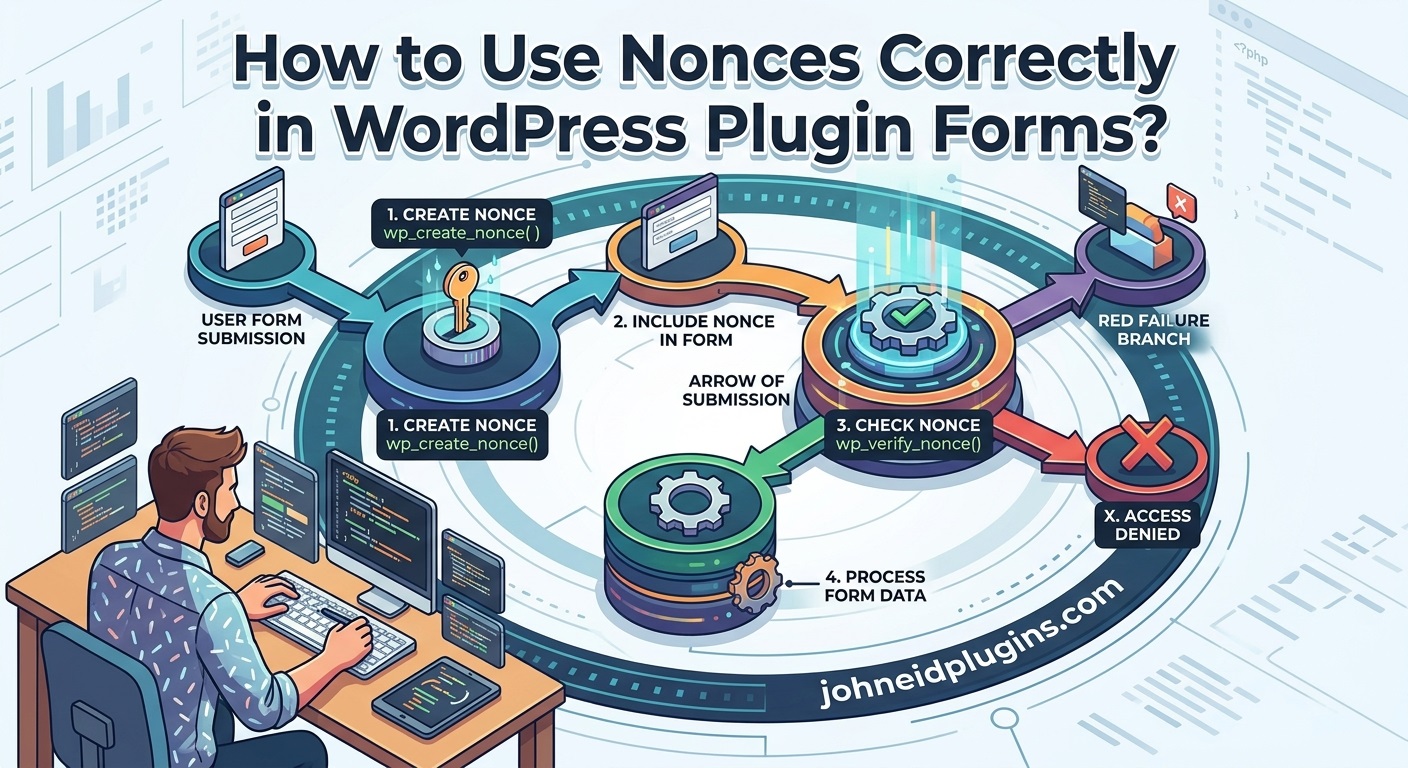
The easiest way to add a nonce to a WordPress plugin form is by using the wp_nonce_field() function.
This function generates a hidden HTML input field containing a nonce.
Consider a basic plugin settings form:
function myplugin_settings_page() {

    ?>
    <div class="wrap">

        <h1>My Plugin Settings</h1>

        <form method="post">

            <?php
            wp_nonce_field(
                'myplugin_save_settings',
                'myplugin_nonce'
            );
            ?>

            <p>
                <label for="plugin_title">
                    Plugin Title
                </label>
            </p>

            <input
                type="text"
                name="plugin_title"
                id="plugin_title"
            >

            <p>
                <button
                    type="submit"
                    name="save_settings"
                    class="button button-primary"
                >
                    Save Settings
                </button>
            </p>

        </form>

    </div>
    <?php

}
The function accepts two important arguments:
wp_nonce_field(
    'myplugin_save_settings',
    'myplugin_nonce'
);
First argument: Nonce action
myplugin_save_settings identifies the operation for which the nonce is generated.
Second argument: Nonce field name
myplugin_nonce defines the HTML input name used to submit the nonce.
The resulting HTML includes a hidden input similar to:
<input
    type="hidden"
    id="myplugin_nonce"
    name="myplugin_nonce"
    value="GENERATED_NONCE"
>
The actual nonce value is generated dynamically by WordPress.
Using a specific action name is important because it helps associate the token with the intended operation.
Avoid using the same generic nonce action for unrelated operations throughout a plugin.
For additional information, consult the official wp_nonce_field() documentation.
4. Verify a Nonce Using check_admin_referer()
Generating a nonce inside a form is only the first step.
The plugin must verify the submitted nonce before processing the requested operation.
For standard WordPress administration forms, check_admin_referer() is one of the most convenient functions.
Consider the following example:
function myplugin_process_settings() {

    if (
        ! isset($_POST['save_settings'])
    ) {
        return;
    }

    check_admin_referer(
        'myplugin_save_settings',
        'myplugin_nonce'
    );

    $plugin_title = isset($_POST['plugin_title'])
        ? sanitize_text_field(
            wp_unslash($_POST['plugin_title'])
        )
        : '';

    update_option(
        'myplugin_title',
        $plugin_title
    );

}

add_action(
    'admin_init',
    'myplugin_process_settings'
);
Let’s understand how this works.
- The function checks whether the form was submitted.
- WordPress verifies the nonce.
- If verification succeeds, the submitted value is processed.
- The input is unslashed and sanitized.
- The plugin updates its saved option.
If the nonce is missing or invalid, check_admin_referer() stops processing the request.
Important: check_admin_referer() is intended for administrative form requests. It does not perform a user capability check. You should separately verify that the current user is authorized to change the relevant settings.
For more information, see the official check_admin_referer() documentation.
5. Understand the Difference Between wp_nonce_field() and wp_create_nonce()
Although both functions generate nonce values, they serve different purposes.
wp_nonce_field() generates a nonce and automatically outputs it as a hidden HTML form field.
wp_create_nonce() generates a nonce value and returns it as a string.
For example:
$nonce = wp_create_nonce(
    'myplugin_delete_record'
);
The generated value can then be used in custom HTML, JavaScript configuration, or other request-handling mechanisms.
Example:
function myplugin_custom_form() {

    $nonce = wp_create_nonce(
        'myplugin_update_data'
    );

    ?>

    <form method="post">

        <input
            type="hidden"
            name="myplugin_nonce"
            value="<?php echo esc_attr($nonce); ?>"
        >

        <button type="submit">
            Update Data
        </button>

    </form>

    <?php
}
This approach provides more flexibility when building custom form interfaces.
However, when working with ordinary PHP forms, wp_nonce_field() is generally simpler and less error-prone.
You can review the wp_create_nonce() documentation for further details.
6. Use wp_verify_nonce() for Manual Nonce Verification
Sometimes a plugin requires more control over request processing than check_admin_referer() provides.
In such situations, developers can use wp_verify_nonce().
This function checks whether a submitted nonce is valid for a particular action.
Example:
function myplugin_process_form() {

    if (
        ! isset($_POST['myplugin_nonce'])
    ) {
        return;
    }

    $nonce = sanitize_text_field(
        wp_unslash(
            $_POST['myplugin_nonce']
        )
    );

    if (
        ! wp_verify_nonce(
            $nonce,
            'myplugin_save_settings'
        )
    ) {
        wp_die(
            esc_html__(
                'Security verification failed.',
                'myplugin'
            )
        );
    }

    $value = isset($_POST['plugin_title'])
        ? sanitize_text_field(
            wp_unslash($_POST['plugin_title'])
        )
        : '';

    update_option(
        'myplugin_title',
        $value
    );

}

add_action(
    'admin_init',
    'myplugin_process_form'
);
The important part is:
wp_verify_nonce(
    $nonce,
    'myplugin_save_settings'
);
The function returns:
1if the nonce was generated during the current validity tick.2if it was generated during the previous validity tick.falseif the nonce is invalid.
The default nonce lifetime is approximately 12–24 hours, depending on when the nonce was generated.
Unlike check_admin_referer(), wp_verify_nonce() does not automatically stop execution when verification fails. Developers must explicitly handle the failure.
When should you use it?
Use wp_verify_nonce() when you need custom error handling, conditional processing, or a specific response rather than the default WordPress security error.
See the official wp_verify_nonce() documentation.
7. Never Use Nonces as a Replacement for User Capability Checks
One of the most important WordPress security principles is understanding that nonces and user permissions perform different jobs.
A nonce helps verify the intent behind a request. It does not establish whether the current user has permission to perform the requested operation.
For example, suppose your plugin allows administrators to update configuration settings.
A user might submit a valid nonce but still lack permission to modify those settings.
Therefore, your plugin should check both the nonce and the user’s capabilities.
Consider this implementation:
function myplugin_save_settings() {

    if (
        ! isset($_POST['save_settings'])
    ) {
        return;
    }

    if (
        ! current_user_can('manage_options')
    ) {
        wp_die(
            esc_html__(
                'You are not allowed to perform this action.',
                'myplugin'
            )
        );
    }

    check_admin_referer(
        'myplugin_save_settings',
        'myplugin_nonce'
    );

    $title = isset($_POST['plugin_title'])
        ? sanitize_text_field(
            wp_unslash($_POST['plugin_title'])
        )
        : '';

    update_option(
        'myplugin_title',
        $title
    );

}

add_action(
    'admin_init',
    'myplugin_save_settings'
);
This implementation performs two important security checks:
current_user_can()confirms that the user has the required capability.check_admin_referer()verifies the submitted nonce.
For a settings page, manage_options is commonly appropriate, but the correct capability depends on the operation and your plugin’s intended user roles.
For example, a plugin that manages individual posts might use edit_post with the relevant post ID.
You can learn more about WordPress user capabilities and the current_user_can() function.
8. Use Nonces Correctly With the WordPress Settings API
The WordPress Settings API provides built-in functionality for registering, displaying, and saving plugin settings.
One important advantage is that the settings_fields() function automatically generates the required hidden fields, including a nonce.
Consider this example:
function myplugin_register_settings() {

    register_setting(
        'myplugin_settings_group',
        'myplugin_options',
        array(
            'sanitize_callback' => 'myplugin_sanitize_options'
        )
    );

}

add_action(
    'admin_init',
    'myplugin_register_settings'
);
Create the settings form:
function myplugin_settings_page() {

    ?>

    <div class="wrap">

        <h1>My Plugin Settings</h1>

        <form method="post" action="options.php">

            <?php

            settings_fields(
                'myplugin_settings_group'
            );

            ?>

            <input
                type="text"
                name="myplugin_options[title]"
                value="<?php
                    echo esc_attr(
                        get_option(
                            'myplugin_options'
                        )['title'] ?? ''
                    );
                ?>"
            >

            <?php

            submit_button(
                'Save Settings'
            );

            ?>

        </form>

    </div>

    <?php
}
The settings_fields() function generates important hidden fields, including:
- The option group information.
- The appropriate nonce.
- The settings submission information.
When the form is submitted to options.php, WordPress handles the standard settings request and its nonce verification.
This means developers do not need to manually generate another nonce field or duplicate the standard verification process for the same form.
However, you must still register the option correctly, use an appropriate sanitization callback, and ensure that the settings page is protected by the intended capability.
For more information, read the official WordPress Settings API guide.
9. Use Nonces With WordPress AJAX Requests
Modern WordPress plugins frequently use AJAX to perform operations without refreshing the entire page.
For example, a plugin might use AJAX to:
- Save settings.
- Delete records.
- Import information.
- Update image slider configurations.
- Retrieve dashboard statistics.
- Change plugin preferences.
These requests should also include appropriate nonce verification.
WordPress provides the check_ajax_referer() function specifically for verifying nonces in AJAX requests.
Step 1: Generate a nonce in PHP
function myplugin_enqueue_scripts() {

    wp_enqueue_script(
        'myplugin-admin',
        plugin_dir_url(__FILE__) . 'assets/admin.js',
        array('jquery'),
        '1.0.0',
        true
    );

    wp_localize_script(
        'myplugin-admin',
        'mypluginData',
        array(
            'ajax_url' => admin_url(
                'admin-ajax.php'
            ),

            'nonce' => wp_create_nonce(
                'myplugin_ajax_action'
            )
        )
    );

}

add_action(
    'admin_enqueue_scripts',
    'myplugin_enqueue_scripts'
);
This example loads the JavaScript file and makes the AJAX URL and nonce available to it.
Step 2: Send the nonce through JavaScript
In your admin.js file:
jQuery(function($) {

    $('#myplugin-save-button').on(
        'click',
        function() {

            $.ajax({

                url: mypluginData.ajax_url,

                type: 'POST',

                data: {

                    action: 'myplugin_save_ajax',

                    nonce: mypluginData.nonce,

                    title: $('#plugin-title').val()

                },

                success: function(response) {

                    if (response.success) {

                        alert(response.data.message);

                    } else {

                        alert(response.data.message);

                    }

                }

            });

        }
    );

});
Step 3: Verify the nonce in the PHP AJAX handler
function myplugin_save_ajax() {

    check_ajax_referer(
        'myplugin_ajax_action',
        'nonce'
    );

    if (
        ! current_user_can('manage_options')
    ) {

        wp_send_json_error(
            array(
                'message' => 'Permission denied.'
            ),
            403
        );

    }

    $title = isset($_POST['title'])
        ? sanitize_text_field(
            wp_unslash($_POST['title'])
        )
        : '';

    update_option(
        'myplugin_title',
        $title
    );

    wp_send_json_success(
        array(
            'message' => 'Settings saved successfully.'
        )
    );

}

add_action(
    'wp_ajax_myplugin_save_ajax',
    'myplugin_save_ajax'
);
This implementation follows an important security sequence:
- The browser sends an AJAX request.
- The request includes a nonce.
- PHP verifies the nonce.
- WordPress checks the user’s capability.
- Submitted information is sanitized.
- The plugin performs the requested operation.
- WordPress returns a JSON response.
For additional information, consult the check_ajax_referer() documentation.
Important: The wp_ajax_ hook handles authenticated WordPress users. If you intentionally support logged-out visitors, you need a separate wp_ajax_nopriv_ handler and an appropriate public-form security strategy. A WordPress nonce alone does not provide reliable per-visitor CSRF protection for anonymous users.
10. Use Nonces in Custom Post Type Management Forms
Plugins that manage Custom Post Types frequently provide forms for creating, updating, and deleting records.
These operations should have action-specific nonce verification.
For example, imagine a plugin that allows administrators to delete portfolio entries.
The form might look like this:
<form method="post">

    <input
        type="hidden"
        name="portfolio_id"
        value="<?php echo esc_attr($portfolio_id); ?>"
    >

    <?php

    wp_nonce_field(
        'myplugin_delete_portfolio_' . $portfolio_id,
        'myplugin_delete_nonce'
    );

    ?>

    <button
        type="submit"
        name="delete_portfolio"
        class="button button-secondary"
    >
        Delete Portfolio
    </button>

</form>
The corresponding processing function:
function myplugin_delete_portfolio() {

    if (
        ! isset($_POST['delete_portfolio'])
    ) {
        return;
    }

    $portfolio_id = isset($_POST['portfolio_id'])
        ? absint(
            wp_unslash($_POST['portfolio_id'])
        )
        : 0;

    if ( ! $portfolio_id ) {
        return;
    }

    if (
        ! current_user_can(
            'delete_post',
            $portfolio_id
        )
    ) {
        wp_die(
            esc_html__(
                'You cannot delete this portfolio.',
                'myplugin'
            )
        );
    }

    check_admin_referer(
        'myplugin_delete_portfolio_' . $portfolio_id,
        'myplugin_delete_nonce'
    );

    $result = wp_delete_post(
        $portfolio_id,
        true
    );

    if ( ! $result ) {

        wp_die(
            esc_html__(
                'Unable to delete the portfolio.',
                'myplugin'
            )
        );

    }

}

add_action(
    'admin_init',
    'myplugin_delete_portfolio'
);
Notice that the nonce action includes the portfolio ID.
This makes the token specific to the intended operation and record.
Also, the capability check uses delete_post with the relevant post ID, rather than assuming that every administrator-like operation should use manage_options.
This is particularly important when developing plugins that manage different content types and user permissions.
11. Use Nonces in WordPress REST API Requests
WordPress plugins that communicate with REST API endpoints also need appropriate request security.
For authenticated requests using WordPress cookie authentication, WordPress uses a nonce with the wp_rest action.
For example, PHP can generate the REST API nonce:
$rest_nonce = wp_create_nonce(
    'wp_rest'
);
The nonce can be passed to JavaScript using an enqueued script configuration.
For example:
wp_localize_script(
    'myplugin-admin',
    'mypluginRest',
    array(
        'root' => esc_url_raw(
            rest_url()
        ),

        'nonce' => wp_create_nonce(
            'wp_rest'
        )
    )
);
JavaScript can then send the nonce through the X-WP-Nonce request header:
fetch(
    mypluginRest.root + 'wp/v2/posts/1',
    {
        method: 'POST',

        headers: {
            'Content-Type': 'application/json',

            'X-WP-Nonce': mypluginRest.nonce
        },

        body: JSON.stringify({
            title: 'Updated WordPress Post'
        })
    }
);
For standard WordPress cookie authentication, REST API nonce verification is handled by WordPress core.
However, the user must still have the capabilities required to perform the requested operation.
Custom authentication methods and custom REST API permissions may require additional implementation.
Read the official WordPress REST API authentication guide for more information.
12. Use Nonces in GET Requests and Action URLs
Not every plugin operation requires a POST form.
Sometimes developers create action links that perform administrative operations, such as marking a record as completed or moving an item to another status.
WordPress provides wp_nonce_url() for adding a nonce to a URL.
For example:
$action_url = wp_nonce_url(
    admin_url(
        'admin.php?page=myplugin&action=complete&record_id=25'
    ),
    'myplugin_complete_record_25',
    'myplugin_nonce'
);
Display the link:
echo '<a href="' .
    esc_url($action_url) .
    '">Mark as Complete</a>';
When processing the action, verify the nonce:
check_admin_referer(
    'myplugin_complete_record_' . $record_id,
    'myplugin_nonce'
);
Also verify that the current user has permission to modify the relevant record.
For operations that change data, POST requests are generally preferable to GET requests. A GET request should normally retrieve information rather than perform destructive or state-changing actions.
The wp_nonce_url() reference provides further details.
13. Understand Nonce Expiration and Invalid Nonce Errors
WordPress nonces are time-sensitive. A nonce generated for a particular action will eventually expire.
By default, WordPress uses a nonce lifetime of 24 hours, divided into two validity periods (ticks).
This means:
- A nonce generated during the current tick returns
1. - A nonce generated during the previous tick returns
2. - An expired or invalid nonce returns
false.
The actual validity period is approximately 12–24 hours, depending on when the nonce was generated.
This behavior can affect plugins that keep administration pages open for extended periods.
For example, an administrator might open a plugin settings page in the morning and submit its form much later. If the nonce has expired, WordPress will reject the request.
How to handle this problem:
- Inform administrators when their security token has expired.
- Allow them to reload the form and obtain a fresh nonce.
- Avoid unnecessarily extending the default nonce lifetime.
- Refresh nonces when implementing long-running AJAX interfaces.
- Never bypass nonce verification simply to avoid expiration errors.
For applications that require a customized nonce lifetime, WordPress provides the nonce_life filter.
However, changing this setting affects nonce behavior across the website, so it should be done cautiously.
See the official WordPress nonce lifetime documentation.
14. Important Security Considerations for Public WordPress Forms
An important distinction exists between authenticated administration forms and public-facing forms.
WordPress generates nonces for logged-in users using information associated with their user and session.
However, by default, all logged-out visitors share the same user ID of 0 for nonce generation.
Consequently, anonymous visitors may receive identical nonces for the same action during the same validity period.
This means that a standard WordPress nonce alone does not provide reliable CSRF protection for public forms.
For example, a contact form, public registration form, or visitor-submission form should not rely exclusively on wp_nonce_field() to protect anonymous submissions.
Instead, developers should consider additional protections, such as:
- Server-generated session-specific CSRF tokens.
- Rate limiting.
- CAPTCHA or other appropriate anti-automation measures.
- Input validation and sanitization.
- Abuse detection.
- Server-side verification of submitted data.
For public forms, implement a proper session-based CSRF mechanism where appropriate.
For example, a custom token can be generated and stored in a server-side session, then compared against the submitted token during processing.
The implementation must also account for secure session management, token rotation, and the website’s caching configuration.
See the official WordPress nonce security documentation for additional guidance.
15. Common Mistakes Developers Make When Using WordPress Nonces
Even experienced developers sometimes introduce nonce-related security problems when building plugin forms.
Here are several mistakes worth avoiding.
1. Generating a nonce without verifying it
Adding a hidden nonce field does not automatically secure a form. Always verify the submitted token before processing the requested operation.
2. Using generic nonce action names
Avoid using the same generic action name for unrelated operations. Use descriptive identifiers such as:
myplugin_save_settings
myplugin_delete_record_25
myplugin_update_portfolio_10
3. Assuming nonces provide user authorization
Always perform a separate capability check using current_user_can().
4. Ignoring nonce verification in AJAX handlers
AJAX requests require server-side verification through check_ajax_referer() or another appropriate verification method.
5. Forgetting input sanitization
A valid nonce does not make submitted information safe. Sanitize and validate all incoming data.
6. Using nonces as permanent security tokens
WordPress nonces expire. Do not use them as permanent API keys, authentication credentials, or long-term access tokens.
7. Assuming a nonce is single-use
WordPress nonces can be reused during their validity period. They are not designed to prevent replay attacks.
8. Relying on nonces for anonymous visitor security
Default WordPress nonces for logged-out visitors do not provide individual session protection. Public forms need an appropriate additional security mechanism.
16. WordPress Nonce Security Checklist
Before releasing a WordPress plugin, review the following security checklist.
| Security requirement | Recommended implementation |
|---|---|
| Generate form nonces | wp_nonce_field() |
| Generate custom tokens | wp_create_nonce() |
| Verify administration forms | check_admin_referer() |
| Verify AJAX requests | check_ajax_referer() |
| Perform manual verification | wp_verify_nonce() |
| Check user permissions | current_user_can() |
| Sanitize submitted values | Appropriate sanitization functions |
| Validate submitted data | Appropriate validation functions |
| Escape displayed output | esc_html(), esc_attr(), esc_url() |
| Protect REST API requests | WordPress REST API authentication |
| Protect public forms | Appropriate session-based CSRF protection |
| Handle expired tokens | Reload or regenerate the form token |
Following this checklist helps reduce common security mistakes and improves the reliability of WordPress plugins.
Conclusion
WordPress nonces are an important security mechanism for protecting plugin forms, administrative operations, AJAX requests, and authenticated REST API interactions against Cross-Site Request Forgery attacks.
Developers can generate nonce fields using wp_nonce_field(), create custom security tokens using wp_create_nonce(), and verify submitted requests using check_admin_referer(), check_ajax_referer(), or wp_verify_nonce().
However, implementing nonce verification correctly requires understanding its limitations.
A nonce does not replace authentication, user permissions, input validation, sanitization, or output escaping. Similarly, standard WordPress nonces should not be treated as individual CSRF tokens for anonymous visitors.
For reliable plugin development, use action-specific nonces, verify every relevant request on the server, check user capabilities, sanitize submitted information, and handle expired tokens appropriately.
Whether you are building a custom settings page, a database management tool, a Custom Post Type interface, or an AJAX-powered WordPress plugin, following these practices will help you develop more secure and maintainable software.
Ultimately, correct nonce implementation is not just a coding requirement. It is an essential part of responsible WordPress plugin security.
Frequently Asked Questions (FAQs)
1. What is a nonce in WordPress plugin development?
A nonce is a time-limited security token that helps verify the intent behind a request. WordPress uses nonces primarily to protect forms and administrative operations against CSRF attacks.
2. How do I add a nonce to a WordPress form?
Use wp_nonce_field() inside your form:
wp_nonce_field(
    'myplugin_save_settings',
    'myplugin_nonce'
);
This generates a hidden input containing the nonce.
3. How do I verify a nonce in WordPress?
Use check_admin_referer() for standard administration forms or wp_verify_nonce() when you need custom verification logic.
4. Are WordPress nonces single-use tokens?
No. WordPress nonces can be reused during their validity period. They are time-limited security tokens rather than strictly single-use tokens.
5. How long does a WordPress nonce remain valid?
The default validity period is approximately 12–24 hours. WordPress uses two validity ticks to determine whether a nonce is current or from the previous period.
6. Do WordPress nonces replace capability checks?
No. Nonces verify request intent, while capability checks determine whether a user is authorized to perform an operation. Use current_user_can() alongside nonce verification.
7. How do I use nonces with AJAX requests?
Generate a nonce using wp_create_nonce(), send it with the AJAX request, and verify it in the PHP handler using check_ajax_referer().
8. What happens when a WordPress nonce expires?
Nonce verification fails, and WordPress rejects the request. The administrator generally needs to reload the form to obtain a fresh nonce.
9. Can I use WordPress nonces on public-facing forms?
Yes, but standard WordPress nonces alone do not provide reliable per-visitor CSRF protection for logged-out users. Public forms should use an appropriate additional security mechanism.
10. Which WordPress function is best for adding nonces to plugin forms?
For ordinary PHP forms, wp_nonce_field() is generally the easiest option. For forms built using the WordPress Settings API, settings_fields() automatically generates the appropriate nonce and other hidden fields.