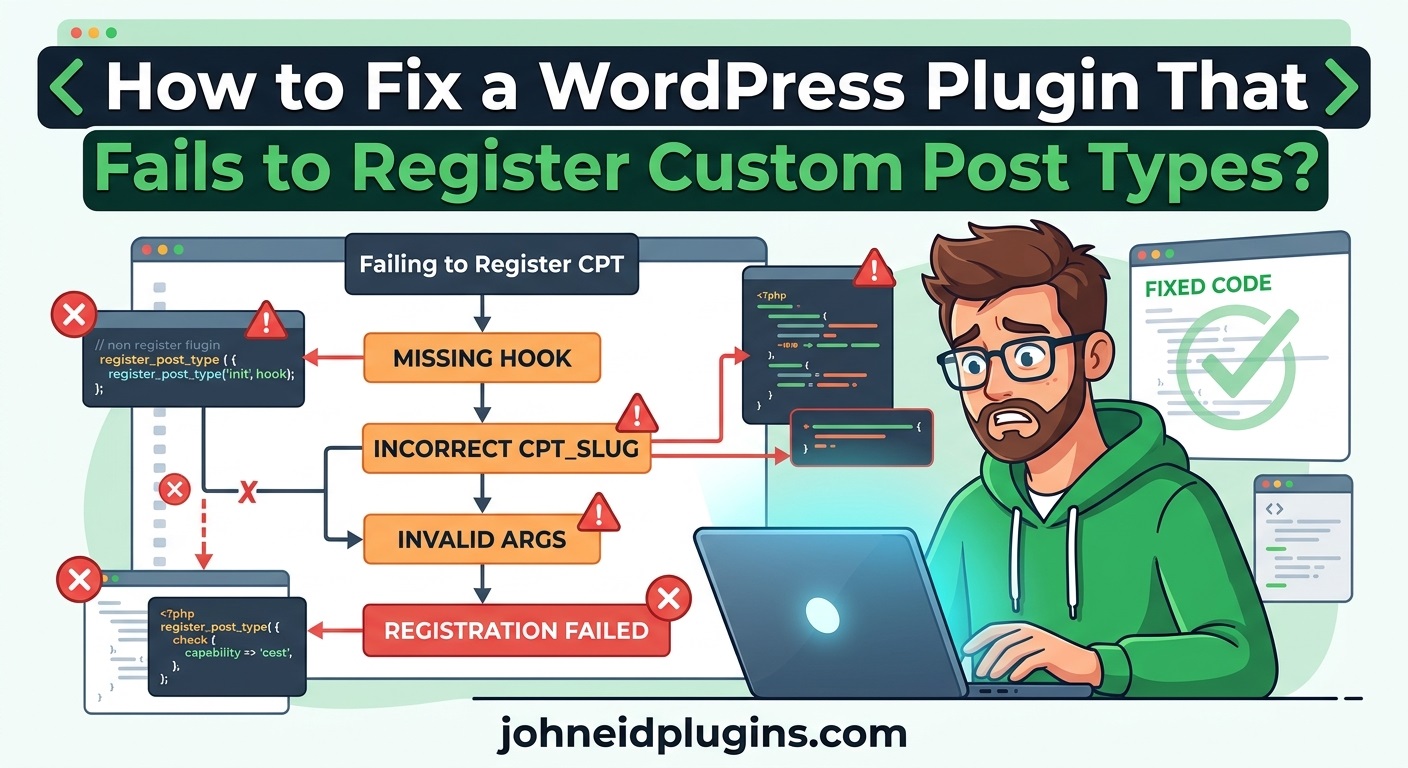
Introduction
Custom Post Types (CPTs) are an important feature of WordPress that allows developers to organize and manage content beyond the default posts and pages. They make it possible to create specialized content structures for products, portfolios, testimonials, services, events, tutorials, property listings, team members, and many other types of website content.
WordPress plugins frequently use Custom Post Types to provide additional functionality without requiring users to create separate pages or manage complicated content structures manually. For example, a portfolio plugin might register a portfolio post type, while an events management plugin might register an event post type.
However, sometimes a WordPress plugin fails to register its Custom Post Type correctly. The expected content type may not appear in the WordPress administration dashboard, its menu may be missing, or visiting its archive URL may produce a 404 error. In other situations, the post type might appear temporarily but disappear after a website update, plugin activation, theme change, or PHP version upgrade.
These problems can be confusing because the plugin may appear to be installed and activated successfully. Nevertheless, its Custom Post Type registration process may not be running at the correct time, may contain invalid arguments, or may be interrupted by another plugin or theme.
Fortunately, most Custom Post Type registration problems can be diagnosed and resolved without rebuilding the entire plugin.
This guide explains how to identify the causes of Custom Post Type registration failures and how to fix them using practical troubleshooting techniques, WordPress functions, PHP examples, debugging methods, and development best practices.
Whether you are a WordPress website owner or a plugin developer, understanding these solutions can help you restore missing post types and prevent similar problems in future plugin updates.
1. Understand How WordPress Registers Custom Post Types
Before troubleshooting a registration problem, it is important to understand how WordPress handles Custom Post Types.
WordPress provides the register_post_type() function to register custom content types. Developers generally use this function inside a plugin or theme to define a new content structure.
For example, a plugin might register a portfolio post type using the following code:
function myplugin_register_portfolio_post_type() {

    $args = array(
        'public'       => true,
        'label'        => 'Portfolio',
        'supports'     => array(
            'title',
            'editor',
            'thumbnail'
        ),
        'has_archive'  => true,
        'show_in_rest' => true
    );

    register_post_type(
        'portfolio',
        $args
    );
}

add_action(
    'init',
    'myplugin_register_portfolio_post_type'
);
In this example:
portfoliois the Custom Post Type identifier.publicdetermines whether the post type is publicly accessible.labeldefines its administrative display name.supportsspecifies which editing features are available.has_archiveenables an archive page.show_in_restenables REST API integration.initensures that registration occurs during the appropriate WordPress initialization stage.
The register_post_type() function should generally execute after WordPress has initialized its core functionality.
You can learn more about the official WordPress register_post_type() documentation to understand its available arguments and requirements.
If a plugin does not execute this registration process correctly, WordPress cannot recognize the expected Custom Post Type.
2. Check Whether the Plugin Is Actually Active
One of the simplest explanations for a missing Custom Post Type is that the plugin responsible for registering it is not active.
Although a plugin may exist in the WordPress plugins directory, its registration code will not necessarily execute unless the plugin is loaded.
Sometimes a plugin activation process fails because of PHP errors, missing dependencies, incompatible code, or unexpected output.
How to check:
- Open your WordPress administration dashboard.
- Navigate to Plugins → Installed Plugins.
- Locate the plugin responsible for registering the Custom Post Type.
- Confirm that its status is Active.
- If it is inactive, activate it.
- Refresh the administration dashboard and check whether the Custom Post Type appears.
If activation produces an error, do not repeatedly activate the plugin without investigating the underlying problem.
Check the PHP error log and WordPress debug log for relevant messages.
Also, verify that the plugin contains a valid main plugin file with the required WordPress plugin header.
Official documentation about plugin headers explains how WordPress identifies and loads plugins.
Important: Plugin activation and Custom Post Type registration are separate processes. A plugin can activate successfully but still fail to register its post type because its registration callback is incorrect.
3. Verify That the Registration Function Is Attached to the Correct Hook
Incorrect WordPress hooks are among the most common reasons a plugin fails to register a Custom Post Type.
WordPress provides several action hooks that allow developers to execute code during different stages of the loading process.
For Custom Post Type registration, the init action hook is generally the recommended choice.
Consider this incorrect example:
function myplugin_register_books() {

    register_post_type(
        'books',
        array(
            'public' => true,
            'label'  => 'Books'
        )
    );
}

add_action(
    'wp_footer',
    'myplugin_register_books'
);
The problem is that wp_footer executes much later in the page-loading process. By that time, WordPress has already completed important registration-related operations.
As a result, the post type may not be available when WordPress builds the administration menu, processes queries, or handles rewrite rules.
Correct implementation:
function myplugin_register_books() {

    register_post_type(
        'books',
        array(
            'public'       => true,
            'label'        => 'Books',
            'has_archive'  => true,
            'show_in_rest' => true,
            'supports'     => array(
                'title',
                'editor',
                'thumbnail'
            )
        )
    );
}

add_action(
    'init',
    'myplugin_register_books'
);
This implementation attaches the registration function to the appropriate initialization hook.
If your plugin uses a class-based architecture, make sure the registration method is also connected correctly.
For example:
class MyPlugin_Post_Types {

    public function register() {

        add_action(
            'init',
            array($this, 'register_books')
        );
    }

    public function register_books() {

        register_post_type(
            'books',
            array(
                'public' => true,
                'label'  => 'Books'
            )
        );
    }
}

$myplugin_post_types = new MyPlugin_Post_Types();

$myplugin_post_types->register();
The class must be instantiated, and its register() method must execute so that WordPress can attach the callback.
For more information, consult the official WordPress Plugin API documentation.
4. Check for Incorrect Custom Post Type Names
WordPress imposes restrictions on Custom Post Type identifiers.
A post type key should generally contain lowercase alphanumeric characters, dashes, and underscores, and should not exceed 20 characters.
For example, these identifiers are suitable:
portfolio
real_estate
product_review
team_member
However, using an invalid identifier can cause registration problems.
Consider this example:
register_post_type(
    'My Portfolio Items',
    array(
        'public' => true
    )
);
The identifier contains uppercase letters and spaces, making it unsuitable.
A corrected implementation would be:
register_post_type(
    'my_portfolio',
    array(
        'public' => true,
        'label'  => 'Portfolio Items'
    )
);
Remember that the internal post type identifier and its administrative label serve different purposes.
The identifier is used internally by WordPress, while the label is displayed to website administrators and users.
Troubleshooting recommendation: Check the first argument passed to register_post_type() and ensure that it follows WordPress naming requirements.
5. Verify Custom Post Type Registration Arguments
Another common reason for apparent registration failures is incorrect configuration of the arguments passed to register_post_type().
WordPress supports numerous arguments that control visibility, permissions, archive pages, REST API functionality, supported editor features, and rewrite behavior.
A plugin may successfully register a post type but configure it in a way that prevents it from appearing where expected.
For example:
register_post_type(
    'portfolio',
    array(
        'public'        => false,
        'show_ui'       => false,
        'show_in_menu'  => false,
        'has_archive'   => false
    )
);
This code registers the post type, but it hides the administration interface and menu.
Consequently, website administrators may assume that registration has failed.
A more suitable configuration for a publicly accessible portfolio post type would be:
register_post_type(
    'portfolio',
    array(
        'labels' => array(
            'name'          => 'Portfolios',
            'singular_name' => 'Portfolio'
        ),

        'public'       => true,
        'show_ui'      => true,
        'show_in_menu' => true,
        'has_archive'  => true,
        'show_in_rest' => true,

        'supports' => array(
            'title',
            'editor',
            'thumbnail',
            'excerpt'
        )
    )
);
The important arguments include:
| Argument | Purpose |
|---|---|
public | Controls general public visibility. |
show_ui | Controls the administrative interface. |
show_in_menu | Controls the administration menu entry. |
has_archive | Enables an archive for the post type. |
show_in_rest | Enables REST API availability. |
supports | Defines supported editing features. |
rewrite | Controls permalink rewrite behavior. |
capability_type | Defines the capability mapping. |
Always review these arguments before assuming that the registration function itself is broken.
The official register_post_type() reference provides detailed information about supported configuration options.
6. Check Whether Another Plugin or Theme Uses the Same Post Type Slug
Custom Post Type conflicts can occur when multiple plugins or themes attempt to register post types using the same identifier.
For example, two different plugins might both register:
register_post_type(
    'portfolio',
    $args
);
One plugin might use portfolio for creative projects, while another uses the same identifier for product portfolios.
This creates a registration conflict because WordPress expects each post type to have a unique identifier.
The problem can become more complicated when one registration overwrites or changes the configuration expected by another component.
How to troubleshoot conflicts:
- Back up your website.
- Temporarily switch to a default WordPress theme on a staging website.
- Deactivate other plugins one at a time.
- Check whether the missing Custom Post Type appears.
- Reactivate the plugins individually.
- Identify which component introduces the conflict.
If you discover that another plugin uses the same slug, consider changing your plugin’s identifier to a unique name.
For example:
register_post_type(
    'johneid_portfolio',
    $args
);
A project-specific prefix helps reduce naming collisions.
However, changing an existing post type identifier requires additional care because existing content is stored using the original identifier. A migration or compatibility strategy may be necessary to preserve access to existing content.
7. Investigate PHP Errors That Interrupt Registration
A Custom Post Type registration function may never execute if PHP encounters a fatal error earlier in the plugin-loading process.
This is particularly common when plugins contain outdated PHP syntax, undefined functions, incompatible dependencies, or incorrect class references.
For example:
function myplugin_register_events() {

    $settings = myplugin_get_settings();

    register_post_type(
        'events',
        array(
            'public' => true,
            'label'  => $settings['label']
        )
    );
}
If myplugin_get_settings() does not exist or is unavailable when the function executes, PHP may produce an error.
The registration process can therefore fail.
Enable WordPress debugging
Open your WordPress wp-config.php file and locate the debugging configuration.
You can use the following settings during troubleshooting:
define('WP_DEBUG', true);

define(
    'WP_DEBUG_LOG',
    true
);

define(
    'WP_DEBUG_DISPLAY',
    false
);
Place these definitions before the line indicating that editing should stop.
After reproducing the problem, inspect:
/wp-content/debug.logLook for messages mentioning:
- Fatal errors.
- Undefined functions.
- Undefined methods.
- Class not found.
- Invalid callback.
- Deprecated PHP functionality.
- Type errors.
- Missing dependencies.
If the error log identifies a problem in the plugin’s initialization code, fix that problem before investigating more complicated registration issues.
Security recommendation: Do not display PHP errors publicly on a production website. Keep error display disabled and use protected server logs.
You can read the official WordPress debugging documentation for additional configuration details.
8. Fix Rewrite Rules When Custom Post Type URLs Return 404 Errors
Sometimes a plugin successfully registers a Custom Post Type, but its individual content pages or archive URLs return a 404 Not Found error.
For example, your plugin may register a portfolio post type, and the administration menu may appear correctly. However, visiting the following URL produces an error:
https://example.com/portfolio/This situation usually indicates a permalink or rewrite-rule problem rather than a registration failure.
WordPress uses rewrite rules to translate human-readable URLs into internal queries.
When a plugin introduces a new Custom Post Type, WordPress may need to refresh its rewrite rules to recognize the new URL structure.
Solution 1: Refresh permalink settings manually
Follow these steps:
- Log in to WordPress.
- Navigate to Settings → Permalinks.
- Review your existing permalink structure.
- Click Save Changes without necessarily changing anything.
- Visit your Custom Post Type archive URL again.
This forces WordPress to regenerate its rewrite rules.
Solution 2: Flush rewrite rules during plugin activation
Plugin developers can also refresh rewrite rules when their plugin is activated.
For example:
function myplugin_register_post_types() {

    register_post_type(
        'portfolio',
        array(
            'public'      => true,
            'has_archive' => true,
            'rewrite'     => array(
                'slug' => 'portfolio'
            )
        )
    );
}

add_action(
    'init',
    'myplugin_register_post_types'
);

function myplugin_activate() {

    myplugin_register_post_types();

    flush_rewrite_rules();
}

register_activation_hook(
    __FILE__,
    'myplugin_activate'
);
The registration function is called during activation before the rewrite rules are flushed.
Important: Never call flush_rewrite_rules() on every page request. It is an expensive operation and can negatively affect website performance.
Use it during activation or deactivation when necessary, rather than repeatedly during normal website operation.
For additional information, see the WordPress rewrite rules documentation.
9. Check Whether the Custom Post Type Is Registered Too Late
Registration timing is another important consideration.
A Custom Post Type should be registered before WordPress needs to use it for administrative screens, queries, or URL processing.
For example, consider this implementation:
add_action(
    'admin_init',
    'myplugin_register_post_types'
);
Although admin_init executes during administration requests, it is not the recommended registration hook.
WordPress documentation recommends registering Custom Post Types after after_setup_theme and before admin_init. The init hook is generally the appropriate place.
Use:
add_action(
    'init',
    'myplugin_register_post_types'
);
There is another timing problem that can occur when developers attach registration callbacks conditionally.
For example:
if ( is_admin() ) {

    add_action(
        'init',
        'myplugin_register_portfolio'
    );

}
This code registers the post type only during administration requests.
Consequently, frontend requests may not recognize the post type, potentially causing archive and individual content URLs to fail.
Unless there is a specific architectural reason to restrict registration, register the Custom Post Type on both frontend and administration requests.
10. Verify That the Custom Post Type Is Available in the Gutenberg Editor
A Custom Post Type may appear in the WordPress administration menu but fail to work correctly with the Gutenberg block editor.
For example, clicking Add New may produce an unexpected editing experience, or the post type may not be available through REST API endpoints.
One common reason is that the plugin does not enable REST API support.
Consider:
register_post_type(
    'services',
    array(
        'public' => true,
        'label'  => 'Services'
    )
);
This registers the post type, but it does not explicitly enable REST API support.
To make the post type available through the standard REST API and compatible with the block editor, use:
register_post_type(
    'services',
    array(
        'public'       => true,
        'label'        => 'Services',
        'show_in_rest' => true,

        'supports' => array(
            'title',
            'editor',
            'thumbnail'
        )
    )
);
The show_in_rest argument is particularly important for Gutenberg integration.
You can test the REST API endpoint using a browser:
https://example.com/wp-json/wp/v2/servicesReplace example.com with your website’s domain.
If the endpoint is unavailable, investigate whether REST API support is enabled and whether another component is interfering with the request.
For more information, consult the official WordPress REST API documentation for Custom Post Types.
11. Investigate Plugin Dependencies and Initialization Order
Some WordPress plugins depend on other plugins or external libraries to register their Custom Post Types.
For example, a property management plugin might depend on a framework plugin that provides shared registration functions.
If the required dependency is missing or loads incorrectly, the Custom Post Type registration process may fail.
Consider this example:
function myplugin_register_properties() {

    if ( ! function_exists(
        'myplugin_framework_register'
    ) ) {
        return;
    }

    myplugin_framework_register(
        'properties'
    );
}

add_action(
    'init',
    'myplugin_register_properties'
);
The registration function immediately exits when the required framework function is unavailable.
As a result, the property post type never gets registered.
How to fix this problem:
- Confirm that all required plugins are installed.
- Check whether dependent plugins are active.
- Review plugin loading order.
- Verify that required PHP classes and functions exist.
- Check whether the dependency has completed initialization before your registration callback executes.
If two plugins must communicate during initialization, callback priorities may also matter.
For example:
add_action(
    'init',
    'myplugin_register_properties',
    20
);
This schedules the callback at a later priority than the default priority of 10.
However, changing priorities should not be used as a substitute for proper dependency management. First establish which component needs to initialize and when.
A reliable plugin should also provide a clear administrative error message when an essential dependency is missing rather than silently skipping registration.
12. Check User Permissions and Custom Capabilities
Sometimes a Custom Post Type is registered correctly but does not appear for a particular WordPress user.
This can happen when the plugin uses custom capabilities instead of the standard post capabilities.
For example:
register_post_type(
    'projects',
    array(
        'public'          => true,
        'show_ui'         => true,
        'capability_type' => 'project',
        'map_meta_cap'    => true
    )
);
This configuration introduces a separate capability mapping.
However, if the plugin does not assign the corresponding capabilities to the appropriate user roles, administrators or other users may not be able to manage the content as expected.
For a simpler implementation, a developer can use the standard post capability mapping:
register_post_type(
    'projects',
    array(
        'public'          => true,
        'show_ui'         => true,
        'show_in_menu'    => true,
        'capability_type' => 'post'
    )
);
For more advanced plugins, custom capabilities may be appropriate.
In that situation, developers should:
- Define the required capabilities.
- Assign them to appropriate user roles.
- Check whether the current user has the required permissions.
- Test the post type using administrator and editor accounts.
- Ensure that custom capability settings are preserved during plugin updates.
You can use the WordPress current_user_can() function to check whether a user has permission to perform a particular administrative action.
Remember that hiding a menu item due to permissions does not necessarily mean the Custom Post Type failed to register.
13. Check Whether the Custom Taxonomy Is Registered Correctly
Some plugins register a Custom Post Type and associate it with one or more custom taxonomies.
For example, a real estate plugin might register:
- Properties as a Custom Post Type.
- Property Types as a taxonomy.
- Property Locations as another taxonomy.
If the taxonomy registration process is incorrect, the post type might appear while its expected classification options are missing.
A common mistake is attempting to associate a taxonomy with a post type without properly registering both components.
Here is a suitable implementation:
function myplugin_register_property_types() {

    register_post_type(
        'property',
        array(
            'public'       => true,
            'label'        => 'Properties',
            'has_archive'  => true,
            'show_in_rest' => true,
            'taxonomies'   => array(
                'property_type'
            )
        )
    );

    register_taxonomy(
        'property_type',
        array(
            'property'
        ),
        array(
            'label'        => 'Property Types',
            'public'       => true,
            'hierarchical' => true,
            'show_in_rest' => true
        )
    );
}

add_action(
    'init',
    'myplugin_register_property_types'
);
This example registers both the post type and its associated taxonomy.
The important point is that specifying a taxonomy in the taxonomies argument does not replace the need to register a custom taxonomy separately.
Consult the WordPress register_taxonomy() documentation for additional information.
14. Check Whether the Plugin Is Compatible With the Current WordPress and PHP Versions
Plugin compatibility problems can also prevent Custom Post Types from registering.
For example, a plugin developed for an older PHP environment may contain outdated code that produces errors on a newer PHP version.
Similarly, WordPress core updates may expose previously unnoticed problems in plugin initialization, deprecated functions, or third-party dependencies.
Recommended troubleshooting procedure:
- Check your installed WordPress version.
- Check the active PHP version through your hosting control panel or Site Health.
- Review the plugin’s documented minimum requirements.
- Check the plugin’s latest update information.
- Review PHP error logs.
- Test the plugin on a staging website with supported versions.
Do not immediately downgrade WordPress or PHP to resolve the problem.
First identify the exact compatibility issue and update the plugin code where necessary.
For developers, testing plugins against supported PHP versions and WordPress releases is an important part of maintaining reliable software.
The WordPress PHP coding standards are also useful when reviewing older plugin code.
15. Use WordPress Functions to Confirm Whether the Post Type Is Registered
Instead of relying only on the administration menu, developers can directly check whether WordPress recognizes a particular Custom Post Type.
The post_type_exists() function provides a straightforward way to perform this check.
Example:
function myplugin_check_portfolio() {

    if ( post_type_exists('portfolio') ) {

        error_log(
            'Portfolio post type is registered.'
        );

    } else {

        error_log(
            'Portfolio post type is not registered.'
        );

    }
}

add_action(
    'init',
    'myplugin_check_portfolio',
    99
);
This example checks the registration status after the normal priority-10 initialization callback would generally have executed.
You can also inspect the registered post type object:
function myplugin_inspect_portfolio() {

    $post_type = get_post_type_object(
        'portfolio'
    );

    if ( $post_type ) {

        error_log(
            'Portfolio post type exists.'
        );

        error_log(
            print_r(
                $post_type,
                true
            )
        );
    }
}

add_action(
    'init',
    'myplugin_inspect_portfolio',
    99
);
These checks help distinguish between two different problems:
- The Custom Post Type was never registered.
- The Custom Post Type exists but is configured incorrectly.
This distinction is important because each problem requires a different solution.
You can also review the official post_type_exists() documentation for further details.
16. Check Whether the Plugin’s Registration Code Executes More Than Once
Another issue occurs when a plugin accidentally registers the same Custom Post Type multiple times.
This can happen when developers include the registration file more than once, instantiate the same class repeatedly, or attach duplicate callbacks during plugin initialization.
For example:
add_action(
    'init',
    'myplugin_register_portfolio'
);

add_action(
    'init',
    'myplugin_register_portfolio'
);
Although WordPress can handle repeated callback registrations in certain circumstances, duplicate initialization is unnecessary and can make debugging difficult.
A better approach is to organize registration code in one dedicated function or class and ensure that it is loaded only once.
For example:
if ( ! class_exists('MyPlugin_Post_Types') ) {

    class MyPlugin_Post_Types {

        public function __construct() {

            add_action(
                'init',
                array($this, 'register_post_types')
            );
        }

        public function register_post_types() {

            register_post_type(
                'portfolio',
                array(
                    'public'       => true,
                    'label'        => 'Portfolio',
                    'show_in_rest' => true
                )
            );
        }
    }

    new MyPlugin_Post_Types();
}
This approach helps maintain a consistent registration structure.
Developers should also inspect their plugin’s file inclusion logic and avoid unnecessarily loading the same registration file multiple times.
17. Use WP-CLI to Investigate Custom Post Type Registration
Developers and website administrators with command-line access can use WP-CLI to investigate registration problems.
WP-CLI provides commands for interacting with WordPress installations without navigating through the administration dashboard.
For example, you can list registered post types using:
wp post-type listThis command helps identify which post types WordPress currently recognizes.
You can also inspect the details of a particular post type:
wp post-type get portfolio --format=jsonIf the portfolio post type does not appear in the registered post type list, investigate the plugin’s loading and initialization process.
If it does appear, review its configuration to identify visibility, archive, or REST API settings that might explain the problem.
Another useful command is:
wp plugin listThis displays installed plugins and their activation status.
WP-CLI is particularly useful for troubleshooting websites where the administration dashboard is inaccessible or where developers need to automate diagnostic procedures.
You can explore the official WP-CLI documentation for installation instructions and available commands.
18. Follow a Structured Troubleshooting Checklist
When a Custom Post Type disappears or fails to register, randomly changing plugin code can create additional problems.
A structured troubleshooting process makes it easier to identify the actual cause.
The following checklist can help developers and website administrators investigate registration failures systematically.
| Troubleshooting step | What to verify |
|---|---|
| Plugin activation | Confirm that the plugin is active. |
| Plugin header | Check that WordPress recognizes the plugin correctly. |
| Registration function | Confirm that register_post_type() executes. |
| WordPress hook | Use the init action for registration. |
| Post type identifier | Check naming rules and uniqueness. |
| Registration arguments | Review public, show_ui, and show_in_menu. |
| PHP errors | Inspect WordPress and server error logs. |
| Plugin conflicts | Test other plugins individually. |
| Theme conflicts | Test with a default theme on staging. |
| Rewrite rules | Refresh permalink settings when necessary. |
| REST API | Verify show_in_rest when required. |
| User permissions | Check custom capabilities and roles. |
| Dependencies | Verify required classes and functions. |
| Compatibility | Test supported WordPress and PHP versions. |
Following these steps in order can reduce troubleshooting time and help prevent unnecessary changes to the plugin.
19. A Complete Example of Proper Custom Post Type Registration
If your existing plugin contains several registration problems, reviewing its implementation against a clean example can be helpful.
The following example demonstrates a basic portfolio registration structure that follows common WordPress development practices.
<?php

if ( ! defined('ABSPATH') ) {
    exit;
}

/**
 * Register Portfolio Custom Post Type.
 */
function myplugin_register_portfolio() {

    $labels = array(

        'name'          => __('Portfolios', 'myplugin'),
        'singular_name' => __('Portfolio', 'myplugin'),

        'add_new_item'  => __('Add New Portfolio', 'myplugin'),
        'edit_item'     => __('Edit Portfolio', 'myplugin'),

        'all_items'     => __('All Portfolios', 'myplugin'),
        'search_items'  => __('Search Portfolios', 'myplugin'),

        'not_found'     => __('No portfolios found.', 'myplugin')
    );

    $args = array(

        'labels' => $labels,

        'public'             => true,
        'publicly_queryable' => true,

        'show_ui'      => true,
        'show_in_menu' => true,

        'show_in_rest' => true,

        'has_archive' => true,

        'rewrite' => array(
            'slug'       => 'portfolio',
            'with_front' => false
        ),

        'supports' => array(
            'title',
            'editor',
            'thumbnail',
            'excerpt',
            'author'
        ),

        'menu_icon' => 'dashicons-portfolio'
    );

    register_post_type(
        'myplugin_portfolio',
        $args
    );
}

add_action(
    'init',
    'myplugin_register_portfolio'
);

/**
 * Flush rewrite rules during activation.
 */
function myplugin_activate() {

    myplugin_register_portfolio();

    flush_rewrite_rules();
}

register_activation_hook(
    __FILE__,
    'myplugin_activate'
);

/**
 * Flush rewrite rules during deactivation.
 */
function myplugin_deactivate() {

    flush_rewrite_rules();
}

register_deactivation_hook(
    __FILE__,
    'myplugin_deactivate'
);
This example includes several important elements:
- An
ABSPATHcheck to prevent direct PHP file access. - A dedicated registration function.
- Proper administrative labels.
- A unique Custom Post Type identifier.
- Appropriate visibility settings.
- Gutenberg and REST API support.
- Archive and permalink configuration.
- Standard editor features.
- Rewrite-rule flushing during activation and deactivation.
Important implementation detail: The activation callback above assumes that the code is located in the main plugin file. If registration code is stored in a separate included file, use the main plugin file path when registering the activation hook.
Also, the internal identifier myplugin_portfolio and public permalink slug portfolio are intentionally different. If you are fixing an existing plugin, preserve its existing identifier unless you have a proper content migration plan.
This is a useful starting point for developers who want to replace an unreliable registration implementation with a cleaner structure.
20. Best Practices to Prevent Future Custom Post Type Registration Problems
Fixing an existing registration problem is important, but preventing the same problem from returning is equally valuable.
WordPress plugin developers should follow consistent development practices when creating and maintaining Custom Post Types.
Use a unique naming convention
Always prefix post type identifiers and function names with a plugin-specific prefix.
Avoid generic identifiers that might already be used by other plugins.
Keep registration code separate
Maintain a dedicated file or class for Custom Post Types instead of placing all registration logic inside the main plugin file.
For example:
my-plugin/
│
├── my-plugin.php
│
├── includes/
│   ├── class-post-types.php
│   ├── class-taxonomies.php
│   └── class-settings.php
│
└── assets/
This structure makes the plugin easier to maintain and troubleshoot.
Avoid registering post types inside themes
If a Custom Post Type belongs to a plugin’s functionality, its registration should generally remain in the plugin.
This ensures that the content structure remains available when website owners change their WordPress themes.
WordPress also recommends keeping Custom Post Types in plugins to improve content portability. See the official Custom Post Types development guide. WordPress Developer Resources
Test plugin activation and deactivation
Always test whether your plugin registers and unregisters its rewrite rules correctly.
Also verify that deactivation does not delete existing Custom Post Type content unless this behavior is explicitly required and clearly documented.
Test with different user roles
Check whether administrators, editors, authors, and other relevant roles can access the appropriate Custom Post Type screens.
Maintain WordPress compatibility
Test your plugin against its declared minimum WordPress and PHP requirements.
Do not assume that code working on one hosting environment will work identically on every WordPress installation.
Avoid unnecessary rewrite flushing
Register rewrite rules consistently and flush them only when necessary.
Repeated flushing can create performance problems, especially on websites with many plugins and complicated permalink structures.
Implement error logging
During development, use WordPress debugging tools to identify registration errors before releasing plugin updates.
Test Gutenberg and REST API functionality
If your plugin supports the block editor or external integrations, test its REST API endpoints as part of the development process.
These practices improve plugin stability and reduce the likelihood of Custom Post Type registration failures after updates.
Conclusion
A WordPress plugin that fails to register Custom Post Types can create significant problems for website owners and developers. Missing administration menus, inaccessible content, 404 errors, broken Gutenberg editing experiences, and incomplete taxonomy functionality can all affect the usability of a WordPress website.
Fortunately, these problems usually have identifiable causes.
Incorrect initialization hooks, invalid post type identifiers, missing registration arguments, PHP errors, plugin conflicts, dependency problems, and outdated rewrite rules are among the most common reasons Custom Post Types fail to work as expected.
The best troubleshooting approach is to verify plugin activation first, inspect the registration function, confirm that it executes through the init hook, review its configuration, and examine PHP error logs. Developers should then investigate plugin conflicts, dependencies, user capabilities, REST API support, and rewrite rules where necessary.
For long-term reliability, keep registration code organized, use unique identifiers, test plugin updates, avoid unnecessary rewrite flushing, and follow WordPress development standards.
By applying these troubleshooting techniques, developers can resolve many Custom Post Type registration problems without rebuilding their plugins or losing existing website content.
A properly registered Custom Post Type provides a reliable foundation for extending WordPress functionality and building more flexible, maintainable websites.
Frequently Asked Questions (FAQs)
1. Why is my WordPress Custom Post Type not showing in the dashboard?
The most common reasons include an inactive plugin, incorrect registration hook, invalid post type identifier, PHP errors, or incorrect show_ui and show_in_menu settings. Check the plugin’s registration function and confirm that it executes successfully during the init action.
2. Which WordPress hook should I use to register Custom Post Types?
The init action hook is generally recommended for registering Custom Post Types. It executes at the appropriate stage of WordPress initialization and makes the registered post type available to subsequent WordPress operations.
3. Why does my Custom Post Type show in the dashboard but return a 404 error?
This usually indicates a rewrite-rule or permalink problem. Visit Settings → Permalinks and click Save Changes to refresh the rules. Also verify the rewrite and has_archive arguments in your registration function.
4. Does a Custom Post Type require show_in_rest?
No. A Custom Post Type can be registered without REST API support. However, setting show_in_rest to true is necessary when you want to expose the post type through the standard WordPress REST API and use it with the Gutenberg block editor.
5. Can two WordPress plugins register the same Custom Post Type?
They should not. Custom Post Type identifiers must be unique. If two plugins register the same identifier, their configurations can conflict. Developers should use plugin-specific prefixes to reduce naming collisions.
6. Why does my Custom Post Type disappear after changing the WordPress theme?
If the Custom Post Type was registered inside the previous theme’s functions.php file, switching themes can stop its registration code from executing. Move the registration functionality into a dedicated plugin to keep the content structure available independently of the active theme.
7. How can I check whether a Custom Post Type is registered?
Use the WordPress post_type_exists() function:
if ( post_type_exists('portfolio') ) {
    echo 'Post type registered.';
} else {
    echo 'Post type not registered.';
}
For development purposes, you can also use the WP-CLI command wp post-type list.
8. Should I flush rewrite rules on every WordPress page load?
No. Calling flush_rewrite_rules() on every request can negatively affect website performance. Developers should generally flush rewrite rules during plugin activation or deactivation when necessary.
9. Can a PHP error prevent Custom Post Type registration?
Yes. A fatal error, undefined function, missing dependency, or incompatible PHP code can interrupt plugin execution before the registration function runs. Check wp-content/debug.log and your server’s PHP error logs.
10. Can I fix Custom Post Type registration without editing the active theme?
Yes. Most registration problems can be resolved within the responsible plugin or through WordPress administration settings. For example, you can refresh permalink rules from Settings → Permalinks without modifying theme files.