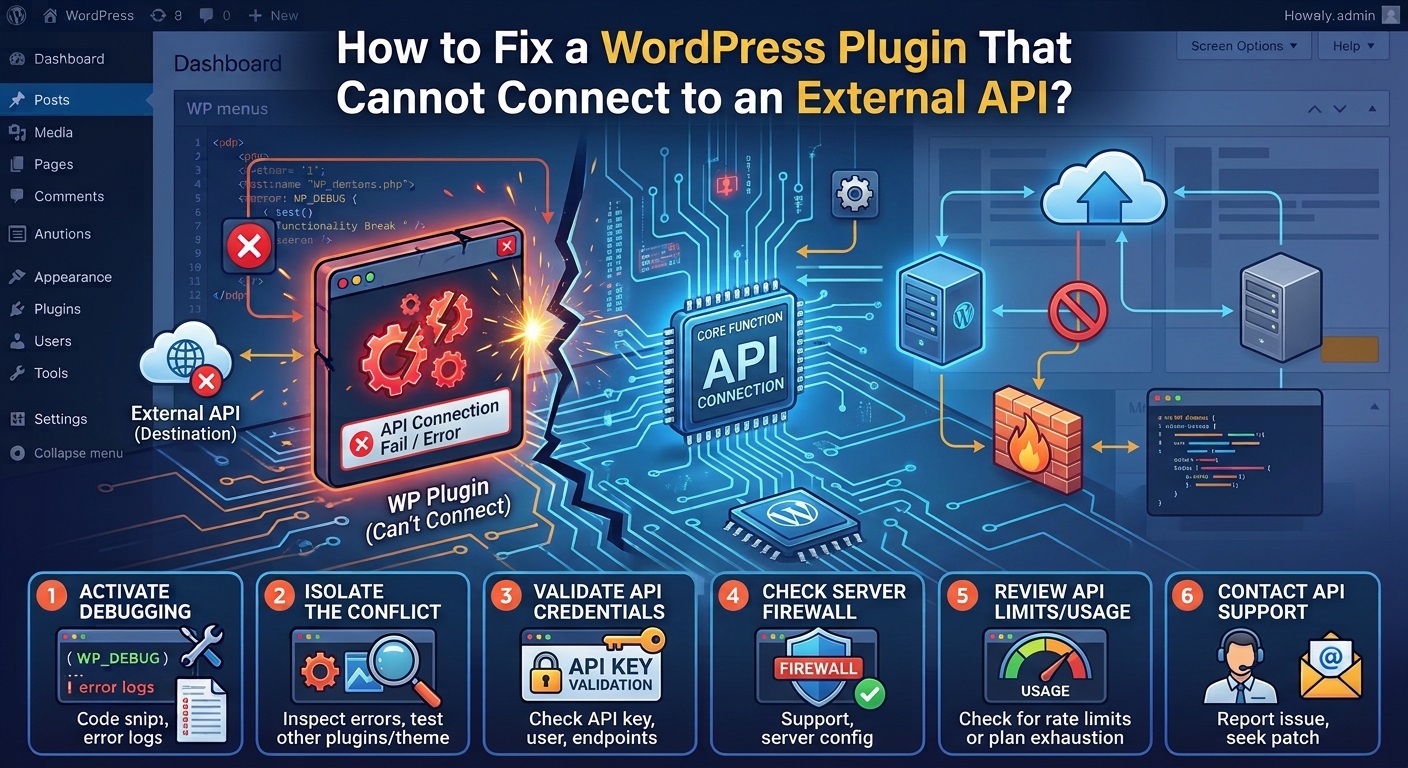
WordPress plugins frequently communicate with external services to provide additional functionality to websites. These services may include payment gateways, email marketing platforms, social media networks, cloud storage providers, mapping services, analytics platforms, shipping companies, and third-party applications.
To communicate with these services, plugins typically use Application Programming Interfaces (APIs). An API allows two different software applications to exchange information, process requests, and perform specific operations.
For example, a WordPress contact form plugin might connect to an external email marketing API to add subscribers to a mailing list. An eCommerce plugin might communicate with a payment gateway to process transactions, while a weather plugin might retrieve current weather information from an external data provider.
However, sometimes a WordPress plugin cannot connect to an external API. The plugin may display connection errors, fail to retrieve information, stop synchronizing data, or report authentication problems.
This issue can affect important website functionality and create difficulties for both website owners and administrators.
The problem may be caused by incorrect API credentials, expired authentication tokens, server firewall restrictions, DNS resolution failures, SSL certificate problems, incorrect API endpoints, outdated plugin code, or changes made by the external API provider.
Fortunately, most API connection problems can be diagnosed and resolved through a systematic troubleshooting process.
In this guide, you will learn how to fix a WordPress plugin that cannot connect to an external API, identify the underlying causes, troubleshoot common API errors, and prevent connection failures in the future.
What Is an External API in WordPress?
An external API is an interface that allows a WordPress website to communicate with another application or online service.
When a plugin needs information from an external platform, it sends an API request to that platform’s server. The external service processes the request and returns a response.
This communication usually happens through HTTP or HTTPS protocols.
For example, consider a WordPress plugin that displays currency exchange rates.
The plugin may:
- Send a request to a currency exchange API.
- Authenticate the request using an API key.
- Receive exchange rate information.
- Process the returned data.
- Display the information on the WordPress website.
If the connection fails at any stage, the plugin may not be able to display the latest information.
WordPress provides built-in HTTP API functions that developers can use to communicate with external services.
Some commonly used functions include:
wp_remote_get()wp_remote_post()wp_remote_request()wp_remote_retrieve_body()wp_remote_retrieve_response_code()is_wp_error()
Developers can learn more about these functions in the official WordPress HTTP API documentation.
Common Reasons a WordPress Plugin Cannot Connect to an External API
Before attempting to fix the problem, it is important to understand why the connection is failing.
Different API providers use different authentication methods, request formats, security requirements, and response structures. Therefore, the same error message can have several possible causes.
1. Incorrect API Key or Credentials
Many external APIs require authentication before allowing applications to access their services.
A plugin may require an API key, client ID, client secret, access token, or another authentication credential.
If these credentials are incorrect, incomplete, expired, or entered in the wrong format, the external API may reject the request.
For example, an API provider might return an HTTP 401 Unauthorized response when the supplied authentication information is missing or invalid.
2. Expired Access Tokens
Some APIs use temporary access tokens rather than permanent API keys.
These tokens may expire after a specific period and require renewal through an authentication process.
If a plugin cannot refresh an expired token, it may lose access to the external service.
This problem commonly occurs with services that use OAuth 2.0 authentication.
3. Incorrect API Endpoint
An API endpoint is the URL where an application sends its requests.
If the endpoint is incorrect, outdated, or no longer supported, the plugin may fail to establish communication with the external service.
For example, an API provider might migrate from an older endpoint to a newer version.
A plugin that continues using the old endpoint may receive an HTTP 404 Not Found or another error response.
4. SSL Certificate Problems
Most external APIs require secure HTTPS connections.
If your WordPress hosting environment has outdated certificate authorities, incorrect SSL configuration, or certificate verification problems, requests may fail.
SSL verification is important because it protects communication between your website and external services.
Disabling SSL verification is not a safe permanent solution.
5. Server Firewall Restrictions
Your hosting provider may use a firewall to restrict outgoing connections.
If the firewall blocks requests to the external API server, the plugin may be unable to communicate with the service.
Some hosting environments also restrict outgoing connections on specific ports.
For example, an external API may require HTTPS communication through port 443.
6. DNS Resolution Problems
DNS translates domain names into IP addresses.
When a WordPress plugin connects to an external API, the server must resolve the API provider’s domain name.
If DNS resolution fails, the connection cannot be established.
Possible causes include incorrect DNS settings, temporary DNS outages, server resolver problems, or restrictions imposed by the hosting provider.
7. API Rate Limits
External API providers often limit how many requests an application can make within a specific period.
If a plugin exceeds the allowed request limit, the API may return an HTTP 429 Too Many Requests response.
This can happen when:
- A plugin sends requests too frequently.
- Multiple website processes request the same information.
- An automated synchronization task runs repeatedly.
- A poorly configured plugin creates unnecessary API requests.
8. Outdated Plugin or PHP Version
An outdated plugin may use older HTTP functions, authentication methods, or request formats that are no longer supported by the external API.
Similarly, an incompatible PHP version may cause errors during API communication.
Keeping your WordPress installation and plugins updated can help prevent these problems.
9. Changes Made by the External API Provider
External services sometimes update their APIs.
These changes may include:
- New authentication requirements.
- Updated endpoint URLs.
- Modified response formats.
- Removed API versions.
- New permission requirements.
- Additional request parameters.
If a plugin has not been updated to support these changes, its API integration may stop working.
How to Fix a WordPress Plugin That Cannot Connect to an External API
Follow the troubleshooting steps below to identify and resolve the connection problem.
Step 1: Check Whether the External API Service Is Working
Start by determining whether the external service is currently available.
Sometimes the connection problem is not related to your WordPress website or plugin. The API provider may be experiencing an outage, maintenance period, or temporary service interruption.
Visit the official status page of the external service.
Check for:
- API service outages.
- Scheduled maintenance.
- Authentication service problems.
- Request processing delays.
- Regional service interruptions.
If the provider confirms an outage, wait until the service is restored and test the plugin again.
You can also consult the provider’s official API documentation to identify any recently announced changes.
Do not repeatedly change plugin settings when the external service itself is unavailable.
Step 2: Verify API Keys and Authentication Credentials
Incorrect credentials are among the most common causes of API connection failures.
To check your API credentials:
- Log in to your external API provider account.
- Navigate to its developer dashboard or API settings.
- Locate the API key or authentication credentials.
- Check whether the credentials are active.
- Verify that the required API permissions are enabled.
- Copy the credentials carefully.
- Open your WordPress administration dashboard.
- Navigate to the affected plugin’s settings page.
- Replace the existing credentials if necessary.
- Save the settings and test the connection.
Pay attention to accidental spaces, missing characters, incorrect account identifiers, and credentials belonging to a different environment.
Some API providers offer separate credentials for development and production environments. Make sure you are using the correct credentials for your website.
Security recommendation: Never publish API keys, access tokens, or client secrets in screenshots, public support forums, or publicly accessible source code.
Step 3: Generate a New API Key or Refresh the Access Token
If your credentials are correct but the connection still fails, the existing API key or access token may have expired or been revoked.
Some API providers allow administrators to generate replacement credentials through their developer dashboards.
Before generating a new key, review the provider’s instructions because replacing credentials may immediately invalidate the old key.
If the service uses OAuth 2.0, the plugin may need to complete an authorization process again.
OAuth 2.0 supports different authorization flows depending on the application and its requirements.
You can learn more from the official OAuth 2.0 framework specification.
After renewing the credentials:
- Update the authentication information in the plugin.
- Complete any required authorization process.
- Save the plugin settings.
- Test the API connection.
- Check whether the external service returns a successful response.
If the plugin does not support token renewal correctly, contact its developer for an updated version.
Step 4: Verify the API Endpoint URL
An incorrect API endpoint can prevent a plugin from reaching the required external service.
Open the plugin documentation and compare its configured endpoint with the current endpoint provided by the API provider.
Check:
- Domain name.
- URL path.
- API version.
- HTTPS protocol.
- Required query parameters.
- Regional endpoint requirements.
For example, an API provider may change an endpoint from an older version to a newer version.
A plugin that continues sending requests to the discontinued endpoint may fail.
If the plugin allows administrators to configure a custom API URL, update it only according to the provider’s official documentation.
Avoid guessing endpoint URLs or modifying plugin source files without understanding how the integration works.
Step 5: Check Whether Your Hosting Server Allows Outgoing HTTP Requests
WordPress plugins use outgoing HTTP requests to communicate with external services.
However, some hosting environments restrict these connections for security or resource-management reasons.
If your server blocks outgoing HTTP requests, the plugin may not be able to access the external API.
Contact your hosting provider and ask whether outbound HTTPS connections are permitted.
You should specifically verify:
- Outgoing connections on port 443.
- Access to the API provider’s domain.
- Firewall restrictions.
- Security software restrictions.
- Server-level connection policies.
If the hosting provider confirms that outgoing connections are blocked, request permission for the specific API domain and port required by the plugin.
Avoid asking for unrestricted firewall access when a limited rule can solve the problem.
Step 6: Check DNS Resolution
If your server cannot resolve the external API domain, the plugin may display a connection error.
You can investigate DNS problems through your hosting environment.
If SSH access is available, run:
nslookup api.example.comReplace api.example.com with the actual API hostname.
Alternatively, use:
dig api.example.comThese commands help determine whether the domain resolves to an IP address.
If DNS resolution fails:
- Contact your hosting provider.
- Ask whether the server’s DNS resolver is functioning.
- Check whether the API domain is accessible from the hosting environment.
- Investigate any DNS restrictions or resolver errors.
- Retest the plugin after the issue is resolved.
Do not change your website’s nameservers unnecessarily. Your website’s DNS configuration and the server’s outbound DNS resolution are separate matters.
Step 7: Check SSL Certificate and HTTPS Configuration
An external API may reject connections if SSL certificate verification fails.
For example, WordPress may report an error similar to:
cURL error 60: SSL certificate problem: unable to get local issuer certificate
This error generally indicates a certificate verification problem in the server’s trust configuration.
Possible solutions include:
- Updating the server’s CA certificate bundle.
- Updating the cURL library.
- Updating OpenSSL.
- Correcting the server’s certificate configuration.
- Asking your hosting provider to investigate SSL verification.
If you manage your own server, check whether its CA certificate bundle is current.
You can also use the official SSL Labs SSL Server Test to investigate the certificate configuration of services you manage.
Important: Never permanently disable SSL certificate verification to make an API connection work. This weakens connection security and exposes communication to potential interception.
Step 8: Check API Rate Limits
If the API provider returns an HTTP 429 response, your plugin may have exceeded the permitted request limit.
First, review the provider’s API documentation to understand its rate-limiting policy.
Some providers specify:
- Requests per second.
- Requests per minute.
- Daily request limits.
- Monthly usage limits.
- Account-specific quotas.
To resolve this problem:
- Identify how frequently the plugin sends API requests.
- Review scheduled synchronization tasks.
- Check whether multiple plugin processes are making duplicate requests.
- Reduce unnecessary API calls.
- Enable caching if supported.
- Use scheduled synchronization instead of requesting fresh data on every page load.
- Respect the API provider’s retry instructions.
If the API returns a Retry-After header, the plugin should respect that value before sending another request.
Developers should also implement exponential backoff for temporary rate-limit and server errors.
Step 9: Check WordPress HTTP API Errors
WordPress provides built-in HTTP functions that developers can use to diagnose external API communication.
For example, wp_remote_get() sends an HTTP GET request to an external URL.
The following code demonstrates a basic API connectivity test:
<?php

$api_url = 'https://api.example.com/status';

$response = wp_remote_get(
    $api_url,
    array(
        'timeout' => 20,
        'headers' => array(
            'Accept' => 'application/json',
        ),
    )
);

if ( is_wp_error( $response ) ) {

    error_log(
        'API connection error: ' .
        $response->get_error_message()
    );

} else {

    $status_code = wp_remote_retrieve_response_code(
        $response
    );

    $response_body = wp_remote_retrieve_body(
        $response
    );

    error_log(
        'API HTTP status: ' . $status_code
    );

}
Replace the example endpoint with a real, authorized API endpoint.
This example is intended for controlled development or debugging. Some APIs require authentication headers, specific request methods, or additional parameters.
Avoid logging API credentials or complete sensitive response bodies.
The code checks whether WordPress encountered a transport-level error and records the HTTP response status when a response is received.
Remember that an HTTP response does not automatically mean the API operation succeeded. You must also examine the response status and the API’s documented response format.
For example:
- HTTP 200: The request was generally successful.
- HTTP 400: The request may contain invalid parameters.
- HTTP 401: Authentication is missing or invalid.
- HTTP 403: The request is forbidden or lacks permission.
- HTTP 404: The endpoint or requested resource may not exist.
- HTTP 429: The request limit may have been exceeded.
- HTTP 500: The external server encountered an internal error.
- HTTP 502 or 503: An upstream or service availability problem may exist.
See the HTTP response status code reference for additional information.
Step 10: Enable WordPress Debug Logging
If the plugin continues reporting API connection failures, enable WordPress debugging to collect more technical information.
Open your website’s wp-config.php file.
Locate the existing debugging configuration and temporarily use:
define( 'WP_DEBUG', true );
define( 'WP_DEBUG_LOG', true );
define( 'WP_DEBUG_DISPLAY', false );
Do not add duplicate definitions if these constants already exist.
Reproduce the API connection problem and inspect:
wp-content/debug.log
Look for errors related to:
- cURL.
- HTTP requests.
- Authentication.
- Missing PHP extensions.
- Invalid function arguments.
- JSON decoding.
- Connection timeouts.
- Plugin-specific API functions.
For example, a missing cURL extension may prevent a particular HTTP transport from working correctly.
You can review the official WordPress debugging documentation for more information.
Disable debugging after completing your investigation, especially on production websites.
Step 11: Check PHP Extensions and Server Configuration
Some plugins require specific PHP extensions to communicate with external APIs.
Common requirements include:
- cURL.
- OpenSSL.
- JSON.
- mbstring.
If a required extension is unavailable, the plugin may not be able to process API requests correctly.
To investigate:
- Contact your hosting provider.
- Ask which PHP extensions are enabled.
- Verify that cURL and OpenSSL are available.
- Check the PHP version supported by the plugin.
- Review PHP error logs.
- Confirm that the server configuration meets the plugin’s requirements.
You can also inspect the WordPress Site Health page under Tools > Site Health.
This provides useful information about your WordPress environment and some server configuration problems.
Step 12: Test for Plugin Conflicts
Another plugin may interfere with external API communication.
For example, a security plugin might block outgoing requests, modify HTTP headers, or interfere with authentication.
A caching plugin might also prevent a synchronization operation from running as expected.
To identify conflicts:
- Create a staging copy of your website.
- Keep the affected plugin activated.
- Temporarily deactivate other plugins.
- Test the API connection.
- Reactivate plugins individually.
- Test the connection after each activation.
If the API connection fails after activating a particular plugin, investigate the interaction between the two plugins.
You can also use the Health Check & Troubleshooting plugin to isolate plugin conflicts without changing the experience of ordinary website visitors.
Step 13: Check the External API’s Current Documentation
External APIs are not permanent interfaces. Their authentication systems, endpoints, permissions, and response formats can change over time.
If your plugin suddenly stops connecting after previously working correctly, check whether the API provider has introduced changes.
Look for:
- Discontinued API versions.
- Updated authentication requirements.
- New permission scopes.
- Changes to required headers.
- Modified JSON response structures.
- New account verification requirements.
- Changes to allowed domains or IP addresses.
If the plugin uses an outdated API integration, its developer may need to release a compatibility update.
Do not manually modify API requests based on assumptions. Follow the provider’s current documentation.
How to Troubleshoot Common External API Connection Errors
Understanding HTTP status codes can make API troubleshooting much easier.
The following table summarizes common errors and their possible solutions.
| Error | Possible cause | Recommended solution |
|---|---|---|
| 400 Bad Request | Invalid request parameters | Verify request data and formatting |
| 401 Unauthorized | Invalid API credentials | Check API keys and tokens |
| 403 Forbidden | Missing permissions | Review account permissions and scopes |
| 404 Not Found | Incorrect or discontinued endpoint | Verify the endpoint URL |
| 408 Request Timeout | Request took too long | Investigate server response time |
| 429 Too Many Requests | API rate limit exceeded | Reduce requests and implement backoff |
| 500 Internal Server Error | External API server problem | Check provider status |
| 502 Bad Gateway | Upstream server problem | Retry according to provider guidance |
| 503 Service Unavailable | Service temporarily unavailable | Wait and retry |
| cURL error 6 | DNS resolution failure | Check DNS configuration |
| cURL error 28 | Connection timeout | Investigate network and server connectivity |
| cURL error 35 | SSL connection problem | Check TLS and server configuration |
| cURL error 60 | Certificate verification failure | Update CA certificates |
These errors provide useful diagnostic clues, but the exact cause should always be confirmed through the API provider’s documentation and server logs.
Best Practices for WordPress Plugin Developers
Developers can prevent many external API connection problems by following reliable software development practices.
1. Use the WordPress HTTP API
Use WordPress HTTP API functions rather than implementing unnecessary custom HTTP communication methods.
This helps maintain compatibility with the WordPress environment.
2. Validate API Responses
Never assume that every API request will succeed.
Check for WP_Error objects, HTTP response codes, and valid response data.
3. Handle Authentication Securely
Store API credentials securely and avoid exposing them in frontend JavaScript, publicly accessible files, or error messages.
Use the authentication method recommended by the API provider.
4. Implement Proper Timeout Handling
External services may respond slowly.
Set reasonable connection and request timeouts, and provide useful feedback when requests fail.
5. Use Caching to Reduce API Requests
Avoid sending unnecessary requests on every page load.
Use WordPress Transients or another appropriate caching mechanism to temporarily store API responses.
Learn more about the WordPress Transients API.
6. Implement Retry Logic
Temporary network problems should not permanently interrupt plugin functionality.
Developers should implement controlled retries for appropriate temporary failures.
Use exponential backoff and respect the API provider’s rate-limit instructions.
Avoid repeatedly retrying permanent authentication or permission errors.
7. Log Errors Without Exposing Sensitive Information
Maintain useful technical logs containing error codes, timestamps, and relevant diagnostic information.
Never record passwords, API secrets, or complete sensitive authentication headers.
8. Support API Version Changes
Developers should monitor API provider announcements and update integrations when endpoints or authentication requirements change.
Where possible, design API integrations so that endpoint and authentication changes can be maintained without rewriting the entire plugin.
When Should You Contact Your Hosting Provider or Plugin Developer?
If you have completed the troubleshooting steps and the connection still fails, professional assistance may be necessary.
Contact your hosting provider when:
- Outgoing HTTPS requests are blocked.
- DNS resolution fails.
- Required PHP extensions are missing.
- SSL certificate verification fails because of server configuration.
- Firewall rules prevent external communication.
- Server-level connection timeouts occur.
Contact the plugin developer when:
- API credentials are valid but authentication fails.
- The plugin uses an outdated API endpoint.
- The plugin cannot refresh OAuth tokens.
- API responses are not processed correctly.
- The plugin generates PHP or JavaScript errors.
- The integration does not support the latest API version.
When requesting support, provide:
- Plugin name and version.
- WordPress version.
- PHP version.
- External API provider.
- Exact error message.
- HTTP response status.
- Relevant debug log entries.
- Time when the problem started.
- Any recent changes to the plugin or API provider.
Never send passwords, secret API keys, or private access tokens through public support forums.
Conclusion
A WordPress plugin that cannot connect to an external API can affect important website functionality, including payment processing, email marketing, data synchronization, social media integration, and third-party information retrieval.
The problem may originate from incorrect API credentials, expired tokens, outdated endpoints, server firewall restrictions, DNS resolution failures, SSL certificate problems, API rate limits, or changes made by the external service provider.
The best approach is to investigate the connection systematically.
Start by checking the external service’s availability and verifying API credentials. Next, examine endpoint URLs, server connectivity, DNS resolution, and SSL configuration. If the problem continues, inspect WordPress HTTP API errors, enable debug logging, and test for plugin conflicts.
For plugin developers, proper authentication handling, response validation, caching, error logging, timeout management, and retry mechanisms are essential for building reliable API integrations.
By following these troubleshooting methods and development practices, website owners and developers can identify external API connection problems more efficiently and restore normal WordPress plugin functionality.
Frequently Asked Questions (FAQs)
1. Why can my WordPress plugin not connect to an external API?
Common reasons include incorrect API credentials, expired access tokens, incorrect endpoint URLs, server firewall restrictions, DNS problems, SSL certificate errors, and API provider outages.
2. How do I fix a 401 Unauthorized error in a WordPress plugin?
Verify your API key, access token, client ID, and authentication headers. Check whether the credentials are active and whether the account has the required API permissions. If necessary, renew the token or repeat the authorization process.
3. Why does my WordPress plugin show a cURL error?
cURL errors generally indicate a problem with the HTTP connection. Common causes include DNS failures, connection timeouts, SSL verification problems, and server restrictions. The specific cURL error number helps identify the underlying problem.
4. How do I test an external API connection in WordPress?
Developers can use WordPress HTTP API functions such as wp_remote_get() and wp_remote_post() to send requests and inspect the returned response. They should check for WP_Error objects, HTTP status codes, and valid response data.
5. Can a WordPress security plugin block external API requests?
Yes. Some security configurations may restrict outgoing requests or interfere with API communication. Test the connection in a staging environment and review security plugin settings before making changes.
6. How do I fix a 429 Too Many Requests error?
Reduce unnecessary API requests, enable response caching, adjust synchronization frequency, and implement retry logic with exponential backoff. Follow the rate limits and retry instructions specified by the API provider.
7. Does SSL configuration affect WordPress API connections?
Yes. External APIs frequently require secure HTTPS connections. Incorrect certificate configuration, outdated CA bundles, or SSL verification failures can prevent WordPress from establishing a trusted connection.
8. Can outdated PHP versions cause API connection problems?
Yes. Older PHP environments may lack required extensions or support for modern functionality used by plugins and external APIs. Verify the plugin’s PHP requirements and use a currently supported PHP version.
9. Why did my WordPress API integration suddenly stop working?
The external API provider may have changed its endpoint, authentication system, permissions, or response format. The provider may also be experiencing an outage or may have revoked existing credentials.
10. How can I prevent WordPress API connection failures?
Use properly maintained plugins, secure API credentials, valid SSL certificates, appropriate caching, controlled retry mechanisms, and regular compatibility testing. Monitor API provider announcements and keep plugin integrations updated.