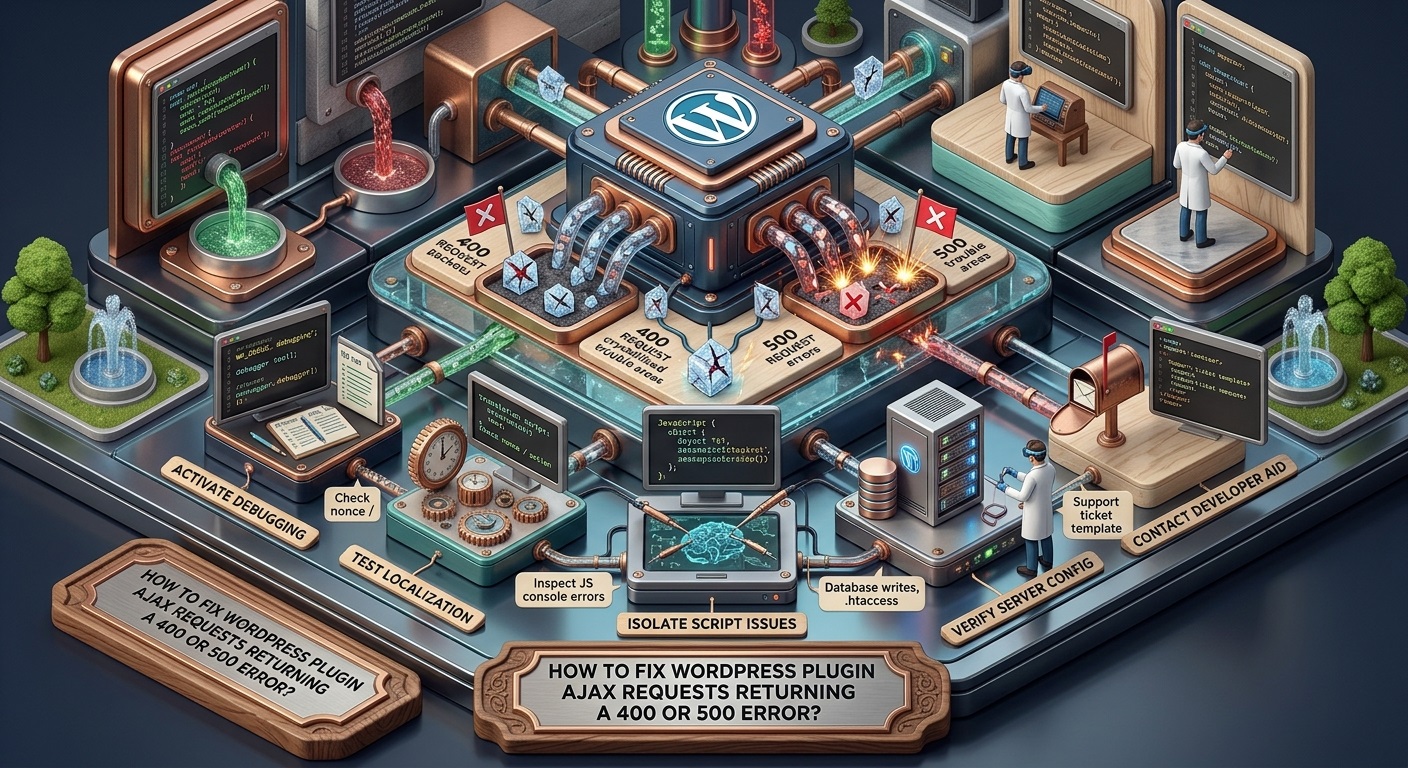
WordPress plugins use AJAX (Asynchronous JavaScript and XML) to communicate with the server without requiring visitors or administrators to reload an entire webpage. This technology makes many interactive features possible, including contact forms, search filters, image sliders, shopping cart updates, live notifications, dashboard controls, and dynamic settings pages.
However, AJAX functionality can stop working when a request encounters a server-side or application-level problem. Website owners may notice that a button does nothing, a form refuses to submit, a loading animation continues indefinitely, or a plugin displays an unexpected error message.
Two particularly common HTTP responses associated with these problems are 400 Bad Request and 500 Internal Server Error.
A 400 error generally indicates that the server cannot process a request because its contents, parameters, headers, or security information are invalid or unacceptable. A 500 error indicates that the server encountered an unexpected condition while attempting to process the request.
Although these errors may appear similar from the user’s perspective, their underlying causes are often different. Incorrect AJAX parameters, expired security nonces, missing request data, PHP exceptions, database failures, plugin conflicts, and server configuration problems can all interrupt AJAX communication.
This guide explains how to identify and fix WordPress plugin AJAX requests returning 400 or 500 errors. It also covers practical debugging techniques that developers can use to prevent similar problems in future plugin releases.
Understanding AJAX Errors in WordPress
Before troubleshooting an AJAX problem, it is important to understand how WordPress handles asynchronous requests.
WordPress provides an AJAX processing endpoint through:
/wp-admin/admin-ajax.php
Plugins and themes can send JavaScript requests to this endpoint. WordPress identifies the requested operation through an action parameter and executes the corresponding PHP callback.
For example, a plugin might register an AJAX action using:
add_action('wp_ajax_my_plugin_action', 'my_plugin_ajax_callback');

function my_plugin_ajax_callback() {
    wp_send_json_success(array(
        'message' => 'Request completed successfully.'
    ));
}
The JavaScript code sends a request to the AJAX endpoint, including the action name and any required information. WordPress then executes the registered callback and returns a response.
For visitors who are not logged in, developers can register a separate action using wp_ajax_nopriv_.
When something interrupts this communication, the browser’s developer console or Network panel may display an HTTP error.
What Does a 400 Bad Request Error Mean?
A 400 Bad Request response indicates that the server cannot process the submitted request.
Common causes include:
- Missing or incorrectly formatted AJAX parameters.
- Invalid or expired WordPress nonces.
- Incorrect action names.
- Missing required form fields.
- Invalid JSON or malformed request data.
- Security rules blocking the request.
- Incorrect request headers.
- Request size restrictions or server-level validation.
For example, a plugin might expect a parameter named action, but its JavaScript sends a differently named parameter. The server may consequently reject the request or fail to execute the intended operation.
What Does a 500 Internal Server Error Mean?
A 500 Internal Server Error indicates that something unexpected happened while the server was processing the request.
Common causes include:
- PHP fatal errors.
- Uncaught exceptions.
- Plugin compatibility problems.
- Theme or plugin conflicts.
- Database connection failures.
- Incorrect PHP function usage.
- Insufficient server resources.
- Memory exhaustion.
- Hosting configuration problems.
A 500 error is particularly important because it often indicates that the request reached the server but PHP or another server component could not complete the operation.
1. Inspect the AJAX Request in Your Browser
The first troubleshooting step should be identifying exactly which AJAX request is failing.
Do not immediately reinstall the plugin or modify server configuration. Start by collecting information about the failed request.
How to Inspect an AJAX Request
Follow these steps:
- Open the WordPress page where the plugin functionality is failing.
- Open your browser’s Developer Tools.
- Select the Network tab.
- Enable the Fetch/XHR filter if available.
- Perform the action that triggers the error.
- Locate the failed request.
- Select the request and inspect its details.
Look at the following information:
- Request URL.
- HTTP request method.
- HTTP status code.
- Request payload or form data.
- Request headers.
- Response headers.
- Response body.
For a traditional WordPress AJAX request, the URL commonly contains:
/wp-admin/admin-ajax.php
A request returning 400 or 500 should provide useful diagnostic information in its response, although some servers return only a generic error page.
Why This Step Matters
The Network panel helps determine whether the problem originates in JavaScript, request formatting, WordPress PHP processing, or the hosting environment.
For example, if the request does not contain the expected action parameter, the problem may be in the plugin’s JavaScript.
If the request contains all required parameters but returns a 500 response, investigating PHP logs becomes more important.
Developers can learn more about browser request inspection through the Chrome DevTools Network documentation.
2. Check Whether the AJAX Action Is Correct
WordPress AJAX requests depend on action names to identify the PHP callback that should process them.
If a plugin sends an incorrect action name, WordPress may not execute the intended callback.
Consider this PHP registration:
add_action('wp_ajax_save_plugin_settings', 'save_plugin_settings');The corresponding JavaScript request must include:
action: 'save_plugin_settings'If the JavaScript sends save_settings instead, the expected callback will not run.
How to Fix an Incorrect AJAX Action
Open the plugin’s JavaScript file and locate the AJAX request.
Check that the action parameter matches the action registered in PHP.
Also verify that:
- The callback function exists.
- The callback is registered correctly.
- The relevant PHP file is loaded.
- The action name uses consistent spelling.
- Logged-in and logged-out users have the appropriate action registrations.
A typical AJAX request might look like this:
jQuery.ajax({
    url: ajaxurl,
    type: 'POST',
    data: {
        action: 'save_plugin_settings',
        setting_value: 'example'
    },
    success: function(response) {
        console.log(response);
    },
    error: function(xhr) {
        console.log(xhr.status);
        console.log(xhr.responseText);
    }
});
For frontend functionality, developers should not assume that the ajaxurl JavaScript variable is automatically available. They should provide the endpoint through an appropriately configured script using WordPress’s script localization or another suitable script configuration method.
3. Verify WordPress Nonces and Security Validation
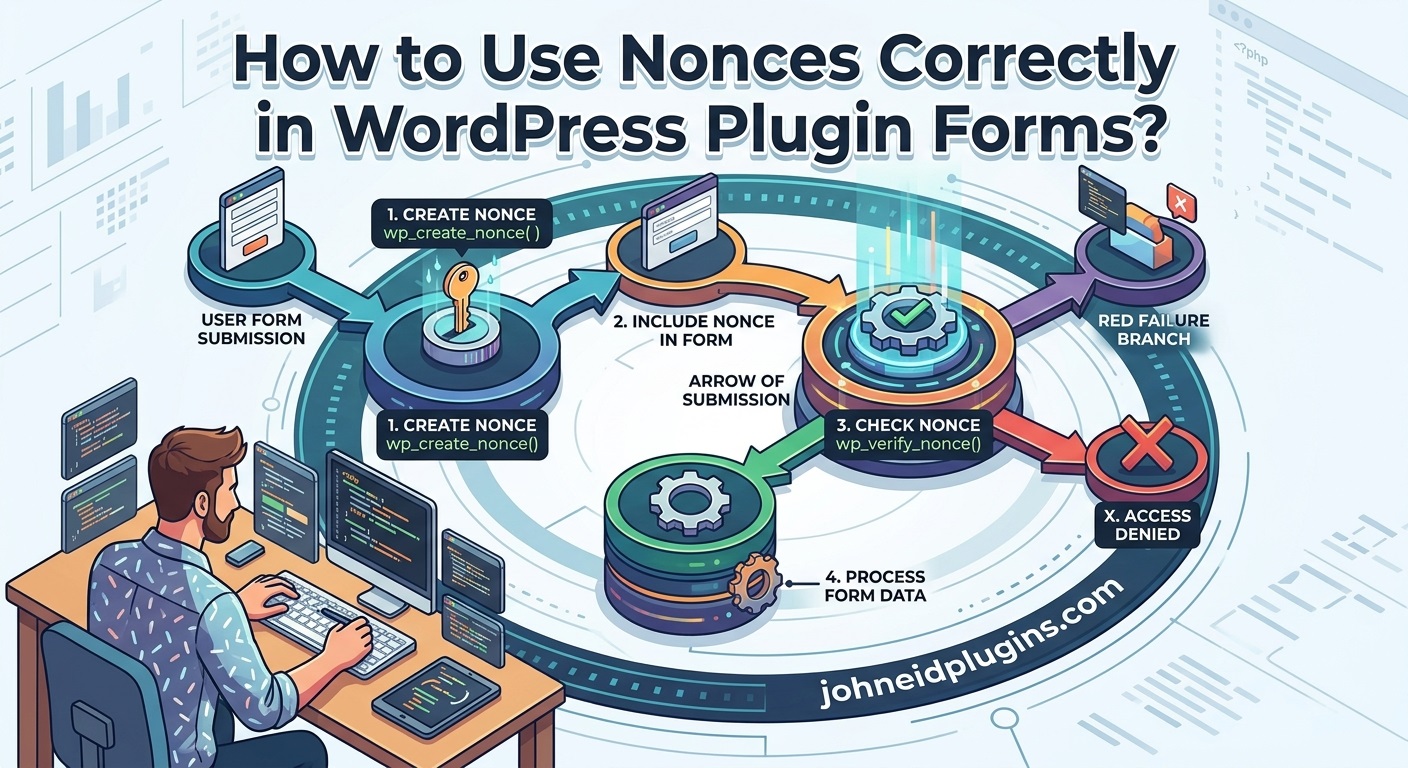
WordPress nonces are security tokens used to help protect actions against certain types of unauthorized requests, including cross-site request forgery.
Many plugins require a valid nonce before accepting AJAX requests.
If a nonce is missing, invalid, or expired, the plugin may reject the request.
For example, a PHP callback might contain:
check_ajax_referer(
    'my_plugin_nonce_action',
    'security'
);
This code expects the request to contain a valid nonce under the security parameter.
If JavaScript sends the nonce using another parameter name, validation may fail.
How to Fix Nonce-Related Errors
First, identify how the plugin generates its nonce.
A typical implementation is:
$nonce = wp_create_nonce('my_plugin_nonce_action');The nonce can then be passed to JavaScript using wp_localize_script():
wp_localize_script(
    'my-plugin-script',
    'myPluginData',
    array(
        'ajaxUrl' => admin_url('admin-ajax.php'),
        'nonce'   => wp_create_nonce('my_plugin_nonce_action')
    )
);
JavaScript can include it in the request:
jQuery.ajax({
    url: myPluginData.ajaxUrl,
    type: 'POST',
    data: {
        action: 'my_plugin_action',
        security: myPluginData.nonce
    }
});
Make sure the nonce action name and request parameter name match the PHP validation code.
Check for Expired Nonces
A page that remains open for several hours may contain an outdated nonce.
This can happen when an administrator leaves a settings page open and attempts to save changes much later.
Try refreshing the page and submitting the request again.
If refreshing resolves the issue, investigate whether the plugin needs a better nonce-refresh mechanism for long-running sessions.
Developers should consult the official WordPress nonce documentation when implementing AJAX security.
4. Enable WordPress Debugging to Identify PHP Errors
If AJAX requests return a 500 error, PHP errors should be among the first things investigated.
WordPress provides debugging constants that help developers identify problems occurring during plugin execution.
Open the wp-config.php file in your WordPress installation and locate the debugging configuration.
Add or update these settings before the line that says WordPress editing should stop:
define('WP_DEBUG', true);
define('WP_DEBUG_LOG', true);
define('WP_DEBUG_DISPLAY', false);
These settings enable WordPress debugging and write supported PHP errors to a log file.
The default log location is:
wp-content/debug.log
What Should You Look for in the Debug Log?
Search for messages containing:
- PHP Fatal error.
- Uncaught Error.
- Uncaught Exception.
- Allowed memory size exhausted.
- Undefined function.
- Call to undefined method.
- Undefined array key.
- Database connection errors.
- Deprecated function notices.
Pay particular attention to the time when the failed AJAX request was submitted.
For example, a log entry might indicate that a plugin attempted to call a function that no longer exists in the installed PHP environment.
This information can identify the exact file and line responsible for the failure.
Important: Debugging should be performed carefully. Do not display PHP errors publicly on a production website. Disable debugging when the investigation is complete, and protect or remove diagnostic logs when they are no longer needed.
Additional information is available in the WordPress debugging documentation.
5. Check Plugin Compatibility with Your PHP Version
A WordPress plugin may work correctly on one server but fail on another because of differences in PHP versions.
For example, a plugin developed using an older PHP environment may contain functions or coding patterns that are incompatible with a newer version.
Similarly, a plugin using modern PHP features may fail when installed on an outdated server.
How to Check PHP Compatibility
Open your WordPress administration dashboard.
Navigate to:
Tools → Site Health → Info → Server
Check the currently installed PHP version.
Compare it with the plugin’s documented PHP requirements.
You should also inspect the PHP error log for compatibility-related messages.
Typical problems include:
- Undefined functions.
- Removed PHP functions.
- Incorrect function arguments.
- Unsupported syntax.
- Type errors.
- Incompatible third-party libraries.
How to Resolve PHP Compatibility Problems
If the error originates in a plugin, check whether an updated version is available.
If you developed the plugin yourself, inspect the failing PHP code and update incompatible functions or syntax.
Test changes in a staging environment before applying them to a live website.
Do not downgrade PHP simply to hide an error without understanding the security and compatibility implications.
6. Investigate Plugin and Theme Conflicts
Two WordPress plugins can sometimes interfere with each other.
A theme may also introduce JavaScript or PHP functionality that conflicts with a plugin.
For example, another plugin might modify request processing, introduce an incompatible JavaScript library, or register an AJAX action using the same name.
These conflicts can cause unexpected 400 or 500 responses.
How to Identify a Plugin Conflict
Start by creating a backup of your website.
Then:
- Deactivate all plugins except the one experiencing the problem.
- Repeat the AJAX operation.
- Check whether the error disappears.
- Reactivate plugins individually.
- Test the AJAX functionality after activating each plugin.
- Identify which activation causes the error to return.
If the problem continues with other plugins disabled, temporarily switch to a default WordPress theme in a staging environment.
If the issue disappears after changing the theme, investigate the theme’s JavaScript and PHP functionality.
Use the Health Check Plugin
The WordPress troubleshooting process can also be simplified using the Health Check & Troubleshooting plugin.
Its troubleshooting mode allows administrators to test plugin and theme conflicts without changing the experience of ordinary website visitors.
This is especially useful for websites where disabling plugins publicly could interrupt important business operations.
7. Check ModSecurity and Other Server Security Rules
Some hosting environments use ModSecurity or similar security systems to inspect incoming HTTP requests.
These systems can block requests that match potentially dangerous patterns.
A legitimate WordPress AJAX request may occasionally trigger a security rule because of its submitted data.
For example, a plugin might submit HTML, SQL-like text, serialized information, or other data that resembles a suspicious request.
The security system may reject the request before WordPress can process it.
How to Identify Security Rule Blocking
Check the following:
- Hosting control panel security logs.
- ModSecurity audit logs.
- Web server error logs.
- Firewall event records.
- Security plugin logs.
If the security log identifies a specific rule ID, contact your hosting provider.
Ask them to investigate whether the rule is incorrectly blocking the legitimate AJAX request.
How to Fix the Problem
A hosting administrator may be able to adjust a specific security rule or create a narrowly scoped exception for the affected request.
Avoid disabling the entire server firewall.
A security exception should be limited to the required endpoint, parameter, or rule whenever possible.
This preserves website protection while allowing legitimate plugin functionality.
8. Check AJAX Request Headers and Content Types
Incorrect HTTP headers can cause problems when a plugin communicates with the server.
For example, JavaScript might send JSON data while the PHP callback expects standard form-encoded parameters.
A mismatch between the request format and the server-side processing code can result in missing or incorrectly interpreted values.
Standard Form-Encoded Requests
A typical jQuery AJAX request sends data in a format that PHP can process through $_POST.
For example:
jQuery.ajax({
    url: myPluginData.ajaxUrl,
    type: 'POST',
    data: {
        action: 'my_plugin_action',
        value: 'example'
    }
});
PHP can access the submitted value through:
$value = isset($_POST['value'])
    ? sanitize_text_field(wp_unslash($_POST['value']))
    : '';
JSON Requests
If JavaScript sends JSON, the request must be handled appropriately.
For example:
fetch(myPluginData.ajaxUrl, {
    method: 'POST',
    headers: {
        'Content-Type': 'application/json'
    },
    body: JSON.stringify({
        action: 'my_plugin_action',
        value: 'example'
    })
});
In this case, developers should not automatically expect the JSON properties to appear in PHP’s $_POST array.
They may need to read and decode the raw request body:
$body = json_decode(
    file_get_contents('php://input'),
    true
);
Alternatively, use WordPress’s REST API when JSON-based communication is more appropriate.
The important principle is to ensure that the JavaScript request format matches the PHP processing method.
9. Validate and Sanitize AJAX Input Data
Invalid or unexpected input can cause AJAX processing to fail.
For example, a plugin might expect a numeric product ID but receive a string containing unrelated characters.
Another plugin might expect an array but receive an empty value or malformed JSON.
Developers should validate incoming information before using it.
Example:
if (!isset($_POST['item_id'])) {
    wp_send_json_error(
        array('message' => 'Missing item ID.'),
        400
    );
}

$item_id = absint(
    wp_unslash($_POST['item_id'])
);

if (!$item_id) {
    wp_send_json_error(
        array('message' => 'Invalid item ID.'),
        400
    );
}
This example returns a controlled 400 response when the required value is missing or invalid.
Why Sanitization Is Important
Sanitization helps ensure that submitted data is processed in an appropriate format.
Common WordPress functions include:
sanitize_text_field()for general text.sanitize_email()for email addresses.absint()for positive integer values.sanitize_key()for keys.esc_url_raw()for URLs intended for storage or processing.
Validation and sanitization serve different purposes. Sanitization modifies input into an acceptable format, while validation checks whether the input meets the application’s requirements.
Developers should also use context-appropriate escaping when displaying stored or submitted information.
Refer to the official WordPress data validation documentation.
10. Investigate Database Errors
Some AJAX requests interact directly with the WordPress database.
For example, a plugin might save settings, create records, update custom post types, or retrieve information from custom database tables.
If the database operation fails, the plugin may return an error or generate a PHP exception.
Common database-related causes include:
- Incorrect SQL queries.
- Missing database tables.
- Incorrect table prefixes.
- Database connection problems.
- Insufficient database permissions.
- Invalid data formats.
- Database server resource limitations.
How to Diagnose Database Problems
Start by checking the WordPress debug log and hosting database logs.
If the plugin uses custom database tables, verify that the required tables exist.
Developers can also inspect database operations using the global $wpdb object.
For example:
global $wpdb;

$result = $wpdb->update(
    $wpdb->prefix . 'my_plugin_settings',
    array(
        'setting_value' => 'example'
    ),
    array(
        'id' => 1
    ),
    array('%s'),
    array('%d')
);

if ($result === false) {
    error_log(
        'Plugin database update failed: ' .
        $wpdb->last_error
    );
}
The developer can then investigate the database error recorded in the PHP log.
Do not assume that every database operation returning zero indicates a failure. For some queries, zero simply means that no rows needed to be changed.
For more information, consult the WordPress database documentation.
11. Check PHP Memory Limits and Server Resources
A plugin may perform resource-intensive operations during an AJAX request.
Examples include:
- Processing large image files.
- Importing CSV records.
- Exporting database information.
- Generating reports.
- Processing large collections of posts.
- Performing multiple database queries.
If the request exceeds available PHP memory, execution time, or another server resource limit, it may fail.
How to Identify Resource Limit Problems
Inspect the PHP error log for messages such as:
Allowed memory size exhausted
Also check your hosting control panel for PHP resource limits.
WordPress Site Health provides useful information about the server environment.
How to Fix Memory-Related Problems
Depending on the hosting environment, you may be able to adjust PHP memory limits through the hosting control panel or PHP configuration.
For example:
memory_limit = 256M
max_execution_time = 120
These are illustrative values, not universal requirements.
Developers should also optimize the plugin rather than relying exclusively on increasing server limits.
For large operations, consider processing records in smaller batches instead of completing everything within one AJAX request.
12. Check REST API Requests and Their Error Responses
Not every WordPress plugin uses admin-ajax.php.
Modern plugins increasingly use the WordPress REST API to exchange information between JavaScript and PHP.
REST API requests commonly use URLs such as:
/wp-json/my-plugin/v1/settings
A failed REST API request can also return 400 or 500 errors.
The troubleshooting principles are similar, but the server-side implementation is different.
For REST API endpoints, check:
- Whether the route is registered.
- Whether the HTTP method is correct.
- Whether the request parameters are valid.
- Whether the permission callback allows the operation.
- Whether the authentication method is configured correctly.
- Whether the callback generates a PHP error.
A properly registered endpoint should include a permission callback.
Example:
register_rest_route(
    'my-plugin/v1',
    '/settings',
    array(
        'methods'  => 'POST',
        'callback' => 'my_plugin_save_settings',
        'permission_callback' => function () {
            return current_user_can('manage_options');
        }
    )
);
The permission callback ensures that only users with the required capability can perform the protected operation.
For more information, read the WordPress REST API documentation.
13. Check JavaScript Errors and Incorrect AJAX Response Handling
Sometimes the server successfully processes an AJAX request, but the plugin’s JavaScript cannot handle the returned response.
For example, the server might return JSON while the JavaScript expects a different response structure.
Another possibility is that PHP produces an unexpected warning or HTML output before the JSON response.
This can break JSON parsing.
How to Identify JavaScript Problems
Open the browser’s Developer Tools and select the Console tab.
Look for errors such as:
- Unexpected token.
- Unexpected end of JSON input.
- Failed to parse response.
- ReferenceError.
- TypeError.
- Undefined variable.
- Failed to execute request.
Also inspect the actual response body in the Network panel.
Use WordPress JSON Response Functions
WordPress provides functions that generate standardized JSON responses.
For example:
wp_send_json_success(array(
    'message' => 'Settings saved successfully.'
));
For errors:
wp_send_json_error(
    array(
        'message' => 'Unable to save settings.'
    ),
    400
);
These functions help plugins return predictable responses that JavaScript can process.
Developers should avoid manually generating JSON using echo when WordPress’s response functions are more appropriate.
14. Review .htaccess and Server Configuration
Incorrect server configuration can interfere with WordPress AJAX requests.
Although the standard admin-ajax.php endpoint does not depend on ordinary permalink rewriting in the same way as many frontend URLs, broader server rules can still affect access to it.
Possible problems include:
- Incorrect rewrite rules.
- Security restrictions.
- Denied access to administrative paths.
- Incorrect file permissions.
- Reverse proxy configuration problems.
- Incorrect request filtering.
How to Investigate
Check whether the AJAX endpoint opens correctly when accessed directly.
For example:
A response containing 0 when accessed without a valid action is normal in many WordPress installations. It does not mean that the endpoint is broken.
If the endpoint returns a server error, investigate the web server logs and hosting configuration.
Before modifying .htaccess, download a backup of the existing file.
If you suspect permalink configuration problems, you can also visit:
Settings → Permalinks
Save the existing permalink settings without changing them. WordPress may regenerate its rewrite rules.
However, this should not be treated as a universal fix for AJAX errors.
15. Update WordPress, Plugins, and Server Software
Outdated software can introduce compatibility and security problems.
For example, an older plugin may rely on deprecated PHP functionality or use JavaScript libraries that conflict with modern WordPress releases.
Likewise, outdated WordPress core files may cause unexpected behavior.
Check for updates to:
- WordPress core.
- The affected plugin.
- Other installed plugins.
- Your active theme.
- PHP.
- Database server software, where applicable.
Always create a backup before updating production software.
Test updates in a staging environment whenever possible.
If an AJAX error appears immediately after a plugin update, investigate the latest release notes and compare the affected code with the previous version.
If necessary, roll back to a known working version temporarily while the compatibility issue is investigated.
16. Test AJAX Functionality on a Staging Website
A staging website is a separate testing environment where developers can investigate problems without affecting the live website.
It is particularly useful when AJAX errors require plugin deactivation, PHP changes, database testing, or modifications to server configuration.
Create a staging copy of the website and reproduce the problem.
Then test the following:
- Activate only the affected plugin.
- Use a default WordPress theme.
- Test the AJAX request.
- Inspect the browser Network panel.
- Check the PHP error log.
- Test different user permission levels.
- Submit valid and invalid request data.
- Compare the results with the live website.
This process can help determine whether the issue is caused by the plugin itself or by the surrounding environment.
17. Improve AJAX Error Handling in Custom WordPress Plugins
Plugin developers should design AJAX functionality so that failures are reported clearly.
Returning an unexplained error code makes troubleshooting difficult for website administrators.
Instead, developers should provide structured error messages while avoiding the disclosure of sensitive server information.
For example:
function my_plugin_ajax_callback() {

    check_ajax_referer(
        'my_plugin_nonce_action',
        'security'
    );

    if (!current_user_can('manage_options')) {
        wp_send_json_error(
            array(
                'message' => 'You are not authorized.'
            ),
            403
        );
    }

    $value = isset($_POST['value'])
        ? sanitize_text_field(
            wp_unslash($_POST['value'])
        )
        : '';

    if ($value === '') {
        wp_send_json_error(
            array(
                'message' => 'A required value is missing.'
            ),
            400
        );
    }

    // Perform the required operation here.

    wp_send_json_success(
        array(
            'message' => 'Operation completed successfully.'
        )
    );
}
The example demonstrates several important development practices:
- Verify the security nonce.
- Check user capabilities.
- Validate required parameters.
- Sanitize submitted data.
- Return structured JSON.
- Use appropriate HTTP status codes.
Developers should also log unexpected exceptions and server-side failures without exposing database credentials, filesystem paths, stack traces, or other sensitive information to visitors.
18. Prevent Future WordPress AJAX 400 and 500 Errors
Fixing an existing error is important, but preventing similar failures is equally valuable.
Developers should follow a consistent testing and maintenance process.
Follow WordPress Coding Standards
Use the official WordPress Coding Standards when developing plugin functionality.
Consistent coding practices help reduce compatibility, security, and maintenance problems.
Validate Every AJAX Request
Never assume that submitted information is correct.
Validate required fields, check expected data types, verify permissions, and sanitize input before processing it.
Implement Proper Security Checks
Use WordPress nonces and capability checks where appropriate.
Remember that a nonce is not a replacement for authorization. Both mechanisms serve different purposes.
Use Predictable JSON Responses
Return structured success and error messages.
Avoid mixing HTML, debugging output, and JSON in the same response.
Test Different User Roles
A request that works for an administrator may fail for an editor or subscriber.
Test AJAX functionality with the user roles that the plugin is designed to support.
Test Different PHP Environments
Check plugin functionality against the PHP versions listed in its compatibility requirements.
Monitor Server Logs
Regularly review PHP and server error logs to identify problems before they affect a large number of users.
Use Staging Before Production Updates
Test major plugin updates, theme changes, and server configuration changes in a staging environment.
Frequently Asked Questions
1. Why does my WordPress plugin AJAX request return a 400 error?
A 400 error usually indicates that the request contains missing, invalid, malformed, or unacceptable information. Common causes include incorrect action names, missing parameters, expired nonces, invalid JSON, and security rules blocking the request.
2. Why does admin-ajax.php return a 500 error?
A 500 response generally indicates a server-side failure. PHP fatal errors, uncaught exceptions, memory exhaustion, database problems, and plugin conflicts are common causes. Check your PHP error logs and WordPress debug log to identify the underlying issue.
3. Can an expired WordPress nonce cause AJAX errors?
Yes. If a plugin requires a valid nonce and the submitted token is missing, incorrect, or expired, the request may be rejected. Refreshing the page may temporarily resolve the problem, but developers should also ensure that nonce generation and validation are implemented consistently.
4. Can a security plugin block WordPress AJAX requests?
Yes. Security plugins, server firewalls, and ModSecurity rules can sometimes block legitimate requests. Check the security logs and ask your hosting provider to investigate any incorrectly triggered rules.
5. How do I know whether a plugin or hosting server causes the error?
Inspect the failed request in your browser’s Network panel and compare it with PHP and server logs. Then test the plugin in a staging environment with other plugins disabled and a default theme activated. This helps isolate the source of the failure.
6. Is it safe to disable WordPress debugging after fixing an AJAX error?
Yes. Debugging should generally be disabled when troubleshooting is complete, particularly on production websites. Avoid publicly displaying PHP errors, and protect diagnostic logs containing potentially sensitive information.
7. Does increasing PHP memory always fix a 500 error?
No. Increasing memory can help when the error is specifically caused by memory exhaustion. However, it will not correct invalid PHP code, database failures, incorrect AJAX parameters, expired nonces, or server security restrictions.
8. Should developers use admin-ajax.php or the WordPress REST API?
Both approaches are supported. The traditional AJAX API is suitable for many plugin interactions, while the REST API provides a structured approach to building endpoints and exchanging data, particularly with modern JavaScript applications. The appropriate choice depends on the plugin’s architecture and requirements.
Conclusion
WordPress plugin AJAX requests returning 400 or 500 errors can interrupt important website functionality, including settings updates, forms, dynamic content, search filters, and administrative operations.
The most effective troubleshooting approach is to identify the exact failed request before making changes.
For 400 errors, investigate request parameters, action names, nonce validation, input formats, and security restrictions.
For 500 errors, prioritize PHP error logs, plugin compatibility, database operations, memory limitations, and server configuration.
Browser Developer Tools, WordPress debugging, hosting logs, and staging environments provide valuable information for locating the actual cause.
Plugin developers should also implement proper validation, authorization, security checks, structured JSON responses, and error logging.
By following these troubleshooting practices, website owners and developers can resolve AJAX failures more efficiently and build WordPress plugins that remain reliable, secure, and compatible with different hosting environments.