Introduction
A slow WordPress website can frustrate visitors, reduce engagement, affect conversions, and make website management difficult. Pages may take several seconds to load, the WordPress dashboard may respond slowly, or specific features such as contact forms, product pages, and search results may become unusually sluggish.
One possible reason is a poorly optimized WordPress plugin.
Plugins extend WordPress with additional functionality, including contact forms, security features, page builders, image optimization, analytics, sliders, ecommerce tools, and SEO features. However, not every plugin is equally efficient. Some plugins execute too many database queries, load unnecessary JavaScript and CSS files, perform expensive PHP operations, or communicate with external services during page requests.
The challenge is that installing several plugins does not automatically mean that one particular plugin is responsible for a slow website. A website with many well-developed plugins can perform better than a website with only a few poorly optimized ones.
Therefore, removing plugins randomly is not a reliable solution.
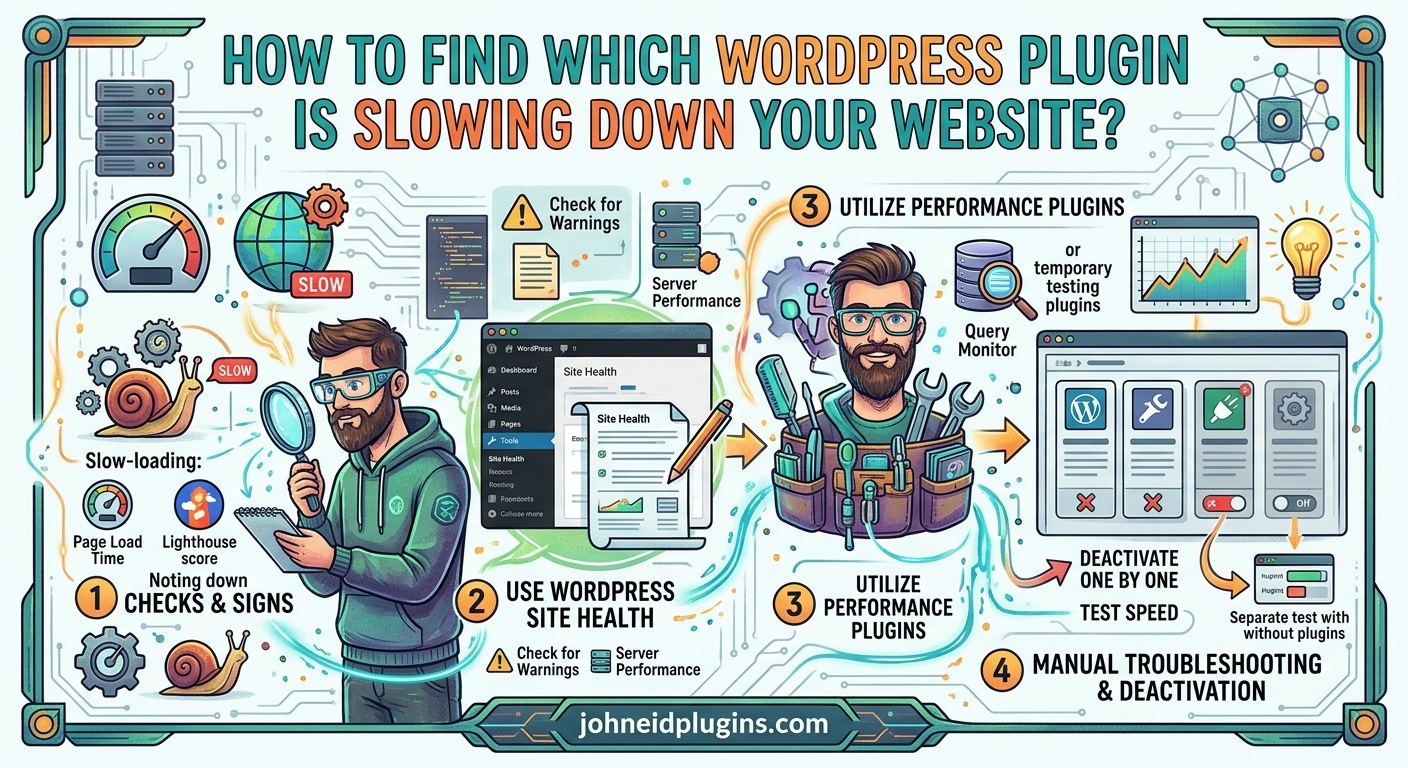
A better approach is to measure website performance, identify the pages that are slow, inspect plugin activity, and compare results under controlled conditions. This guide explains how to find which WordPress plugin is slowing down your website, how to investigate the underlying cause, and what you can do to improve performance without removing essential functionality.
1. Understand How WordPress Plugins Affect Website Speed
Before identifying a slow plugin, it is important to understand how plugins can affect WordPress performance.
When a visitor opens a WordPress page, the server processes the request. WordPress loads its core functionality, active plugins, the current theme, database information, and other required resources before generating the response.
Depending on their implementation, plugins may add work to several parts of this process.
PHP execution
WordPress plugins commonly execute PHP code through actions, filters, and other application hooks. A plugin that performs unnecessary calculations, processes large datasets, or runs expensive functions can increase server response time.
For example, a plugin might repeatedly retrieve information from the database even when the same information could be cached.
Database queries
Plugins frequently retrieve or update information stored in the WordPress database. Poorly written queries, repeated database requests, and queries that examine large amounts of data can increase database processing time.
A plugin that performs hundreds of unnecessary queries may contribute to slow page generation.
JavaScript and CSS files
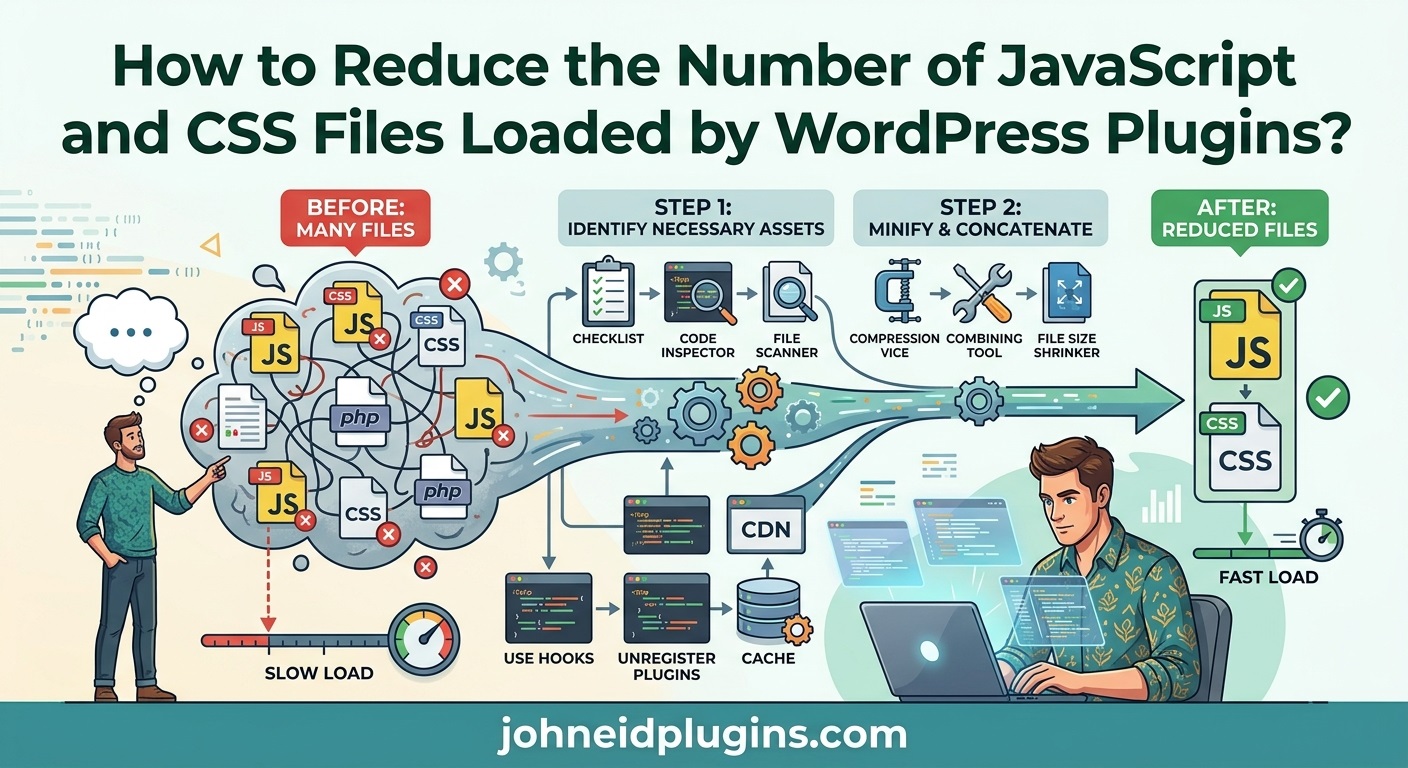
Some plugins load JavaScript and CSS files on every page, even when their features are not being used.
For example, a contact form plugin may load its scripts across the entire website when the form appears on only one page. Large frontend assets can increase page weight and delay rendering.
External HTTP requests
Certain plugins communicate with remote APIs, advertising platforms, analytics services, payment providers, or other external systems.
If an external service responds slowly, the plugin may delay the page request when it waits for that response.
Background processing
Plugins can schedule background tasks through WordPress Cron or other job-processing systems. Importing products, generating thumbnails, sending emails, and synchronizing external data can consume server resources.
These activities may affect overall website performance, particularly when scheduled tasks accumulate or run too frequently.
2. Check Whether Your Entire Website Is Slow or Only Specific Pages
The first step is to determine where the performance problem occurs.
Do not assume that every page is affected simply because the homepage loads slowly.
Test several important areas of your website, including:
- Homepage
- Blog posts
- Category and archive pages
- Contact page
- Search results
- Login and registration pages
- WooCommerce product pages
- Shopping cart and checkout pages
- WordPress administration dashboard
If only one page is slow, the problem may involve a plugin feature used specifically on that page.
For example, a page builder may affect pages built with its components, while a booking plugin may slow down pages that display booking calendars.
If every page is slow, investigate plugins that execute globally, your theme, hosting environment, database, caching configuration, and external services.
Record your initial performance measurements
Before changing anything, record the current performance of important pages.
You can use tools such as:
- Google PageSpeed Insights to examine page performance and Core Web Vitals.
- GTmetrix to inspect loading behavior and network requests.
- WebPageTest to perform more detailed browser-based performance tests.
Run each test more than once because network conditions, server load, caching, and external services can affect individual results.
Record metrics such as:
- Time to First Byte (TTFB)
- Largest Contentful Paint (LCP)
- Interaction to Next Paint (INP)
- Cumulative Layout Shift (CLS)
- Total page size
- Number of network requests
- Server response time
These measurements provide a baseline for comparing performance after optimization.
Remember that frontend testing tools do not automatically identify which WordPress plugin is responsible. They help reveal symptoms and identify resources that require further investigation.
3. Use Query Monitor to Identify Plugin Performance Problems
One of the most useful tools for investigating WordPress performance is Query Monitor.
Query Monitor is a debugging plugin that provides information about database queries, PHP errors, hooks, HTTP API requests, scripts, stylesheets, and other details related to the current page request.
You can find it in the official WordPress Plugin Directory.
How to install Query Monitor
- Log in to your WordPress administration dashboard.
- Navigate to Plugins → Add New.
- Search for Query Monitor.
- Click Install Now.
- Activate the plugin.
- Open the frontend of your website while logged in as an administrator.
- Locate the Query Monitor menu in the WordPress administration toolbar.
Click the toolbar menu to inspect information about the current request.
Examine database queries
Database queries are an important part of WordPress performance.
Query Monitor can help identify:
- Slow database queries
- Duplicate queries
- Queries associated with individual plugins
- Queries generated by the active theme
- Database query counts
- Query execution time
Look for plugins responsible for unusually expensive or repeated database operations.
However, a high query count does not automatically indicate a performance problem. Some queries are inexpensive, while a single poorly designed query can be more expensive than many simple queries.
Pay attention to execution time, duplication, query structure, and the component responsible.
Examine HTTP API requests
Some plugins communicate with external services using WordPress HTTP API functions.
Query Monitor can help reveal outgoing HTTP requests and their response times.
For example, an analytics plugin might contact a remote service during page generation. If that service responds slowly, it may increase the time required to generate the page.
Investigate requests that:
- Take unusually long to complete
- Fail repeatedly
- Contact unnecessary external services
- Run on pages where the related feature is not required
Examine scripts and stylesheets
Query Monitor also provides information about enqueued scripts and stylesheets.
Check whether a plugin loads large or unnecessary frontend assets.
For example, a slider plugin may load its JavaScript and CSS files on every page, even when the slider is displayed only on the homepage.
The information can help you identify which component is registering or loading those resources.
4. Use a Plugin Performance Profiler
A performance profiler can provide a more direct way to compare the resource usage of individual plugins.
Unlike a general page-speed test, a profiler may measure PHP execution time, plugin activity, database queries, memory usage, or individual function calls.
One option is Code Profiler, available from the WordPress Plugin Directory. It is designed to profile WordPress plugins and themes at the PHP level.
Another option is Scrutoscope, which provides detailed profiling of WordPress hooks, callbacks, database queries, external HTTP calls, and other performance-related activity. Check its WordPress Plugin Directory listing for current capabilities and requirements.
How to use a profiler
The general process is:
- Install a profiler compatible with your WordPress and PHP versions.
- Open its performance or profiling interface.
- Select the page or request you want to investigate.
- Start a profiling session.
- Load the relevant page or perform the required action.
- Review the performance report.
- Identify plugins with unusually high execution time or resource usage.
A profiler may reveal that a particular plugin spends considerable time executing PHP code, processing database queries, or waiting for external services.
Interpret profiling results carefully
Do not choose a plugin for removal based on one number alone.
For example, a plugin might consume more memory because it handles a large but necessary task. Another plugin might use little memory but repeatedly execute slow database queries.
Consider several measurements together:
- Total execution time
- Exclusive and inclusive execution time, where available
- Database query time
- Memory consumption
- External request duration
- Frequency of execution
The goal is to identify a genuine bottleneck rather than simply selecting the plugin with the largest resource measurement.
5. Temporarily Deactivate Plugins to Find the Cause
A controlled plugin deactivation test is a practical way to investigate performance problems.
The basic method is to measure website performance, deactivate a plugin, repeat the same test, and compare the results.
However, disabling plugins on a live website can affect visitors and important functionality. Perform this investigation on a staging site whenever possible.
Step-by-step plugin isolation
- Create a complete backup of your WordPress website.
- Set up a staging copy.
- Record the performance of the affected page with all plugins active.
- Deactivate one plugin.
- Test the same page again.
- Record the new performance measurements.
- Reactivate the plugin.
- Repeat the process with other plugins.
- Compare the results.
If deactivating one plugin consistently improves performance, investigate that plugin further.
Use a one-plugin-at-a-time approach
For example, suppose your website has the following plugins:
| Plugin | Initial observation |
|---|---|
| SEO plugin | No obvious issue |
| Contact form plugin | Loads assets globally |
| Slider plugin | Loads large scripts |
| Security plugin | Performs external requests |
| Backup plugin | Runs scheduled tasks |
These observations are only starting points. They do not prove that any plugin is responsible for slow loading.
Test each plugin independently and compare the measurements.
What if the problem disappears when a plugin is deactivated?
That is useful evidence, but it is not always conclusive.
A plugin may depend on another plugin, interact with the theme, or behave differently when another component is disabled.
Repeat the test and examine the affected page carefully.
Also check whether the improvement results from the removal of a required feature rather than a genuine performance optimization.
6. Use Health Check and Troubleshooting Mode
If you cannot create a staging website, the official Health Check & Troubleshooting plugin can help isolate plugin conflicts without changing what ordinary visitors see.
The plugin is available through the WordPress Plugin Directory.
Its Troubleshooting Mode allows an administrator to test WordPress with plugins disabled and a default theme enabled for that administrator’s session.
You can then activate plugins individually to identify whether a particular component causes a problem.
How to use Troubleshooting Mode
- Install and activate Health Check & Troubleshooting.
- Open Tools → Site Health.
- Select the Troubleshooting tab.
- Enable Troubleshooting Mode.
- Test the affected page.
- Enable plugins individually within the troubleshooting session.
- Observe when the performance problem returns.
- Record the plugin combination that causes the issue.
This approach is useful because the changes are limited to your troubleshooting session rather than being applied globally to all visitors.
However, it is not a complete substitute for staging. Some issues involving logged-out visitors, caching, payment gateways, scheduled tasks, or external services may require separate testing.
7. Check Whether Plugin JavaScript and CSS Files Are Slowing Down Pages
A WordPress plugin can affect frontend speed even when its PHP processing is efficient.
Large JavaScript files, unnecessary CSS, and excessive network requests can delay page rendering and interaction.
Use your browser’s developer tools to investigate these resources.
Open browser developer tools
In Google Chrome or Microsoft Edge:
- Open the page you want to test.
- Press F12.
- Select the Network tab.
- Reload the page.
- Filter the requests by JS and CSS.
- Examine file sizes, loading times, and request sources.
Look for files loaded from directories such as:
/wp-content/plugins/plugin-name/
The directory name can help you identify the plugin that provides a particular resource.
Look for unnecessary asset loading
Suppose a plugin provides a gallery feature that is used on one page.
If the plugin loads several large JavaScript files across the entire website, it may increase the total amount of data visitors must download.
Potential improvements include:
- Loading scripts only on relevant pages
- Removing unused frontend libraries
- Reducing unnecessary dependencies
- Minifying and compressing assets
- Deferring non-critical JavaScript where appropriate
- Using conditional asset loading
Do not remove scripts simply because they appear large. Confirm that they are unnecessary before changing how they are loaded.
For further guidance, consult the WordPress developer documentation on including CSS and JavaScript.
8. Investigate Slow Database Queries
Database performance is another important part of WordPress troubleshooting.
A plugin may execute queries that retrieve large amounts of information, repeatedly search the same tables, or lack suitable database indexes.
Common database-related problems
Repeated queries: A plugin retrieves the same information several times during one page request.
Unoptimized queries: A query examines more database records than necessary.
Large datasets: A plugin processes thousands of records when only a small number are required.
Missing indexes: A custom database table does not have appropriate indexes for frequently searched columns.
Excessive autoloaded options: A plugin stores large amounts of configuration data that WordPress loads on ordinary requests.
Use Query Monitor or a suitable profiler to identify queries associated with the suspected plugin.
If the problem involves a custom plugin, ask its developer to review the relevant database operations.
For developers, the WordPress wpdb class documentation explains how to interact with the WordPress database.
Do not manually delete database records or alter plugin tables without understanding their purpose and having a verified backup.
9. Check Plugins That Make External API Requests
Some plugins rely on third-party services to provide functionality.
Examples include:
- Analytics integrations
- Social media feeds
- Currency conversion tools
- Payment gateways
- Email marketing integrations
- Maps and location services
- Remote product synchronization
- External content importers
If a plugin waits for an external service to respond before completing a page request, the remote service can become a performance bottleneck.
How to identify slow external requests
Use Query Monitor’s HTTP API panel or another suitable profiling tool.
Check:
- Which plugin initiates the request
- Which remote host receives it
- How long the request takes
- Whether the request is repeated
- Whether it blocks page generation
- Whether the request is necessary on that page
A plugin may be functioning correctly while an external API is experiencing delays.
Possible improvements include using caching, reducing unnecessary API calls, setting reasonable timeouts, and moving non-essential operations to background processing.
If the plugin depends on an external service, check that service’s status and documentation before assuming the plugin itself contains defective code.
10. Determine Whether a Plugin Is Slowing Down the WordPress Dashboard
Sometimes the frontend works normally while the administration dashboard becomes slow.
This can happen because plugins add dashboard widgets, reports, notices, statistics, analytics, database operations, or background processing.
Test these areas separately:
- Dashboard homepage
- Plugins screen
- Posts and Pages screens
- Media Library
- Plugin settings pages
- WooCommerce administration screens
- Order management pages
Use Query Monitor while viewing the affected administration page.
Check for expensive database queries, slow HTTP requests, PHP warnings, and repeated operations.
If only one plugin’s settings page is slow, the issue may be related to how that plugin retrieves or processes configuration data.
If the entire dashboard is slow, investigate globally loaded plugins, hosting resources, database performance, and scheduled tasks.
11. Check WordPress Cron and Background Tasks
WordPress Cron is used by plugins and themes to schedule tasks.
Examples include:
- Publishing scheduled posts
- Sending automated emails
- Cleaning temporary data
- Importing external information
- Synchronizing products
- Generating reports
- Running backup operations
A plugin that schedules too many tasks or performs expensive operations can create additional server load.
Use a tool such as WP Crontrol to inspect scheduled WordPress Cron events.
Look for:
- Large numbers of scheduled events
- Repeated events that should not be duplicated
- Tasks that fail repeatedly
- Jobs that take unusually long
- Tasks that run more frequently than necessary
Do not delete scheduled events simply because you do not recognize their names. Identify the plugin that registered them and understand their purpose first.
12. Compare Performance Before and After Removing or Replacing a Plugin
Once you have identified a suspected plugin, decide whether it needs configuration changes, optimization, replacement, or removal.
Before making changes, record the original performance measurements.
Then apply one change at a time and repeat the same tests.
For example:
| Test | Before optimization | After optimization |
|---|---|---|
| Homepage load | Record result | Record result |
| TTFB | Record result | Record result |
| Total page size | Record result | Record result |
| Database query time | Record result | Record result |
| JavaScript requests | Record result | Record result |
| External request time | Record result | Record result |
The actual results will depend on your hosting environment, caching configuration, website content, and visitor conditions.
If a plugin is responsible for the problem, consider these options:
- Disable unnecessary features.
- Change settings that cause excessive processing.
- Restrict scripts and styles to relevant pages.
- Enable supported caching features.
- Update the plugin to a maintained release.
- Contact the plugin developer.
- Replace it with a more efficient alternative.
- Remove it if the functionality is no longer required.
Do not replace an essential plugin solely because another plugin appears to be faster in a single test. Compare functionality, compatibility, security, maintenance, and performance.
13. Optimize the Plugin Instead of Removing It
A plugin may be essential to your website. Removing it could solve a performance problem but also eliminate important functionality.
Before uninstalling it, investigate whether its performance can be improved.
Review plugin settings
Some plugins include options for controlling how and where their features operate.
Disable features that are not needed, reduce unnecessary tracking, and avoid loading complex modules across every page.
Update the plugin
Developers regularly release updates that may improve performance, fix database issues, and address compatibility problems.
Before updating, review the changelog and create a backup.
Contact the developer
If profiling identifies a specific function, query, or external request as a bottleneck, provide the developer with useful diagnostic information.
Include:
- WordPress version
- PHP version
- Plugin version
- Affected page or action
- Profiling results
- Relevant error messages
- Steps to reproduce the problem
A detailed report is more useful than simply saying that the plugin makes the website slow.
Replace unnecessary functionality
Sometimes a plugin provides many features when you only need one.
For example, if you only need a simple button, installing a large plugin that includes advanced marketing, analytics, and automation features may be unnecessary.
Choose software that provides the required functionality without adding excessive complexity.
14. Common Mistakes to Avoid When Finding Slow WordPress Plugins
Performance troubleshooting can become misleading when tests are not performed consistently.
Avoid these common mistakes.
Deactivating all plugins on a live website
This may break forms, payments, security features, ecommerce functionality, and other important services.
Use staging or an appropriate troubleshooting session.
Assuming the plugin with the most features is the slowest
A feature-rich plugin can be well optimized, while a small plugin can contain inefficient code.
Measure actual performance rather than judging by feature count.
Testing only the homepage
A homepage test cannot reveal every problem.
Test pages that use different plugins and functionality.
Ignoring caching
Page caching can make a slow application appear fast by serving previously generated pages. However, uncached requests may still be slow.
Test both cached and uncached behavior where appropriate.
Relying on a single speed test
Network conditions, browser cache, server load, and third-party services can change results.
Repeat tests and compare averages or consistent patterns.
Leaving debugging tools enabled unnecessarily
Profilers and debugging plugins add overhead and may expose technical information to users who should not see it.
Use them during controlled investigations and disable or remove them when finished, unless you have a specific ongoing monitoring requirement.
Making several changes at once
If you deactivate multiple plugins, change caching settings, and update the theme simultaneously, you may not know which change improved performance.
Change one variable at a time.
15. Best Practices for Preventing Plugin Performance Problems
The best way to avoid recurring performance problems is to maintain a disciplined plugin management process.
Follow these practices:
Install plugins from trustworthy sources: Review developer information, update history, compatibility, support, and user feedback.
Avoid unnecessary plugins: Install only software that provides functionality your website actually needs.
Keep plugins updated: Use maintained versions and test updates before deploying them to important websites.
Test before installing: Evaluate new plugins on a staging website when possible.
Monitor important pages: Periodically test your homepage, blog, forms, search pages, and ecommerce features.
Review external services: Check whether integrations are necessary and whether they introduce slow requests.
Use suitable caching: Configure page caching, browser caching, and object caching where supported by your hosting environment.
Optimize images and media: Large images and videos can slow a website even when plugins are working efficiently.
Monitor hosting resources: Insufficient PHP workers, CPU, memory, or database capacity can make otherwise efficient plugins appear slow.
Maintain backups: Always create a recoverable backup before making significant changes.
For additional guidance, consult the WordPress performance documentation and the WordPress plugin developer handbook.
Frequently Asked Questions
1. How can I find which WordPress plugin is slowing down my website?
Start by measuring your website’s performance with tools such as PageSpeed Insights. Then use Query Monitor or a PHP performance profiler to inspect database queries, HTTP requests, and plugin execution. You can also test plugins individually on a staging website to identify the component responsible.
2. Can Query Monitor identify slow WordPress plugins?
Query Monitor provides information about database queries, PHP errors, HTTP API requests, hooks, scripts, and stylesheets. Its component and caller information can help identify which plugin is responsible for particular operations. However, it is a debugging tool rather than a complete visitor-wide performance monitoring service.
3. Does having too many WordPress plugins slow down a website?
Not necessarily. The number of installed plugins is not the only factor that determines performance. Poorly optimized code, unnecessary database queries, large assets, external requests, and background tasks can create bottlenecks. A website with many efficient plugins may perform better than one with a few inefficient plugins.
4. What is the best plugin for checking WordPress performance?
Query Monitor is a useful starting point for inspecting individual WordPress requests. Code Profiler and other profiling tools can provide more detailed PHP performance information. The best option depends on whether you need to investigate database queries, PHP execution, external requests, or frontend assets.
5. Can a WordPress plugin slow down only one page?
Yes. Some plugins load their functionality only on specific pages. For example, a booking plugin may affect appointment pages, while a slider plugin may affect pages containing its slider. Test different URLs and inspect the resources and queries generated by each page.
6. Why is my WordPress dashboard slow but the frontend is fast?
Administration plugins may perform additional database queries, generate reports, display analytics, or communicate with external services. Investigate the specific administration screen with Query Monitor and check background tasks and hosting resources.
7. Should I delete a plugin if it slows down my website?
Not immediately. First determine whether the problem can be solved through configuration, updates, asset optimization, caching, or developer assistance. If the plugin is unnecessary or cannot be optimized adequately, replacing or removing it may be appropriate.
8. Can a plugin slow down a website without displaying an error?
Yes. A plugin can execute inefficient code or make slow database and external HTTP requests without producing visible PHP errors. Performance profiling is often necessary to identify these problems.
9. Does caching solve slow plugin problems?
Caching can reduce repeated processing and improve response times, but it does not necessarily fix the underlying problem. Logged-in users, checkout pages, dynamic content, and uncached requests may still experience slow performance. Investigate the cause rather than relying entirely on caching.
10. How often should I test WordPress plugin performance?
Test performance after installing major plugins, changing themes, updating important functionality, or modifying hosting and caching settings. It is also useful to conduct periodic checks to detect problems before they affect visitors significantly.
Conclusion
Finding which WordPress plugin is slowing down your website requires more than checking the number of installed plugins or deactivating random components.
A reliable investigation begins with performance measurements, followed by examining individual pages, database queries, PHP execution, JavaScript and CSS assets, external HTTP requests, and background tasks.
Tools such as Query Monitor and PHP profilers can help identify the source of expensive operations. Controlled plugin isolation on a staging website can then confirm whether a particular plugin contributes to the problem.
Once you identify the cause, consider optimizing the plugin’s configuration, reducing unnecessary resource loading, updating its code, or replacing it with a more efficient alternative.
The most important principle is to measure before making changes. By identifying the actual bottleneck instead of guessing, you can improve WordPress performance while keeping the features and functionality your website needs.