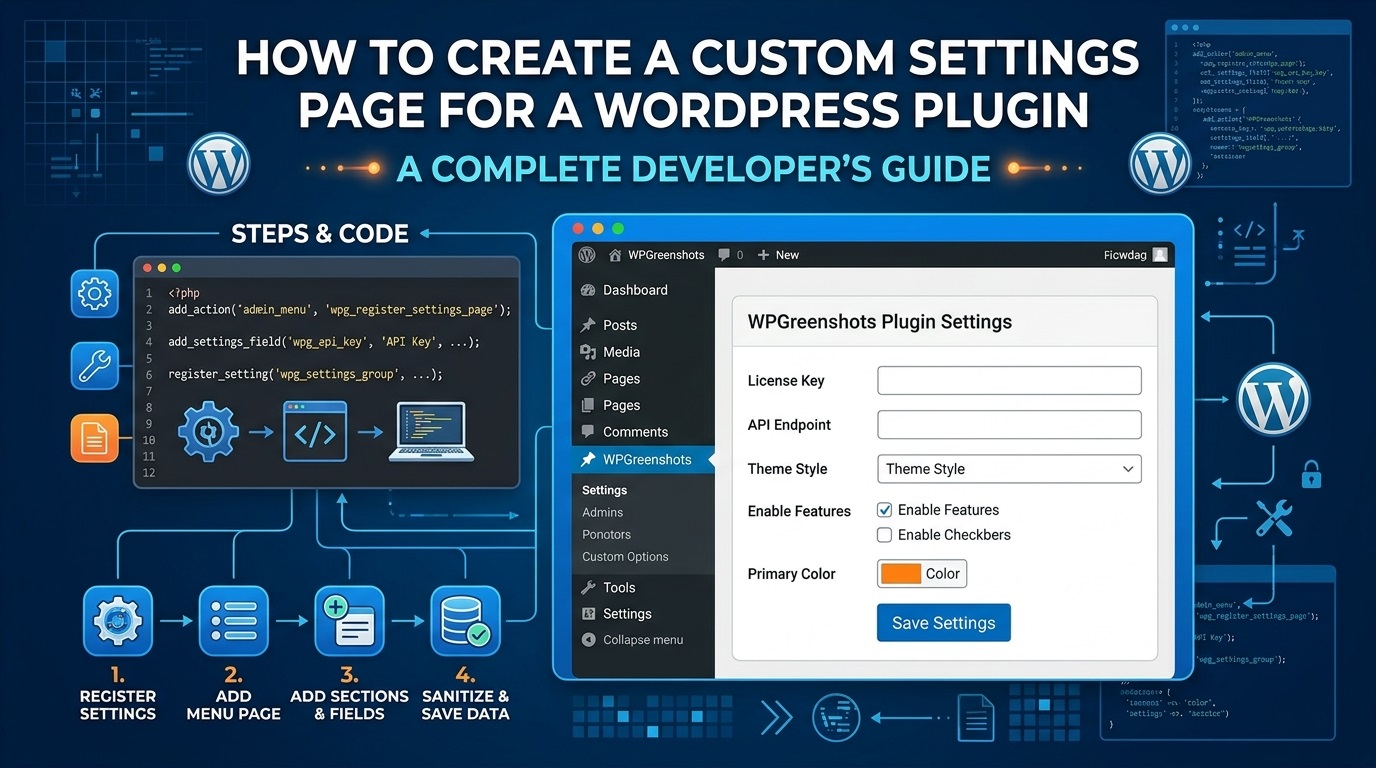
Creating a custom settings page for a WordPress plugin is an important step in developing a professional, flexible, and user-friendly plugin. A well-designed settings page allows website administrators to configure plugin features, customize behavior, manage display options, and control how the plugin interacts with their WordPress website without editing PHP files.
Whether you are developing a simple image slider, a contact form, an SEO tool, a security plugin, or a complex WordPress management solution, a custom settings page can significantly improve the user experience.
WordPress provides built-in APIs that make it possible to create secure and consistent administration interfaces. Instead of building an entire settings system from scratch, developers can use the WordPress Settings API, Options API, and administration menu functions.
In this comprehensive tutorial, you will learn how to create a custom settings page for a WordPress plugin using PHP, register and save settings, add text fields and checkboxes, validate user input, improve security, organize settings into sections, and troubleshoot common development problems.
Table of Contents
- What is a custom WordPress plugin settings page?
- Why should a plugin have its own settings page?
- Understanding the WordPress Settings API and Options API
- Preparing your plugin files
- Creating a custom administration menu
- Registering plugin settings
- Adding settings sections and fields
- Building a complete working example
- Validating and sanitizing settings
- Improving security and accessibility
- Displaying saved settings on the frontend
- Common mistakes and troubleshooting
- Best practices for professional plugin development
- Frequently asked questions
- Conclusion
1. What Is a Custom WordPress Plugin Settings Page?
A custom WordPress plugin settings page is an administration screen where website owners can configure the functionality of an installed plugin.
For example, an image slider plugin might provide settings for:
- Automatic slide transitions.
- Slide transition speed.
- Navigation arrows and pagination dots.
- Image dimensions.
- Autoplay behavior.
- Responsive display options.
- Custom styling and animation effects.
Without a settings page, users might need to edit source code or modify configuration files to change these options. This creates unnecessary complexity and increases the risk of errors.
A custom settings page solves this problem by presenting configuration options through familiar WordPress administration controls, such as text fields, checkboxes, dropdown menus, and number inputs.
WordPress offers an official Settings API that developers can use to create these interfaces in a standardized way. It supports settings registration, form processing, and integration with WordPress’s administrative environment. WordPress Developer Resources+1
2. Why Should a Plugin Have Its Own Settings Page?
A plugin settings page is not necessary for every plugin. A plugin that performs one small task automatically may not require any configuration. However, when users need control over plugin behavior, a settings page can provide several important advantages.
Better user experience
Users can manage plugin features from the WordPress dashboard instead of changing PHP code manually. This makes the plugin easier to understand and more accessible to nontechnical website owners.
Greater flexibility
Different websites have different requirements. A settings page enables users to adjust plugin behavior to match their designs, performance requirements, and business goals.
Easier maintenance
When configuration is stored using WordPress’s Options API, settings can be retrieved through standard WordPress functions. Developers can update the plugin’s functionality without requiring users to edit its source code.
Improved security
The WordPress Settings API integrates with core settings-submission mechanisms and capability checks. Developers must still validate input, sanitize saved values, escape output, and enforce appropriate permissions.
A more professional plugin
A properly organized settings page helps a plugin feel like a natural part of the WordPress dashboard. Clear labels, sensible defaults, helpful descriptions, and logical sections can make the product easier to use.
3. Understanding the WordPress Settings API and Options API
Before writing code, it is important to understand the three main components involved in creating a custom settings page.
| WordPress function or API | Purpose |
|---|---|
| Administration Menu API | Adds a menu item or submenu to the WordPress dashboard. |
| Settings API | Registers settings, sections, fields, and form-processing behavior. |
| Options API | Stores and retrieves configuration values from the WordPress database. |
The Administration Menu API includes functions such as add_menu_page() and add_submenu_page(). The Settings API provides functions such as register_setting(), add_settings_section(), and add_settings_field(). The Options API includes get_option() and update_option().
The official WordPress Custom Settings Page tutorial explains how these components work together. WordPress Developer Resources+1
How does the process work?
A typical settings page follows this sequence:
- The plugin registers a menu item in the WordPress dashboard.
- WordPress displays the settings page when an authorized administrator opens it.
- The plugin registers its settings, sections, and fields.
- The page displays the form and any previously saved values.
- The administrator changes one or more options and submits the form.
- WordPress processes the submission and saves the validated settings.
- The plugin retrieves the stored values wherever its functionality needs them.
Understanding this workflow makes it easier to build a maintainable settings interface.
4. Prepare Your WordPress Plugin Files
Before creating a custom settings page, prepare a basic plugin structure.
For this tutorial, we will create a demonstration plugin named Simple Plugin Settings.
Create a folder in your WordPress installation:
wp-content/plugins/simple-plugin-settings/
Inside the folder, create the following PHP file:
simple-plugin-settings.php
The directory structure will look like this:
simple-plugin-settings/
└── simple-plugin-settings.php
Open the PHP file in your preferred code editor and add the following plugin header:
<?php
/**
 * Plugin Name: Simple Plugin Settings
 * Description: Demonstrates how to create a custom WordPress plugin settings page.
 * Version: 1.0.0
 * Requires at least: 6.0
 * Requires PHP: 7.4
 * Author: Example Developer
 * License: GPL-2.0-or-later
 * Text Domain: simple-plugin-settings
 */

if ( ! defined( 'ABSPATH' ) ) {
    exit;
}
The plugin header provides WordPress with essential information about the plugin. The ABSPATH check helps prevent direct access to the PHP file outside the normal WordPress environment.
The version and minimum requirements above are illustrative. Before publishing a plugin, test it against the WordPress and PHP versions you intend to support.
For further guidance, read the official WordPress plugin header requirements and plugin development handbook.
5. Create a Custom Administration Menu
The first functional step is adding a menu item to the WordPress dashboard.
WordPress provides the add_menu_page() function for creating a top-level administration menu. If your plugin should appear under an existing menu, such as Settings, you can use add_options_page() instead.
For this example, we will place the plugin settings under the WordPress Settings menu.
Add the following code to your plugin file, beneath the plugin header:
/**
 * Add the plugin settings page.
 */
function sps_add_settings_page() {
    add_options_page(
        'Simple Plugin Settings',
        'Simple Plugin Settings',
        'manage_options',
        'simple-plugin-settings',
        'sps_render_settings_page'
    );
}

add_action( 'admin_menu', 'sps_add_settings_page' );
Here is what the parameters mean:
Simple Plugin Settings: The browser and administration page title.Simple Plugin Settings: The label displayed in the Settings submenu.manage_options: The capability required to access the page.simple-plugin-settings: The unique page slug.sps_render_settings_page: The callback function that renders the page.
The admin_menu action tells WordPress when to register the menu.
The manage_options capability is appropriate for many site-wide configuration pages, but your choice should reflect the sensitivity of the settings. For example, a plugin that permits editors to configure content-related features may need a different capability.
You can learn more about WordPress administration menu functions in the official documentation.
6. Register the Plugin Settings
Now that the menu has been registered, the next step is defining the settings WordPress should store.
For this example, we will implement three options:
- A text field for the plugin’s custom heading.
- A checkbox to enable or disable a feature.
- A number field to specify a display limit.
We will store all three values in one option named sps_options.
Using a single array is convenient when the settings belong to one logical group.
Add the following function to your plugin file:
/**
 * Register plugin settings, sections, and fields.
 */
function sps_register_settings() {

    register_setting(
        'sps_settings_group',
        'sps_options',
        array(
            'type'              => 'array',
            'sanitize_callback' => 'sps_sanitize_options',
            'default'           => array(
                'heading'      => 'My Custom Heading',
                'feature_enabled' => 1,
                'display_limit' => 5,
            ),
        )
    );

    add_settings_section(
        'sps_general_section',
        'General Settings',
        'sps_general_section_callback',
        'simple-plugin-settings'
    );

    add_settings_field(
        'sps_heading',
        'Custom Heading',
        'sps_heading_field_callback',
        'simple-plugin-settings',
        'sps_general_section'
    );

    add_settings_field(
        'sps_feature_enabled',
        'Enable Feature',
        'sps_feature_field_callback',
        'simple-plugin-settings',
        'sps_general_section'
    );

    add_settings_field(
        'sps_display_limit',
        'Display Limit',
        'sps_display_limit_field_callback',
        'simple-plugin-settings',
        'sps_general_section'
    );
}

add_action( 'admin_init', 'sps_register_settings' );
Understanding the registration functions
register_setting()
Registers the option WordPress will save. The first parameter is the settings group, and the second is the database option name.
The sanitization callback ensures that submitted values are processed before they are stored.
add_settings_section()
Creates a logical group for related settings. In this example, all three options belong to the General Settings section.
add_settings_field()
Registers each individual field, its visible label, its rendering callback, and the section where it should appear.
The page slug passed to the field and section functions must match the slug used when rendering the settings page.
These functions should be registered through the admin_init hook, as explained in the official Settings API documentation. WordPress Developer Resources+1
7. Add the Settings Section and Field Callbacks
Registering fields does not automatically determine what HTML input each field should display. You must create callback functions that render the actual controls.
Display the section description
function sps_general_section_callback() {
    echo '<p>Configure the general behavior of this plugin.</p>';
}
This callback displays a short introduction beneath the section heading.
Create the custom heading field
function sps_heading_field_callback() {

    $options = get_option( 'sps_options', array() );

    $heading = isset( $options['heading'] )
        ? $options['heading']
        : 'My Custom Heading';

    ?>
    <input
        type="text"
        id="sps_heading"
        name="sps_options[heading]"
        value="<?php echo esc_attr( $heading ); ?>"
        class="regular-text"
    />

    <p class="description">
        Enter the heading you want your plugin to display.
    </p>
    <?php
}
The get_option() function retrieves the saved configuration. The esc_attr() function escapes the value before inserting it into an HTML attribute.
Notice the input name:
sps_options[heading]
This identifies the heading element within the sps_options array that WordPress submits for storage.
Create the checkbox field
function sps_feature_field_callback() {

    $options = get_option( 'sps_options', array() );

    $enabled = isset( $options['feature_enabled'] )
        ? (int) $options['feature_enabled']
        : 1;

    ?>
    <label for="sps_feature_enabled">
        <input
            type="checkbox"
            id="sps_feature_enabled"
            name="sps_options[feature_enabled]"
            value="1"
            <?php checked( 1, $enabled ); ?>
        />
        Enable this plugin feature
    </label>
    <?php
}
The WordPress checked() function determines whether the checkbox should appear selected.
One important detail: unchecked HTML checkboxes are not submitted by the browser. Our sanitization function will therefore explicitly handle missing checkbox values so that users can disable the feature.
Create the number field
function sps_display_limit_field_callback() {

    $options = get_option( 'sps_options', array() );

    $limit = isset( $options['display_limit'] )
        ? absint( $options['display_limit'] )
        : 5;

    ?>
    <input
        type="number"
        id="sps_display_limit"
        name="sps_options[display_limit]"
        value="<?php echo esc_attr( $limit ); ?>"
        min="1"
        max="50"
    />

    <p class="description">
        Choose a display limit between 1 and 50.
    </p>
    <?php
}
The HTML min and max attributes improve the user experience, but they do not replace server-side validation. A request can be submitted without respecting the browser’s input constraints.
8. Sanitize and Validate the Submitted Settings
Sanitization and validation are essential parts of plugin development.
- Sanitization transforms input into an appropriate format.
- Validation checks whether the resulting value is acceptable for the intended purpose.
For example, a heading should be treated as text, a checkbox should be converted to a predictable Boolean-like value, and a display limit should remain within the supported range.
Add this function to your plugin:
/**
 * Sanitize plugin settings before saving.
 *
 * @param mixed $input Submitted settings.
 * @return array
 */
function sps_sanitize_options( $input ) {

    if ( ! is_array( $input ) ) {
        return array(
            'heading'         => '',
            'feature_enabled' => 0,
            'display_limit'   => 5,
        );
    }

    $heading = isset( $input['heading'] )
        && is_string( $input['heading'] )
        ? sanitize_text_field( $input['heading'] )
        : '';

    $feature_enabled = isset( $input['feature_enabled'] )
        && '1' === (string) $input['feature_enabled']
        ? 1
        : 0;

    $display_limit = isset( $input['display_limit'] )
        ? absint( $input['display_limit'] )
        : 5;

    $display_limit = max( 1, min( 50, $display_limit ) );

    return array(
        'heading'         => $heading,
        'feature_enabled' => $feature_enabled,
        'display_limit'   => $display_limit,
    );
}
This function accepts only the expected data structure, sanitizes the heading, normalizes the checkbox, and constrains the display limit to a range of 1–50.
The function deliberately returns a complete array so that the missing checkbox value is stored as 0 when the administrator unchecks it.
The example resets the heading to an empty string if an invalid heading value is submitted, and it uses 5 as the fallback display limit. For more complex plugins, consider whether invalid input should be rejected with an error message or whether the previous valid value should be retained.
For further information, consult the WordPress documentation on data validation and sanitizing user input.
9. Render the Complete Custom Settings Page
The remaining step is to display the settings form.
Add this callback to the same plugin file:
/**
 * Render the plugin settings page.
 */
function sps_render_settings_page() {

    if ( ! current_user_can( 'manage_options' ) ) {
        return;
    }

    ?>
    <div class="wrap">

        <h1><?php echo esc_html( get_admin_page_title() ); ?></h1>

        <p>
            Configure the options used by Simple Plugin Settings.
        </p>

        <form
            action="options.php"
            method="post"
        >
            <?php
            settings_fields( 'sps_settings_group' );

            do_settings_sections( 'simple-plugin-settings' );

            submit_button( 'Save Settings' );
            ?>
        </form>

    </div>
    <?php
}
This function brings the previous components together.
What do the form functions do?
settings_fields() outputs the hidden fields required for the registered settings group, including the settings nonce and option-group information.
do_settings_sections() renders the sections and registered fields associated with the specified page slug.
submit_button() generates the form’s save button.
The form submits to options.php, where WordPress handles the Settings API submission workflow and checks the user’s capabilities.
The settings group must match the group used in register_setting(), and the section-rendering slug must match the page slug used in add_settings_section().
These matching values are a frequent source of errors when building custom WordPress settings pages. WordPress Developer Resources+1
10. Put Everything Together: Complete Plugin Code
You now have all the essential components. For convenience, the following is a consolidated version of the plugin. You can place this code in simple-plugin-settings.php instead of combining the earlier snippets manually.
<?php
/**
 * Plugin Name: Simple Plugin Settings
 * Description: Demonstrates a custom settings page using WordPress APIs.
 * Version: 1.0.0
 * Requires at least: 6.0
 * Requires PHP: 7.4
 * Author: Example Developer
 * License: GPL-2.0-or-later
 * Text Domain: simple-plugin-settings
 */

if ( ! defined( 'ABSPATH' ) ) {
    exit;
}

/**
 * Add the settings submenu.
 */
function sps_add_settings_page() {
    add_options_page(
        'Simple Plugin Settings',
        'Simple Plugin Settings',
        'manage_options',
        'simple-plugin-settings',
        'sps_render_settings_page'
    );
}
add_action( 'admin_menu', 'sps_add_settings_page' );

/**
 * Sanitize the submitted options.
 *
 * @param mixed $input Submitted settings.
 * @return array
 */
function sps_sanitize_options( $input ) {
    if ( ! is_array( $input ) ) {
        return array(
            'heading'         => '',
            'feature_enabled' => 0,
            'display_limit'   => 5,
        );
    }

    $heading = isset( $input['heading'] )
        && is_string( $input['heading'] )
        ? sanitize_text_field( $input['heading'] )
        : '';

    $enabled = isset( $input['feature_enabled'] )
        && '1' === (string) $input['feature_enabled']
        ? 1
        : 0;

    $limit = isset( $input['display_limit'] )
        ? absint( $input['display_limit'] )
        : 5;

    $limit = max( 1, min( 50, $limit ) );

    return array(
        'heading'         => $heading,
        'feature_enabled' => $enabled,
        'display_limit'   => $limit,
    );
}

/**
 * Register settings, sections, and fields.
 */
function sps_register_settings() {
    register_setting(
        'sps_settings_group',
        'sps_options',
        array(
            'type'              => 'array',
            'sanitize_callback' => 'sps_sanitize_options',
            'default'           => array(
                'heading'         => 'My Custom Heading',
                'feature_enabled' => 1,
                'display_limit'   => 5,
            ),
        )
    );

    add_settings_section(
        'sps_general_section',
        'General Settings',
        'sps_general_section_callback',
        'simple-plugin-settings'
    );

    add_settings_field(
        'sps_heading',
        'Custom Heading',
        'sps_heading_field_callback',
        'simple-plugin-settings',
        'sps_general_section'
    );

    add_settings_field(
        'sps_feature_enabled',
        'Enable Feature',
        'sps_feature_field_callback',
        'simple-plugin-settings',
        'sps_general_section'
    );

    add_settings_field(
        'sps_display_limit',
        'Display Limit',
        'sps_display_limit_field_callback',
        'simple-plugin-settings',
        'sps_general_section'
    );
}
add_action( 'admin_init', 'sps_register_settings' );

function sps_general_section_callback() {
    echo '<p>Configure the general behavior of this plugin.</p>';
}

function sps_heading_field_callback() {
    $options = get_option( 'sps_options', array() );
    $heading = $options['heading'] ?? 'My Custom Heading';
    ?>
    <input
        type="text"
        id="sps_heading"
        name="sps_options[heading]"
        value="<?php echo esc_attr( $heading ); ?>"
        class="regular-text"
    />
    <?php
}

function sps_feature_field_callback() {
    $options = get_option( 'sps_options', array() );
    $enabled = isset( $options['feature_enabled'] )
        ? (int) $options['feature_enabled']
        : 1;
    ?>
    <label for="sps_feature_enabled">
        <input
            type="checkbox"
            id="sps_feature_enabled"
            name="sps_options[feature_enabled]"
            value="1"
            <?php checked( 1, $enabled ); ?>
        />
        Enable this plugin feature
    </label>
    <?php
}

function sps_display_limit_field_callback() {
    $options = get_option( 'sps_options', array() );
    $limit = isset( $options['display_limit'] )
        ? absint( $options['display_limit'] )
        : 5;
    ?>
    <input
        type="number"
        id="sps_display_limit"
        name="sps_options[display_limit]"
        value="<?php echo esc_attr( $limit ); ?>"
        min="1"
        max="50"
    />
    <?php
}

/**
 * Render the settings form.
 */
function sps_render_settings_page() {
    if ( ! current_user_can( 'manage_options' ) ) {
        return;
    }
    ?>
    <div class="wrap">
        <h1><?php echo esc_html( get_admin_page_title() ); ?></h1>

        <form action="options.php" method="post">
            <?php
            settings_fields( 'sps_settings_group' );
            do_settings_sections( 'simple-plugin-settings' );
            submit_button( 'Save Settings' );
            ?>
        </form>
    </div>
    <?php
}
How to install and test the example
- Create the plugin folder and PHP file using the structure explained earlier.
- Upload the folder to
wp-content/plugins/, or create a ZIP of the plugin folder and upload it through Plugins → Add New Plugin → Upload Plugin. - Activate Simple Plugin Settings.
- Navigate to Settings → Simple Plugin Settings.
- Change the heading, toggle the checkbox, and modify the display limit.
- Click Save Settings.
- Reload the page to verify that the values have been retained.
This example demonstrates the core settings workflow. It does not yet display the configured heading on the frontend or include advanced features such as media uploads, tabbed navigation, or custom CSS.
11. How to Use the Saved Settings on the Frontend
A settings page becomes useful when the plugin’s actual functionality reads the saved configuration.
For example, you may want to display the custom heading in a shortcode.
Add the following code to the plugin:
/**
 * Display the configured heading through a shortcode.
 *
 * Usage: [sps_heading]
 */
function sps_heading_shortcode() {

    $options = get_option( 'sps_options', array() );

    if (
        empty( $options['feature_enabled'] )
        || empty( $options['heading'] )
    ) {
        return '';
    }

    return '<h2>' . esc_html( $options['heading'] ) . '</h2>';
}

add_shortcode( 'sps_heading', 'sps_heading_shortcode' );
After saving and activating the updated plugin, insert the following shortcode into a WordPress post or page:
[sps_heading]
The shortcode retrieves the stored heading and displays it only if the feature is enabled and the heading is not empty.
You can use the same approach to retrieve a display limit, configure a slider, control a plugin’s output, or adjust other features.
For more information about creating reusable shortcode functionality, read the WordPress Shortcode API documentation.
12. Improve Security and Accessibility
A working settings page is only the beginning. A production-ready WordPress plugin should follow established security and accessibility practices.
Check user capabilities
Always restrict access to authorized users. Check capabilities in the settings-page callback, and choose a capability appropriate to the task.
The Settings API also performs capability checks when processing submissions through options.php, but your plugin should not rely on a hidden menu item as its only access restriction.
Sanitize input and escape output
Use the appropriate sanitization function for each data type.
| Input type | Typical sanitization or validation |
|---|---|
| Plain text | sanitize_text_field() |
| Email address | sanitize_email() and, when required, is_email() |
| Integer | absint() or explicit integer validation |
| URL | esc_url_raw() |
| Boolean option | Explicitly normalize to 0 or 1 |
| HTML output | Use an appropriate escaping function such as esc_html() |
Sanitization and validation should reflect the actual requirements of each setting. For example, absint() converts a value to a nonnegative integer, but it does not by itself enforce an allowed range.
When displaying stored data, use context-appropriate escaping functions such as esc_attr(), esc_html(), and esc_url().
Use nonces for custom form processing
The Settings API form uses settings_fields() to generate the necessary hidden security fields for the standard submission workflow.
If you build a separate form that does not use the Settings API, implement appropriate nonce verification, capability checks, and input validation yourself. A nonce helps protect against cross-site request forgery, but it does not replace authorization.
Use unique function names
Generic PHP function names can collide with those declared by another plugin or theme.
The example uses the sps_ prefix to reduce the risk of naming conflicts. Larger plugins can use classes, namespaces, and an autoloader to organize their code.
Make every input accessible
Use descriptive labels, connect each label to its corresponding input ID, and provide clear instructions for fields whose purpose may not be obvious.
Accessible settings interfaces are easier to navigate with keyboards and assistive technologies.
For additional guidance, review the official WordPress plugin security handbook, particularly its sections on escaping output, nonces, and user capabilities.
13. Common Problems and How to Fix Them
Developers sometimes create a settings page that appears correctly but fails to save values. Most of these problems result from mismatched identifiers, missing registration, or incorrect form processing.
Problem 1: Settings do not save
Possible cause: The settings group in settings_fields() does not match the group used in register_setting().
Solution: Ensure both use sps_settings_group.
Also verify that the option name and input names are correct.
Problem 2: Settings page appears blank
Possible cause: A PHP syntax error, an incorrect callback name, or a fatal error in the plugin.
Solution: Check the PHP error log and verify that all callback functions exist. Test the plugin in a staging environment before deploying it to a live website.
Problem 3: Checkbox cannot be disabled
Possible cause: The code assumes that an unchecked checkbox submits a value.
Solution: Treat the missing checkbox key as 0 in the sanitization callback. This is already handled in the example.
Problem 4: The settings menu is missing
Possible cause: The plugin is inactive, the menu registration hook is missing, or the current user does not have the required capability.
Solution: Confirm that the plugin is active, the admin_menu hook is registered, and the user has permission to access the page.
Problem 5: Saved values disappear
Possible cause: The field name does not match the registered option structure, or the sanitization callback returns an unexpected value.
Solution: Compare the names used in register_setting(), the HTML name attributes, and get_option(). Ensure that the sanitization function returns the expected array.
Problem 6: Users see a security warning
Possible cause: A custom form may be missing nonce verification, capability checks, or appropriate validation.
Solution: Prefer the Settings API for conventional configuration forms. For custom submission workflows, implement the necessary security checks explicitly.
Problem 7: Settings page displays unexpected HTML
Possible cause: Stored content is printed without context-appropriate escaping.
Solution: Escape text and attributes at the point of output. If a setting intentionally allows limited HTML, use a suitable allowlist rather than permitting arbitrary markup.
14. Best Practices for Professional WordPress Plugin Settings Pages
If you plan to distribute your plugin publicly or offer it to clients, consider the following improvements.
Organize related settings into sections. Separate general options, display settings, integrations, and advanced controls when the plugin has many configuration options.
Choose sensible defaults. The plugin should behave reasonably before users change any settings.
Provide descriptive help text. Explain what each option does, whether it affects performance, and what its default value means.
Avoid unnecessary settings. Every additional field increases the amount of documentation, testing, and maintenance required.
Load assets only when needed. If your settings page requires custom JavaScript or CSS, enqueue those assets only on your plugin’s administration screen rather than loading them throughout the dashboard.
Use translation functions. Wrap user-facing strings with WordPress internationalization functions such as __() and esc_html__(), using your plugin’s text domain. This makes the interface easier to translate.
Preserve backward compatibility. If you rename an option in a future plugin version, consider migrating existing values instead of silently discarding user configuration.
Test across supported environments. Test settings submission, defaults, invalid values, permissions, checkbox behavior, and plugin activation on the WordPress and PHP versions you support.
Avoid storing unnecessary data. Simple configuration values generally belong in the Options API. Larger collections of records or frequently queried structured data may require a different storage strategy.
Use version control. Keeping your plugin code in Git makes it easier to track changes, review updates, and revert regressions.
15. Frequently Asked Questions
Can I create a WordPress plugin settings page without the Settings API?
Yes. You can build a custom administration form and handle submissions yourself. However, you must implement the appropriate authorization checks, nonce verification, validation, sanitization, and persistence. For standard plugin configuration, the Settings API is usually the more maintainable choice.
Where are plugin settings stored in WordPress?
The Options API generally stores site-wide plugin settings in the WordPress database’s options table, usually named wp_options. The actual table prefix may differ between installations. The get_option() function retrieves a stored value.
How do I add multiple settings to one page?
Register each option or field using register_setting() and add_settings_field(). Use add_settings_section() to organize related fields. You can also store related fields together in a single array option, as demonstrated in this tutorial.
Can I add a dropdown menu to a plugin settings page?
Yes. Create a field callback that outputs a <select> element, retrieve its current value using get_option(), and use WordPress’s selected() helper to mark the appropriate option. Validate the submitted value against an explicit allowlist of permitted choices.
Can I add image uploads to my settings page?
Yes. A plugin can use the WordPress Media Library to let administrators select or upload images. This usually requires additional JavaScript, appropriate media permissions, and a field that stores the selected attachment ID or validated URL. A media uploader is an advanced extension beyond the basic form shown here.
Can a settings page have multiple tabs?
Yes. You can create tabbed navigation for different groups of options. Tabs may be implemented with separate settings screens, URL parameters, or JavaScript. For larger plugins, ensure that each tab saves the intended settings and that navigation remains accessible.
Should I use update_option() to save settings manually?
For a conventional settings form, the Settings API normally handles saving through options.php. Use update_option() when your plugin needs to update a value programmatically, such as during a migration or a specific internal operation.
Is a custom settings page necessary for every plugin?
No. A plugin with no user-configurable behavior may not need one. Build a settings page when it improves usability, gives administrators meaningful control, or exposes configuration that would otherwise require code changes.
Conclusion
Creating a custom settings page for a WordPress plugin is a practical way to make your software more configurable, maintainable, and accessible to website owners.
By combining the Administration Menu API, Settings API, and Options API, you can build a settings interface that follows WordPress conventions instead of implementing every part of the process yourself.
The example in this tutorial demonstrates how to register a settings page, add a text field, implement a checkbox and number input, sanitize submitted data, save configuration, and use the stored values through a shortcode.
For production plugins, pay particular attention to capability checks, input validation, output escaping, sensible defaults, accessibility, and compatibility testing. These practices help create a dependable settings experience that can evolve as the plugin grows.
If you are developing WordPress plugins for clients or distributing them publicly, mastering custom settings pages is a valuable skill. It provides a foundation for more advanced features such as media upload controls, API integration settings, custom styling options, and multi-section administration dashboards.