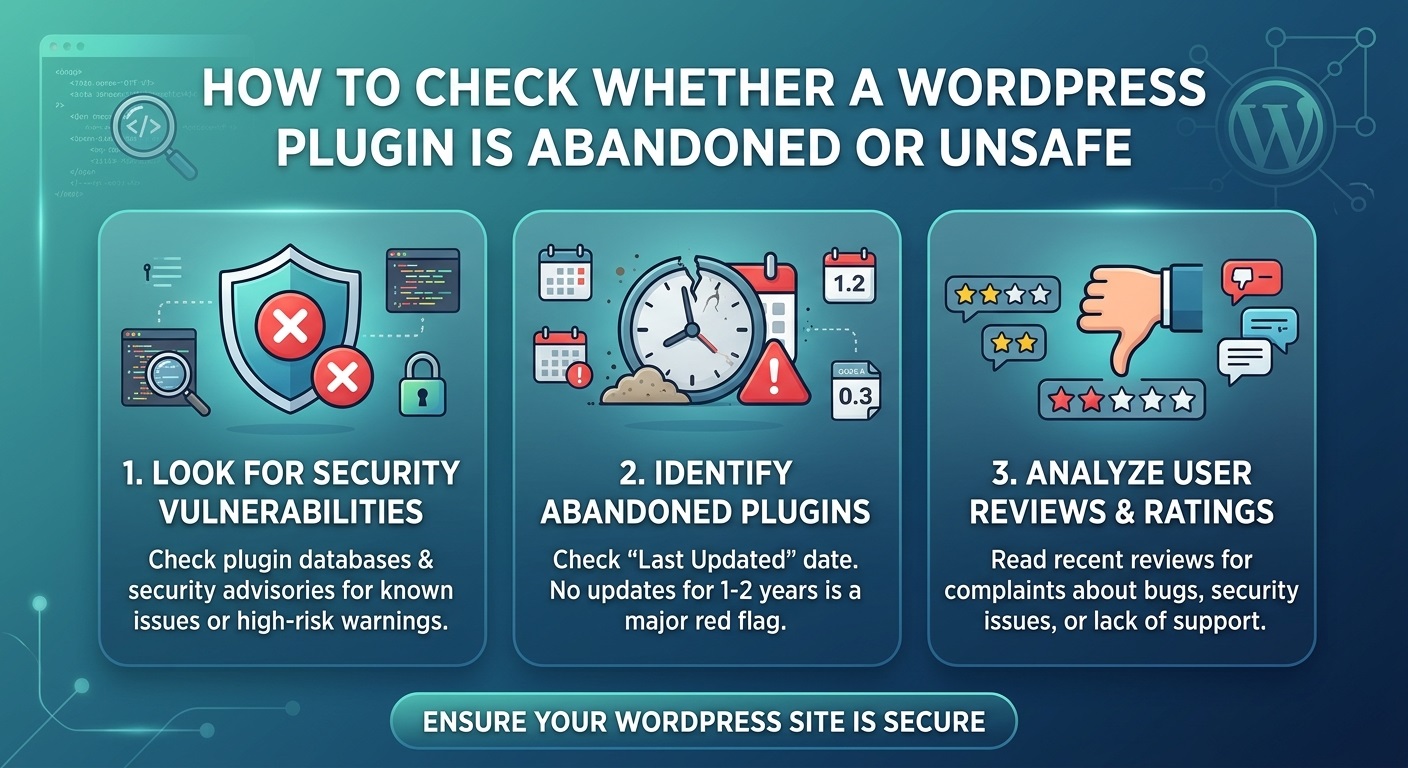
Introduction
WordPress plugins make it possible to add new features to a website without developing every function from scratch. Whether you want to improve website performance, create contact forms, optimize search engine visibility, manage backups, or display image sliders, there is usually a plugin available for the task.
However, installing a plugin is not simply a matter of finding one with attractive features. Every plugin adds code to your website, and poorly maintained, outdated, or vulnerable plugins can introduce security weaknesses, compatibility problems, performance issues, and unexpected errors.
One important question every website owner should ask is: How can you check whether a WordPress plugin is abandoned or unsafe?
An abandoned plugin may no longer receive updates, compatibility fixes, or security patches. An unsafe plugin may contain exploitable vulnerabilities, use insecure coding practices, request unnecessary permissions, or come from an untrustworthy source. These conditions sometimes overlap, but they are not the same. A plugin can be actively maintained and still contain a security vulnerability, while an older plugin can continue to function safely under certain conditions.
In this guide, you will learn how to check WordPress plugin update history, review developer activity, identify security warnings, examine compatibility information, evaluate plugin permissions, and decide whether a plugin should remain installed on your website.
Following these steps can help you make informed decisions before installing a new plugin or continuing to use an existing one.
1. Understand the Difference Between an Abandoned and an Unsafe Plugin
Before investigating a plugin, it is important to understand what you are looking for.
What is an abandoned WordPress plugin?
An abandoned WordPress plugin is a plugin whose development or maintenance appears to have stopped. Its developer may no longer publish updates, respond to support questions, fix reported bugs, or address compatibility problems.
Possible warning signs include:
- No recent releases despite several major WordPress updates.
- Unanswered support requests over an extended period.
- No visible development activity or maintenance announcements.
- Compatibility information that has not been reviewed for a long time.
- Known issues that remain unresolved.
- Broken functionality on supported PHP or WordPress versions.
An old update date alone does not prove that a plugin has been abandoned. Some plugins provide simple functionality that changes infrequently. Others are maintained outside the WordPress.org directory or receive updates through a commercial vendor.
What is an unsafe WordPress plugin?
An unsafe plugin presents a security or operational risk. It may contain code that allows unauthorized access, exposes sensitive information, executes untrusted input, or damages website functionality.
Potential problems include:
- SQL injection vulnerabilities.
- Cross-site scripting (XSS).
- Broken authorization checks.
- Missing capability checks.
- Insecure file uploads.
- Unsafe handling of user input.
- Vulnerable third-party libraries.
- Malicious code inserted into a modified plugin package.
An unsafe plugin does not necessarily look outdated. Even a recently updated plugin can contain a serious vulnerability.
The key distinction: Abandonment is primarily a maintenance concern, while safety is a security concern. Check both independently before deciding whether a plugin is suitable for your website.
2. Check the Plugin’s Last Update Date
The last update date is one of the easiest indicators to examine when evaluating a WordPress plugin.
If you use the official WordPress plugin directory, open the plugin’s listing and look for its update information.
Visit the official WordPress Plugins Directory and search for the plugin by name.
Review the following details:
- When was the plugin last updated?
- Does its changelog show meaningful improvements?
- Have security fixes been released?
- Does the developer regularly address compatibility problems?
- Is there evidence of ongoing maintenance?
A plugin that has not been updated for several years deserves closer investigation, particularly if it handles authentication, payment processing, personal information, file uploads, or administrative functions.
However, do not automatically classify every older plugin as dangerous. A small plugin may remain stable for a long time if it uses reliable WordPress APIs and does not depend on changing external services.
How long without an update is too long?
There is no universal time limit that proves abandonment.
For example, six months without an update might be normal for a mature plugin with limited functionality. Two years without maintenance could be concerning for a plugin that depends on frequently changing APIs or has unresolved security reports.
Consider the update history alongside the plugin’s purpose, complexity, support activity, known vulnerabilities, and compatibility claims.
3. Review the Plugin’s WordPress Compatibility Information
Compatibility information can help you determine whether a plugin is being maintained for modern WordPress installations.
On the plugin’s directory page, review the stated requirements and compatibility details, including:
- The WordPress version tested.
- The minimum required WordPress version.
- The minimum required PHP version.
- The plugin’s changelog and release notes.
- Any warnings about unsupported functionality.
You can also review the WordPress requirements to understand the software environment recommended for WordPress websites.
Why compatibility matters
WordPress evolves over time. Changes to its APIs, editor, database interactions, and security mechanisms can affect plugin functionality. PHP versions also change, and code that relies on deprecated functions may eventually generate warnings or fatal errors.
An outdated plugin might cause:
- PHP compatibility errors.
- Broken administration screens.
- Features that no longer work correctly.
- Conflicts with other plugins or themes.
- Unexpected behavior after a WordPress update.
Nevertheless, the “Tested up to” field is not a complete technical assessment. It may not be updated immediately, and an older value does not automatically mean the plugin is incompatible or unsafe.
If compatibility information looks outdated, investigate further instead of making a decision based on one field.
4. Examine the Plugin’s Changelog and Release History
A changelog describes the changes introduced in different plugin versions. It can reveal whether the developer continues to maintain the software and how they respond to problems.
Look for a changelog on the plugin’s directory page, documentation website, GitHub repository, or vendor website.
A healthy maintenance history may include:
- Compatibility improvements.
- Bug fixes.
- Security patches.
- Performance improvements.
- Accessibility enhancements.
- Updates for supported PHP versions.
- Improvements to input validation and authorization.
Warning signs in a changelog
Be cautious if the changelog has been unchanged for a long time, contains only vague entries, or does not explain important changes.
Other warning signs include unresolved issues mentioned across multiple releases and a pattern of fixes that repeatedly introduce serious regressions.
A release history that mentions security fixes is not necessarily a reason to reject a plugin. Responsible developers disclose and correct vulnerabilities. What matters is whether the issues have been addressed and whether you are using a version containing the required fixes.
For more context, consult the WordPress Plugin Developer Handbook, which explains recommended development practices and the WordPress plugin development environment.
5. Check the Plugin’s Support Forum
A plugin’s support forum can provide useful information about maintenance quality, recurring problems, and developer responsiveness.
For plugins listed on WordPress.org, open the plugin’s support section and examine recent discussions.
Look for questions about:
- Compatibility with recent WordPress releases.
- PHP errors and fatal errors.
- Security vulnerabilities.
- Plugin conflicts.
- Broken features.
- Failed updates.
- Data loss or unexpected changes.
- Unanswered bug reports.
How to interpret support activity
An active forum is generally encouraging, but the number of questions alone is not a reliable quality measurement. Popular plugins may receive hundreds of requests, while specialized plugins may receive very few.
Pay more attention to how the developer responds.
Positive signs include clear explanations, reproducible bug reports, practical workarounds, and references to fixes in subsequent releases.
Concerning signs include serious security reports without acknowledgment, repeated reports of the same unresolved defect, and users describing unexplained behavior after installing the plugin.
A lack of support responses can indicate limited maintenance capacity, but it does not prove that the plugin contains malicious code.
If a plugin is commercially distributed, investigate its official support portal and published support policy instead of relying only on WordPress.org.
6. Search for Known WordPress Plugin Vulnerabilities
One of the most important steps is to determine whether the plugin has known security vulnerabilities.
A plugin may function correctly while exposing a security weakness that an attacker can exploit. For example, a vulnerable file-upload feature could allow unauthorized files to be placed on a server, while a missing authorization check could expose administrative functionality to users who should not have access.
Use reputable security resources to investigate the plugin’s name, vendor, affected versions, and vulnerability history.
Useful resources include:
- Wordfence Intelligence Vulnerability Database — security vulnerability information relevant to WordPress and its ecosystem.
- Patchstack — a database for researching vulnerabilities affecting WordPress components.
- WPScan Vulnerability Database — information about reported vulnerabilities in WordPress plugins, themes, and core.
- National Vulnerability Database (NVD) — a broader vulnerability reference maintained by the U.S. National Institute of Standards and Technology.
How to search effectively
Search using combinations of the plugin name, developer name, and terms such as:
- Security vulnerability.
- CVE.
- SQL injection.
- Cross-site scripting.
- Privilege escalation.
- Arbitrary file upload.
- Unauthorized access.
- Remote code execution.
When a report appears, verify its details. Confirm the affected versions, vulnerability type, severity, publication date, and whether a fixed release is available.
What if a vulnerability is reported?
Do not assume that every installation of the plugin is vulnerable. A report may affect only particular versions or configurations.
Compare your installed version with the affected version range and the fixed release, if one is documented. Update to a verified fixed version when available.
If no fix exists and the vulnerability presents a meaningful risk, disable the plugin and evaluate a safer alternative. For a critical issue on a production website, seek professional security assistance where necessary.
Remember that vulnerability databases are not exhaustive. The absence of a listing does not prove that a plugin is secure.
7. Investigate the Developer and the Plugin’s Official Source
The source of a plugin matters because modified or counterfeit packages can contain malicious code.
Whenever possible, obtain plugins from the official WordPress directory or the original developer’s verified website. For commercial plugins, confirm that the vendor is legitimate and that the download comes from its official account or customer portal.
Review the developer’s website and documentation for evidence of ongoing maintenance.
Check whether the developer provides:
- A valid contact method.
- Current documentation.
- A changelog or release history.
- Security reporting instructions.
- A support policy.
- Information about compatibility and requirements.
For open-source plugins, a public repository can provide additional evidence of development activity.
For example, search GitHub for the plugin’s official repository. Review its recent commits, releases, issue reports, pull requests, and security-related discussions.
A project with regular maintenance and transparent issue handling may offer more confidence than one with no visible development activity. However, commit frequency alone is not a security guarantee, and some developers maintain code through private repositories or release updates through other channels.
Avoid downloading premium plugins from unauthorized websites that distribute supposedly free copies of paid products. Such packages may be modified, outdated, or infected with malicious code.
8. Look for Suspicious Plugin Permissions and Behavior
A plugin should request access only to the resources and functionality necessary for its purpose.
For example, an image slider may need permission to manage its settings and display uploaded images. It would be unusual for a simple slider to require extensive user-management capabilities or unrelated administrative privileges without a clear explanation.
During your evaluation, ask:
- Does the plugin request administrator access unnecessarily?
- Does it send website data to an external service?
- Does it collect personal information?
- Does it create unexpected administrator accounts?
- Does it modify files outside its expected scope?
- Does it inject unexplained scripts into the frontend?
- Does it make unexpected outbound network requests?
Some plugins legitimately need elevated permissions or external connections. Backup plugins, security tools, analytics systems, and cloud integrations may require broader access than simple display plugins. The objective is to verify that each permission has a reasonable purpose.
Technical warning signs
For developers reviewing source code, investigate unexplained use of functions or patterns associated with risky behavior, including:
eval()with dynamically supplied content.- Obfuscated or encoded PHP that hides its purpose.
- Unrestricted file writes or uploads.
- SQL queries built from unsanitized user input.
- Missing capability checks for administrative actions.
- REST API routes without suitable permission checks.
- AJAX actions that lack appropriate authorization.
- External requests to unfamiliar domains.
These patterns require context. Some legitimate applications have valid reasons to use dynamic code or encoded data. Their presence alone does not prove malicious intent.
The WordPress Plugin Security Handbook provides guidance on validation, sanitization, escaping, authentication, authorization, and other security fundamentals.
9. Check Whether the Plugin Follows WordPress Security Practices
If you develop WordPress plugins or have the technical ability to review source code, you can assess whether the plugin follows established security practices.
Input validation and sanitization
Plugins often receive data from forms, URL parameters, REST requests, AJAX actions, and other sources.
Unsafe handling of this data can introduce vulnerabilities. Developers should validate incoming values against expected formats and sanitize data where appropriate.
The WordPress data validation documentation explains how validation helps ensure that input meets expected requirements.
Output escaping
Data displayed in HTML should be escaped appropriately for its output context. For example, text, HTML attributes, URLs, and JavaScript values require different handling.
See the WordPress escaping documentation for recommended techniques.
Capability checks
Administrative actions should verify that the current user has permission to perform them. A user being logged in does not automatically mean that they should be allowed to modify plugin settings, delete data, or manage other users.
Review the WordPress user capabilities documentation to understand how capability checks work.
REST API permission checks
Plugins that register REST API endpoints should define suitable permission callbacks. Sensitive operations must not be exposed to unauthorized users.
Consult the WordPress REST API permission callback documentation for implementation guidance.
Database queries
Plugins should use safe database APIs and appropriate query preparation techniques rather than combining raw user input directly into SQL statements.
The WordPress database documentation is a useful starting point for understanding database access and query handling.
A source-code review cannot prove the absence of vulnerabilities, especially in a large or complex plugin. If a plugin handles payments, authentication, sensitive personal data, or other high-risk functions, consider a professional security audit.
10. Use Security Plugins and Malware Scanners
Manual investigation is useful, but security tools can help identify suspicious files, known malware signatures, and certain configuration problems.
WordPress website owners can investigate tools such as:
- Wordfence Security — provides firewall and malware-scanning features, with capabilities depending on the version and service.
- Sucuri Security — provides website security monitoring and auditing features.
- MalCare — offers WordPress malware scanning and additional security services.
Before installing a security plugin, review its current features, requirements, privacy implications, and maintenance history.
What can a scanner detect?
Depending on the tool, a scan may identify:
- Known malicious code signatures.
- Modified core, plugin, or theme files.
- Suspicious PHP files.
- Certain outdated components.
- Known vulnerabilities.
- Unexpected file changes.
However, scanners have limitations. A clean scan does not guarantee that a plugin is safe. New malware, obfuscated code, logic flaws, and previously undiscovered vulnerabilities may escape detection.
Do not install several security plugins indiscriminately. Overlapping features can create performance overhead or configuration conflicts. Choose a suitable security solution and maintain a reliable backup and recovery process.
11. Test the Plugin in a Staging Environment
If you are unsure whether a plugin is compatible or behaving safely, avoid experimenting directly on a live website.
Create a staging environment that closely resembles your production website. A staging site lets you test updates, plugin behavior, and potential conflicts without immediately affecting visitors.
Before testing:
- Create a complete website backup.
- Record the installed WordPress and PHP versions.
- Document the plugin’s current version and settings.
- Use a staging copy with realistic configuration.
- Install the plugin or update it to the verified release.
- Test important features and administrative actions.
- Review PHP logs and browser-console errors.
- Check whether the plugin makes unexpected changes.
Pay attention to login and registration flows, forms, uploads, database operations, scheduled tasks, and other features relevant to the plugin.
A staging test can reveal compatibility problems, unexpected behavior, and some security issues. It cannot establish that a plugin is free from vulnerabilities, so it should complement rather than replace research and source-code review.
12. Monitor Plugin File Changes and Website Activity
An existing plugin can become a security concern if its files are unexpectedly modified or if the website begins showing unusual behavior.
Warning signs may include:
- New administrator accounts that you did not create.
- Unexpected redirects to unfamiliar websites.
- Spam links appearing on pages.
- Unknown PHP files inside plugin directories.
- Sudden changes to plugin files.
- Unexplained database modifications.
- Unusual outbound network traffic.
- Repeated failed login attempts or suspicious administrative activity.
These symptoms do not always originate from a plugin. A compromised hosting account, vulnerable theme, stolen credentials, or another component may be responsible.
When investigating, compare plugin files against a trusted original copy of the same version. For WordPress.org plugins, you can also review the official package and its source repository where available.
Keep server logs, WordPress security logs, and backup records where practical. They can help establish when suspicious activity began and which files or accounts may have been affected.
If you suspect an active compromise, do not rely solely on deleting one plugin. Follow an incident-response process that includes containment, credential review, integrity checks, malware investigation, and recovery from a known-clean backup where appropriate.
13. Determine Whether the Plugin Is Still Necessary
Not every unused plugin is abandoned or malicious, but unnecessary software increases the amount of code you must maintain.
Review your installed plugins periodically and ask:
- Is this plugin still needed?
- Does another plugin already provide the same functionality?
- Is the feature available in WordPress core?
- Does the plugin receive updates and security fixes?
- Is it compatible with your current environment?
- Can a maintained alternative meet the same requirements?
Deactivate and remove plugins that are no longer required, after checking whether they store important data or provide functionality used elsewhere on the site.
Some plugins retain database tables, uploaded files, or settings after removal. Read the documentation before uninstalling them, particularly if the plugin handles backups, forms, memberships, e-commerce, or other valuable information.
Do not keep an unsafe plugin installed merely because you rarely use its features. If a serious vulnerability affects your version, take appropriate action even when the plugin is inactive. Deactivation may reduce exposure, but it does not remove vulnerable code from the server.
14. Compare the Plugin with Safer Alternatives
If a plugin appears abandoned or has unresolved security concerns, investigate alternatives before making a permanent decision.
Compare candidates using the following criteria:
| Evaluation criterion | What to look for |
|---|---|
| Maintenance | Recent, relevant releases and clear maintenance information |
| Security | Known vulnerabilities addressed and responsible disclosure practices |
| Compatibility | Appropriate support for your WordPress and PHP environment |
| Support | Useful documentation and a credible method of obtaining assistance |
| Functionality | Features that meet your actual requirements |
| Performance | Reasonable resource usage and limited unnecessary dependencies |
| Privacy | Transparent data collection and external service requirements |
| Licensing | A legitimate distribution source and suitable license terms |
Do not select a replacement based only on popularity or the number of active installations. Those figures can be useful indicators, but they do not guarantee secure development or reliable support.
Before migrating, test the replacement on staging and confirm that it can preserve the data and functionality you need. Review its export and import options, database structure, and uninstall behavior.
For business-critical websites, prepare a rollback plan so that you can restore the previous working configuration if the migration introduces problems.
15. What to Do If You Discover an Abandoned or Unsafe Plugin
Your response should depend on the severity of the risk.
If the plugin is old but has no known security problems
Investigate its compatibility, source code, support activity, and maintenance status. Test it in staging and determine whether a maintained alternative is available.
If it continues to work reliably and the risk is acceptable, document the decision and monitor it regularly. For security-sensitive functionality, replacing an unsupported component is usually the more prudent option.
If a security vulnerability has a verified fix
Back up the website and update to the verified fixed release as soon as practical. Confirm that the installed version actually contains the fix, and test the update for compatibility.
If the plugin has a serious vulnerability and no available fix
Disable it or otherwise contain the exposure, following the risk and operational requirements of your website. Replace it with a safer alternative or remove the affected functionality until a suitable solution is available.
If you suspect malicious activity
Treat the situation as a possible security incident. Preserve relevant logs, restrict access where appropriate, inspect affected files, review administrator accounts, and investigate other potential entry points.
Change compromised credentials from a trusted device, including relevant hosting, database, WordPress administrator, and API credentials. If you cannot establish that the website is clean, obtain assistance from a qualified WordPress security professional.
Avoid assuming that removing the plugin alone resolves an established compromise. Attackers may have added other files, created unauthorized accounts, or changed database content.
Conclusion
Knowing how to check whether a WordPress plugin is abandoned or unsafe is an important part of maintaining a reliable and secure website.
Start by reviewing the plugin’s last update date, changelog, compatibility information, and support activity. Investigate its developer and distribution source, search reputable vulnerability databases, and examine its permissions and security practices where possible. Use security scanners, staging tests, and file-integrity checks to gather additional evidence.
Most importantly, evaluate maintenance and security separately. An old plugin is not automatically malicious, and an actively maintained plugin is not automatically secure. The strongest assessment combines several independent indicators rather than relying on one date, rating, scan, or directory field.
If a plugin has a serious unresolved vulnerability, comes from an untrusted source, or shows convincing signs of malicious behavior, prioritize protecting your website over preserving the existing functionality. Back up important data, contain the risk, and migrate to a trustworthy alternative when appropriate.
Regular plugin audits, timely updates, secure backups, and responsible plugin selection can reduce avoidable risks and help keep your WordPress website dependable over the long term.
Frequently Asked Questions
1. How can I tell if a WordPress plugin has been abandoned?
Check its last update date, changelog, compatibility information, developer activity, and recent support discussions. Multiple signs of inactivity may suggest abandonment, but an old release date alone is not conclusive.
2. Are outdated WordPress plugins dangerous?
They can be. Outdated plugins may contain unpatched vulnerabilities or become incompatible with current software. However, the actual risk depends on the code, functionality, known issues, and environment.
3. Can an actively maintained WordPress plugin be unsafe?
Yes. New releases and active support do not guarantee secure code. Review vulnerability reports, release notes, permissions, and available security assessments.
4. Where can I check WordPress plugin vulnerabilities?
Useful resources include Wordfence Intelligence, Patchstack, WPScan, and the National Vulnerability Database. Verify affected versions and fix availability before drawing conclusions.
5. Should I delete an inactive WordPress plugin?
If you no longer need it, removing it is generally preferable after checking whether it stores important data or supports other functionality. Deactivation alone does not remove its files from the server.
6. Does a malware scan prove that a plugin is safe?
No. Scanners can identify certain known threats and suspicious changes, but they cannot guarantee the absence of unknown vulnerabilities or malicious behavior.
7. What should I do if a plugin has a critical vulnerability?
Back up your site, follow the vendor’s security guidance, and install a verified fixed version if one is available. If no fix exists, contain the exposure and replace or disable the plugin according to the severity of the risk.
8. How often should I audit WordPress plugins?
Review plugins regularly, such as during a monthly maintenance cycle, and whenever a security advisory, major compatibility change, or suspicious behavior warrants immediate investigation. High-risk plugins may require more frequent monitoring.