Have you ever tried to install a WordPress plugin and received the error message “Installation failed: Missing a temporary folder”? This problem can be frustrating, especially when you need to install an important plugin, update your website, or add new functionality to your WordPress site.
The good news is that this error can usually be resolved by correcting your server’s temporary directory configuration, checking folder permissions, or contacting your hosting provider.
In this guide, you will learn how to fix the WordPress missing temporary folder error step by step. Whether you are a beginner, a blogger, a developer, or a website administrator, these troubleshooting methods will help you identify the cause and choose an appropriate solution.
What Does the WordPress Missing Temporary Folder Error Mean?
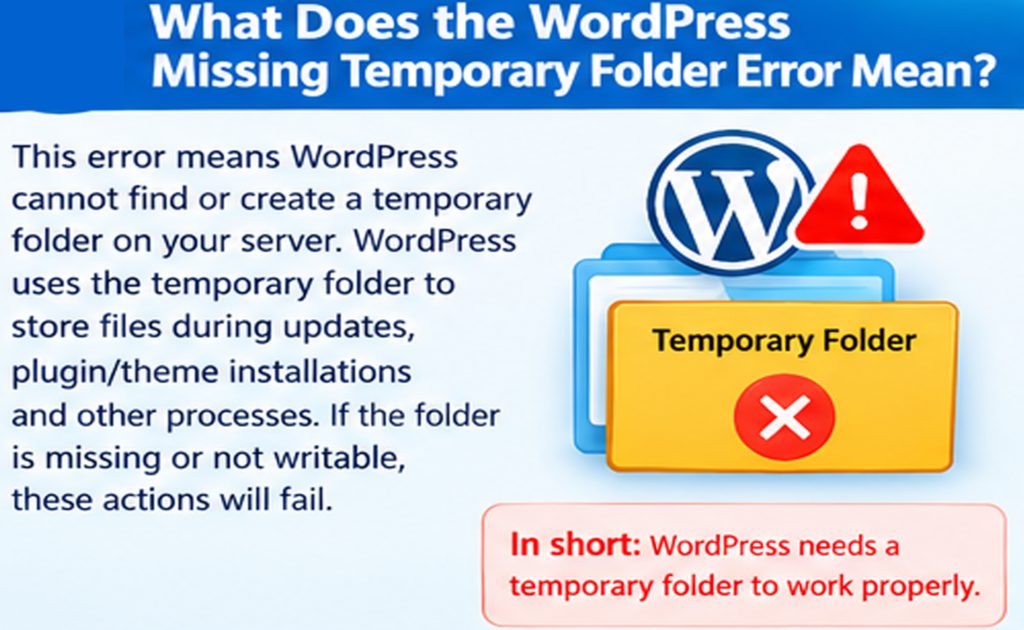
The missing temporary folder error occurs when PHP cannot find or use a suitable temporary directory to process an uploaded file.
When you upload a plugin ZIP file through the WordPress dashboard, PHP normally stores the uploaded file in a temporary location before WordPress extracts the archive and installs the plugin. If PHP cannot create that temporary file, the upload fails.
Depending on your website configuration, you may encounter messages such as:
- Installation failed: Missing a temporary folder.
- The uploaded file could not be moved.
- Plugin installation failed.
- An error occurred while uploading the plugin.
- The uploaded file exceeds the maximum upload size.
These messages can have different causes, so it is important to identify the exact error before making changes.
The specific message “Missing a temporary folder” usually indicates a PHP upload configuration problem rather than a fault in the plugin itself.
Why Does WordPress Display the Missing Temporary Folder Error?
Several server-related problems can prevent WordPress from installing plugins successfully.
1. Incorrect PHP Temporary Directory Configuration
PHP uses the upload_tmp_dir configuration directive to determine where uploaded files should be temporarily stored. If this setting points to a nonexistent directory or a directory that PHP cannot access, file uploads may fail.
When no custom directory is configured, PHP generally uses the server’s default temporary directory.
2. Missing Temporary Directory
Your hosting server may expect a directory such as /tmp to exist. If that directory has been removed, is unavailable within the hosting environment, or cannot be accessed by the PHP process, uploads can fail.
This issue may occur after server migrations, hosting configuration changes, or changes to the server’s security environment.
3. Incorrect Folder Permissions
The temporary directory must be writable by the PHP process. If its permissions or ownership are incorrect, PHP may be unable to create temporary files.
Changing permissions without understanding the hosting environment can create security problems, so permissions should be corrected rather than broadly relaxed.
4. Hosting Environment Restrictions
Some hosting providers use isolated environments, containers, or security systems that control access to temporary directories. A hosting configuration change or an outdated server environment may prevent PHP from accessing the required location.
In these cases, the hosting provider may need to repair the configuration.
5. Insufficient Disk Space or Account Limits
A server with no available disk space, an exhausted file quota, or restrictive account limits may be unable to create temporary files.
Even if your WordPress dashboard is accessible, the server may still be unable to process uploads.
Understanding these possible causes will help you choose the correct solution instead of making unnecessary changes to your WordPress files.
How to Fix the WordPress Missing Temporary Folder Error
Follow the solutions below in order. Start with the simplest checks before changing server configuration.
Method 1: Back Up Your Website Before Making Changes
Before editing configuration files, create a backup of your WordPress website.
Your backup should include:
- The WordPress website files.
- The
wp-contentdirectory. - Your WordPress database.
- The existing
wp-config.phpfile.
You can create a backup using your hosting provider’s backup system or a trusted backup plugin.
This precaution is important because an incorrect change to wp-config.php or your server configuration can cause additional problems.
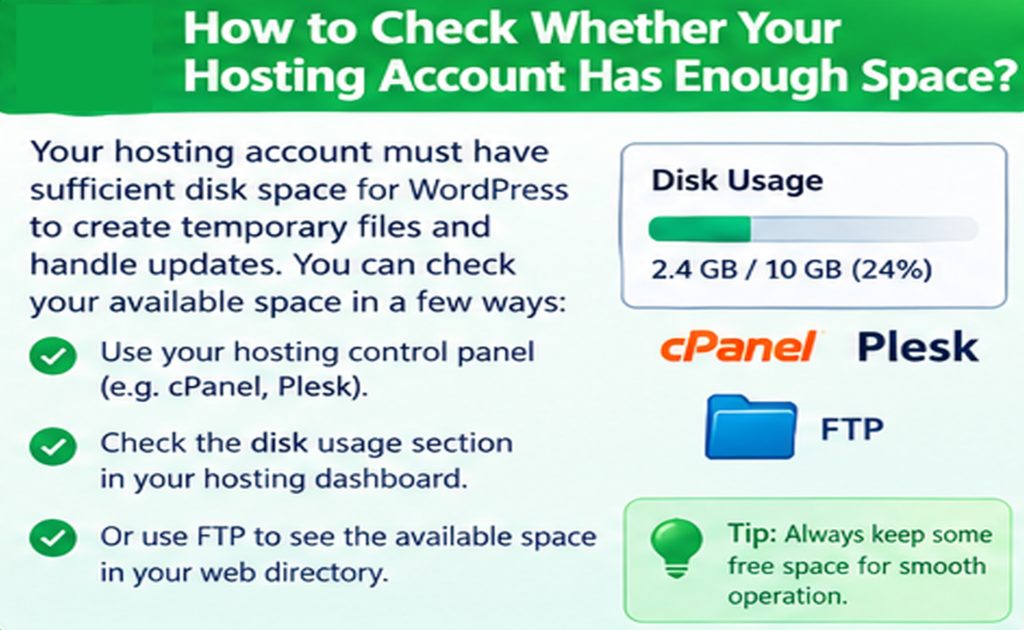
Method 2: Check Whether Your Hosting Account Has Enough Space
The first practical step is to check your hosting account’s available disk space.
Log in to your hosting control panel, such as cPanel or another hosting dashboard, and look for disk usage, storage limits, and file quotas.
If your account has reached its storage limit, consider removing unnecessary backups, temporary archives, or other files that you no longer need. Always verify that a file is safe to remove before deleting it.
If your hosting account has sufficient space, continue to the next method.
Method 3: Check the PHP Upload Temporary Directory
The upload_tmp_dir setting controls the temporary directory used by PHP for file uploads.
According to the PHP documentation, the configured directory must be writable by the PHP process. If the setting is empty, PHP normally uses its system default.
To investigate this setting, follow these steps.
Step 1: Open Your Hosting Control Panel
Log in to your hosting account and look for the PHP configuration tools. Depending on your provider, these may be called:
- MultiPHP INI Editor
- PHP Settings
- Select PHP Version
- PHP Configuration
- Server Configuration
The available options depend on your hosting environment.
Step 2: Locate the Upload Temporary Directory Setting
Look for the following directive:
upload_tmp_dir
If the setting is configured, check whether the specified directory exists and whether PHP can write to it.
For example, a Linux server might use a directory such as:
/home/username/tmp
This is only an example. You must use the correct path for your hosting account rather than copying it blindly.
Step 3: Correct the Configuration
If the directory is missing or incorrectly configured, use your hosting provider’s recommended temporary directory.
For example, a PHP configuration entry may look like this:
upload_tmp_dir = "/home/username/tmp"Replace the example path with a valid directory provided or approved by your host.
Do not assume that /home/username/tmp exists on your server. The PHP process must have the required access, and the configuration must be supported by your hosting setup.
Save the changes if you have permission to edit the setting.
Step 4: Test the Plugin Installation
Return to your WordPress dashboard and navigate to Plugins → Add New Plugin.
Try installing a plugin from the WordPress plugin directory or uploading a ZIP file.
If the installation succeeds, the problem may have been caused by the incorrect PHP temporary directory configuration.
If you cannot find or change the setting, ask your hosting provider to inspect it.
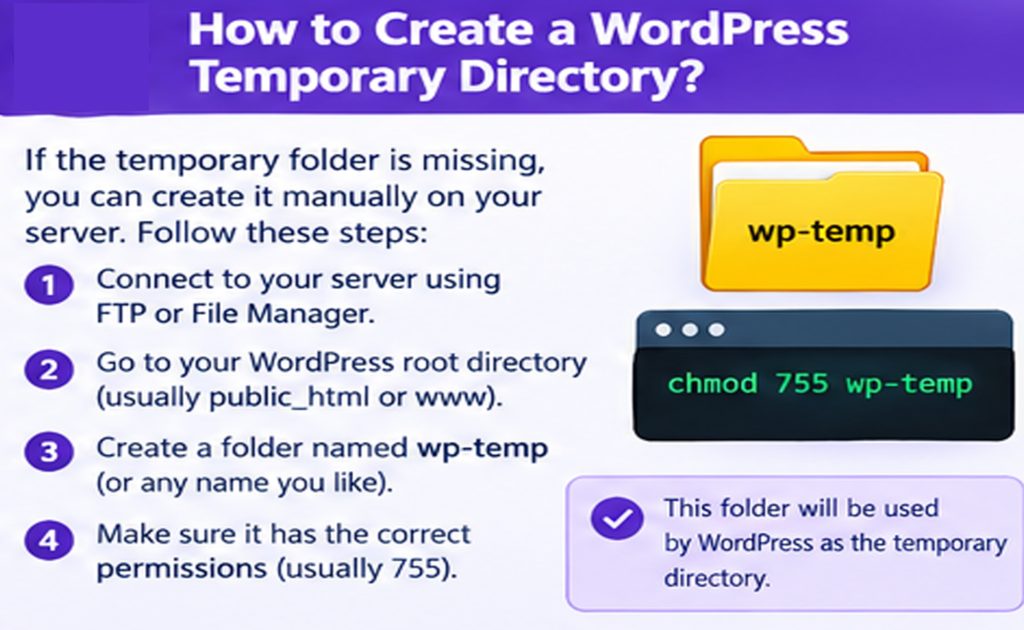
Method 4: Create a WordPress Temporary Directory
There is an important distinction between PHP’s upload temporary directory and WordPress’s own temporary directory.
WordPress uses the WP_TEMP_DIR constant to specify a directory for certain temporary files created by WordPress itself. This is different from PHP’s upload_tmp_dir, which is involved in receiving uploaded files.
Consequently, defining WP_TEMP_DIR is not a guaranteed fix for the exact PHP error “Missing a temporary folder.”
However, if your problem concerns WordPress’s own temporary file operations, configuring a writable WordPress temporary directory may help.
Step 1: Open Your WordPress Files
Use your hosting file manager or an FTP client to open your WordPress installation directory.
Find the wp-content folder.
Step 2: Create a Temporary Directory
Inside wp-content, create a directory named:
temp
The resulting path should resemble:
wp-content/temp/
The directory must be writable by the PHP process, and its permissions should follow your hosting provider’s security recommendations.
Step 3: Edit wp-config.php
Open wp-config.php in the WordPress root directory.
Add the following line before the comment that says /* That's all, stop editing! Happy publishing. */, if that comment is present:
define( 'WP_TEMP_DIR', ABSPATH . 'wp-content/temp/' );This example assumes that your WordPress installation uses the standard wp-content location.
Do not add the definition a second time if it already exists. If your website uses a custom content directory, the path may need to be adjusted.
Step 4: Save the File and Test WordPress
Save your changes and return to the dashboard.
Test the operation that originally failed.
If the exact “Missing a temporary folder” message remains, PHP’s upload temporary directory or the server’s default temporary directory probably still needs attention. Continue with the following methods.
Method 5: Check File and Directory Permissions
Incorrect permissions can prevent PHP from accessing the required temporary directory.
Using your hosting file manager, inspect the permissions of the directory configured for PHP uploads.
On many Linux-based hosting systems, directories commonly use permissions such as 755, while files commonly use 644. These are general examples, not universal requirements for every hosting environment.
The correct permissions depend on the server’s PHP execution model, file ownership, and security configuration.
Avoid setting every directory to 777. This grants overly broad write permissions and may expose your website to security risks.
If the directory exists but PHP still cannot write to it, ask your hosting provider to check its ownership, permissions, and access restrictions.
Method 6: Contact Your Hosting Provider
If the previous solutions do not resolve the problem, your hosting provider may need to correct the server configuration.
This is particularly likely when you use shared hosting and do not have permission to edit the server-level PHP settings.
Contact technical support and explain that WordPress reports “Missing a temporary folder” when you try to upload or install a plugin.
Ask the support team to check:
- The PHP
upload_tmp_dirconfiguration. - Whether the configured temporary directory exists.
- Whether PHP can write to the directory.
- Whether the server’s default temporary directory is available.
- Whether your account has sufficient disk space and file quota.
- Whether hosting isolation or security settings are blocking access.
- Whether the PHP error logs reveal the underlying cause.
Your hosting provider may be able to resolve the issue without requiring changes to your WordPress files.
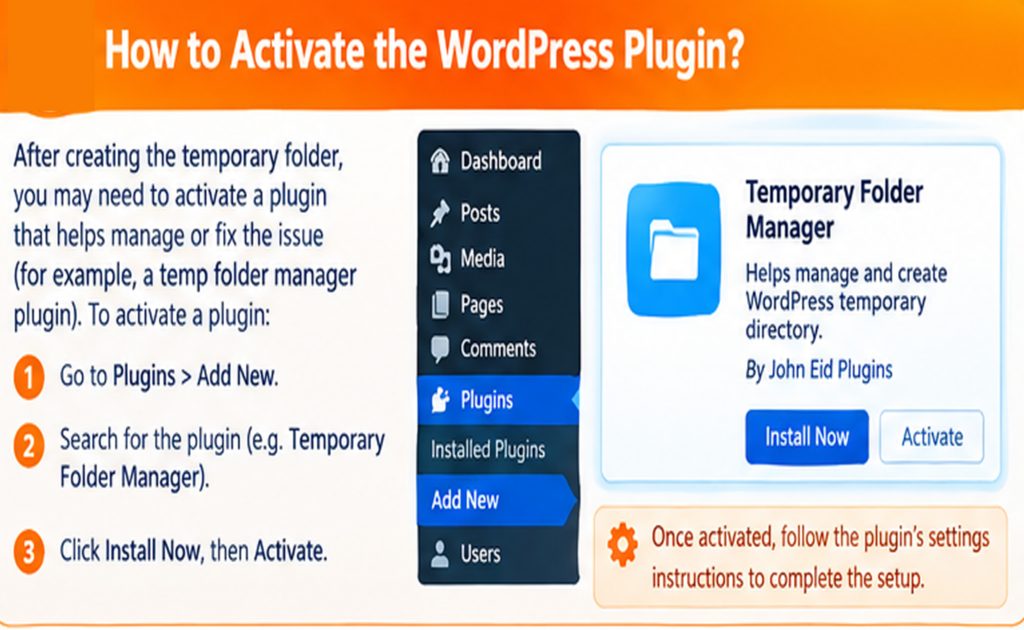
Method 7: Install the Plugin Manually Using FTP
If you urgently need a plugin, manual installation may provide an alternative while you investigate the underlying upload problem.
However, manual installation is not a guaranteed fix for every server-related error. It is a workaround for cases where you can transfer files to the website even though the dashboard installation process fails.
Step 1: Download the Plugin ZIP File
Download the plugin from the official WordPress plugin directory or the plugin developer’s trusted website.
Avoid downloading plugins from unknown sources because modified plugin files can compromise your website.
Step 2: Extract the ZIP File
Extract the downloaded archive on your computer.
You should normally find a plugin directory containing its PHP files and other required assets.
Step 3: Connect Through FTP
Use an FTP client or your hosting file manager to access your WordPress website.
Navigate to:
wp-content/plugins/
Upload the extracted plugin directory into this location.
Make sure the plugin’s main PHP file and supporting files are in the correct directory structure.
Step 4: Activate the Plugin
Open your WordPress dashboard and navigate to Plugins → Installed Plugins.
Locate the newly uploaded plugin and click Activate.
If it appears in the list and activates successfully, you can use it while arranging a permanent fix for the temporary directory issue.
If manual installation also fails, inspect the file permissions, disk space, and hosting configuration.
Method 8: Check Your PHP Error Logs
PHP and server error logs can provide additional information when the cause is not obvious.
Depending on your hosting provider, logs may be available through the hosting control panel or through a dedicated error-log interface.
Look for errors that occur at the time of the failed upload.
Relevant messages may mention:
- An unavailable temporary directory.
- Permission denied.
- No space left on device.
- An invalid directory path.
- A PHP upload error.
If you do not understand the log entries, provide the relevant details to your hosting provider. Remove passwords, authentication tokens, and other sensitive information before sharing logs.
Avoid enabling public error display on a live website, because detailed PHP errors can reveal sensitive information about your server.
Common Mistakes to Avoid
When troubleshooting the WordPress missing temporary folder error, avoid these common mistakes.
Assuming Every Upload Error Has the Same Cause
A missing temporary directory is not the same as an upload-size limit, a plugin compatibility problem, or a failed database connection.
Read the complete error message before choosing a solution.
Changing WP_TEMP_DIR Without Checking PHP
The WP_TEMP_DIR constant controls WordPress’s temporary file location, but it does not directly configure PHP’s upload temporary directory.
If PHP cannot create the initial uploaded file, changing the WordPress constant alone may not solve the problem.
Using Incorrect Directory Paths
A path copied from another website may not exist on your server.
Always verify the correct directory with your hosting provider or server administrator.
Applying Unsafe Permissions
Setting directories to 777 may appear to solve some permission problems, but it introduces unnecessary security risks.
Correct ownership and appropriately restricted permissions are safer.
Editing Configuration Files Without a Backup
An extra character, a misplaced line, or a duplicate constant definition can cause further errors.
Back up the original file and verify your changes before saving them.
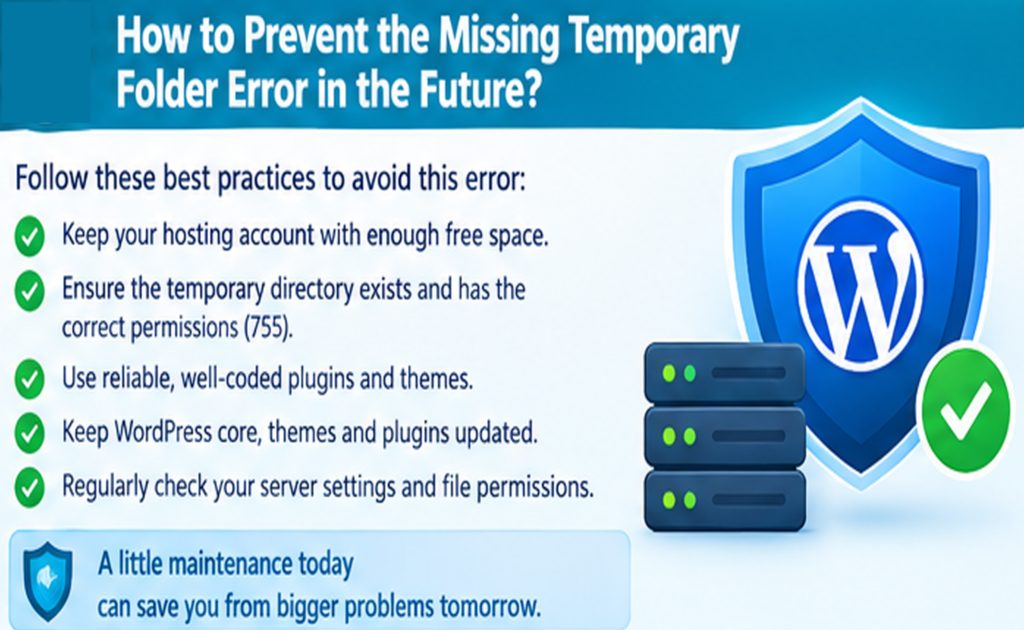
How to Prevent the Missing Temporary Folder Error in the Future
You can reduce the likelihood of encountering this problem by maintaining your hosting environment properly.
Monitor your hosting storage. Keep enough free disk space for plugin uploads, updates, backups, and other website operations.
Maintain a reliable backup schedule. Regular backups make it easier to recover from configuration mistakes and failed updates.
Keep WordPress updated. Install supported WordPress core, plugin, and theme updates, while testing important changes where practical.
Use a reputable hosting provider. Choose hosting with appropriate PHP configuration, technical support, and reliable file-system permissions.
Check your website after server migrations. Moving a website between hosting providers can change PHP settings, directory paths, file ownership, and access permissions.
Avoid unnecessary server modifications. Change only the settings required to fix the problem, and document any configuration changes you make.
These practices will help keep your WordPress installation more reliable and easier to maintain.
Frequently Asked Questions
1. Why does WordPress say “Installation failed: Missing a temporary folder”?
This message usually appears when PHP cannot create a temporary file for an uploaded plugin, theme, image, or another file. The cause may be an incorrect PHP upload temporary directory, missing directory, insufficient permissions, or a hosting environment issue.
2. Can I fix the missing temporary folder error without technical knowledge?
Yes, you can start by checking your hosting storage and contacting your hosting provider. If you use shared hosting, support staff can often inspect the PHP temporary directory and correct server-level configuration issues for you.
3. Does WP_TEMP_DIR fix the WordPress missing temporary folder error?
Not necessarily. WP_TEMP_DIR specifies a temporary directory used by WordPress for certain operations. The exact “Missing a temporary folder” upload message usually concerns PHP’s upload temporary directory, which must be checked separately.
4. Is it safe to create a temp folder inside wp-content?
It can be appropriate for WordPress’s own temporary file operations if the directory is configured correctly and writable by PHP. However, creating this directory does not automatically fix PHP’s upload temporary directory. Follow your hosting provider’s security recommendations.
5. Can incorrect file permissions cause plugin installation to fail?
Yes. If PHP cannot write to the relevant temporary directory, the upload may fail. Incorrect permissions or ownership on other WordPress directories can also prevent plugin installation or extraction. The precise cause should be identified before changing permissions.
6. Can I install a WordPress plugin manually if the dashboard upload fails?
Yes, in many cases. You can download a trusted plugin ZIP file, extract it, upload the plugin directory to wp-content/plugins/ using FTP or your hosting file manager, and activate it from the WordPress dashboard. This method does not guarantee that every underlying server problem will be resolved.
7. Should I change the permissions of my entire WordPress installation?
No. Avoid changing permissions across the entire installation without a clear reason. Broad permission changes can weaken security and may not address the actual problem. Inspect the relevant directory and consult your hosting provider when necessary.
8. Who should fix the error if none of the methods work?
Your hosting provider or server administrator should investigate the PHP upload configuration, temporary directory availability, file-system permissions, and server logs. These settings may be outside your control on shared hosting.
Conclusion
The WordPress plugin installation failed because of a missing temporary folder error is usually related to PHP’s upload configuration or the hosting server’s file system.
To fix it, begin by checking your hosting storage and the PHP upload_tmp_dir setting. Verify that the required directory exists and is writable by PHP. If the problem concerns WordPress’s own temporary files, configuring WP_TEMP_DIR may also help.
You can try manual plugin installation as a temporary workaround, but the permanent solution is to correct the underlying server configuration. If you cannot access the necessary PHP settings, contact your hosting provider and ask for assistance.
By following the methods in this guide, you can troubleshoot the error systematically, restore plugin installation functionality, and keep your WordPress website running smoothly.
One response to “How to Fix WordPress Plugin Installation Failed Because of a Missing Temporary Folder?”
[…] not assume that installing the newest PHP version will automatically solve every plugin issue. Older plugins may contain code that is incompatible with newer PHP […]