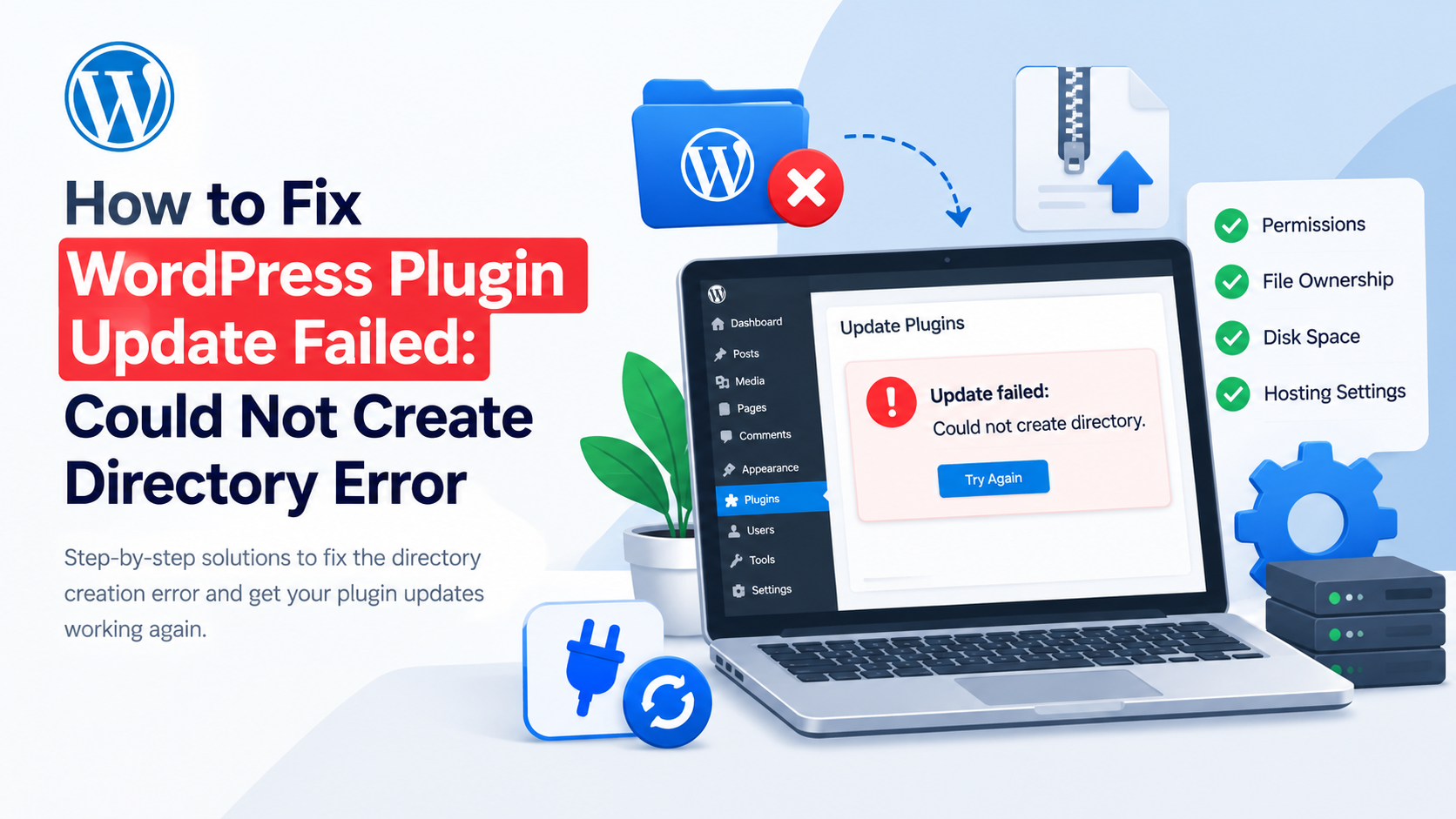
Have you ever tried to update a WordPress plugin only to encounter the frustrating message, “Update failed: Could not create directory”? This error can prevent you from installing new plugins, updating existing ones, and maintaining your website properly.
The good news is that this problem is usually related to file permissions, incorrect file ownership, insufficient disk space, or server configuration. You do not necessarily need to reinstall WordPress or hire a developer to resolve it.
In this guide, you will learn how to fix the WordPress plugin update failed: could not create directory error using several practical troubleshooting methods. Whether you manage a personal blog, a business website, or a WooCommerce store, these solutions will help you identify the underlying problem and restore normal plugin updates.
Before making changes, create a complete backup of your website, including its files and database.
What Does the “WordPress Plugin Update Failed: Could Not Create Directory” Error Mean?
WordPress needs permission to create folders, extract plugin files, and replace existing files whenever you install or update a plugin.
During an update, WordPress downloads the new plugin package, prepares temporary files, and copies the updated files into the appropriate directory. If the server prevents WordPress from creating or modifying a required directory, the process may stop with an error such as:
- Update failed: Could not create directory.
- Installation failed: Could not create directory.
- Could not create the upgrade-temp-backup directory.
These messages can look similar, but the underlying causes may differ.
For example, WordPress might not have permission to write to the wp-content/plugins directory. Alternatively, the hosting account could have reached its storage limit, or the files might belong to a different server user.
Identifying the cause is important because changing file permissions will not solve every directory creation problem.
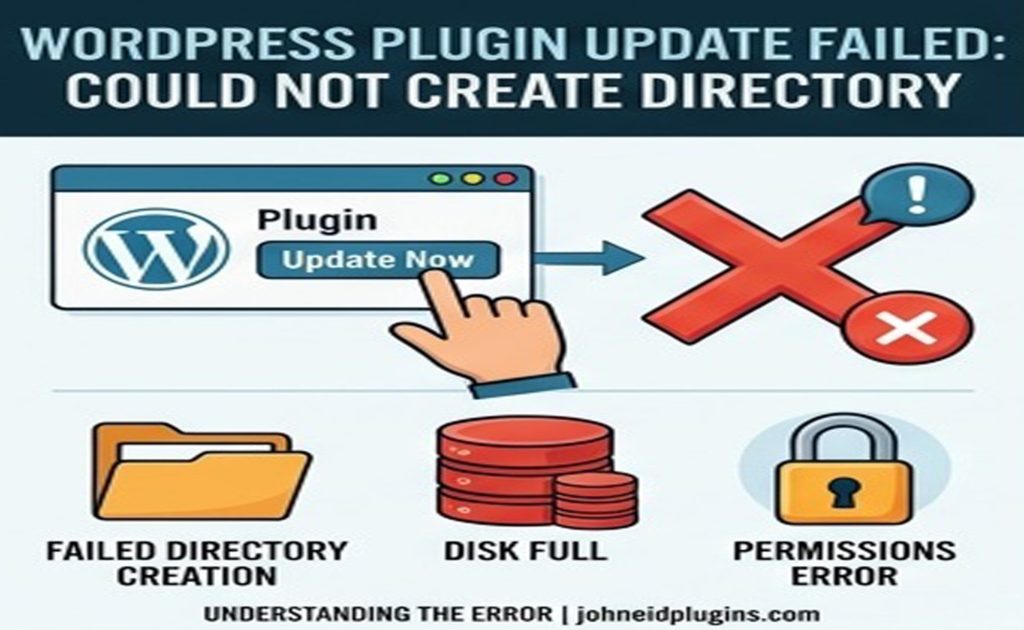
What Causes the WordPress Plugin Update Error?
Before applying a solution, understand the most common reasons this error occurs.
1. Incorrect File and Directory Permissions
WordPress requires suitable filesystem permissions to create and modify plugin files. If the permissions on wp-content, plugins, or another required directory are too restrictive, the update may fail.
2. Incorrect File Ownership
Sometimes, WordPress files are owned by a different server user than the one running PHP. This can happen after migrating a website, restoring a backup, or manually uploading files.
Even if the permission values appear correct, WordPress might still be unable to write to the affected directory.
3. Insufficient Disk Space
Plugin updates require enough available storage to download, extract, and replace files. If your hosting account reaches its disk quota, WordPress may be unable to create the required folders.
4. Missing or Unwritable Upgrade Directories
WordPress uses temporary directories during plugin updates. If a required directory is missing or cannot be written to, the update process may stop.
5. Hosting Restrictions
Some hosting environments restrict filesystem operations or enforce account quotas and security policies. In these situations, your hosting provider may need to investigate the server configuration.
Now, let’s examine how to fix these problems step by step.
Method 1: Check WordPress File and Directory Permissions
Incorrect file permissions are one possible reason WordPress cannot create a directory. Checking the permissions of the affected folder is a sensible first step.
You can do this through your hosting control panel or an FTP/SFTP client.
Step 1: Open Your Website’s Files
Log in to your hosting account and open the File Manager. If your host provides cPanel, you can usually find File Manager in the dashboard.
Navigate to your WordPress installation directory. On many shared hosting accounts, this directory is named public_html, although your installation may be located elsewhere.
Step 2: Locate the wp-content Directory
Open the following directory:
wp-content
Next, check the permissions of the directories involved in the failed update, especially:
wp-contentwp-content/pluginswp-content/upgradewp-content/upgrade-temp-backup, when required
Not every installation will contain all these directories.
Step 3: Review Directory Permissions
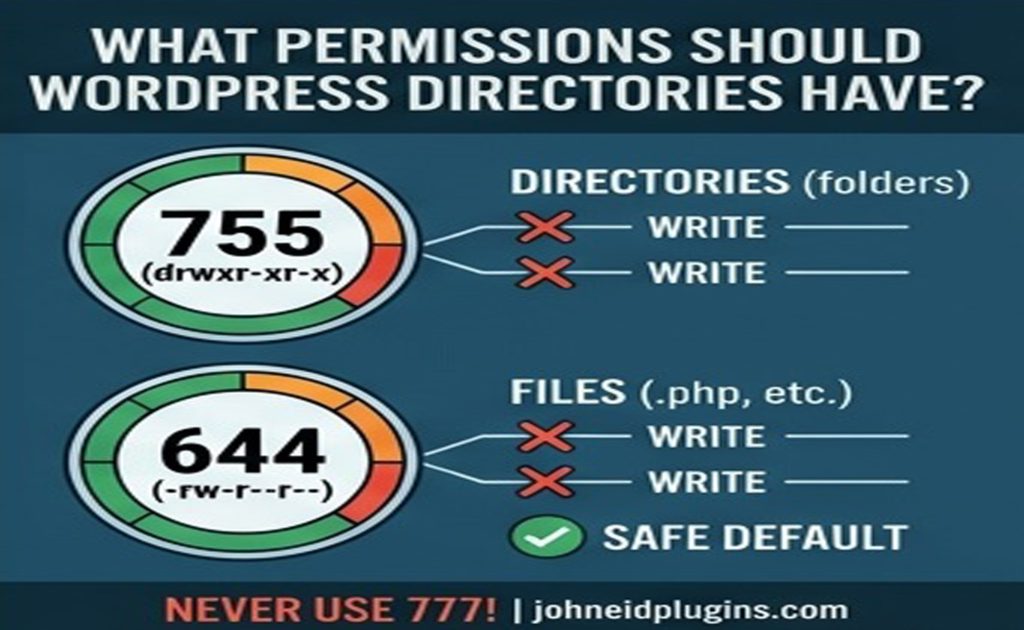
On many standard Linux-based WordPress installations, directory permissions of 755 are a common starting point. Regular files commonly use 644.
However, the correct settings depend on your hosting environment and filesystem ownership.
If the affected directory has unusually restrictive permissions, correct them according to your host’s recommended configuration.
Important: Never set every WordPress file and directory to 777 as a quick fix. This grants excessive access and can introduce serious security risks. If normal permissions do not resolve the issue, investigate ownership and server configuration instead.
For more information, consult the official WordPress file permissions documentation.
After checking the permissions, return to your WordPress dashboard and try updating the plugin again.
If the error persists, continue to the next method.
Method 2: Fix Incorrect File Ownership
Correct permissions do not guarantee that WordPress can write to a directory. The server user running PHP must also have appropriate access.
This is why file ownership deserves attention when the error continues after checking permissions.
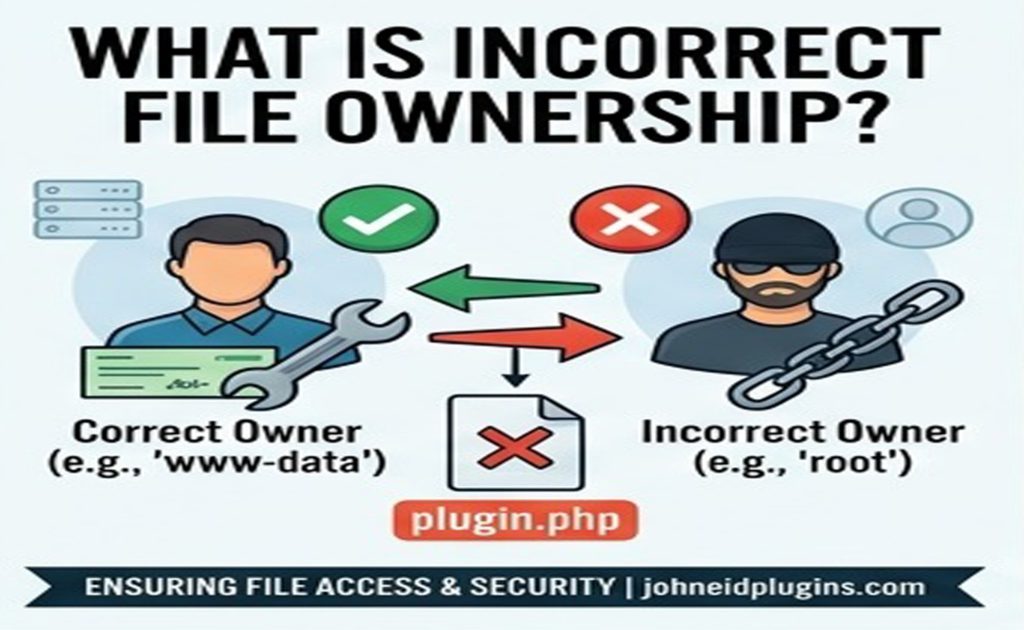
How to Identify an Ownership Problem
Consider the following situations:
- You recently moved your website to a new hosting provider.
- You restored your website from a backup.
- Your hosting provider migrated your account to another server.
- You uploaded plugin files using a different account.
- Multiple plugins fail to update despite apparently correct permissions.
These situations do not automatically mean ownership is incorrect, but they make it worth investigating.
How to Resolve the Problem
If you have SSH access and understand Linux server administration, inspect the ownership of the affected directory and compare it with your hosting environment’s expected configuration.
Do not run a recursive ownership command without confirming the correct user and group.
If you use shared hosting, contact your hosting provider and explain that WordPress cannot create directories during plugin updates. Ask the support team to check ownership and write access for your WordPress installation.
The hosting provider can correct ownership without requiring you to change permissions across the entire website.
Once the ownership issue has been resolved, try updating the plugin again.
Method 3: Check the wp-content/upgrade Directory
WordPress may need a temporary upgrade directory while processing plugin updates. If the required directory is missing or unwritable, the update can fail.
Step 1: Open the wp-content Folder
Using your hosting File Manager, navigate to:
wp-content
Look for a directory named:
upgrade
Depending on the update process and WordPress version, another relevant directory may be:
upgrade-temp-backup
WordPress uses temporary backup storage during certain plugin and theme updates, so failures involving this directory may require a slightly different diagnosis.
Step 2: Check Whether the Directory Is Writable
If the required directory exists, verify that its permissions and ownership allow WordPress to write to it.
If it does not exist, WordPress may be able to create it automatically when the parent directory is writable. If it cannot, investigate the parent directory’s permissions and ownership.
You can also visit Tools → Site Health in your WordPress dashboard to check for reported filesystem or directory-related problems.
Step 3: Remove Only Confirmed Obsolete Temporary Files
Failed updates can sometimes leave temporary files behind. However, do not delete everything inside the upgrade directory without inspecting it first.
Confirm that the files are not being used by an active update and retain your backup before removing obsolete temporary data.
Once you have corrected the underlying issue, attempt the plugin update again.
Method 4: Check Your Hosting Account’s Disk Space
If WordPress cannot create a directory even though its permissions appear correct, check your available disk space.
A full hosting account can prevent WordPress from creating new directories, downloading plugin packages, or extracting files.
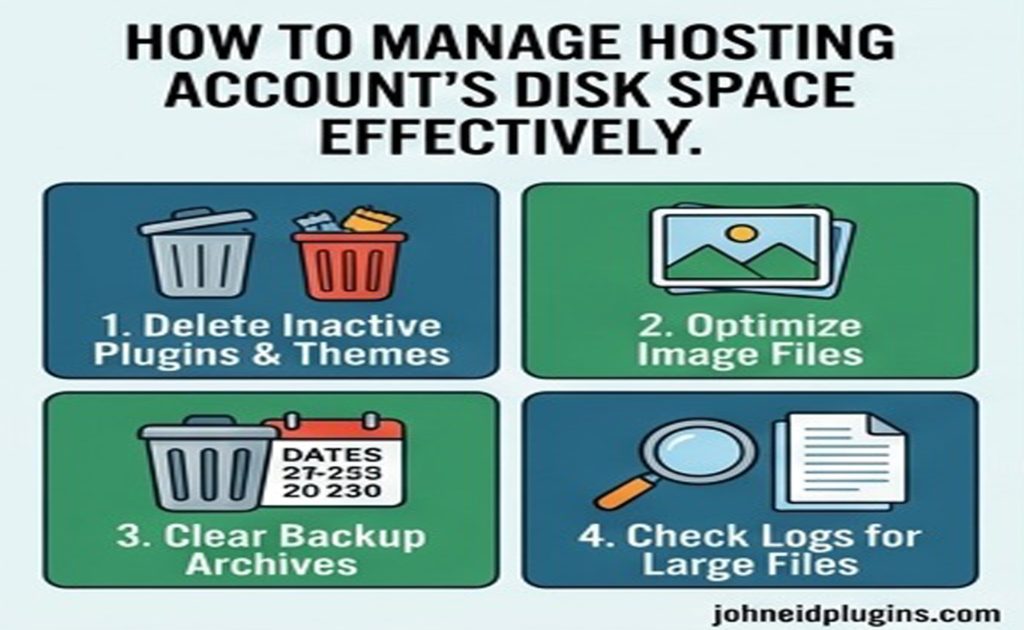
How to Check Disk Usage
- Log in to your hosting control panel.
- Open the Disk Usage section.
- Review your current storage consumption and account limits.
- Check whether backups, logs, email files, or unused website installations occupy excessive space.
Some hosting providers also impose file-count or inode limits. These limits can prevent new files and directories from being created even when your account appears to have available storage.
How to Free Up Space Safely
If your account is near its limit, consider these options:
- Remove old backup archives after verifying that you have a separate, usable backup.
- Delete unused plugins and themes that are no longer needed.
- Remove obsolete staging installations.
- Clear temporary files generated by applications when it is safe to do so.
- Ask your hosting provider to identify unusually large files or account-limit issues.
Avoid deleting unfamiliar system files or active website data just to free up storage.
After freeing sufficient space, return to WordPress and try the update again.
If you repeatedly encounter storage limitations, consider increasing your hosting allocation.
Method 5: Update the WordPress Plugin Manually
If automatic updates continue to fail, you can update the plugin manually.
This approach may help when the WordPress dashboard cannot complete the update but your hosting account allows you to upload files.
Before proceeding, create a complete backup and obtain the correct plugin package from its official source.
Step 1: Download the Latest Plugin Version
For a free plugin, visit its official listing in the WordPress Plugin Directory.
For a premium plugin, download the updated package from the developer’s official website or customer account.
Make sure the package is compatible with your WordPress installation.
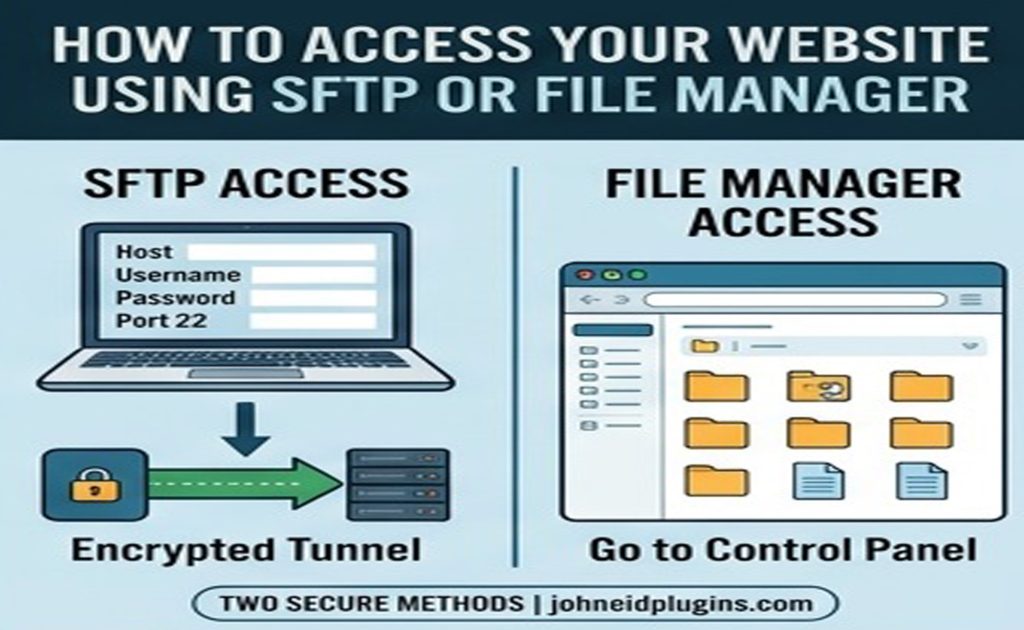
Step 2: Access Your Website Using SFTP or File Manager
Open your WordPress installation and navigate to:
wp-content/plugins
Locate the directory belonging to the plugin you want to update.
For example, a plugin named Example Plugin might use a directory called:
wp-content/plugins/example-plugin
The actual directory name depends on the plugin.
Step 3: Preserve the Existing Plugin Files
Before replacing files, ensure that you have a recoverable copy of the existing plugin directory.
If the plugin stores custom code or configuration inside its own directory, preserve that information before proceeding.
Never assume that replacing a plugin folder is harmless, especially when it contains custom modifications.
Step 4: Replace the Plugin Files Carefully
Use your hosting File Manager or SFTP client to upload the updated plugin files.
Ensure the resulting directory structure is correct. The plugin’s main PHP file should be in the expected location rather than accidentally nested inside an extra directory.
For example, an incorrect structure might look like this:
wp-content/plugins/example-plugin/example-plugin/example-plugin.php
The correct structure depends on the package, but an unnecessary extra directory level can prevent WordPress from recognizing the plugin properly.
Step 5: Verify the Update
Return to Plugins → Installed Plugins in your WordPress dashboard.
Confirm that the plugin is active and that the expected version is installed.
Test the website’s important features, particularly if the plugin handles payments, forms, membership access, or other essential functionality.
Manual updating can bypass some dashboard-related problems, but it will not correct underlying filesystem ownership or permission issues. Resolve those problems before relying on future automatic updates.
Method 6: Check Whether Your Hosting Provider Is Blocking File Operations
If none of the previous solutions works, the issue may involve your hosting environment.
Some servers use security restrictions, filesystem isolation, or account-specific policies that affect how WordPress creates and modifies directories.
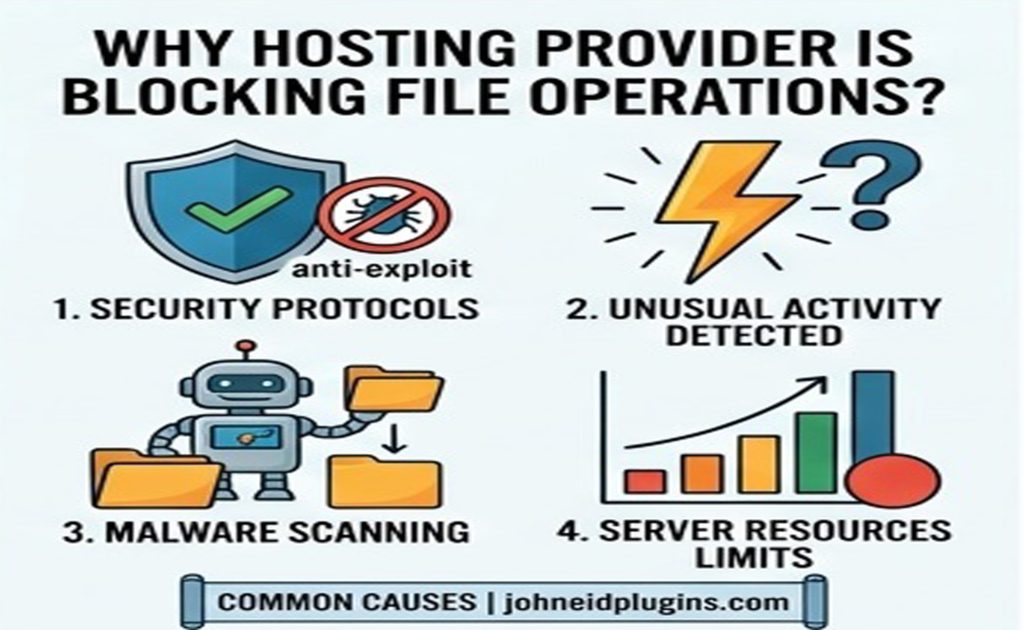
What Should You Ask Your Hosting Provider?
Contact your hosting provider and provide the exact error message.
Ask the support team to investigate:
- Whether PHP can write to the affected directory.
- Whether the directory has the correct owner and group.
- Whether the hosting account has reached its disk or inode limit.
- Whether filesystem restrictions are preventing directory creation.
- Whether server logs show a permission or filesystem error.
Providing the full directory path from the error message can help the support team identify the problem more quickly.
Avoid changing server-level settings without understanding how they affect the security of your website.
Method 7: Check the WordPress Configuration
In some situations, WordPress may have difficulty selecting an appropriate filesystem method for updates.
The WordPress Filesystem API supports different methods depending on the server configuration. An installation may use direct filesystem access or request FTP/SFTP credentials when direct access is unavailable.
If WordPress repeatedly requests FTP credentials or fails during updates, ask your hosting provider whether the configured filesystem method is appropriate for your environment.
You may encounter advice recommending the following setting in wp-config.php:
define('FS_METHOD', 'direct');
However, do not add this setting as a universal fix. Forcing direct filesystem access does not correct incorrect ownership, insufficient storage, or restrictive server policies. It may also be inappropriate for some hosting environments.
Before changing filesystem settings, back up your configuration and consult your hosting provider or a qualified WordPress developer.
For technical details, refer to the official WordPress filesystem documentation.
How to Prevent WordPress Plugin Update Errors in the Future
Once you have fixed the issue, take a few precautions to reduce the likelihood of another failed update.
Keep Regular Website Backups
Maintain current backups of your database and website files. Store at least one recoverable copy separately from your hosting account.
This gives you a way to restore your website if an update fails or introduces compatibility problems.
Monitor Hosting Resources
Check your storage consumption periodically, particularly if your website generates many backups, images, or log files.
Remember that inode limits may matter even when you have available disk space.
Use Appropriate File Permissions
Follow the permission and ownership recommendations provided by your hosting company and the official WordPress documentation.
Avoid making all website files writable by every server user.
Update Plugins Regularly
Install plugin updates from trusted sources and review compatibility information when necessary.
Regular maintenance reduces the risk of falling behind on important security fixes, although you should still test significant updates on a staging website when possible.
Avoid Unnecessary File Changes
Do not modify wp-config.php, change ownership, or apply recursive permission commands unless you understand why the change is necessary.
When the problem is server-related, having your hosting provider correct the configuration is often safer than experimenting with filesystem settings.
Frequently Asked Questions
1. Why Does WordPress Say “Update Failed: Could Not Create Directory”?
This message usually means WordPress cannot create a required directory during the update process. Possible causes include incorrect permissions, incorrect ownership, insufficient disk space, account file limits, or hosting restrictions.
The exact cause depends on your server configuration and the directory involved.
2. What Permissions Should WordPress Directories Have?
On many standard Linux installations, directories commonly use 755 permissions and files use 644. However, the appropriate settings depend on the hosting environment and file ownership.
Consult your hosting provider before making widespread permission changes, and never use 777 as a routine solution.
3. Can Insufficient Disk Space Cause WordPress Plugin Update Failures?
Yes. WordPress needs available storage to download, extract, and replace plugin files. If your account reaches its storage quota, the update may fail.
An inode or file-count limit can cause similar symptoms even when disk space remains available.
4. Is It Safe to Update a WordPress Plugin Manually?
Manual updates can be safe when performed carefully. Create a backup, download the correct plugin package from its official source, preserve any custom modifications, and verify the installation afterward.
If the underlying filesystem problem remains unresolved, future automatic updates may fail again.
5. Should I Contact My Hosting Provider About This Error?
Yes, if checking the affected directory, permissions, storage, and available account resources does not resolve the problem.
Your hosting provider can inspect server logs, filesystem ownership, PHP access, and restrictions that may not be visible in the WordPress dashboard.
6. Will Changing File Permissions Fix Every WordPress Plugin Update Error?
No. Permissions are only one possible cause. Incorrect ownership, storage limitations, server restrictions, and other filesystem problems can produce similar errors.
Diagnose the actual cause before making changes to avoid introducing additional problems.
Conclusion
The WordPress plugin update failed: could not create directory error can interrupt routine website maintenance, but it is often possible to resolve it by identifying the underlying filesystem problem.
Start by checking the affected directory and its permissions. Then investigate file ownership, temporary upgrade directories, disk space, and hosting restrictions. If automatic updates still fail, a carefully performed manual update may provide a temporary workaround while you address the underlying issue.
Most importantly, create a backup before making changes and avoid insecure permission settings.
If the error persists despite these checks, contact your hosting provider or a WordPress professional to investigate the server configuration.
With the correct diagnosis and a secure repair process, you can restore plugin updates and keep your WordPress website running smoothly.
One response to “How to Fix WordPress Plugin Update Failed: Could Not Create Directory Error?”
[…] Incomplete plugin updates. […]