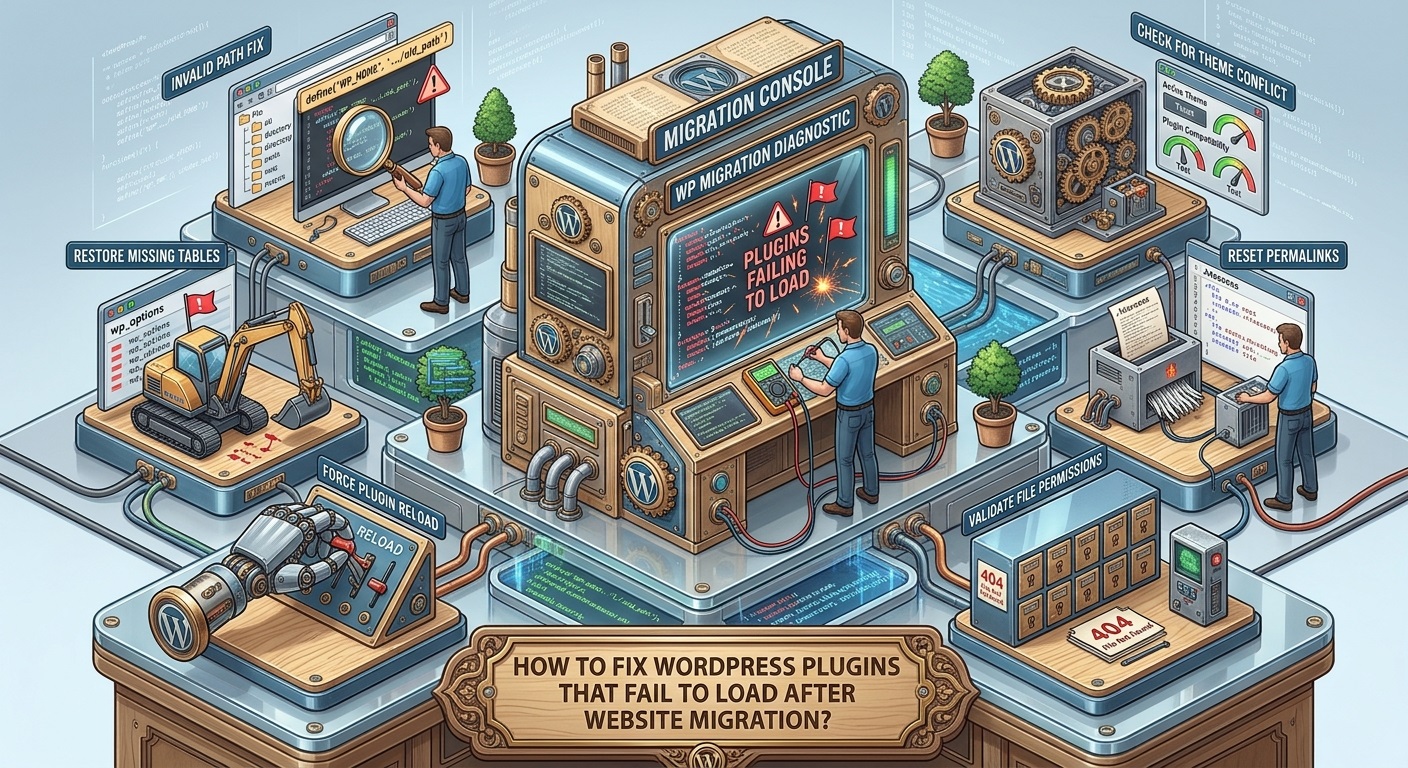
Migrating a WordPress website from one hosting provider, server, domain name, or development environment to another is a common task for website owners and developers. A successful migration should transfer the website’s files, database, themes, plugins, media, and configuration settings to the new environment without affecting existing functionality.
However, sometimes WordPress plugins stop loading after a website migration. A plugin that worked correctly on the previous server may disappear from the administration dashboard, fail to activate, stop displaying frontend content, or generate PHP errors after the migration.
In other situations, plugins appear to be activated but their functionality no longer works. Shortcodes may display as plain text, settings pages may become blank, JavaScript files may fail to load, and AJAX requests may return unexpected errors.
These problems can be frustrating because the website itself may appear to have migrated successfully. The homepage, posts, pages, and images may load correctly while important plugin functionality remains unavailable.
The underlying causes can include incorrect file paths, incomplete file transfers, database migration problems, changed domain URLs, incorrect file permissions, PHP version incompatibilities, missing dependencies, caching issues, and server configuration differences.
This guide explains how to fix WordPress plugins that fail to load after website migration. It covers common migration-related problems, practical troubleshooting procedures, and preventative measures that help developers maintain plugin compatibility when moving WordPress websites between hosting environments.
Whether you have migrated your website manually, used a migration plugin, or transferred it through a hosting provider, these solutions can help restore plugin functionality.
Understanding Why WordPress Plugins Stop Loading After Migration
A WordPress migration involves more than copying website files from one server to another.
A typical WordPress installation depends on several interconnected components:
- WordPress core files.
- Plugin directories.
- Theme files.
- Database tables.
- Site URLs and home URLs.
- PHP configuration.
- Database credentials.
- File permissions.
- Server software.
- Scheduled tasks and background processes.
If any of these components are transferred incorrectly or configured differently on the new server, plugins may stop working.
For example, a plugin might depend on a particular PHP extension that is unavailable on the new hosting account. Another plugin may store an absolute filesystem path that points to the previous server.
Similarly, a migration process might transfer the plugin files successfully but fail to update serialized database information correctly.
Understanding these differences is the first step toward finding the actual cause of a plugin loading problem.
1. Check Whether All Plugin Files Were Transferred Successfully
An incomplete file transfer is one of the most common reasons WordPress plugins fail after migration.
A plugin may contain dozens or hundreds of files, including PHP scripts, JavaScript libraries, CSS stylesheets, images, templates, and additional resources.
If some files are missing, the plugin may fail to initialize or display incomplete functionality.
For example, a plugin might depend on the following structure:
example-plugin/
|
|-- example-plugin.php
|-- includes/
|   |-- functions.php
|   |-- admin.php
|   |-- frontend.php
|
|-- assets/
|   |-- css/
|   |-- js/
|   |-- images/
|
|-- languages/
|-- templates/
If the migration process transfers only the main PHP file but misses the includes directory, the plugin may generate errors when WordPress attempts to load its functionality.
How to Check Plugin Files
- Log in to your new hosting control panel.
- Open File Manager or connect through FTP.
- Navigate to
wp-content/plugins/. - Locate the affected plugin directory.
- Compare its structure with the original installation or a fresh copy of the same plugin version.
- Check whether important PHP, JavaScript, CSS, and dependency files are missing.
How to Fix Missing Files
Download a fresh copy of the plugin from its official source.
Replace incomplete plugin files with the verified package.
Before replacing files, create a backup and preserve any custom modifications.
For premium or custom-developed plugins, obtain the correct package from the original developer.
Avoid mixing files from different plugin versions because this can create additional compatibility problems.
2. Verify That the Plugin Is Still Activated
Sometimes plugins appear to stop loading after migration because their activation status has changed.
This can happen when:
- The migration process modifies the database.
- The plugin activation record is not transferred correctly.
- A plugin fails during initialization.
- A different database is connected to the migrated website.
- The plugin was deactivated before migration.
How to Check Plugin Activation
Log in to the new WordPress administration dashboard.
Navigate to:
Plugins → Installed Plugins
Find the affected plugin.
If the plugin displays an Activate option, it is currently inactive.
Click Activate and check whether WordPress displays an error.
If activation succeeds, visit the frontend page or administration section where the plugin functionality should appear.
What If Activation Fails?
If WordPress displays a fatal error or critical error message, investigate the PHP error log before attempting further changes.
A plugin may fail during activation because of missing files, unsupported PHP functions, unavailable database tables, or incompatible dependencies.
Do not repeatedly activate a plugin without understanding the underlying error.
3. Check the Website URL and Home URL Settings
Domain changes are common during website migration.
For example, a website may move from:
to:
If the database still contains the previous domain in important configuration records, plugins may continue attempting to load resources from the old website.
This can affect:
- Plugin JavaScript files.
- CSS stylesheets.
- AJAX requests.
- API connections.
- Image resources.
- Plugin-generated links.
- External integrations.
Check WordPress URL Settings
Open your WordPress administration dashboard.
Navigate to:
Settings → General
Check the following fields:
- WordPress Address (URL).
- Site Address (URL).
Both should reflect the correct website configuration.
If you cannot access the dashboard, inspect the wp_options table in your database.
The relevant option names are:
siteurlhome
Their values should correspond to the correct installation URLs.
Check wp-config.php
Some WordPress websites define these values directly in wp-config.php:
define(
    'WP_HOME',
    'https://newexample.com'
);

define(
    'WP_SITEURL',
    'https://newexample.com'
);
If these constants are present, verify that they contain the correct URLs.
Do not define duplicate constants.
Replace Old Domain References Carefully
Plugins may store their own URLs in the database.
A migration can leave outdated domain references in plugin settings, widgets, custom tables, and serialized database records.
Use a migration tool that understands serialized data rather than performing an ordinary database-wide text replacement.
The official WordPress migration documentation provides additional guidance.
4. Update Serialized Database Data Correctly
WordPress plugins frequently store settings as serialized PHP data.
Serialized information may contain domain names, paths, configuration values, and other plugin settings.
For example, a plugin might store an array containing:
- API endpoint.
- Logo image URL.
- Custom stylesheet URL.
- Integration settings.
- Display configuration.
When a website is migrated to a different domain, these values may need to be updated.
However, directly replacing text inside serialized database records can corrupt their stored structure.
For example, serialized strings contain length information. If a replacement changes the string length without updating that information, PHP may fail to unserialize the data correctly.
How to Fix Serialized Data Problems
Use a migration utility that supports serialized data.
One commonly used option is WP-CLI Search Replace.
Example:
wp search-replace \
'https://oldexample.com' \
'https://newexample.com' \
--all-tables-with-prefix \
--dry-run
The --dry-run option previews the changes without modifying the database.
After checking the results and creating a database backup, you can perform the replacement by removing --dry-run.
Always verify the table selection before executing a database-wide replacement.
Why This Matters for Plugins
A plugin may appear activated but fail to load its settings because serialized information has become corrupted.
Correcting the migration data can restore plugin functionality without reinstalling the plugin.
5. Check PHP Version Compatibility on the New Server
Different hosting providers may use different PHP versions.
A plugin that worked correctly on the old server may fail after migration because the new server uses an incompatible PHP environment.
For example, an older plugin may rely on removed PHP functions, while a newer plugin may require language features unavailable in an older PHP version.
How to Check Your PHP Version
Open the WordPress administration dashboard.
Navigate to:
Tools → Site Health → Info → Server
Check the PHP version currently running on the new hosting account.
Compare it with the plugin’s documented PHP requirements.
Also check the PHP version used by the previous hosting environment if that information is available.
Common PHP Compatibility Problems
- Undefined functions.
- Removed PHP functions.
- Unsupported syntax.
- Incorrect function arguments.
- Type errors.
- Missing PHP extensions.
- Deprecated functionality.
- Fatal errors during plugin initialization.
How to Resolve PHP Compatibility Problems
First, check whether the plugin has an updated release.
If you developed the plugin yourself, inspect the PHP error log and update incompatible code.
If the plugin requires a different PHP version, consult your hosting provider about available supported versions.
Do not permanently downgrade PHP simply to make an outdated plugin work.
A better solution is to update the plugin or replace incompatible functionality.
For additional information, consult the WordPress PHP compatibility documentation.
6. Verify File and Directory Permissions
Incorrect file permissions can prevent WordPress from reading plugin files or accessing required directories.
This problem may occur when files are transferred between hosting providers that use different server configurations.
For example, a migration tool might copy files successfully but assign ownership that prevents the web server from reading them.
Recommended Starting Permissions
Typical WordPress permissions are:
| File or directory | Common permission |
|---|---|
| Directories | 755 |
| PHP files | 644 |
| CSS files | 644 |
| JavaScript files | 644 |
| Image files | 644 |
| wp-config.php | 640 or 644, depending on hosting |
These are common starting values, not universal requirements.
Your hosting environment may require a different ownership or permission configuration.
How to Check Permissions
Open your hosting File Manager.
Navigate to:
wp-content/plugins/
Inspect the permissions of the affected plugin directory and its files.
Check whether the web server has appropriate read access.
If necessary, contact your hosting provider to correct file ownership.
Avoid setting all files and directories to 777, because this creates unnecessary security risks.
7. Check Whether Required PHP Extensions Are Missing
A plugin may depend on PHP extensions that were available on the previous hosting server but are missing from the new environment.
For example, plugins may require:
- cURL.
- ZIP.
- GD.
- Imagick.
- mbstring.
- XML.
- JSON.
- OpenSSL.
- PDO or database-related extensions.
A migration does not automatically guarantee that the new server has the same PHP extensions.
How to Identify Missing Extensions
Check the WordPress Site Health information.
You can also inspect PHP configuration through your hosting control panel.
Review the plugin’s documentation to identify its required extensions.
If the plugin generates an error such as an undefined function, determine whether that function belongs to a missing PHP extension.
How to Fix Missing Extensions
Contact your hosting provider and request installation or activation of the required PHP extension.
If you manage your own server, enable the extension through the appropriate PHP configuration.
Restart the relevant PHP service if required.
After enabling the extension, test the plugin again.
8. Clear Caches After Website Migration
Caching can cause plugins to appear broken after migration, particularly when the cached files still reference the old domain.
Common examples include:
- JavaScript files loaded from the previous domain.
- CSS files containing outdated URLs.
- Cached plugin settings pages.
- Old API responses.
- Cached object data.
- CDN resources pointing to previous locations.
Clear Browser Cache
Open the website in a private browsing window.
Alternatively, clear cached images and files from your browser.
Clear WordPress Cache
If you use a caching plugin, clear its stored cache through the plugin settings.
Clear Object Cache
If the website uses Redis, Memcached, or another persistent object caching system, flush the relevant cache through the appropriate management interface.
Be careful when flushing shared caches on managed hosting environments.
Clear CDN and Server Cache
If your website uses a content delivery network, purge the relevant cached files.
Also clear server-level caching where necessary.
After clearing caches, reload the website and check whether the plugin’s scripts, stylesheets, and dynamic functionality work correctly.
Remember that cache clearing is not a substitute for fixing incorrect URLs or missing files.
9. Check Plugin JavaScript and CSS File Paths
Some plugins stop working after migration because their JavaScript and CSS files are not loading correctly.
For example, a plugin may generate an asset URL using an outdated domain:
https://oldexample.com/wp-content/plugins/example-plugin/assets/js/script.js
After migration, the browser may still attempt to load the resource from the previous website.
Other possible causes include incorrect relative paths, missing files, case-sensitive filenames, and permissions problems.
How to Identify Missing Assets
- Open the migrated website.
- Open browser Developer Tools.
- Select the Network tab.
- Filter requests by JS and CSS.
- Reload the affected page.
- Look for failed resource requests.
- Inspect their URLs and HTTP status codes.
Common errors include:
- 404 Not Found.
- 403 Forbidden.
- 500 Internal Server Error.
- Mixed content warnings.
- CORS errors.
How to Fix Incorrect Asset Paths
Developers should use WordPress functions to generate plugin asset URLs.
For example:
wp_enqueue_script(
    'example-plugin-script',
    plugins_url(
        'assets/js/script.js',
        __FILE__
    ),
    array('jquery'),
    '2.5.0',
    true
);
For plugin files in nested directories, make sure the path is calculated relative to the correct plugin file.
Avoid hardcoding absolute website URLs when WordPress provides appropriate URL-generation functions.
10. Investigate Plugin Conflicts After Migration
A plugin conflict may become visible only after migration because the new server environment changes how scripts and PHP code are loaded.
For example, a different theme version, caching configuration, optimization plugin, or PHP version may introduce compatibility problems.
How to Identify Conflicting Plugins
Create a complete backup before testing.
Then:
- Open the WordPress dashboard.
- Deactivate all plugins except the affected plugin.
- Check whether the problem continues.
- If the plugin works, reactivate other plugins individually.
- Test the affected functionality after each activation.
- Identify which plugin causes the problem to return.
If the issue remains, temporarily switch to a default WordPress theme in a staging environment.
Use Health Check Troubleshooting Mode
The Health Check & Troubleshooting plugin provides a troubleshooting mode that can help isolate conflicts without changing the normal experience of website visitors.
This is particularly useful for business websites where disabling plugins publicly could interrupt important functionality.
11. Check Database Table Prefixes and Plugin Database Tables
A WordPress database migration may fail to transfer all plugin-related tables.
Plugins sometimes create their own database tables to store settings, logs, custom records, or other information.
If those tables are missing, the plugin may activate but fail to load its configuration.
Another possibility is that the database table prefix has changed during migration.
For example, the previous website may use:
wp_
The migrated website may use:
site123_
If custom plugin code assumes a fixed table prefix, database queries may fail.
How to Check Plugin Tables
Open phpMyAdmin or another database management tool.
Inspect the migrated database and verify whether the plugin’s required tables exist.
Compare the new database with the original installation if it is still available.
How to Fix Incorrect Table Prefix References
Developers should use the WordPress database prefix dynamically.
For example:
global $wpdb;

$table_name = $wpdb->prefix .
    'example_plugin_data';
Avoid hardcoding wp_ into custom plugin database queries.
If the plugin tables were not transferred, follow the developer’s documented installation or upgrade procedure to recreate them.
Do not manually delete or recreate database tables without understanding their contents.
12. Check wp-config.php and Database Connection Settings
The wp-config.php file contains important WordPress configuration information.
During migration, the database name, username, password, and database host may change.
If the migrated installation connects to the wrong database, plugins may appear inactive or lose their previous settings.
Important Configuration Values
Check the following entries:
define('DB_NAME', 'new_database');

define('DB_USER', 'new_database_user');

define('DB_PASSWORD', 'database_password');

define('DB_HOST', 'localhost');
The values shown above are examples.
Use the actual database credentials provided by your hosting company.
Also verify that the database user has the required permissions.
If WordPress connects to a different database than expected, the plugin activation status and settings may not match the original website.
13. Check Absolute File Paths Stored by Plugins
Some plugins store filesystem paths in their settings.
For example, a backup plugin, file manager, image processing plugin, or custom integration may store a path such as:
/home/olduser/public_html/wp-content/uploads/
After migration, the website may use:
/home/newuser/domains/example.com/public_html/wp-content/uploads/
The previous path no longer exists.
Consequently, the plugin may fail when attempting to read or write files.
How to Identify Incorrect Paths
Check the PHP error log and plugin settings.
Look for messages such as:
- Failed to open stream.
- No such file or directory.
- Permission denied.
- Unable to create directory.
If the plugin stores absolute paths in the database, update them using its supported settings interface.
Recommended Development Practice
Whenever possible, developers should generate filesystem paths dynamically using WordPress functions such as:
$upload_dir = wp_upload_dir();

$upload_path = $upload_dir['basedir'];
For plugin installation directories, use appropriate functions such as plugin_dir_path().
This makes plugins more portable across hosting environments.
14. Check HTTPS, SSL Certificates, and Mixed Content
A website may move from HTTP to HTTPS during migration.
If plugin settings or generated resources still use HTTP URLs, browsers may block some resources or display mixed-content warnings.
For example, the main website may load through HTTPS while a plugin attempts to load JavaScript from an HTTP address.
This can interrupt frontend functionality.
How to Diagnose Mixed Content
Open the browser Developer Tools and select the Console tab.
Look for messages containing:
- Mixed Content.
- Blocked insecure request.
- SSL certificate error.
- Failed to load resource.
How to Fix HTTPS Problems
Verify that the new hosting environment has a valid SSL certificate.
Update WordPress site URLs and relevant plugin settings to use HTTPS where appropriate.
Correct outdated resource URLs using a migration utility that supports serialized data.
For additional guidance, consult the WordPress HTTPS documentation.
15. Review WordPress Debug Logs and Server Error Logs
When a plugin fails to load after migration, error logs can reveal the exact problem.
WordPress provides built-in debugging options that can help identify PHP errors.
Open wp-config.php and enable the following settings for controlled troubleshooting:
define('WP_DEBUG', true);
define('WP_DEBUG_LOG', true);
define('WP_DEBUG_DISPLAY', false);
The default WordPress debug log is:
wp-content/debug.log
What Errors Should You Look For?
Search for:
- PHP Fatal error.
- Uncaught Error.
- Uncaught Exception.
- Undefined function.
- Failed opening required file.
- Permission denied.
- Database connection errors.
- Memory exhaustion.
- Missing PHP extensions.
Pay particular attention to error timestamps that correspond to attempts to activate or use the affected plugin.
Also inspect the hosting provider’s PHP and web server error logs.
If debugging is already configured, do not add duplicate constant definitions.
Disable debugging when troubleshooting is complete, and avoid exposing errors to public visitors.
Read the official WordPress debugging guide for additional information.
16. Check Cron Jobs and Background Processes
Some WordPress plugins rely on scheduled tasks to perform background operations.
Examples include:
- Sending scheduled emails.
- Processing queued tasks.
- Generating reports.
- Synchronizing external services.
- Cleaning temporary files.
- Updating remote information.
After migration, these tasks may stop working because the new server has different cron configuration or WordPress scheduled events have not been transferred correctly.
How to Investigate Scheduled Tasks
Check whether the affected plugin has a scheduling or task management section.
Inspect scheduled events using a suitable WordPress debugging tool.
Also check whether your new hosting provider supports server-level cron jobs.
If the plugin depends on external integrations, verify that its scheduled tasks can still communicate with those services.
A plugin may load normally but appear broken because its background processing has stopped.
17. Reinstall or Update the Affected Plugin
If the previous troubleshooting steps do not resolve the problem, reinstalling or updating the plugin may help.
This is particularly useful when the migration transferred incomplete or corrupted plugin files.
Recommended Procedure
- Create a complete website backup.
- Record the plugin’s current settings and version.
- Download a fresh package from the official developer.
- Deactivate the plugin if necessary.
- Replace the existing plugin files.
- Activate the plugin again.
- Check its administration settings.
- Test its frontend functionality.
If the plugin requires a database upgrade, allow its documented upgrade process to complete.
Do not delete plugin database records unless you understand whether they contain important settings or user data.
18. Test the Migrated Website in a Staging Environment
If several plugins fail after migration, testing the website in a staging environment can help isolate the problem.
A staging website provides a separate environment where you can investigate migration issues without interrupting normal website visitors.
Recommended Testing Checklist
Test the following:
- Plugin activation.
- Plugin settings pages.
- Frontend shortcodes.
- JavaScript and CSS loading.
- AJAX requests.
- REST API endpoints.
- Database operations.
- Image and file uploads.
- Scheduled tasks.
- External API integrations.
- User permissions.
- Plugin update functionality.
Compare the behavior of the original and migrated websites whenever possible.
This comparison can help identify differences in PHP versions, server settings, database configuration, and plugin dependencies.
Best Practices to Prevent Plugin Loading Problems During Future Migrations
Preventing migration-related plugin problems is generally easier than repairing a broken installation afterward.
Website owners and developers should follow a structured migration procedure.
Create a Complete Backup
Back up the WordPress database and all website files before migration.
Verify that the backup can be restored.
Check Plugin Compatibility
Review the PHP requirements and server dependencies of important plugins before moving to a new hosting provider.
Use Reliable Migration Tools
Choose a migration solution that supports database replacement, serialized data, and complete file transfers.
Compare Server Environments
Check PHP versions, PHP extensions, database versions, file permissions, and server configuration.
Update Domain and Path References
Replace old URLs carefully and investigate plugins that store absolute filesystem paths.
Test Plugin Functionality
Do not consider a migration complete merely because the homepage loads.
Test the administration dashboard, frontend features, integrations, and background operations.
Keep Plugins Updated
Use maintained plugin versions that are compatible with your WordPress and PHP environments.
Maintain a Staging Environment
Test important changes before applying them to the live website.
Frequently Asked Questions
1. Why do WordPress plugins stop working after website migration?
Common causes include incomplete file transfers, incorrect database migration, outdated domain references, PHP compatibility problems, missing extensions, incorrect file permissions, and server configuration differences.
2. Why are plugins activated but not working after migration?
A plugin can remain activated even when its JavaScript files, CSS resources, database tables, or external integrations are unavailable. Inspect the browser console, Network panel, and PHP error logs to identify the underlying issue.
3. Can changing a domain name break WordPress plugins?
Yes. Plugins may store old domain references in database settings, generated asset URLs, API configurations, and custom integrations. Use a serialized-data-aware migration tool to update these references safely.
4. Should I deactivate all plugins before migrating WordPress?
It is not always necessary. Some migration methods work with active plugins. However, certain complex websites may benefit from a controlled maintenance procedure. Follow the migration tool’s instructions and create a complete backup before starting.
5. Can a PHP version change prevent plugins from loading?
Yes. If the new server uses an incompatible PHP version or lacks required PHP extensions, plugins may generate fatal errors or fail during initialization.
6. Why do plugin settings disappear after migration?
Possible causes include an incorrect database connection, missing database tables, incomplete database transfer, corrupted serialized information, or changed plugin configuration paths.
7. How do I fix plugin JavaScript and CSS files that fail after migration?
Inspect failed resource requests in browser Developer Tools. Check whether the URLs still reference the old domain, whether the files exist, and whether the server allows access. Clear caches after correcting the underlying paths.
8. Is reinstalling all WordPress plugins necessary after migration?
No. Reinstalling every plugin is usually unnecessary. First identify the cause of the problem. Replace or reinstall only plugins with incomplete, corrupted, or incompatible files.
9. Can a hosting provider cause WordPress plugins to fail after migration?
Yes. Different hosting environments may use different PHP configurations, extensions, file ownership settings, security rules, and database versions. Ask your hosting provider to investigate server-side errors when necessary.
Conclusion
WordPress plugins failing to load after website migration is a common problem that can result from differences between the original and new hosting environments.
Although the website’s pages and database may appear to have transferred successfully, plugins depend on many additional components, including PHP compatibility, file paths, database settings, JavaScript resources, security configurations, and server permissions.
The best troubleshooting approach is to identify which component is preventing the plugin from loading.
Start by checking plugin files and activation status. Then verify website URLs, serialized database information, PHP compatibility, file permissions, missing extensions, and database tables.
If the plugin’s frontend functionality is broken, inspect JavaScript and CSS requests. If the plugin produces a fatal error, investigate WordPress debugging and server logs.
For more complicated migrations, use a staging environment to compare the original and migrated installations.
By following these troubleshooting procedures and adopting a structured migration process, WordPress website owners and developers can restore plugin functionality and reduce the risk of similar problems during future website migrations.