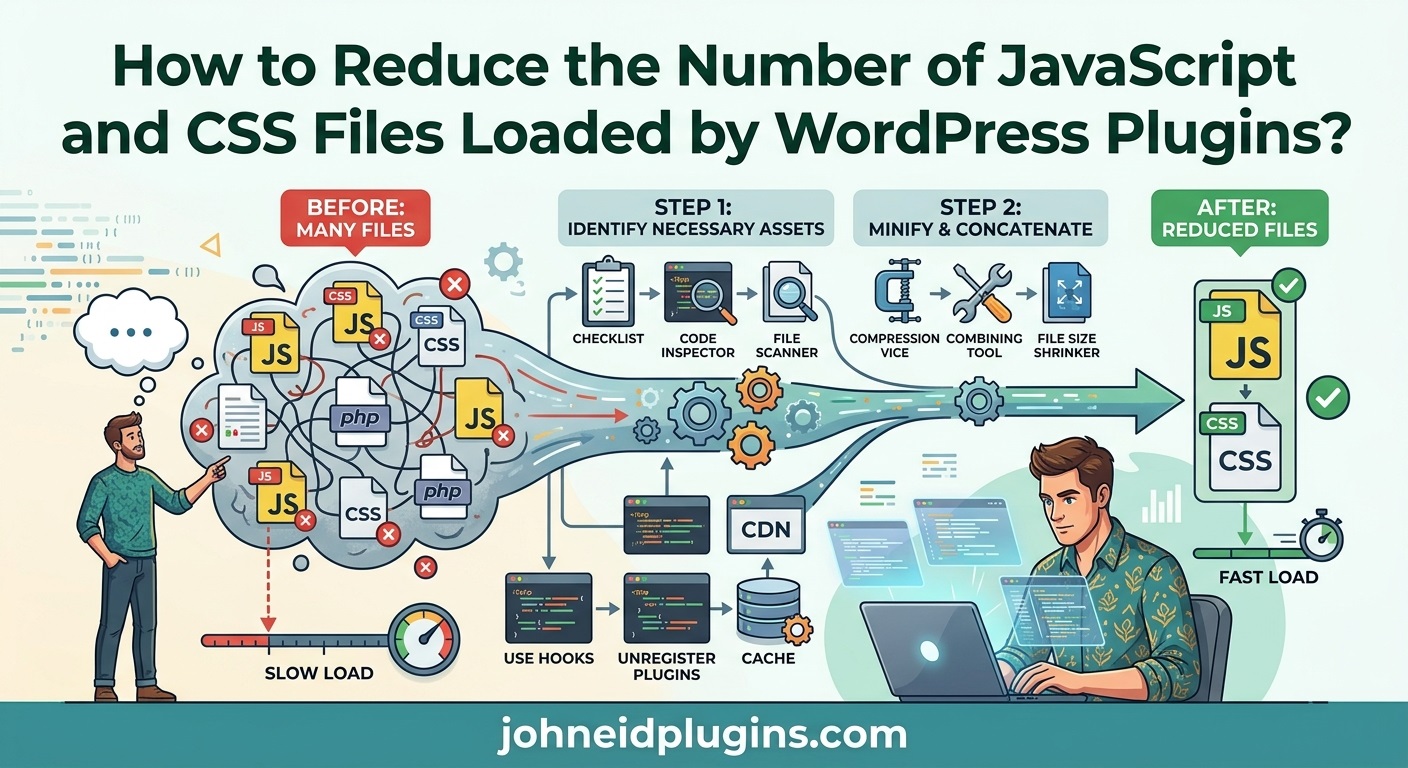
WordPress plugins make it possible to add sliders, contact forms, galleries, shopping features, security tools, analytics, and many other functions without developing everything from scratch. However, each plugin may load its own JavaScript and CSS files on the website’s frontend. When several plugins load multiple assets on every page, the number of HTTP requests can increase, potentially affecting page speed, rendering performance, and the overall user experience.
Reducing unnecessary JavaScript and CSS files is an important part of WordPress performance optimization. A well-optimized plugin should load only the assets it needs, only where they are required, and in a way that works correctly with other plugins and themes.
The objective is not simply to reduce the number of files at any cost. Combining or removing assets without understanding their dependencies can break interactive features, styling, or essential functionality. Instead, developers should identify unnecessary requests, improve asset-loading conditions, reduce duplicate libraries, and use appropriate optimization techniques.
This guide explains how to reduce the number of JavaScript and CSS files loaded by WordPress plugins using practical methods, PHP examples, and performance best practices.
1. Why WordPress Plugins Load Multiple JavaScript and CSS Files
WordPress plugins commonly use separate JavaScript and CSS files to keep their code organized and maintainable.
For example, an image slider plugin might load:
slider.jsfor slider functionality.slider.cssfor layout and appearance.navigation.jsfor next and previous controls.animations.jsfor transition effects.responsive.cssfor mobile styling.
A contact form plugin may load JavaScript for validation, AJAX submission, and conditional fields, along with CSS for form layouts and error messages.
This approach is not necessarily bad. Separate files can make development, debugging, and maintenance easier. The problem occurs when plugins load assets unnecessarily.
Consider a website with several plugins:
| Plugin | JavaScript files | CSS files |
|---|---|---|
| Image slider | 3 | 2 |
| Contact form | 2 | 2 |
| Gallery | 2 | 1 |
| Social sharing | 2 | 1 |
| Popup | 2 | 2 |
| Total | 11 | 8 |
If all these files load on every page, visitors may download assets for features they never use.
The impact depends on file size, caching, compression, network conditions, dependencies, and how the browser processes the files. The number of requests alone does not determine performance, but unnecessary requests are a useful optimization target.
2. Identify Which JavaScript and CSS Files Are Being Loaded
Before changing plugin code, identify which assets are actually being requested.
Optimizing without measuring can lead to unnecessary changes or broken functionality.
Use browser developer tools
Modern browsers include developer tools that show all network requests made by a webpage.
In Microsoft Edge or Google Chrome:
- Open the WordPress page you want to inspect.
- Press
F12. - Select the Network tab.
- Reload the page.
- Filter requests by JS to view JavaScript files.
- Filter requests by CSS to view stylesheet files.
- Inspect the file names, URLs, sizes, and loading times.
Pay attention to assets loaded by plugins even when their features are not visible on the page.
For example, if a gallery plugin loads its JavaScript on the homepage, contact page, and blog archive even though galleries appear only on a portfolio page, its asset-loading conditions may need improvement.
Use performance testing tools
You can also use tools such as:
- Google PageSpeed Insights to examine page performance and identify render-blocking resources.
- Chrome DevTools Network panel to inspect individual requests.
- WebPageTest to examine loading behavior under different network conditions.
- Lighthouse to identify performance opportunities.
These tools help developers understand whether JavaScript and CSS files are contributing to slow loading.
Check WordPress-generated asset handles
WordPress uses registered asset handles to manage scripts and styles.
For example:
wp_enqueue_script(
    'my-plugin-script',
    plugin_dir_url(__FILE__) . 'assets/js/plugin.js',
    array('jquery'),
    '1.0.0',
    true
);
Here, my-plugin-script is the script handle.
A stylesheet can be registered and loaded using:
wp_enqueue_style(
    'my-plugin-style',
    plugin_dir_url(__FILE__) . 'assets/css/plugin.css',
    array(),
    '1.0.0'
);
Understanding handles is important because WordPress provides functions for registering, enqueueing, and managing assets through them.
Read the official documentation for wp_enqueue_script() and wp_enqueue_style().
3. Load Plugin Assets Only on Pages That Need Them
One of the most effective ways to reduce unnecessary JavaScript and CSS requests is conditional asset loading.
Many poorly optimized plugins enqueue their scripts and styles globally. This means the assets load on every frontend page, even if the plugin’s functionality is not being used.
For example, a contact form plugin does not necessarily need to load its validation script on a page without a contact form.
Avoid loading assets globally
A common implementation looks like this:
function my_plugin_enqueue_assets() {

    wp_enqueue_style(
        'my-plugin-style',
        plugin_dir_url(__FILE__) . 'assets/css/style.css'
    );

    wp_enqueue_script(
        'my-plugin-script',
        plugin_dir_url(__FILE__) . 'assets/js/script.js',
        array('jquery'),
        '1.0.0',
        true
    );

}

add_action('wp_enqueue_scripts', 'my_plugin_enqueue_assets');
This code loads both files across the frontend.
Although it works, it may create unnecessary requests.
Use conditional loading
If your plugin provides a shortcode, you can load assets only when the shortcode is present in the current post content.
function my_plugin_enqueue_assets() {

    if ( ! is_singular() ) {
        return;
    }

    global $post;

    if ( ! $post || ! has_shortcode($post->post_content, 'my_plugin') ) {
        return;
    }

    wp_enqueue_style(
        'my-plugin-style',
        plugin_dir_url(__FILE__) . 'assets/css/style.css',
        array(),
        '1.0.0'
    );

    wp_enqueue_script(
        'my-plugin-script',
        plugin_dir_url(__FILE__) . 'assets/js/script.js',
        array('jquery'),
        '1.0.0',
        true
    );

}

add_action('wp_enqueue_scripts', 'my_plugin_enqueue_assets');
Now the plugin loads its assets only on singular posts or pages containing the [my_plugin] shortcode.
This approach is useful for:
- Image sliders.
- Logo carousels.
- Contact forms.
- Product galleries.
- Custom tabs.
- Booking interfaces.
- Shortcode-based widgets.
Important: has_shortcode() checks post content. It may not detect shortcodes generated dynamically, inserted through some widgets, or rendered by certain page-builder systems. If your plugin supports those use cases, consider a more comprehensive asset-detection strategy.
4. Use WordPress Conditional Tags for More Accurate Loading
WordPress provides conditional tags that allow developers to determine which type of page is being displayed.
Examples include:
is_front_page()– checks whether the current page is the site’s front page.is_home()– checks whether the current page displays blog posts.is_page()– checks whether the current request displays a page.is_single()– checks whether an individual post is displayed.is_archive()– checks archive pages.is_search()– checks search results.is_singular()– checks individual posts and pages.
For example, suppose a plugin provides a custom search interface that is required only on the website’s search results page.
You can conditionally load its assets:
function my_search_plugin_assets() {

    if ( ! is_search() ) {
        return;
    }

    wp_enqueue_style(
        'my-search-style',
        plugin_dir_url(__FILE__) . 'assets/css/search.css',
        array(),
        '1.0.0'
    );

    wp_enqueue_script(
        'my-search-script',
        plugin_dir_url(__FILE__) . 'assets/js/search.js',
        array(),
        '1.0.0',
        true
    );

}

add_action('wp_enqueue_scripts', 'my_search_plugin_assets');
This prevents the search-related files from loading on unrelated pages.
For additional information, see the WordPress conditional tags documentation.
5. Combine Multiple JavaScript Files Into One File
Another way to reduce HTTP requests is to combine related JavaScript files.
For example, a plugin might contain:
assets/js/
    slider-core.js
    slider-navigation.js
    slider-animation.js
If these files are always required together, developers may combine them into a single production file:
assets/js/
    slider.min.js
The combined file can contain the code from all three modules in the correct dependency order.
Then enqueue only the combined file:
function my_slider_enqueue_scripts() {

    wp_enqueue_script(
        'my-slider',
        plugin_dir_url(__FILE__) . 'assets/js/slider.min.js',
        array(),
        '1.0.0',
        true
    );

}

add_action('wp_enqueue_scripts', 'my_slider_enqueue_scripts');
Advantages of JavaScript file combination
- Fewer HTTP requests.
- Potentially lower request overhead.
- Easier production asset management.
- Better opportunities for minification.
- Reduced overhead from separately loading small files.
Important considerations
Combining JavaScript files is not always beneficial.
Modern HTTP/2 and HTTP/3 connections can handle multiple requests efficiently. Combining files may also cause visitors to download code they do not need, especially when a large combined bundle contains several unrelated features.
For this reason, combine files that are commonly needed together rather than creating one enormous JavaScript file for the entire plugin.
During development, keep the original source files separate. Use a build process to generate production bundles.
Tools such as Webpack and Vite can help developers bundle JavaScript modules and manage production assets.
6. Combine Multiple CSS Files Into a Single Stylesheet
The same principle applies to CSS.
A plugin may load multiple stylesheets:
assets/css/
    layout.css
    buttons.css
    responsive.css
    animations.css
If all four files are required for the same feature, they can be combined into:
assets/css/plugin.min.cssThe combined stylesheet should preserve the correct order of CSS rules because later declarations can override earlier ones.
Enqueue the production stylesheet:
function my_plugin_enqueue_styles() {

    wp_enqueue_style(
        'my-plugin-style',
        plugin_dir_url(__FILE__) . 'assets/css/plugin.min.css',
        array(),
        '1.0.0'
    );

}

add_action('wp_enqueue_scripts', 'my_plugin_enqueue_styles');
Preserve responsive styling
When combining stylesheets, make sure responsive rules remain intact.
For example:
.plugin-container {
    width: 100%;
    display: flex;
}

@media (max-width: 768px) {
    .plugin-container {
        display: block;
    }
}
Do not remove media queries simply because they appear to add complexity. They may be responsible for correct presentation on tablets and mobile devices.
Consider critical CSS
Some plugins provide above-the-fold features that require styling immediately, while other styles may be needed only after user interaction.
Developers can separate critical styles from non-critical styles when the implementation justifies it. However, CSS should not be deferred or delayed blindly, as doing so can cause layout shifts or temporarily unstyled content.
For CSS optimization concepts, consult web.dev’s CSS performance guidance.
7. Remove Duplicate JavaScript Libraries
A common source of unnecessary JavaScript is loading multiple copies of the same library.
For example, one plugin may load its own copy of a JavaScript utility library while another plugin loads a different copy.
This increases page weight and can create compatibility problems.
WordPress includes several commonly used JavaScript libraries, including jQuery. When a plugin needs jQuery, it should normally declare jquery as a dependency instead of loading a separate copy.
Correct implementation:
function my_plugin_enqueue_scripts() {

    wp_enqueue_script(
        'my-plugin-script',
        plugin_dir_url(__FILE__) . 'assets/js/plugin.js',
        array('jquery'),
        '1.0.0',
        true
    );

}

add_action('wp_enqueue_scripts', 'my_plugin_enqueue_scripts');
WordPress will resolve the registered jquery dependency.
Avoid manually loading another jQuery copy
Do not unnecessarily include code like this:
wp_enqueue_script(
    'custom-jquery',
    'https://example.com/jquery.min.js',
    array(),
    '3.7.1',
    true
);
This example illustrates a separate library being loaded under a custom handle. If the plugin only needs WordPress’s registered jQuery, use the existing dependency instead.
Check other shared libraries
The same principle applies to libraries such as:
- Select2.
- Chart.js.
- Swiper.
- Bootstrap.
- Lightbox libraries.
- Icon libraries.
However, do not assume that two files with the same library name are interchangeable. Different versions, configurations, or customized builds may be required by different plugins.
A safe optimization process is to identify the actual library version, test compatibility, and establish a shared dependency only when the plugins can use the same implementation.
8. Register Scripts and Styles Before Enqueueing Them
WordPress provides separate functions for registering and enqueueing assets.
wp_register_script()registers a JavaScript file.wp_enqueue_script()registers and queues a script if necessary.wp_register_style()registers a stylesheet.wp_enqueue_style()registers and queues a stylesheet.
Registration is useful when an asset may be needed only in certain circumstances.
For example:
function my_plugin_register_assets() {

    wp_register_style(
        'my-plugin-style',
        plugin_dir_url(__FILE__) . 'assets/css/plugin.css',
        array(),
        '1.0.0'
    );

    wp_register_script(
        'my-plugin-script',
        plugin_dir_url(__FILE__) . 'assets/js/plugin.js',
        array('jquery'),
        '1.0.0',
        true
    );

}

add_action('wp_enqueue_scripts', 'my_plugin_register_assets');
You can then enqueue the registered assets when the feature is required:
function my_plugin_load_assets() {

    if ( ! is_singular() ) {
        return;
    }

    global $post;

    if ( $post && has_shortcode($post->post_content, 'my_plugin') ) {

        wp_enqueue_style('my-plugin-style');

        wp_enqueue_script('my-plugin-script');

    }

}

add_action('wp_enqueue_scripts', 'my_plugin_load_assets', 20);
This separates asset registration from asset loading and makes the code easier to maintain.
Read the official references for wp_register_script() and wp_register_style().
9. Load JavaScript in the Footer When Appropriate
JavaScript files can be loaded in the document head or footer.
Historically, many plugins loaded scripts in the head, which could delay HTML rendering when scripts were not configured to load asynchronously or defer execution.
The fifth parameter of wp_enqueue_script() can specify footer loading:
wp_enqueue_script(
    'my-plugin-script',
    plugin_dir_url(__FILE__) . 'assets/js/plugin.js',
    array('jquery'),
    '1.0.0',
    true
);
The final true requests that the script be placed in the footer.
This can help the browser render more of the page before encountering the script, depending on the page structure and script dependencies.
Use the defer strategy where appropriate
Modern WordPress versions support script loading strategies through the $args parameter of wp_enqueue_script().
For example:
wp_enqueue_script(
    'my-plugin-script',
    plugin_dir_url(__FILE__) . 'assets/js/plugin.js',
    array(),
    '1.0.0',
    array(
        'in_footer' => true,
        'strategy'  => 'defer',
    )
);
The defer strategy allows the browser to download the script without blocking HTML parsing and execute it after parsing is complete.
However, script loading strategies must be selected carefully. A script that depends on another script may require execution order to be preserved. WordPress considers dependencies when applying loading strategies, but developers should still test the resulting behavior.
Do not apply async or defer indiscriminately to every script. Scripts that depend on immediate execution, document parsing, or specific initialization order may break.
See the official wp_enqueue_script() reference for supported loading strategies and parameters.
10. Unload Plugin Assets on Pages Where They Are Not Needed
Sometimes a plugin cannot be modified directly, but its assets are loaded unnecessarily.
In such cases, developers may use wp_dequeue_script() and wp_dequeue_style() to remove selected assets from the queue.
For example:
function remove_unnecessary_plugin_assets() {

    if ( ! is_page('contact') ) {

        wp_dequeue_script('contact-form-script');
        wp_dequeue_style('contact-form-style');

    }

}

add_action('wp_enqueue_scripts', 'remove_unnecessary_plugin_assets', 100);
This example assumes the handles are registered by the contact form plugin.
Difference between dequeue and deregister
These functions have different purposes:
wp_dequeue_script()removes a script from the queue.wp_deregister_script()removes a registered script.wp_dequeue_style()removes a stylesheet from the queue.wp_deregister_style()removes a registered stylesheet.
For most asset optimization tasks, dequeueing is preferable because it removes an asset from the current loading queue without necessarily deleting its registration.
Be careful with dependencies
If another script depends on the asset you remove, the dependent functionality may fail.
For example, removing a library used by a slider may prevent the slider from initializing.
Always inspect dependencies and test the pages that use the affected plugin.
11. Avoid Loading Separate CSS and JavaScript for Every Small Feature
Some plugins are developed with a separate file for each small component.
For example:
assets/
    css/
        button.css
        tooltip.css
        modal.css
        tabs.css
        accordion.css
    js/
        button.js
        tooltip.js
        modal.js
        tabs.js
        accordion.js
This structure can be useful during development, but loading all ten files individually may be unnecessary.
A better production strategy is to group features that are commonly used together.
For example:
assets/
    css/
        frontend.min.css
    js/
        frontend.min.js
If different features are used independently, developers can create a small number of feature bundles instead:
assets/
    css/
        frontend-core.min.css
        gallery.min.css
        forms.min.css
    js/
        frontend-core.min.js
        gallery.min.js
        forms.min.js
The plugin can then load only the relevant bundle.
This balances maintainability with request reduction.
12. Minify JavaScript and CSS Files
Minification removes unnecessary characters from source files without changing their intended functionality.
It can remove:
- Comments.
- Extra whitespace.
- Unnecessary line breaks.
- Some redundant formatting.
- Other removable characters.
For example, readable CSS:
.plugin-button {
    background-color: #222222;
    color: #ffffff;
    padding: 10px 20px;
}
Minified CSS:
.plugin-button{background-color:#222;color:#fff;padding:10px 20px}Minification does not necessarily reduce the number of requests, but it reduces file size and can improve transfer performance.
Common tools include:
- Terser for JavaScript.
- cssnano for CSS.
- esbuild for JavaScript and CSS processing.
- Vite for modern frontend build workflows.
For production plugins, retain readable source files and generate minified files as part of the build process.
Make sure source maps and debugging workflows are configured appropriately for development.
13. Use Asset Dependencies Correctly
WordPress supports dependencies for both JavaScript and CSS.
Dependencies help ensure that required assets are loaded before the assets that depend on them.
For example:
wp_enqueue_script(
    'my-plugin-frontend',
    plugin_dir_url(__FILE__) . 'assets/js/frontend.js',
    array('jquery'),
    '1.0.0',
    true
);
The jquery dependency tells WordPress that the plugin script requires jQuery.
For stylesheets:
wp_enqueue_style(
    'my-plugin-theme',
    plugin_dir_url(__FILE__) . 'assets/css/theme.css',
    array('my-plugin-base'),
    '1.0.0'
);
This declares that the theme stylesheet depends on the registered my-plugin-base stylesheet.
Correct dependencies help avoid duplicate or incorrectly ordered asset loading.
However, dependencies should reflect genuine requirements. Adding unnecessary dependencies can cause additional files to load and reduce the effectiveness of conditional asset management.
14. Avoid Loading Plugin Assets in the WordPress Admin Area Unnecessarily
Frontend assets and admin assets serve different purposes.
A plugin may require JavaScript and CSS for its settings page, dashboard widget, or administrative interface. Those assets should not normally be loaded across every WordPress admin screen.
Use the admin_enqueue_scripts hook and inspect the current screen.
function my_plugin_admin_assets($hook) {

    if ( 'settings_page_my-plugin' !== $hook ) {
        return;
    }

    wp_enqueue_style(
        'my-plugin-admin-style',
        plugin_dir_url(__FILE__) . 'assets/css/admin.css',
        array(),
        '1.0.0'
    );

    wp_enqueue_script(
        'my-plugin-admin-script',
        plugin_dir_url(__FILE__) . 'assets/js/admin.js',
        array('jquery'),
        '1.0.0',
        true
    );

}

add_action('admin_enqueue_scripts', 'my_plugin_admin_assets');
The $hook value should match the actual admin page hook generated by your plugin.
This prevents admin-only assets from loading on unrelated screens, such as the Posts, Pages, Media, and Plugins screens.
See the WordPress administration scripts and styles documentation.
15. Use a Build Process to Manage Production Assets
For larger plugins, manually maintaining combined and minified files becomes difficult.
A build process can automate:
- JavaScript bundling.
- CSS bundling.
- Minification.
- Dependency management.
- Asset version generation.
- Production file output.
For example, a development directory might look like this:
my-plugin/
    src/
        js/
            frontend.js
            slider.js
            navigation.js
        css/
            frontend.css
            slider.css
    build/
        frontend.min.js
        frontend.min.css
    my-plugin.php
The developer edits files in src/, then runs the build process to generate production assets in build/.
The plugin loads only the generated production files.
This approach makes it easier to maintain clean source code while delivering optimized assets to visitors.
For WordPress-specific JavaScript development, the WordPress Scripts package provides a build workflow that integrates with the WordPress development ecosystem.
16. Use Plugin-Specific Asset Loading for Shortcodes and Blocks
Shortcodes and blocks introduce different asset-loading considerations.
A shortcode can be detected in post content, as shown earlier. However, a block-based plugin should also consider whether its block is present on the current page.
WordPress block registration supports frontend script and style metadata. For example, a block can declare its frontend stylesheet through block.json:
{
    "apiVersion": 3,
    "name": "my-plugin/example",
    "title": "Example Block",
    "category": "widgets",
    "style": "file:./style.css",
    "editorScript": "file:./index.js"
}
The style property identifies the stylesheet used for both the editor and frontend. WordPress can manage registered block assets according to the block’s usage and registration configuration.
For more advanced block development, WordPress also supports separate frontend and editor styles through metadata such as viewStyle and editorStyle.
This can help avoid loading editor-only styling on the frontend or frontend-only styling inside the editor.
Read the WordPress Block Metadata documentation.
17. Test Plugin Functionality After Reducing Assets
Reducing the number of loaded files is useful only when the plugin continues to work correctly.
Removing a stylesheet may cause layout problems. Combining scripts in the wrong order may stop interactive features from working. Deferring a script may affect initialization.
After making changes, test the following:
- All plugin shortcodes.
- Gutenberg blocks.
- Page-builder integrations.
- Forms and validation.
- AJAX requests.
- Sliders and carousels.
- Modals and popups.
- Responsive layouts.
- Mobile navigation.
- Admin settings pages.
- Browser console errors.
- Pages using caching or optimization plugins.
Test in multiple browsers and screen sizes.
Also test with other active plugins because WordPress websites often contain multiple components that share libraries or interact with the same frontend elements.
A staging website is preferable for testing performance changes before deploying them to a live site.
18. Common Mistakes to Avoid When Optimizing Plugin Assets
Some optimization methods can create more problems than they solve.
Removing assets without checking dependencies
A script may appear unnecessary but could be required by another plugin. Check registered dependencies before dequeuing it.
Combining every file into one large bundle
A very large bundle can force visitors to download code they do not need. Group assets by feature and usage.
Loading assets based only on the homepage
A plugin may also be used on category pages, custom post types, landing pages, or dynamically generated content. Make sure your conditions cover all supported locations.
Removing jQuery without testing
Some plugins still depend on jQuery. Removing it can break functionality across the site.
Using asynchronous loading without checking execution order
async scripts do not guarantee execution order. Scripts that depend on other scripts may fail.
Editing third-party plugin files directly
Direct modifications can be overwritten during plugin updates. Prefer plugin settings, supported hooks, child themes where appropriate, or a small custom compatibility plugin.
Relying only on the number of requests
A reduction in requests does not automatically guarantee faster loading. Compare total transferred bytes, rendering behavior, execution time, and real user performance.
19. Recommended WordPress Plugin Asset Optimization Checklist
Before releasing an optimized plugin, use the following checklist:
- Identify all JavaScript and CSS files loaded by the plugin.
- Remove unnecessary global asset loading.
- Load frontend assets only on relevant pages.
- Load admin assets only on the plugin’s administrative screens.
- Check for duplicate JavaScript libraries.
- Declare script and stylesheet dependencies correctly.
- Combine related files where appropriate.
- Minify production JavaScript and CSS.
- Use footer loading or
deferwhere appropriate. - Avoid unnecessary
asyncloading for dependent scripts. - Test shortcodes, blocks, widgets, and page-builder integrations.
- Check for JavaScript errors and missing stylesheets.
- Test mobile and desktop layouts.
- Compare performance before and after optimization.
Following this checklist helps developers reduce unnecessary asset requests without sacrificing plugin functionality.
20. Conclusion
Reducing the number of JavaScript and CSS files loaded by WordPress plugins is an important part of building faster and more efficient websites. Plugins should not load every asset on every page when only a small portion of their functionality is being used.
Developers can improve asset management by using conditional loading, registering scripts and styles before enqueueing them, combining related files, removing duplicate libraries, managing dependencies, and separating frontend assets from administrative assets.
Minification and modern JavaScript loading strategies can further improve delivery performance. However, these techniques should complement proper asset management rather than replace it.
The most effective approach is to measure the website, identify unnecessary requests, make targeted changes, and test the results. A carefully optimized plugin delivers only the resources required for the current page while maintaining compatibility with WordPress themes, other plugins, and different devices.
Ultimately, reducing unnecessary JavaScript and CSS requests is not just about achieving a better performance score. It is about creating a more efficient WordPress experience for website owners and visitors.
Frequently Asked Questions (FAQs)
1. Why do WordPress plugins load so many JavaScript and CSS files?
Plugins use JavaScript and CSS for interactive features, layouts, animations, forms, sliders, and other functionality. Some plugins load all their assets globally instead of checking whether a particular feature is being used on the current page.
2. How can I stop a WordPress plugin from loading CSS on every page?
You can modify the plugin’s asset-loading function to use conditional tags, shortcode detection, or block-related asset registration. Enqueue the stylesheet only when the relevant feature is required.
3. Does combining JavaScript files improve WordPress speed?
Combining related JavaScript files can reduce HTTP requests and request overhead. However, a large combined file may contain unnecessary code. The best approach depends on the website’s HTTP protocol, caching, bundle size, and asset usage.
4. Can I remove unused CSS and JavaScript from a plugin?
Yes. You can use wp_dequeue_style() and wp_dequeue_script() to remove registered assets from the loading queue. First check whether other plugin features depend on those assets.
5. Is it better to load JavaScript in the footer?
Footer loading can allow more of the page content to be processed before the browser encounters a script. However, it is not suitable for every script. Dependencies and initialization requirements must be considered.
6. What is the difference between defer and async in WordPress?
Both strategies allow scripts to download without blocking HTML parsing. Deferred scripts execute after document parsing and preserve execution order. Asynchronous scripts execute as soon as they are available and do not guarantee execution order.
7. Does WordPress automatically prevent duplicate JavaScript libraries?
WordPress manages registered scripts through unique handles and dependencies. If plugins use the same registered library correctly, WordPress can avoid loading it repeatedly. However, plugins that bundle or independently load different copies can still create duplication.
8. How can I check which plugin is loading a particular JavaScript file?
Open browser developer tools and inspect the Network tab. Look at the requested file URL and its directory path. Plugin asset URLs commonly contain /wp-content/plugins/plugin-folder/. You can also inspect the script handle in the generated HTML.
9. Will reducing CSS and JavaScript files improve Core Web Vitals?
It can help when unnecessary assets contribute to render-blocking resources, excessive network requests, or JavaScript execution overhead. However, Core Web Vitals also depend on image optimization, server response time, layout stability, fonts, and other factors.
10. Should plugin developers use a caching plugin to optimize assets?
Caching and optimization plugins can help with minification, file combination, and delivery optimization. However, plugin developers should optimize their own asset-loading logic first. A caching plugin cannot reliably compensate for every unnecessary asset request, and aggressive optimization may introduce compatibility issues.