WordPress is a powerful content management system that allows website owners to extend website functionality through plugins, themes, and custom PHP development. One of its useful features is the Shortcode API, which enables developers to add dynamic content to posts, pages, widgets, and other supported content areas without requiring users to write complicated code.
Many popular WordPress plugins use shortcodes to display contact forms, image galleries, sliders, product listings, testimonials, pricing tables, booking forms, and other interactive elements. However, website owners are not limited to using shortcodes provided by existing plugins. Developers can also create their own custom shortcodes using PHP.
Creating a custom shortcode is particularly useful when you want to display reusable content across multiple website pages. Instead of repeatedly writing the same HTML and PHP code, you can register a shortcode once and insert it wherever the functionality is required.
For example, you might want to display a custom notification box, business contact information, promotional banner, service description, dynamic date, or product information. A properly developed shortcode makes these features easier to manage and reuse.
The WordPress Shortcode API provides functions such as add_shortcode(), shortcode_atts(), and do_shortcode() to help developers implement this functionality.
In this tutorial, you will learn how to create a custom shortcode in WordPress using PHP, register it through a plugin, accept shortcode attributes, generate dynamic content, support nested shortcodes, and follow security and coding best practices.
1. What Is a WordPress Shortcode?
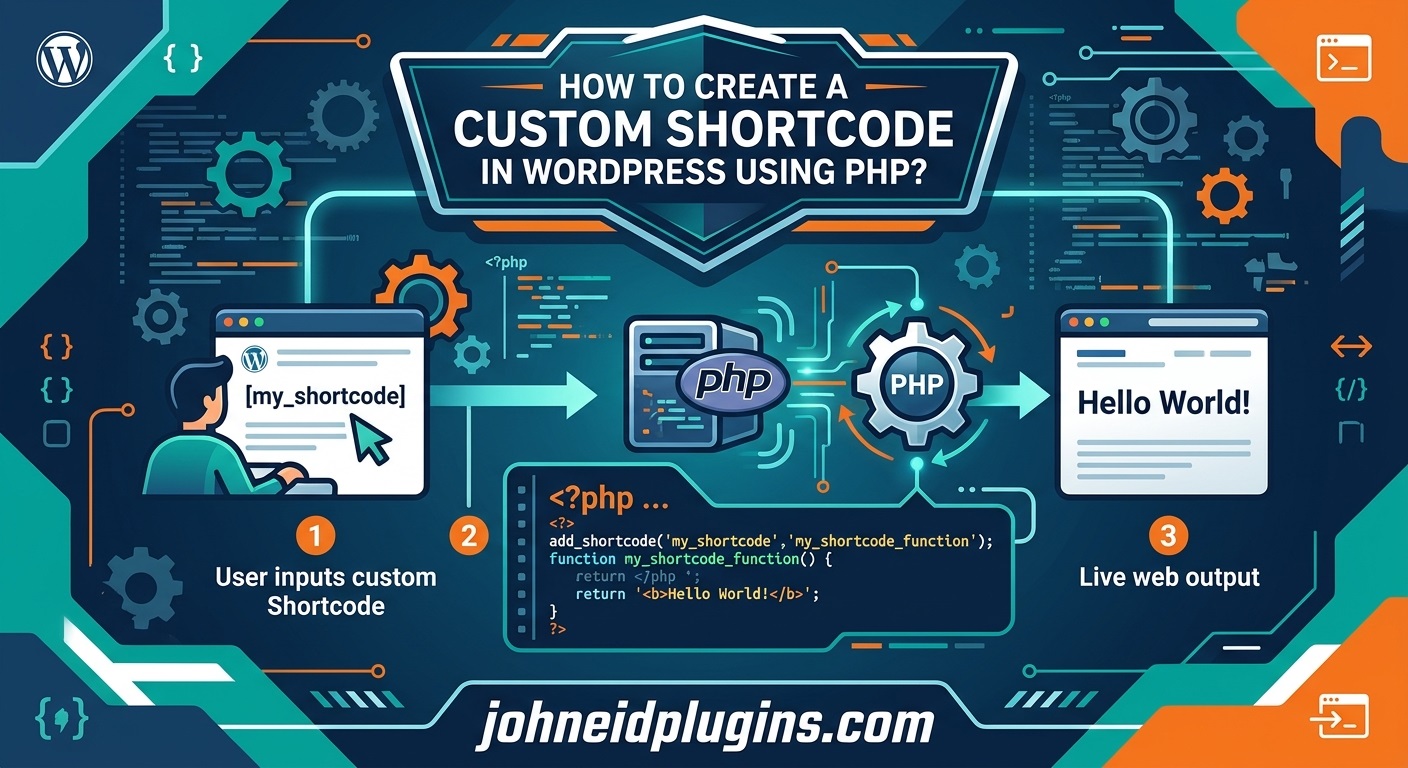
A WordPress shortcode is a small text-based instruction enclosed in square brackets that tells WordPress to execute a registered function and display its output.
For example:
[my_custom_shortcode]
When WordPress processes this shortcode, it looks for a registered shortcode handler. If a matching handler exists, WordPress executes its callback function and replaces the shortcode with the generated content.
A shortcode can also accept attributes.
For example:
[business_info name="ABC Solutions" phone="123456789"]
In this example, the shortcode passes two values to the associated PHP function:
nameidentifies the business.phoneprovides the contact number.
The PHP callback can use these values to generate HTML dynamically.
WordPress shortcodes can be used in many situations, including:
- Displaying reusable content.
- Creating custom buttons.
- Showing business contact information.
- Displaying product details.
- Creating promotional banners.
- Embedding custom forms.
- Showing dynamic website information.
- Integrating plugin functionality into pages.
- Displaying content generated from database records.
You can learn more about the functionality through the official WordPress Shortcode API documentation.
2. Understand How the WordPress Shortcode API Works
Before writing your first custom shortcode, it is useful to understand the basic processing mechanism.
WordPress provides the add_shortcode() function to register a shortcode and associate it with a PHP callback.
The function accepts two main parameters:
add_shortcode( $tag, $callback );
Here:
$tagis the shortcode name that users enter between square brackets.$callbackis the PHP function responsible for generating the output.
For example:
function my_custom_shortcode() {
    return 'Hello from my custom shortcode!';
}

add_shortcode( 'my_custom_shortcode', 'my_custom_shortcode' );
After registering this shortcode, you can insert the following into a supported WordPress content area:
[my_custom_shortcode]
WordPress will execute the callback and display:
Hello from my custom shortcode!
One important rule is that shortcode callback functions should return their output instead of directly echoing it.
Using return ensures that WordPress can insert the generated content at the correct location in the page.
You can review the official add_shortcode() function reference for additional technical information.
3. Choose the Right Location for Your Custom Shortcode Code
There are several ways to add custom PHP functionality to WordPress.
However, choosing the correct location is important for long-term maintenance.
Common options include:
Using a custom plugin: A custom plugin is generally the recommended approach when shortcode functionality should remain available regardless of the active theme.
Using a child theme: You can add shortcode functionality to a child theme when the feature is closely related to the website’s presentation or theme-specific functionality.
Using a code snippets plugin: This option can be convenient for smaller PHP customizations, provided the snippet is managed carefully and compatible with your WordPress environment.
For business websites and reusable functionality, creating a dedicated custom plugin is usually the better approach.
If you add shortcode code directly to a parent theme’s functions.php file, changing or updating the theme may remove or disable that functionality.
A custom plugin avoids this dependency.
4. Create Your First Custom WordPress Shortcode Using PHP
Let’s start with a simple example.
Suppose you want to display a custom message anywhere on your website.
You can create a shortcode named:
[business_message]
When inserted into a page, it will display a predefined message.
First, create a PHP function:
function johneid_business_message() {
    return '<div class="business-message">
        Welcome to our business website!
    </div>';
}
Next, register the shortcode:
add_shortcode(
    'business_message',
    'johneid_business_message'
);
You can combine both pieces of code:
function johneid_business_message() {

    return '<div class="business-message">
        Welcome to our business website!
    </div>';

}

add_shortcode(
    'business_message',
    'johneid_business_message'
);
Now insert the following shortcode into a WordPress page or post:
[business_message]
WordPress will replace it with the generated HTML.
This is the simplest method of creating a custom WordPress shortcode using PHP.
However, a more practical shortcode should allow users to customize its output. This can be achieved using shortcode attributes.
5. Create a Custom Shortcode With Attributes
Shortcode attributes allow website administrators to change the generated output without modifying PHP code.
For example, consider a notification shortcode that displays different messages depending on the attributes provided.
You might want to use:
[business_notice title="Important Update" message="Our website has been updated."]
To implement this functionality, you can use the WordPress shortcode_atts() function.
This function combines the supplied attributes with predefined default values and ignores unsupported attributes.
Here is an example:
function johneid_business_notice( $atts ) {

    $atts = shortcode_atts(
        array(
            'title'   => 'Notice',
            'message' => 'Welcome to our website!',
        ),
        $atts,
        'business_notice'
    );

    return '<div class="business-notice">
        <h3>' . esc_html( $atts['title'] ) . '</h3>
        <p>' . esc_html( $atts['message'] ) . '</p>
    </div>';

}

add_shortcode(
    'business_notice',
    'johneid_business_notice'
);
Now you can insert:
[business_notice title="Special Offer" message="Contact us for more information."]
The shortcode will generate a notification box using the supplied information.
If no attributes are provided, WordPress will use the default title and message.
Notice the use of esc_html() when displaying attribute values. This is important because shortcode attributes may contain user-controlled information.
For additional information, see the official shortcode_atts() function reference.
6. Create a Shortcode That Accepts Multiple Attributes
As shortcode functionality becomes more advanced, you may need several attributes to control its appearance and behavior.
For example, a business information shortcode might support:
- Business name.
- Phone number.
- Email address.
- Website URL.
- Display style.
- Heading text.
Here is an example:
function johneid_business_details( $atts ) {

    $atts = shortcode_atts(
        array(
            'name'    => 'My Business',
            'phone'   => '',
            'email'   => '',
            'website' => '',
        ),
        $atts,
        'business_details'
    );

    $output = '<div class="business-details">';

    $output .= '<h3>' .
        esc_html( $atts['name'] ) .
        '</h3>';

    if ( ! empty( $atts['phone'] ) ) {
        $output .= '<p>Phone: ' .
            esc_html( $atts['phone'] ) .
            '</p>';
    }

    if ( ! empty( $atts['email'] ) ) {
        $output .= '<p>Email: ' .
            esc_html( $atts['email'] ) .
            '</p>';
    }

    if ( ! empty( $atts['website'] ) ) {
        $output .= '<p><a href="' .
            esc_url( $atts['website'] ) .
            '">Visit Website</a></p>';
    }

    $output .= '</div>';

    return $output;

}

add_shortcode(
    'business_details',
    'johneid_business_details'
);
You can use the shortcode like this:
[business_details name="ABC Solutions" phone="123456789" email="info@example.com" website="https://example.com"]
This example demonstrates how a single shortcode can generate different output based on the supplied attributes.
It also demonstrates the appropriate use of esc_html() for text and esc_url() for URLs.
7. Create a Complete Custom Shortcode Plugin
Although adding a shortcode through a theme or code snippets plugin can work, creating a dedicated plugin provides a more organized development structure.
Let’s create a simple custom plugin that registers a business information shortcode.
Step 1: Create a plugin directory
Open your WordPress installation directory and navigate to:
wp-content/plugins/
Create a new folder named:
johneid-custom-shortcodes
Step 2: Create the main PHP file
Inside this folder, create:
johneid-custom-shortcodes.php
Step 3: Add the WordPress plugin header
Insert the following code:
<?php
/**
 * Plugin Name: Johneid Custom Shortcodes
 * Description: Adds reusable custom business shortcodes to WordPress.
 * Version: 1.0.0
 * Author: Johneid Plugins
 * License: GPL-2.0-or-later
 * Text Domain: johneid-custom-shortcodes
 */

if ( ! defined( 'ABSPATH' ) ) {
    exit;
}
The plugin header provides WordPress with information about your plugin.
The ABSPATH check prevents direct access to the PHP file outside the WordPress environment.
Step 4: Register your custom shortcode
Add the following code below the plugin header:
function johneid_custom_business_info( $atts ) {

    $atts = shortcode_atts(
        array(
            'title' => 'Our Business',
            'text'  => 'Welcome to our website.',
        ),
        $atts,
        'johneid_business_info'
    );

    $output = '<div class="johneid-business-info">';

    $output .= '<h3>' .
        esc_html( $atts['title'] ) .
        '</h3>';

    $output .= '<p>' .
        esc_html( $atts['text'] ) .
        '</p>';

    $output .= '</div>';

    return $output;
}

add_shortcode(
    'johneid_business_info',
    'johneid_custom_business_info'
);
Step 5: Activate the plugin
Log in to your WordPress administration dashboard.
Navigate to Plugins > Installed Plugins.
Locate Johneid Custom Shortcodes and click Activate.
Step 6: Insert the shortcode
Open any suitable WordPress page or post and insert:
[johneid_business_info title="About Our Company" text="We provide professional web development services."]
Save the page and preview it.
Your custom business information should now appear wherever the shortcode is inserted.
This approach provides a reusable shortcode that remains available even when you change your WordPress theme.
8. Create an Enclosing Shortcode Using PHP
Not all WordPress shortcodes work independently.
Some shortcodes are designed to contain text or other content between opening and closing tags.
For example:
[custom_box]This is my custom content.[/custom_box]
This is called an enclosing shortcode.
To create one, the callback function needs to accept the $content parameter.
Example:
function johneid_custom_box( $atts, $content = null ) {

    $atts = shortcode_atts(
        array(
            'class' => 'custom-box',
        ),
        $atts,
        'custom_box'
    );

    return '<div class="' .
        esc_attr( $atts['class'] ) .
        '">' .
        wp_kses_post( $content ) .
        '</div>';
}

add_shortcode(
    'custom_box',
    'johneid_custom_box'
);
You can use it like this:
[custom_box class="highlight-box"]This is important information.[/custom_box]
The shortcode generates a container with a CSS class and displays the enclosed content.
The wp_kses_post() function allows HTML considered safe for WordPress post content while removing disallowed markup.
This approach is useful for:
- Highlighted content boxes.
- Promotional sections.
- Custom message containers.
- Information panels.
- Reusable content layouts.
- Styled text sections.
9. Support Nested Shortcodes
Sometimes you may want one shortcode to process another shortcode inside its content.
For example:
[custom_box]Welcome to our website. [business_notice][/custom_box]
By default, the enclosed content of a shortcode is not automatically processed for nested shortcodes.
To support nested shortcodes, you can use the do_shortcode() function.
Example:
function johneid_nested_box( $atts, $content = null ) {

    $content = do_shortcode( $content );

    return '<div class="nested-box">' .
        $content .
        '</div>';
}

add_shortcode(
    'nested_box',
    'johneid_nested_box'
);
Now WordPress can process registered shortcodes inside the enclosing shortcode’s content.
This is particularly useful when building reusable content layouts that combine several shortcode-based features.
For example, a custom content box might contain a contact form shortcode, a button shortcode, or a product information shortcode.
You can read more about do_shortcode() in the official WordPress function reference.
10. Create a Dynamic Shortcode Using WordPress Functions
Custom shortcodes become more powerful when they generate information dynamically.
Instead of displaying fixed text, you can retrieve information from WordPress and display it automatically.
For example, you might want to display the current year in a website footer.
Create the following shortcode:
function johneid_current_year() {

    return esc_html( wp_date( 'Y' ) );

}

add_shortcode(
    'current_year',
    'johneid_current_year'
);
Insert:
[current_year]
WordPress will display the current year automatically.
This is useful for copyright notices:
Copyright [current_year] Your Business Name. All rights reserved.
Other examples of dynamic shortcode functionality include:
- Displaying the current date.
- Showing the current user’s information.
- Retrieving recent blog posts.
- Displaying selected product information.
- Showing custom post type content.
- Displaying database-generated information.
- Showing content based on user permissions.
When retrieving private information, always verify that the current user is authorized to access it.
Dynamic shortcodes should also be optimized to avoid unnecessary database queries, particularly when they are used on multiple pages.
11. Add CSS Styling to Your Custom Shortcode
PHP generates the shortcode output, but CSS controls its visual appearance.
For example, the business information shortcode might generate:
<div class="johneid-business-info">
    <h3>About Our Company</h3>
    <p>We provide professional services.</p>
</div>
You can style this output using CSS:
.johneid-business-info {
    background: #f5f7fa;
    border: 1px solid #dddddd;
    padding: 20px;
    margin: 20px 0;
    border-radius: 6px;
}

.johneid-business-info h3 {
    margin-top: 0;
    color: #222222;
    font-size: 22px;
}

.johneid-business-info p {
    margin-bottom: 0;
    line-height: 1.7;
}
There are different ways to include CSS in a WordPress plugin.
For a simple demonstration, you can add the CSS to your theme’s custom CSS area.
For a production plugin, it is better to create a separate stylesheet and enqueue it through WordPress.
For example:
function johneid_shortcode_styles() {

    wp_enqueue_style(
        'johneid-shortcode-style',
        plugin_dir_url( __FILE__ ) . 'assets/css/style.css',
        array(),
        '1.0.0'
    );

}

add_action(
    'wp_enqueue_scripts',
    'johneid_shortcode_styles'
);
Create the following directory structure:
johneid-custom-shortcodes/assets/css/style.css
Place your CSS code inside that file.
The wp_enqueue_style() function allows WordPress to manage stylesheet loading properly.
For additional information, consult the WordPress CSS and JavaScript enqueue documentation.
For larger plugins, consider conditionally loading styles only on pages where the shortcode is actually used. This can reduce unnecessary frontend resources.
12. Follow WordPress Security Best Practices
Security should be considered whenever you create custom PHP functionality.
A shortcode may receive information directly from page editors or other users. If this information is displayed without proper handling, it may introduce security vulnerabilities.
Some important practices include:
Escape text output: Use esc_html() when displaying plain text.
Escape HTML attributes: Use esc_attr() when placing values inside HTML attributes.
Escape URLs: Use esc_url() when displaying links.
Filter permitted HTML: Use wp_kses_post() when allowing safe post-style HTML.
Validate input: Check that values match the expected format before using them.
Check user permissions: Protect administrative operations and private information using appropriate capability checks.
Use nonces where appropriate: Verify requests that perform actions or modify data.
Use prepared database queries: Avoid directly inserting untrusted values into SQL queries.
For example, consider a shortcode attribute containing a website URL.
It should not be inserted directly into an HTML link without validation and escaping.
Use:
esc_url( $atts['website'] )Similarly, plain text should be displayed using:
esc_html( $atts['title'] )You can explore these practices in the official WordPress Plugin Security Handbook.
Also review the OWASP Top 10 to understand common web application security risks.
13. Use Unique Function Names and Shortcode Tags
WordPress websites may contain dozens of plugins and custom functions.
If two plugins register the same shortcode name, one registration can override the other depending on the loading order.
For example, two plugins might both register:
[business_info]
This can create unexpected behavior.
To reduce the possibility of conflicts, use a unique prefix in your function names and shortcode tags.
For example:
johneid_business_infojohneid_custom_buttonjohneid_current_yearjohneid_product_details
Avoid generic function names such as custom_shortcode() or display_content() in production plugins.
For larger projects, PHP namespaces and object-oriented plugin architecture can provide additional organization.
The official WordPress Plugin Best Practices guide provides further recommendations.
14. Test Your Custom Shortcode Before Publishing
After creating a custom shortcode, test it in different WordPress environments and content areas.
Do not assume that successful registration automatically means the shortcode works correctly in every situation.
A useful testing checklist includes:
Basic functionality: Verify that the shortcode displays the expected output.
Attribute testing: Check whether custom attribute values are processed correctly.
Default values: Confirm that missing attributes use the intended defaults.
Empty values: Test what happens when an attribute is left blank.
Invalid input: Check how the shortcode handles unexpected information.
Frontend appearance: Verify that generated content displays correctly.
Responsive behavior: Test the output on desktop, tablet, and mobile devices.
Plugin compatibility: Check whether the shortcode works alongside other important plugins.
Theme compatibility: Verify its appearance with the active theme.
Security: Test whether user-provided content is handled safely.
Error handling: Check how the shortcode behaves when required information is unavailable.
You should also test the shortcode on a staging website before deploying it to a production environment.
For larger projects, consider automated PHP tests using PHPUnit and the WordPress testing framework.
15. Common Problems When Creating Custom WordPress Shortcodes
Even a relatively simple shortcode can encounter problems during development.
Understanding common errors makes troubleshooting easier.
Shortcode displays as plain text
This may happen when the shortcode has not been registered, the plugin is inactive, or the shortcode is inserted into an unsupported content area.
Check the add_shortcode() registration and make sure the plugin is activated.
Shortcode output appears in the wrong location
This problem often occurs when the callback uses echo instead of return.
Shortcode callbacks should return the generated content.
Shortcode attributes are not working
Check the attribute names and ensure they are included in the shortcode_atts() defaults array.
Remember that WordPress converts shortcode attribute names to lowercase before passing them to the callback.
PHP fatal errors occur
Check function names, syntax, file loading, and PHP compatibility.
Enable WordPress debugging in a safe development environment to identify the problem.
CSS does not load
Verify that the stylesheet path is correct and that wp_enqueue_style() is registered properly.
Also check caching and browser developer tools.
Another plugin overrides your shortcode
Check whether another plugin or theme registers the same shortcode tag.
Use a unique prefix to reduce naming conflicts.
Nested shortcodes display as text
If an enclosing shortcode is intended to process other shortcodes, use do_shortcode() on its enclosed content.
Shortcode output contains unwanted HTML
Review your callback function and check whether the returned HTML is correctly structured.
Also verify that your content-processing and escaping functions are appropriate for the intended output.
16. Improve Your Custom Shortcode Architecture
As your plugin grows, avoid placing all functionality inside a single large PHP file.
A structured plugin makes development and maintenance easier.
For example:
johneid-custom-shortcodes/
│
├── johneid-custom-shortcodes.php
│
├── includes/
│   ├── shortcode-business-info.php
│   ├── shortcode-business-notice.php
│   └── shortcode-current-year.php
│
└── assets/
    └── css/
        └── style.css
The main plugin file can load the individual shortcode files using require_once.
For example:
require_once plugin_dir_path( __FILE__ ) .
    'includes/shortcode-business-info.php';

require_once plugin_dir_path( __FILE__ ) .
    'includes/shortcode-business-notice.php';
This structure makes it easier to add new shortcodes without creating an unnecessarily complicated main plugin file.
For larger development projects, you can also organize shortcode functionality into classes.
The appropriate architecture depends on the size and complexity of the plugin.
17. When Should You Create a Custom Shortcode Instead of Using an Existing Plugin?
Custom shortcode development is not always necessary.
Many existing WordPress plugins already provide shortcodes for common website features.
Before writing custom PHP, determine whether an existing solution can meet your requirements.
A custom shortcode may be appropriate when:
- Existing plugins do not provide the required functionality.
- You need a specific design or output structure.
- You want to reuse business information across multiple pages.
- You need to retrieve custom database information.
- You want to integrate a shortcode with an existing custom plugin.
- You want to reduce unnecessary dependencies.
- You need greater control over the generated HTML.
However, avoid creating custom functionality simply for the sake of writing code.
Consider maintenance, security, compatibility, and future development requirements before choosing an approach.
For business websites, a well-designed custom plugin can provide a practical solution when existing extensions do not meet specific requirements.
Conclusion
Creating a custom shortcode in WordPress using PHP is a useful way to add reusable functionality to posts, pages, and other supported content areas.
The WordPress Shortcode API provides a straightforward development approach through functions such as add_shortcode(), shortcode_atts(), and do_shortcode().
By combining these functions with PHP, you can create simple text-based shortcodes, customizable business information sections, dynamic content displays, enclosing shortcodes, and more advanced plugin features.
For reliable development, use a dedicated custom plugin whenever possible, return shortcode output instead of echoing it, apply appropriate input validation and output escaping, and use unique shortcode names to prevent conflicts.
You should also organize your PHP files properly, enqueue CSS and JavaScript through WordPress, and test your functionality before publishing it on a live website.
Whether you are developing a small website customization or a complete WordPress plugin, custom shortcodes can help simplify content management and make reusable functionality easier to maintain.
By following WordPress development standards and security practices, you can create custom shortcodes that are flexible, reliable, and suitable for long-term business use.
Frequently Asked Questions (FAQs)
1. How do I create a custom shortcode in WordPress using PHP?
Create a PHP callback function and register it using the add_shortcode() function. The callback should return the content you want WordPress to display when the shortcode is inserted into a supported content area.
2. Where should I add custom shortcode PHP code in WordPress?
You can add shortcode code through a custom plugin, a child theme’s functions.php file, or a PHP code snippets plugin. A dedicated custom plugin is generally recommended for reusable functionality.
3. What is the add_shortcode() function in WordPress?
add_shortcode() is a WordPress function that registers a shortcode and connects it to a PHP callback. It accepts the shortcode name and callback function as parameters.
4. How do I add attributes to a custom WordPress shortcode?
Use the shortcode_atts() function to define default values and process user-provided attributes. Your PHP callback can then use the resulting values to generate dynamic output.
5. Can I create a shortcode that displays dynamic content?
Yes. A custom shortcode can retrieve information using WordPress functions, database queries, custom post types, user information, or external APIs. Always validate data and check permissions when handling private information.
6. How do I create an enclosing shortcode in WordPress?
Create a callback function that accepts both $atts and $content parameters. Register it using add_shortcode(). The enclosed content can then be processed and returned inside your custom HTML structure.
7. What is the difference between add_shortcode() and do_shortcode()?
add_shortcode() registers a shortcode and connects it to a callback function. do_shortcode() processes registered shortcode tags contained within a string and returns the resulting content.
8. Why should shortcode functions return instead of echoing output?
WordPress expects shortcode callbacks to return their output so that it can replace the shortcode at the correct position in the content. Using echo may cause the content to appear in an unexpected location.
9. Can I use custom shortcodes inside Gutenberg?
Yes. You can insert custom shortcodes using the dedicated Shortcode block in the WordPress block editor. You can also use other supported blocks and components where shortcode processing is available.
10. Can I use custom shortcodes inside Elementor?
Yes. Elementor provides a dedicated Shortcode widget that allows you to insert registered WordPress shortcodes into page layouts.
11. How can I prevent shortcode conflicts between plugins?
Use unique shortcode tags and prefixed PHP function names. For larger plugins, namespaces and organized plugin architecture can provide additional protection against naming conflicts.
12. Are custom WordPress shortcodes secure?
They can be secure when developed correctly. Use appropriate sanitization, validation, output escaping, permission checks, and secure database operations. Avoid displaying untrusted data directly in HTML.
13. Can I create multiple custom shortcodes in one WordPress plugin?
Yes. A single custom plugin can register multiple shortcodes. For larger projects, place individual shortcode callbacks in separate PHP files to improve organization and maintenance.
14. Do custom shortcodes work after changing WordPress themes?
If the shortcode is registered through an independent plugin, it normally remains available after changing themes. If it is registered through the previous theme’s functions.php file, it may stop working when that theme is deactivated.