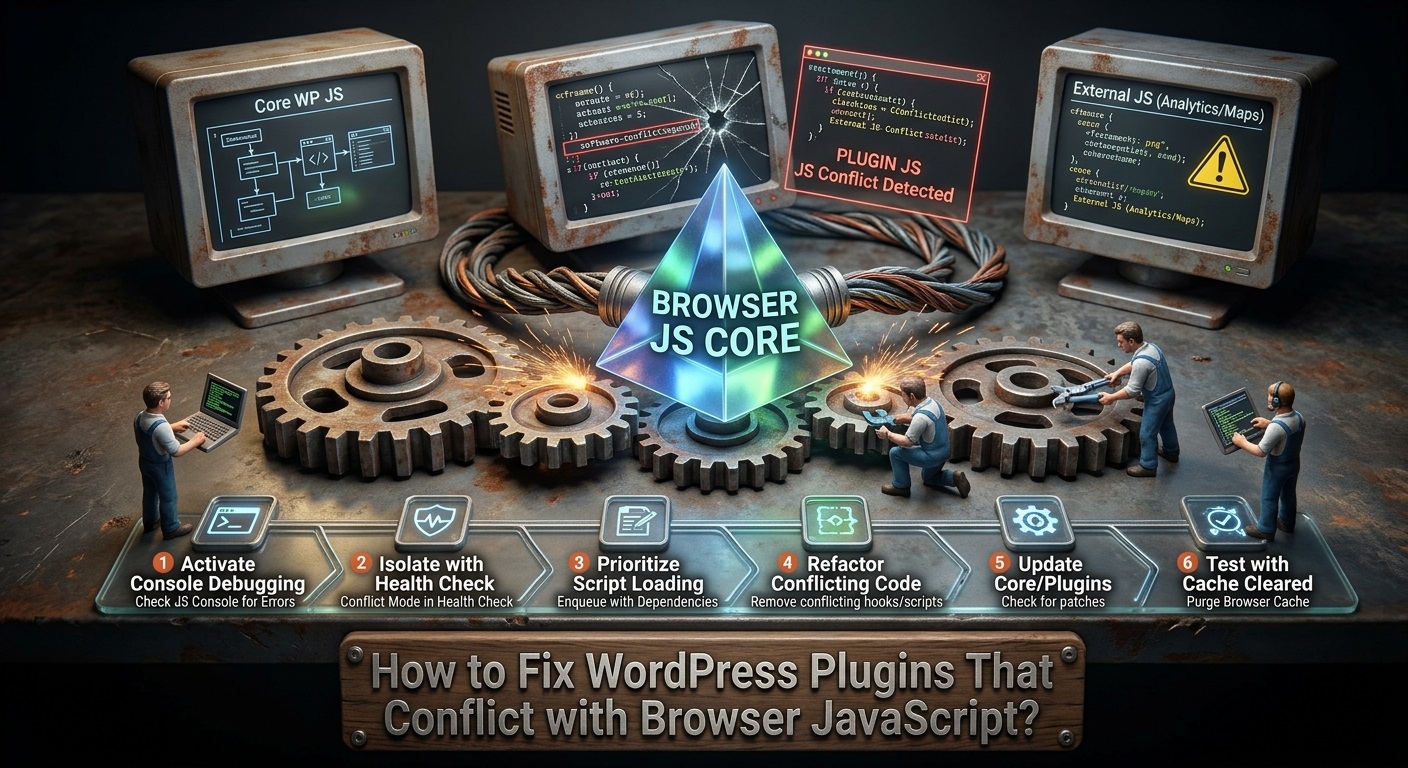
JavaScript plays an important role in modern WordPress websites. It makes websites interactive, improves user experience, and allows plugins to provide advanced functionality without requiring visitors to reload entire pages.
Many WordPress plugins rely on JavaScript to operate features such as image sliders, contact forms, navigation menus, popup windows, product filters, shopping carts, AJAX requests, interactive maps, and dynamic content.
However, sometimes a WordPress plugin stops working correctly because of a JavaScript conflict with another plugin, the active theme, or the browser environment.
You might notice that an image slider does not move, a dropdown menu stops responding, a contact form cannot submit, a popup does not appear, or a plugin’s settings interface becomes unresponsive.
In other situations, the plugin may work correctly in one browser but fail in another. For example, a feature might work in Google Chrome but produce errors in Microsoft Edge or Firefox.
These problems can be confusing because the plugin may remain activated, its PHP code may execute correctly, and its HTML elements may appear on the page. Nevertheless, its JavaScript functionality may fail.
Common causes include incompatible JavaScript libraries, duplicate jQuery versions, incorrect script loading order, outdated browser support, JavaScript syntax errors, conflicting event handlers, browser extensions, and optimization plugins that modify JavaScript files.
Fortunately, most JavaScript conflicts can be identified and resolved through systematic troubleshooting.
In this guide, you will learn how to fix WordPress plugins that conflict with browser JavaScript, identify common JavaScript errors, use browser developer tools, and prevent similar problems in the future.
What Is a JavaScript Conflict in WordPress?
A JavaScript conflict occurs when two or more scripts interfere with each other’s execution or functionality.
WordPress websites commonly load JavaScript from several sources:
- WordPress core.
- Active themes.
- Installed plugins.
- Third-party JavaScript libraries.
- External advertising services.
- Analytics tools.
- Browser extensions.
These scripts may depend on specific libraries, functions, variables, or execution sequences.
For example, an image slider plugin might depend on jQuery and a separate slider library. If another plugin loads an incompatible version of that library, the slider may stop functioning.
Similarly, a theme might register a JavaScript event handler that interferes with a plugin’s interactive elements.
A conflict does not always mean that one plugin is defective. Sometimes two individually functional scripts are simply incompatible when loaded together.
JavaScript errors can also occur because a browser does not support a particular feature or because an optimization tool changes the original script execution order.
Common Signs of WordPress JavaScript Conflicts
Before attempting to fix the problem, identify the symptoms.
The following issues frequently indicate JavaScript conflicts.
1. Plugin Features Stop Responding
A plugin may display its frontend elements correctly, but clicking buttons or other interactive controls produces no result.
For example, a popup plugin might display its trigger button but fail to open the popup.
This can indicate a JavaScript execution error or an event handler that was not registered correctly.
2. Image Sliders and Carousels Stop Working
Image sliders often depend on JavaScript libraries to manage transitions, navigation buttons, automatic playback, and responsive behavior.
If the required JavaScript file fails to load or encounters an error, the slider may display only the first image or become completely unresponsive.
3. Contact Forms Cannot Submit
Many WordPress contact form plugins use JavaScript to validate fields and submit information through AJAX.
A conflict may prevent form validation, stop the submission event, or interrupt the request before it reaches the server.
Visitors may click the Submit button without receiving confirmation.
4. Dropdown Menus and Navigation Elements Fail
Themes and plugins frequently use JavaScript to control dropdown menus, mobile navigation, tabs, and expandable content.
If the required script fails, these elements may remain closed or become impossible to interact with.
5. Plugin Settings Pages Become Unresponsive
Some plugins use JavaScript extensively inside the WordPress administration dashboard.
A conflict may cause buttons, tabs, settings panels, or dynamic form fields to stop working.
In certain cases, the settings page may display correctly but fail to save changes.
6. A Plugin Works in One Browser but Not Another
Different browsers use different JavaScript engines and may support different language features.
A plugin that depends on an unsupported JavaScript feature or browser-specific behavior may work in one browser but fail in another.
7. Browser Console Displays JavaScript Errors
The browser developer console may show messages such as:
Uncaught ReferenceErrorUncaught TypeErrorUncaught SyntaxErrorjQuery is not defined$(...).functionName is not a functionCannot read properties of undefinedFailed to load resource
These messages provide useful information about the underlying problem.
Why Do WordPress Plugins Conflict with Browser JavaScript?
Understanding the cause is essential before applying a solution.
1. Multiple jQuery Versions
jQuery is a JavaScript library used by many WordPress themes and plugins.
If a theme or plugin loads its own incompatible jQuery version instead of using the WordPress-provided dependency system, conflicts may occur.
For example, a plugin might depend on an older jQuery API that is no longer available in a newer version.
This can cause errors when the plugin attempts to execute its JavaScript functionality.
2. Incorrect JavaScript Loading Order
JavaScript files often depend on other scripts.
For example, a plugin’s JavaScript file may require jQuery to be loaded first.
If the dependent script executes before jQuery becomes available, the browser may report:
Uncaught ReferenceError: jQuery is not defined
Incorrect script dependencies, asynchronous loading, or aggressive optimization can cause this problem.
3. Duplicate JavaScript Libraries
Some themes and plugins incorrectly load the same library multiple times.
Duplicate loading can create unexpected behavior, especially when one version overwrites functions or objects used by another script.
4. Conflicting JavaScript Variables and Functions
Poorly structured JavaScript code can create naming conflicts.
For example, two scripts might define global variables with the same name.
When one script overwrites the other, the affected plugin may stop working.
Developers can reduce these risks by using JavaScript modules, closures, namespaces, and carefully scoped variables.
5. Outdated JavaScript Libraries
A plugin may depend on an outdated library that is no longer compatible with modern browser behavior or other website scripts.
Similarly, an updated theme might introduce a newer library that is incompatible with the plugin’s older implementation.
6. Browser Compatibility Problems
Modern browsers support most commonly used JavaScript features, but differences still exist.
Problems can occur when plugins use unsupported APIs, browser-specific functionality, or JavaScript syntax that has not been transpiled for older browsers.
7. JavaScript Optimization Problems
Performance plugins may combine, defer, delay, or minify JavaScript files.
These optimizations can sometimes change script execution order or delay scripts that must execute immediately.
As a result, a plugin may stop working even though its original JavaScript code is correct.
8. Browser Extensions and Cached Files
Ad blockers, privacy extensions, security extensions, and outdated browser caches may interfere with website scripts.
A cached JavaScript file from an earlier plugin version can also create inconsistencies after an update.
How to Fix WordPress Plugins That Conflict with Browser JavaScript
Follow these troubleshooting steps to identify and resolve JavaScript conflicts.
Step 1: Refresh the Website and Clear Browser Cache
Start with the simplest troubleshooting method.
Your browser may be using an outdated JavaScript file stored in its cache.
To test this in Microsoft Edge or Google Chrome:
- Open the affected website.
- Press Ctrl + Shift + R to perform a hard refresh.
- Test the plugin again.
- Open the website in an InPrivate or Incognito window.
- Check whether the plugin works correctly.
If the problem disappears in a private window, browser caching or an extension may be responsible.
You should also clear the browser’s cached files if necessary.
Remember that clearing browser cache does not automatically clear WordPress or server-side caching.
Step 2: Inspect JavaScript Errors Using Browser Developer Tools
Browser developer tools are among the most useful resources for diagnosing JavaScript conflicts.
In Microsoft Edge:
- Open the affected WordPress page.
- Press F12.
- Select the Console tab.
- Refresh the page.
- Look for red error messages.
- Identify the script file associated with the error.
- Examine the error message and line number.
You can perform the same process in Google Chrome and Firefox.
Common errors provide different clues.
ReferenceError: A required variable or function does not exist.
TypeError: An operation is being performed on an unexpected value or object.
SyntaxError: The browser cannot parse the JavaScript code.
Failed to load resource: A required JavaScript file may be unavailable.
For example, the following error:
Uncaught ReferenceError: jQuery is not defined
usually indicates that the script is trying to use jQuery before it has been loaded or that jQuery is unavailable.
Do not assume that the first error shown is always the original cause. One failed dependency can generate several additional errors.
Start with the earliest relevant error and investigate its source.
Step 3: Identify Which Plugin or Theme Is Causing the Conflict
A WordPress website may contain dozens of scripts.
You need to identify which plugin, theme, or external library is responsible for the conflict.
The safest method is to test the website on a staging installation.
Follow these steps:
- Create a staging copy of your website.
- Keep the affected plugin activated.
- Temporarily deactivate other plugins.
- Test the affected functionality.
- Reactivate plugins individually.
- Test the website after each activation.
- Identify the plugin that triggers the conflict.
If the problem disappears after deactivating a particular plugin, investigate its JavaScript files and dependencies.
You should also test the website with a default WordPress theme.
If the problem disappears after switching themes, the active theme may be introducing the conflict.
The Health Check & Troubleshooting plugin can help administrators isolate plugin and theme conflicts without affecting the normal experience of visitors.
Step 4: Check Whether jQuery Is Loaded Correctly
Many WordPress plugins depend on jQuery.
If jQuery is missing, loaded more than once, or loaded in the wrong order, dependent scripts may fail.
Open browser developer tools and select the Console tab.
Enter:
typeof window.jQueryIf the result is:
"function"
jQuery is available.
If the result is:
"undefined"
jQuery is not available in the current page context.
You can also check its version:
jQuery.fn.jqueryThis displays the version of jQuery currently loaded.
However, seeing a version number does not guarantee that the correct version or dependencies are being used.
Developers should use WordPress’s registered jQuery dependency rather than loading another copy unnecessarily.
For more information, see the official WordPress script enqueue documentation.
Step 5: Check JavaScript File Loading Order
Some plugins require their JavaScript dependencies to load before their own scripts.
For example:
- jQuery must load before a jQuery-dependent plugin script.
- A slider library must load before the initialization script.
- A third-party API library must be available before dependent code executes.
Open browser developer tools and select the Network tab.
Filter the results by JS to display JavaScript files.
Check:
- Whether the required scripts are loaded.
- Whether any files return HTTP 404 or 403 errors.
- Whether the scripts are blocked.
- Whether dependent scripts execute in the correct order.
- Whether a delayed script is initialized too late.
If the plugin’s JavaScript file is missing, verify its file path and WordPress enqueue configuration.
Step 6: Disable JavaScript Optimization Temporarily
Caching and optimization plugins can modify JavaScript files to improve performance.
Common optimization features include:
- JavaScript minification.
- JavaScript combination.
- Deferred script loading.
- Delayed JavaScript execution.
- Removal of unused JavaScript.
- Third-party script optimization.
These features can occasionally interfere with plugin functionality.
To investigate:
- Open your caching or optimization plugin settings.
- Temporarily disable JavaScript minification.
- Disable JavaScript combination if enabled.
- Disable JavaScript delay and defer options temporarily.
- Clear all website caches.
- Reload the affected page.
- Test the plugin.
If the plugin works after disabling optimization, re-enable the features individually.
Identify which optimization setting causes the conflict.
Instead of permanently disabling all optimization features, add only the affected scripts to the appropriate exclusion list.
Use the exact script exclusions recommended by the plugin developer.
Step 7: Update the Plugin and Active Theme
Outdated software can create compatibility problems.
Plugin developers regularly release updates to fix JavaScript errors, improve browser support, and maintain compatibility with WordPress.
To check for updates:
- Navigate to Dashboard > Updates.
- Check for plugin updates.
- Check for theme updates.
- Review the changelog.
- Back up your website.
- Apply updates on a staging website.
- Test the affected functionality.
Avoid installing updates without a backup, especially on websites that depend on important plugin features.
If the issue started immediately after an update, investigate whether the new version introduced a regression.
Step 8: Check Browser Compatibility
If the plugin works in one browser but not another, investigate browser-specific problems.
Test the website in:
- Microsoft Edge.
- Google Chrome.
- Mozilla Firefox.
- Safari, where available.
Check whether the affected browsers support the JavaScript features used by the plugin.
Developers should consider browser compatibility when using modern JavaScript syntax and APIs.
For example, if a plugin uses newer JavaScript features without appropriate transpilation or fallbacks, older browsers may fail to execute the script.
The MDN Web Docs JavaScript guide provides useful information about JavaScript syntax and browser behavior.
Step 9: Disable Browser Extensions for Testing
Browser extensions may block or modify JavaScript.
Common examples include:
- Ad blockers.
- Tracking protection extensions.
- Privacy extensions.
- Script-blocking extensions.
- Security extensions.
Open the website in a private browsing window with extensions disabled, where supported.
Alternatively, temporarily disable extensions and test the plugin again.
If the plugin works after disabling a particular extension, investigate its blocking rules.
Do not ask visitors to disable their security extensions as a permanent solution. Developers should ensure that essential plugin functionality does not unnecessarily depend on resources that are commonly blocked.
Step 10: Check JavaScript Syntax Errors
A JavaScript syntax error can prevent an entire script from executing.
For example:
function initializeSlider() {
    console.log("Slider initialized");
}
This is valid JavaScript.
However, missing brackets, parentheses, quotation marks, or other syntax elements can prevent execution.
A syntax error might look like:
Uncaught SyntaxError: Unexpected token
If the error references a plugin JavaScript file, inspect the corresponding source code.
Developers should use JavaScript linting tools to identify syntax problems before publishing updates.
Useful tools include:
These tools help identify syntax errors, inconsistent coding practices, and potential problems.
Step 11: Check for AJAX and Fetch API Problems
Some WordPress plugins use AJAX or the JavaScript Fetch API to exchange information with the server.
For example, a contact form might send information without reloading the page.
If the request fails, the plugin may appear unresponsive.
Open developer tools and select the Network tab.
Look for requests that return errors.
Common problems include:
- HTTP 400: Invalid request.
- HTTP 401: Authentication required.
- HTTP 403: Request forbidden.
- HTTP 404: Requested resource not found.
- HTTP 500: Server-side error.
Also inspect the request payload and response body where appropriate.
WordPress developers should verify that AJAX requests use the correct endpoint, action, nonce, and request parameters.
For additional information, consult the WordPress AJAX documentation.
Step 12: Check Content Security Policy Restrictions
Content Security Policy (CSP) is a browser security mechanism that controls which resources a website is allowed to load and execute.
If a website has restrictive CSP rules, certain scripts may be blocked.
For example, a plugin might attempt to load a JavaScript library from an external domain that is not included in the website’s permitted script sources.
The browser may display an error similar to:
Refused to load the script because it violates the following Content Security Policy directive
To investigate:
- Open browser developer tools.
- Select the Console tab.
- Search for Content Security Policy errors.
- Identify the blocked resource.
- Review the website’s CSP configuration.
- Update the policy only if the external resource is trusted and required.
Avoid using broad security exceptions or allowing unrestricted script execution.
Developers should prefer secure policies and nonce-based or hash-based script authorization where appropriate.
Step 13: Check JavaScript Event Handler Conflicts
Two scripts may attach event handlers to the same element.
For example, a theme and a plugin might both handle clicks on a button.
This can produce unexpected behavior, including duplicate submissions, multiple popup openings, or unresponsive controls.
Developers should inspect event registration and determine whether multiple scripts are handling the same event.
Use appropriate event delegation, namespaced jQuery events, and careful event cleanup.
Avoid using broad event handlers that interfere with unrelated plugin functionality.
Step 14: Review WordPress Debug Logs
Although browser JavaScript errors are not always recorded in PHP logs, WordPress debug logging can help identify related server-side problems.
Open wp-config.php and temporarily enable:
define( 'WP_DEBUG', true );
define( 'WP_DEBUG_LOG', true );
define( 'WP_DEBUG_DISPLAY', false );
If these constants already exist, modify the existing definitions rather than adding duplicates.
Reproduce the problem and inspect:
wp-content/debug.log
Look for PHP errors related to:
- Script registration.
- Missing files.
- Incorrect dependencies.
- Failed plugin initialization.
- Invalid configuration.
- Server-side AJAX handlers.
Remember that JavaScript errors should primarily be investigated through browser developer tools. PHP debug logs provide complementary information.
Disable debugging after completing the investigation, particularly on production websites.
Step 15: Reinstall the Affected Plugin if Necessary
If the plugin’s JavaScript files are missing or damaged, reinstalling it may resolve the issue.
Before reinstalling:
- Create a complete website backup.
- Export plugin settings if possible.
- Check whether the plugin stores important data.
- Download a fresh copy from its official source.
- Deactivate the existing plugin.
- Replace it according to the developer’s instructions.
- Activate the fresh installation.
- Test its functionality.
Do not delete a plugin without understanding whether its uninstall process removes stored settings or database information.
How WordPress Developers Can Prevent JavaScript Conflicts
Plugin developers should follow standard WordPress development practices to reduce compatibility problems.
1. Use wp_enqueue_script()
Developers should register and enqueue JavaScript files using WordPress functions.
Example:
function example_plugin_enqueue_scripts() {

    wp_enqueue_script(
        'example-plugin-script',
        plugin_dir_url( __FILE__ ) . 'assets/js/script.js',
        array( 'jquery' ),
        '1.0.0',
        true
    );

}

add_action(
    'wp_enqueue_scripts',
    'example_plugin_enqueue_scripts'
);
This example registers a frontend script that depends on WordPress’s registered jQuery library.
The dependency system helps WordPress determine the appropriate loading order.
For modern WordPress versions, developers can also use supported script loading strategies where appropriate.
2. Avoid Loading Duplicate Libraries
Do not load another copy of jQuery or other common libraries unnecessarily.
Use WordPress’s registered dependencies whenever possible.
3. Use jQuery No-Conflict Mode
WordPress uses jQuery in no-conflict mode.
Therefore, developers should avoid assuming that $ is automatically available in every JavaScript context.
A common approach is:
jQuery(document).ready(function($) {

    console.log("Plugin JavaScript loaded");

});
The $ alias is available inside this function’s scope.
4. Use Unique Function and Variable Names
Avoid generic global names that might conflict with other plugins.
Use unique namespaces, closures, or JavaScript modules to keep code isolated.
5. Validate Browser Compatibility
Test plugin functionality in commonly used browsers.
Use appropriate transpilation and polyfills when required by the supported browser range.
6. Avoid Unnecessary Inline JavaScript
Organize JavaScript into maintainable files and enqueue them through WordPress.
This improves maintainability and makes debugging easier.
7. Test with Common Optimization Plugins
Test plugin functionality with common caching and performance configurations.
Verify that minification, deferral, and delayed execution do not break essential functionality.
8. Handle Errors Gracefully
If a required JavaScript resource fails to load, display a useful message instead of leaving the visitor with an unresponsive interface.
Conclusion
JavaScript conflicts can prevent WordPress plugins from working correctly, even when the plugins remain activated and their frontend elements appear normally.
Common causes include duplicate JavaScript libraries, incorrect script loading order, outdated dependencies, browser compatibility problems, optimization settings, conflicting event handlers, and Content Security Policy restrictions.
The best troubleshooting approach is to start with browser developer tools and identify the first relevant JavaScript error. Next, test plugin and theme compatibility, verify jQuery dependencies, inspect network requests, and temporarily disable JavaScript optimization features.
If the issue continues, investigate browser extensions, CSP restrictions, PHP logs, and missing plugin files.
WordPress developers can prevent many of these problems by using standard script enqueue functions, declaring dependencies correctly, avoiding duplicate libraries, writing isolated JavaScript code, and testing across browsers.
By following these practices, website owners and developers can identify JavaScript conflicts more efficiently and maintain reliable plugin functionality across different WordPress websites and browser environments.
Frequently Asked Questions (FAQs)
1. Why do WordPress plugins conflict with JavaScript?
Plugins may conflict because they load incompatible JavaScript libraries, define duplicate global variables, register overlapping event handlers, or depend on scripts that execute in the wrong order.
2. How do I identify a JavaScript conflict in WordPress?
Open your browser’s developer tools by pressing F12 and select the Console tab. Look for JavaScript errors and identify the affected script file, error message, and line number.
3. Why does my WordPress plugin work in Chrome but not Edge?
The problem may be related to browser-specific JavaScript behavior, cached resources, browser extensions, unsupported APIs, or differences in script execution. Test both browsers with extensions disabled and inspect their developer consoles.
4. Can jQuery cause WordPress plugin conflicts?
Yes. Loading incompatible or duplicate jQuery versions, missing jQuery dependencies, and incorrect loading order can prevent plugins from functioning correctly.
5. Can a caching plugin break JavaScript functionality?
Yes. JavaScript minification, combination, deferral, and delayed execution can sometimes change script execution order or prevent dependent scripts from initializing correctly.
6. How do I fix the jQuery is not defined error?
Verify that jQuery is loaded, check the script dependencies, and ensure that the plugin’s JavaScript executes after jQuery becomes available. Developers should use WordPress’s registered jQuery dependency instead of loading duplicate libraries.
7. Why does my WordPress plugin stop working after a browser update?
A browser update may expose compatibility problems in outdated JavaScript code or unsupported browser-specific functionality. Update the plugin and investigate the browser console errors.
8. Can two WordPress plugins use the same JavaScript library?
Yes. Multiple plugins can use the same library, but they should rely on properly registered dependencies rather than unnecessarily loading duplicate copies.
9. How can I test WordPress JavaScript conflicts without affecting visitors?
Use a staging website or Health Check troubleshooting mode. This allows you to test different plugin and theme combinations without disrupting the normal frontend experience for visitors.
10. How can WordPress developers prevent JavaScript conflicts?
Use wp_enqueue_script(), declare dependencies, avoid duplicate libraries, isolate variables, follow WordPress coding standards, and test plugin functionality across commonly used browsers.