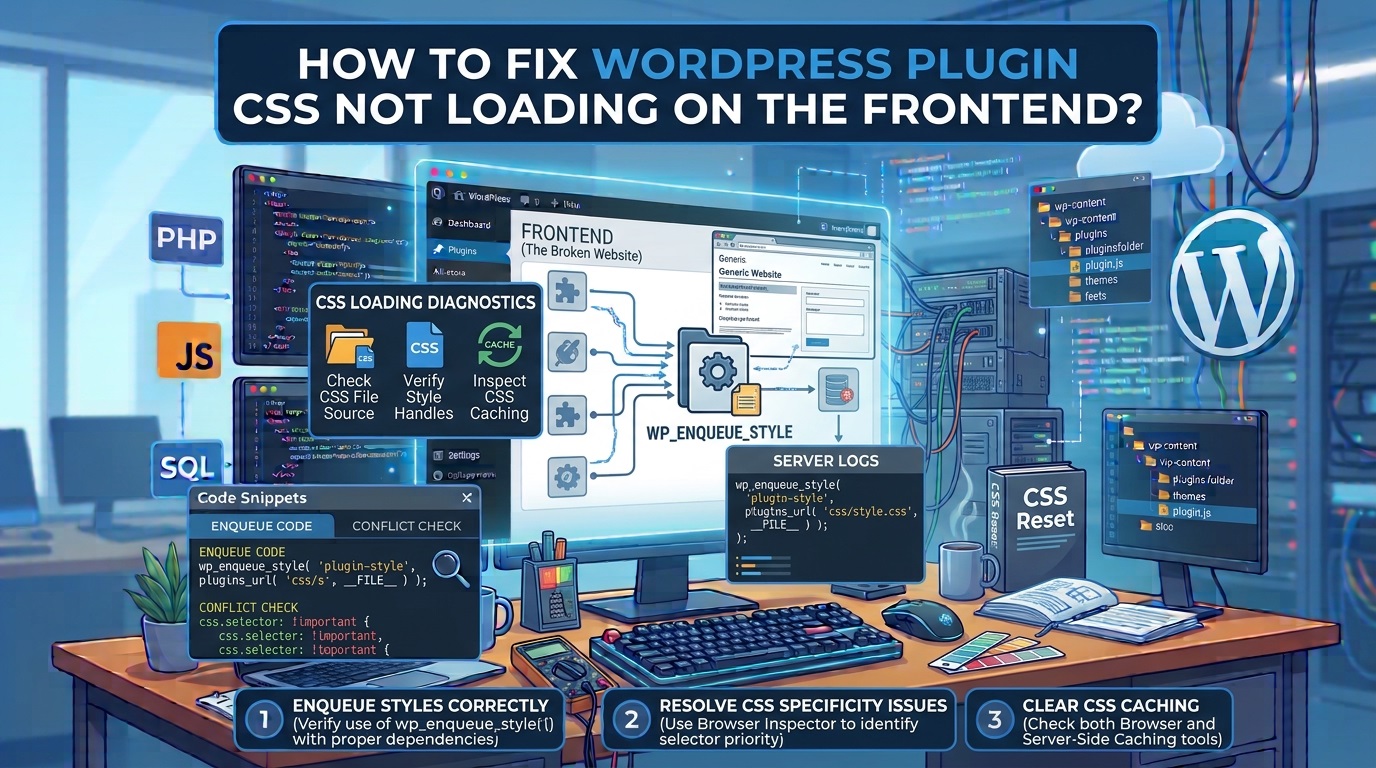
Introduction
Have you ever installed and activated a WordPress plugin only to discover that its features work but its design looks broken on the frontend? Buttons may appear without styling, forms may display incorrectly, layouts may lose their spacing, and interactive elements may look completely different from their intended appearance.
This is a common WordPress problem known as WordPress plugin CSS not loading on the frontend. It can affect almost any type of plugin, including contact forms, image sliders, product galleries, logo carousels, booking systems, membership plugins, page builders, and custom-developed WordPress extensions.
In most situations, the problem occurs because a stylesheet is not properly registered, enqueued, or delivered to the browser. Other possible causes include incorrect file paths, caching conflicts, optimization settings, theme incompatibilities, conditional loading errors, server permissions, and CSS file conflicts.
Fortunately, you do not always need to reinstall WordPress or replace the affected plugin. By following a systematic troubleshooting process, you can identify the underlying problem and restore the plugin’s frontend styling.
In this guide, you will learn how to fix WordPress plugin CSS not loading on the frontend, identify common causes, inspect stylesheet requests, correct enqueueing problems, resolve caching conflicts, and implement best practices to prevent similar issues.
1. Understand Why WordPress Plugin CSS Is Not Loading
Before applying a solution, it is important to understand how WordPress handles plugin stylesheets.
WordPress provides a built-in stylesheet management system that allows developers to register and enqueue CSS files. Instead of manually inserting stylesheet links into the website header, developers should generally use the wp_enqueue_style() function.
When a plugin loads its CSS correctly, WordPress generates the appropriate stylesheet reference in the frontend HTML.
For example, a plugin might load its stylesheet from:
https://example.com/wp-content/plugins/my-plugin/assets/css/style.css
If the browser cannot locate or download this file, the plugin may appear without its intended design.
Some common symptoms include:
- Plugin buttons appearing without background colors or borders.
- Contact forms displaying incorrectly.
- Image sliders showing images without proper alignment.
- Logo carousels losing their responsive layout.
- Plugin containers displaying incorrect widths or heights.
- Icons and custom fonts appearing incorrectly.
- Mobile layouts becoming difficult to use.
- Custom frontend components overlapping other website elements.
Identifying the exact symptom can help narrow down the possible causes.
2. Check Whether the Plugin CSS File Is Actually Loading
The first troubleshooting step is to determine whether the stylesheet is being requested by the browser.
You can inspect this using the browser’s Developer Tools.
Steps to inspect the stylesheet
- Open the affected WordPress page in Google Chrome or Microsoft Edge.
- Right-click anywhere on the page.
- Select Inspect.
- Open the Network tab.
- Select the CSS filter.
- Reload the page.
- Look for the stylesheet associated with the affected plugin.
Pay attention to the request status.
Different HTTP status codes indicate different problems:
| Status code | Possible explanation |
|---|---|
| 200 | CSS file successfully downloaded |
| 304 | Browser is using a cached version |
| 403 | Access to the stylesheet is forbidden |
| 404 | CSS file cannot be found |
| 500 | Server-side error |
| Blocked | Browser, security software, or another mechanism blocked the request |
If the stylesheet returns a 404 error, check the file path and confirm that the CSS file exists.
If the request returns 403, investigate file permissions, security rules, or server configuration.
If the request returns 200 but the design is still broken, the problem may involve CSS specificity, conflicting styles, invalid CSS, or incorrect optimization.
You can also inspect the browser’s Console tab for additional errors.
For more information, see the Chrome DevTools Network documentation.
3. Verify That the Plugin Uses wp_enqueue_style() Correctly
One of the most common reasons WordPress plugin CSS does not load is incorrect stylesheet registration or enqueueing.
WordPress provides the wp_enqueue_style() function specifically for loading stylesheets.
A typical plugin stylesheet enqueue function looks like this:
function my_plugin_enqueue_styles() {

    wp_enqueue_style(
        'my-plugin-style',
        plugin_dir_url(__FILE__) . 'assets/css/style.css',
        array(),
        '1.0.0',
        'all'
    );

}

add_action('wp_enqueue_scripts', 'my_plugin_enqueue_styles');
Let’s understand the important parts.
my-plugin-styleis the unique stylesheet handle.plugin_dir_url(__FILE__)generates the plugin directory URL.assets/css/style.cssidentifies the stylesheet location.array()represents stylesheet dependencies.1.0.0is the stylesheet version.allindicates that the stylesheet applies to all media types.
The wp_enqueue_scripts action is the standard frontend hook for enqueueing scripts and styles.
How to fix an incorrect enqueue function
If your plugin contains a stylesheet but does not load it, examine the enqueue function.
Check that:
- The function is defined correctly.
- The function is connected to
wp_enqueue_scripts. - The stylesheet handle is valid and unique.
- The CSS file path is correct.
- The file exists inside the plugin directory.
- The enqueue function is not restricted to the wrong page or condition.
For official implementation details, consult the WordPress wp_enqueue_style() documentation.
4. Check the CSS File Path
Incorrect file paths are another frequent cause of missing plugin stylesheets.
For example, suppose your plugin directory has the following structure:
my-plugin/
│
├── my-plugin.php
│
├── includes/
│   └── functions.php
│
├── assets/
│   ├── css/
│   │   └── style.css
│   │
│   └── js/
│       └── script.js
If the main plugin file contains the enqueue function, the following path is appropriate:
plugin_dir_url(__FILE__) . 'assets/css/style.css'However, if the enqueue function is located inside includes/functions.php, using plugin_dir_url(__FILE__) may generate an incorrect URL because __FILE__ refers to the PHP file in the includes directory.
A better approach is to define a plugin URL constant in the main plugin file:
define(
    'MY_PLUGIN_URL',
    plugin_dir_url(__FILE__)
);
Then use the constant wherever necessary:
function my_plugin_enqueue_styles() {

    wp_enqueue_style(
        'my-plugin-style',
        MY_PLUGIN_URL . 'assets/css/style.css',
        array(),
        '1.0.0'
    );

}

add_action('wp_enqueue_scripts', 'my_plugin_enqueue_styles');
This approach provides a consistent URL regardless of where the enqueue function is located.
Also verify that the CSS filename uses the correct capitalization. Some hosting environments use case-sensitive filesystems, meaning Style.css and style.css may be treated as different files.
5. Make Sure the Stylesheet Is Loaded on the Correct Frontend Pages
Some WordPress plugins load their CSS only when specific shortcodes, blocks, widgets, or plugin features are present.
Conditional loading can improve website performance, but incorrect conditions may prevent stylesheets from loading where they are required.
For example, a plugin might use:
if (is_page('contact')) {

    wp_enqueue_style(
        'my-plugin-style',
        MY_PLUGIN_URL . 'assets/css/style.css',
        array(),
        '1.0.0'
    );

}
This stylesheet will only load on the page identified as contact.
If the plugin’s shortcode is also used on another page, the stylesheet will not load there.
Solution
If the plugin requires its stylesheet throughout the frontend, remove unnecessary conditions:
function my_plugin_enqueue_styles() {

    wp_enqueue_style(
        'my-plugin-style',
        MY_PLUGIN_URL . 'assets/css/style.css',
        array(),
        '1.0.0'
    );

}

add_action('wp_enqueue_scripts', 'my_plugin_enqueue_styles');
If the plugin uses a shortcode, developers can implement more targeted loading by detecting the shortcode in the relevant page content.
For example:
function my_plugin_enqueue_styles() {

    if (is_singular() && has_shortcode(
        get_post()->post_content,
        'my_plugin'
    )) {

        wp_enqueue_style(
            'my-plugin-style',
            MY_PLUGIN_URL . 'assets/css/style.css',
            array(),
            '1.0.0'
        );

    }

}

add_action('wp_enqueue_scripts', 'my_plugin_enqueue_styles');
This is a basic example and should be adapted to the plugin’s actual content structure. More complex plugins may need to account for reusable blocks, widgets, templates, and dynamically rendered content.
6. Clear WordPress Cache and Browser Cache
Caching is another common reason why recently updated plugin CSS does not appear on the frontend.
WordPress websites may use several caching layers:
- Browser caching.
- WordPress caching plugins.
- Server-side caching.
- Hosting-provider caching.
- Content Delivery Network (CDN) caching.
- Reverse proxy caching.
For example, a developer may correct a plugin stylesheet, but visitors continue receiving an older cached version.
How to clear browser cache
In Chrome or Edge:
- Open the affected website.
- Press
Ctrl + Shift + Delete. - Select cached images and files.
- Clear the browsing data.
- Reload the page.
Alternatively, open Developer Tools, select Network, and enable Disable cache while Developer Tools remains open.
Clear WordPress caching plugin data
If you use a caching plugin, open its settings and clear the complete cache.
Common caching solutions include:
- WP Rocket.
- LiteSpeed Cache.
- W3 Total Cache.
- WP Super Cache.
Also clear your hosting cache and CDN cache if your website uses these services.
Use CSS versioning
Developers can also prevent outdated stylesheets from being served by using a version number.
For example:
wp_enqueue_style(
    'my-plugin-style',
    MY_PLUGIN_URL . 'assets/css/style.css',
    array(),
    '1.0.2'
);
A more automated approach is to use the file modification time:
$css_file = MY_PLUGIN_PATH . 'assets/css/style.css';

wp_enqueue_style(
    'my-plugin-style',
    MY_PLUGIN_URL . 'assets/css/style.css',
    array(),
    file_exists($css_file) ? filemtime($css_file) : '1.0.0'
);
This updates the stylesheet version whenever the CSS file changes.
However, avoid relying on file modification time indefinitely in production if it causes unnecessary cache invalidation across deployments. A controlled release version can be more efficient.
7. Disable CSS Minification and Optimization Temporarily
CSS optimization features can sometimes interfere with WordPress plugin stylesheets.
Performance plugins may:
- Minify CSS files.
- Combine multiple stylesheets.
- Remove unused CSS.
- Delay stylesheet loading.
- Generate critical CSS.
- Rewrite stylesheet URLs.
- Change stylesheet loading order.
Although these features can improve performance, incorrectly configured optimization may cause plugin layouts to break.
How to identify an optimization conflict
- Open your caching or optimization plugin settings.
- Temporarily disable CSS minification.
- Disable CSS combination.
- Disable Remove Unused CSS.
- Disable asynchronous CSS loading if enabled.
- Clear all caches.
- Reload the affected frontend page.
If the plugin design starts working, one of the optimization settings is probably responsible.
Exclude plugin stylesheets from optimization
If a specific stylesheet causes problems, exclude it from the optimization process.
For example, an optimization plugin may allow exclusions such as:
/wp-content/plugins/my-plugin/assets/css/style.cssThe exact exclusion field and syntax depend on the optimization plugin.
Avoid disabling all performance optimization permanently. Instead, identify the conflicting stylesheet and create a targeted exclusion.
For additional guidance, consult the WordPress optimization documentation.
8. Check for Theme and Plugin CSS Conflicts
Sometimes a plugin stylesheet loads successfully, but another stylesheet overrides its properties.
This can happen when the active WordPress theme, another plugin, or custom CSS defines conflicting selectors.
For example, a plugin might use:
.my-plugin-button {
    background-color: #0073aa;
    color: #ffffff;
    padding: 12px 20px;
}
However, the active theme may contain:
button {
    background-color: transparent;
    color: #222222;
    padding: 5px;
}
Depending on the cascade, specificity, and source order, the theme’s styling may override the plugin’s intended appearance.
How to identify CSS conflicts
- Open the affected frontend page.
- Right-click the broken element.
- Select Inspect.
- Open the Styles panel.
- Find the expected plugin CSS properties.
- Check whether another stylesheet overrides them.
- Identify the source file responsible for the conflicting declaration.
Solution
Use appropriately scoped selectors.
For example:
.my-plugin-container .my-plugin-button {
    background-color: #0073aa;
    color: #ffffff;
    padding: 12px 20px;
    border: none;
}
This selector is more specific than a generic button selector.
Avoid using !important everywhere. It can create additional maintenance problems and make future styling changes difficult.
Instead, use clear class names and carefully controlled CSS specificity.
9. Verify That CSS Files Have Correct Permissions
Incorrect file permissions can prevent WordPress or the web server from accessing plugin stylesheets.
For example, if the server cannot read a CSS file, the browser may receive a 403 Forbidden response.
Recommended file permissions
Common WordPress permission recommendations include:
| File or directory | Typical permission |
|---|---|
| CSS files | 644 |
| JavaScript files | 644 |
| PHP files | 644 |
| Plugin directories | 755 |
Actual requirements can vary depending on the hosting environment.
How to fix permissions
- Log in to your hosting control panel.
- Open File Manager.
- Navigate to
wp-content/plugins/. - Locate the affected plugin.
- Find its CSS directory.
- Check the permissions of the stylesheet.
- Correct inappropriate permissions.
If you use FTP software such as FileZilla, you can also inspect and modify permissions through its file permissions interface.
Do not set all files and directories to 777. This creates unnecessary security risks.
For additional information, read the WordPress file permissions guide.
10. Check Whether the CSS File Is Missing or Incorrectly Packaged
A plugin may be installed successfully but still lack some of its required frontend assets.
This can happen when:
- The plugin ZIP package is incomplete.
- The developer forgets to include the CSS directory.
- A deployment process excludes asset files.
- A plugin update removes or renames a stylesheet.
- The stylesheet filename changes without updating the enqueue function.
How to verify the stylesheet
Open your hosting File Manager and navigate to:
wp-content/plugins/my-plugin/assets/css/Check whether the expected stylesheet exists.
If it is missing, download a fresh copy of the plugin from its official source.
Before replacing the plugin:
- Create a complete website backup.
- Preserve any custom plugin modifications.
- Verify the downloaded package.
- Reinstall the plugin if necessary.
- Check the frontend again.
Never download replacement plugin files from unknown websites. Untrusted plugin packages may contain malicious code.
11. Check CSS Dependencies and Loading Order
Some WordPress plugins depend on external stylesheets or other registered styles.
For example, a plugin may require a framework stylesheet or an icon library.
WordPress allows developers to define stylesheet dependencies through the third argument of wp_enqueue_style().
Example:
wp_enqueue_style(
    'my-plugin-style',
    MY_PLUGIN_URL . 'assets/css/style.css',
    array('wp-components'),
    '1.0.0'
);
Here, wp-components is declared as a dependency.
WordPress can use this dependency information to manage the loading order.
If a plugin depends on another stylesheet that is not registered correctly, the frontend appearance may be incomplete.
Developers should verify that:
- Every dependency is registered.
- Dependency handles are correct.
- Required libraries are available.
- Stylesheets load in the intended order.
- External resources are accessible.
Avoid adding unnecessary dependencies because they can increase page loading time.
12. Check for Mixed Content and HTTPS Issues
A website running on HTTPS may encounter problems if a plugin loads CSS using an HTTP URL.
For example:
http://example.com/wp-content/plugins/my-plugin/style.cssWhen the main website uses HTTPS, browsers may block insecure resources or display security warnings.
Solution
Use WordPress URL functions instead of hardcoding HTTP URLs.
For example:
wp_enqueue_style(
    'my-plugin-style',
    plugins_url('assets/css/style.css', __FILE__),
    array(),
    '1.0.0'
);
Also verify that your WordPress Address and Site Address use the correct HTTPS URLs under:
Settings → General
If a CDN or proxy is involved, verify that its HTTPS configuration is correct.
You can identify mixed-content problems through the browser Console and Network panels.
For more information, consult the WordPress HTTPS administration guide.
13. Check for PHP Errors That Prevent Stylesheets from Being Enqueued
Although CSS problems usually involve frontend asset loading, PHP errors can also prevent the enqueue function from executing.
For example, an undefined function, syntax error, or fatal error in a plugin file may interrupt execution before the stylesheet is registered.
Enable WordPress debugging
Open the wp-config.php file in your WordPress installation.
Before the line that says:
/* That's all, stop editing! Happy publishing. */Add or update the following settings:
define('WP_DEBUG', true);
define('WP_DEBUG_LOG', true);
define('WP_DEBUG_DISPLAY', false);
Save the file and reload the affected page.
Then inspect:
wp-content/debug.logLook for errors associated with the affected plugin.
After troubleshooting, disable debugging on the live website or configure it appropriately for a secure production environment.
Do not display PHP errors publicly because they may expose sensitive server information.
The official WordPress debugging documentation provides additional guidance.
14. Test the Plugin with a Default WordPress Theme
A theme can introduce CSS conflicts or interfere with frontend asset loading.
To determine whether the active theme is responsible, temporarily switch to a default WordPress theme, such as Twenty Twenty-Five or another available default theme compatible with your WordPress installation.
Before changing the theme, consider making a backup and testing on a staging website.
Testing procedure
- Open Appearance → Themes.
- Activate a default WordPress theme.
- Visit the page containing the affected plugin.
- Check whether the plugin CSS loads and displays correctly.
- Compare the results with your original theme.
If the problem disappears, the original theme may be overriding plugin styles or introducing an asset-loading conflict.
You can then inspect the theme’s CSS and enqueue functions to identify the cause.
15. Identify Conflicting Plugins
Two plugins may register conflicting styles, use similar CSS selectors, or modify the way frontend assets are loaded.
To identify a conflicting plugin, perform a controlled plugin conflict test.
Recommended procedure
- Back up your website.
- Create a staging copy if possible.
- Deactivate all plugins except the affected plugin.
- Reload the page.
- Check whether the CSS works.
- Reactivate the remaining plugins one at a time.
- Reload the page after each activation.
- Identify which plugin causes the problem to return.
If the CSS stops working after activating a particular plugin, investigate its stylesheets and optimization settings.
The WordPress troubleshooting documentation provides useful guidance for diagnosing common WordPress problems.
16. Use the Correct WordPress Hook for Frontend Stylesheets
Another issue involves using an incorrect WordPress action hook.
For frontend stylesheets, the recommended hook is:
wp_enqueue_scriptsFor example:
function custom_plugin_frontend_styles() {

    wp_enqueue_style(
        'custom-plugin-frontend',
        plugins_url('assets/css/frontend.css', __FILE__),
        array(),
        '1.0.0'
    );

}

add_action(
    'wp_enqueue_scripts',
    'custom_plugin_frontend_styles'
);
Developers sometimes mistakenly use the administrative enqueue hook:
add_action(
    'admin_enqueue_scripts',
    'custom_plugin_frontend_styles'
);
This hook is intended for loading stylesheets in the WordPress administration area, not ordinary frontend pages.
If a plugin stylesheet is loaded only in the dashboard but not on the public website, check whether the wrong hook has been used.
For more information, read the WordPress wp_enqueue_scripts reference.
17. Use WordPress Plugins to Diagnose CSS Loading Problems
Several WordPress debugging and performance tools can help identify stylesheet-related issues.
Query Monitor
Query Monitor helps developers inspect WordPress queries, hooks, scripts, stylesheets, and PHP errors.
It can be useful for investigating whether the expected stylesheet has been registered and enqueued.
Official website: https://wordpress.org/plugins/query-monitor/
Health Check & Troubleshooting
The Health Check & Troubleshooting plugin provides a troubleshooting mode that allows administrators to test plugin and theme conflicts without affecting ordinary visitors.
Official website: https://wordpress.org/plugins/health-check/
Browser Developer Tools
Chrome and Edge Developer Tools are useful for checking:
- Missing CSS files.
- HTTP response codes.
- Stylesheet loading order.
- CSS property conflicts.
- Browser console errors.
- Mixed-content warnings.
Use these tools together to identify whether the issue originates from WordPress, the plugin, the theme, the hosting environment, or the browser.
18. Best Practices for WordPress Plugin Developers
Preventing frontend CSS problems is easier than troubleshooting them after a plugin has been released.
Developers should follow these practices when creating or maintaining WordPress plugins.
Use unique stylesheet handles
Avoid generic handles such as style or custom-css.
Instead, use plugin-specific handles:
wp_enqueue_style(
    'johneid-slider-frontend',
    MY_PLUGIN_URL . 'assets/css/slider.css',
    array(),
    '1.0.0'
);
Unique handles reduce the possibility of conflicts with other plugins.
Use reliable file paths
Define plugin path and URL constants in the main plugin file when they are needed across multiple files.
Load styles only when necessary
Enqueue frontend CSS only on pages where the plugin’s functionality is required, provided that all rendering methods and use cases are accounted for.
Use CSS namespaces
Avoid generic selectors such as:
button {}
.container {}
.title {}
Prefer plugin-specific classes:
.johneid-slider-container {}
.johneid-slider-button {}
.johneid-slider-title {}
Test responsive layouts
Verify that plugin styling works on:
- Desktop computers.
- Laptops.
- Tablets.
- Smartphones.
Test with different themes
A plugin should not depend on one specific theme unless it is explicitly designed as a theme-specific extension.
Test with multiple popular themes and default WordPress themes.
Avoid unnecessary external dependencies
Where possible, bundle required CSS assets with the plugin and use registered WordPress dependencies correctly.
Follow WordPress coding standards
Use established WordPress development practices for asset registration, enqueueing, naming, and compatibility.
The WordPress Coding Standards provide a useful reference for plugin developers.
19. Quick Checklist to Fix WordPress Plugin CSS Not Loading
If you want to troubleshoot the issue quickly, follow this checklist:
- Inspect the browser Network tab for missing CSS files.
- Check the stylesheet’s HTTP response status.
- Verify that the CSS file exists in the plugin directory.
- Check the stylesheet URL and file path.
- Confirm that
wp_enqueue_style()is being used correctly. - Confirm that the
wp_enqueue_scriptshook is used. - Check conditional loading and shortcode detection.
- Clear browser, WordPress, server, and CDN caches.
- Temporarily disable CSS minification and optimization.
- Check for theme and plugin CSS conflicts.
- Verify file and directory permissions.
- Check stylesheet dependencies and loading order.
- Investigate HTTPS and mixed-content errors.
- Review the WordPress debug log.
- Test with a default WordPress theme.
- Perform a plugin conflict test.
- Verify the frontend on desktop and mobile devices.
Following this checklist can help you identify most common plugin stylesheet problems without making unnecessary changes to your WordPress installation.
Conclusion
WordPress plugin CSS not loading on the frontend is a common problem, but it is usually possible to resolve it through systematic troubleshooting.
The most important first step is to determine whether the stylesheet is missing, blocked, incorrectly enqueued, cached, or successfully loaded but overridden by another CSS rule.
Start by inspecting the browser’s Network and Console panels. Then verify the stylesheet path, check the wp_enqueue_style() function, clear caching layers, and investigate optimization settings. If the stylesheet loads successfully but the plugin still looks incorrect, examine CSS specificity, theme compatibility, and conflicting plugins.
For plugin developers, using unique stylesheet handles, reliable asset paths, correct WordPress hooks, and properly scoped CSS selectors can prevent many frontend styling problems.
A properly developed WordPress plugin should load its required stylesheets reliably, work with different themes, and maintain a consistent responsive appearance across devices.
If you continue experiencing problems after following these steps, consider seeking assistance from an experienced WordPress developer who can inspect the plugin code, theme stylesheets, and server configuration.
For professional assistance with WordPress plugin development, customization, installation, activation, and troubleshooting, visit johneidplugins.com.