Introduction
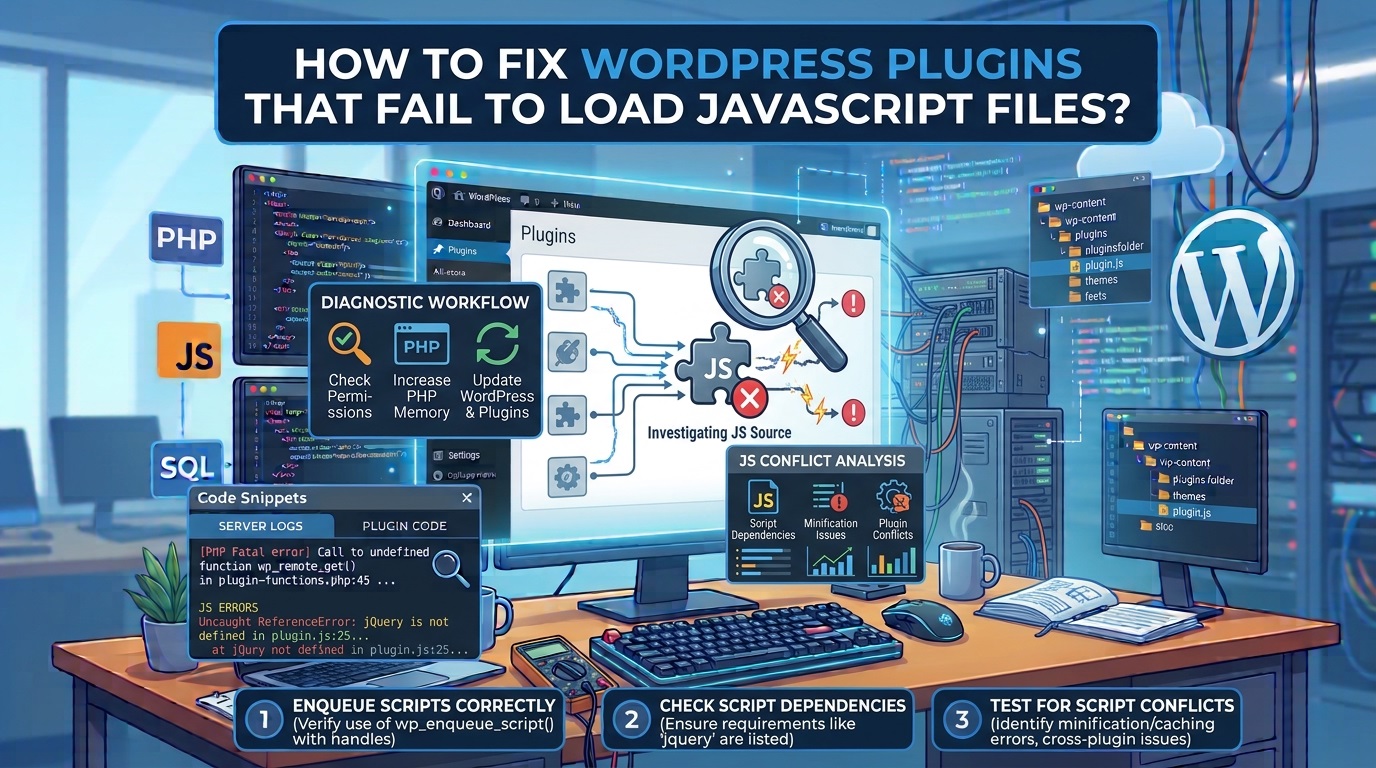
JavaScript plays an important role in modern WordPress websites. Many plugins depend on JavaScript files to provide interactive features, dynamic content, animations, form validation, sliders, image galleries, AJAX functionality, popup windows, navigation menus, and other frontend features.
When a WordPress plugin cannot load its JavaScript files correctly, some or all of its functionality may stop working. For example, a contact form might fail to submit, a slider might display only static images, a popup might not open, or an interactive settings panel might become completely unresponsive.
These problems can be frustrating because the plugin may appear to be installed and activated correctly. Its PHP code might execute without displaying any visible errors, while the JavaScript functionality remains unavailable.
There are several reasons why WordPress plugins fail to load JavaScript files. Incorrect script registration, missing file paths, JavaScript syntax errors, plugin conflicts, outdated cached files, optimization settings, incorrect file permissions, HTTPS configuration problems, and Content Security Policy restrictions are among the most common causes.
Fortunately, most JavaScript loading problems can be diagnosed and resolved without reinstalling WordPress or rebuilding the affected plugin.
In this comprehensive guide, you will learn how to identify JavaScript loading errors, investigate their underlying causes, and apply practical troubleshooting techniques to restore your WordPress plugin functionality.
Whether you are a website owner, WordPress administrator, or plugin developer, these solutions will help you troubleshoot JavaScript loading problems more efficiently.
1. Understand Why WordPress Plugins Fail to Load JavaScript Files
Before troubleshooting the problem, it is important to understand how WordPress loads JavaScript files.
WordPress provides a built-in script management system that allows themes and plugins to register and enqueue JavaScript files. Instead of manually inserting script tags into website templates, developers should use WordPress functions designed for managing scripts.
The two primary functions are:
wp_register_script()– Registers a JavaScript file with WordPress.wp_enqueue_script()– Adds a registered or directly specified JavaScript file to the loading queue.
For example, a plugin might use the following code:
function my_plugin_enqueue_scripts() {

    wp_enqueue_script(
        'my-plugin-script',
        plugin_dir_url(__FILE__) . 'assets/js/script.js',
        array('jquery'),
        '1.0.0',
        true
    );

}

add_action('wp_enqueue_scripts', 'my_plugin_enqueue_scripts');
This code tells WordPress to load the plugin’s JavaScript file from the assets/js directory.
The script depends on jQuery and is requested in the footer.
If the file path is incorrect, the dependency is unavailable, or another process interferes with script loading, the plugin’s JavaScript functionality may fail.
Understanding this process makes troubleshooting considerably easier.
2. Identify the JavaScript Loading Error
The first step is identifying exactly what prevents the JavaScript file from loading.
Instead of immediately reinstalling the plugin or changing WordPress settings, inspect the browser’s developer tools.
Modern browsers such as Google Chrome, Microsoft Edge, and Firefox provide built-in debugging tools that display JavaScript errors and failed network requests.
How to inspect JavaScript errors:
- Open the WordPress page where the plugin is not working.
- Right-click anywhere on the page.
- Select Inspect.
- Open the Console tab.
- Refresh the webpage.
- Look for red error messages.
- Open the Network tab and filter requests by JS.
- Reload the page and inspect failed JavaScript requests.
You may encounter errors such as:
Failed to load resource:
the server responded with a status of 404
This usually indicates that the requested JavaScript file cannot be found.
Another example:
Uncaught ReferenceError: jQuery is not definedThis suggests that the code is attempting to use jQuery before it has been loaded or made available.
You might also encounter:
Uncaught SyntaxError: Unexpected tokenThis generally indicates a JavaScript syntax problem or incorrectly generated script content.
Pay particular attention to the HTTP status codes:
| HTTP status | Possible meaning |
|---|---|
| 200 | File successfully requested |
| 301 / 302 | File redirected to another URL |
| 403 | Access forbidden |
| 404 | JavaScript file not found |
| 500 | Server-side error |
| 503 | Service temporarily unavailable |
| 0 / blocked | Browser, extension, network, or security restriction |
A successful HTTP 200 response does not guarantee that the JavaScript code executes correctly. Always inspect the Console tab as well.
For additional troubleshooting information, consult the Chrome DevTools documentation and MDN JavaScript documentation.
3. Check Whether the JavaScript File Exists
One of the most common reasons WordPress plugins fail to load JavaScript files is an incorrect file path.
A plugin may attempt to load a JavaScript file that does not exist in the expected directory.
For example, the plugin might reference:
/wp-content/plugins/my-plugin/assets/js/script.jsHowever, the actual file could be located at:
/wp-content/plugins/my-plugin/js/script.jsBecause the requested path is incorrect, the server returns a 404 error.
How to check the JavaScript file:
- Open your WordPress hosting control panel.
- Navigate to File Manager.
- Open
public_html/wp-content/plugins/. - Locate the affected plugin directory.
- Find the JavaScript folder.
- Check whether the requested file exists.
- Compare the actual directory structure with the URL displayed in the browser’s Network tab.
You can also test the JavaScript URL directly by opening it in a new browser tab.
If the browser displays a 404 error, investigate the file location and URL.
Correct the JavaScript file path
Plugin developers should use WordPress functions to generate reliable URLs rather than manually writing absolute paths.
For example:
wp_enqueue_script(
    'example-plugin-script',
    plugin_dir_url(__FILE__) . 'assets/js/script.js',
    array(),
    '1.0.0',
    true
);
For more complex plugins, plugins_url() can also be useful:
wp_enqueue_script(
    'example-plugin-script',
    plugins_url('assets/js/script.js', __FILE__),
    array(),
    '1.0.0',
    true
);
Make sure the file path matches the actual plugin directory structure.
Remember that Linux-based hosting environments are often case-sensitive. A file named Script.js is not necessarily equivalent to script.js.
4. Fix Incorrect JavaScript Enqueueing
WordPress plugins should enqueue JavaScript files through the appropriate WordPress hooks.
A plugin may fail to load its JavaScript because the developer uses an incorrect hook or attempts to enqueue the file at the wrong stage of the WordPress loading process.
For frontend scripts, the recommended hook is:
wp_enqueue_scriptsA basic implementation looks like this:
function example_plugin_scripts() {

    wp_enqueue_script(
        'example-plugin-js',
        plugins_url('assets/js/main.js', __FILE__),
        array('jquery'),
        '1.0.0',
        true
    );

}

add_action('wp_enqueue_scripts', 'example_plugin_scripts');
This ensures that the JavaScript file is registered for frontend loading.
For scripts required by WordPress administration pages, use:
admin_enqueue_scriptsExample:
function example_plugin_admin_scripts($hook) {

    if ($hook !== 'settings_page_example-plugin') {
        return;
    }

    wp_enqueue_script(
        'example-plugin-admin',
        plugins_url('assets/js/admin.js', __FILE__),
        array('jquery'),
        '1.0.0',
        true
    );

}

add_action('admin_enqueue_scripts', 'example_plugin_admin_scripts');
The $hook condition prevents unnecessary JavaScript files from loading on unrelated administration pages.
Important: Do not enqueue frontend scripts only through admin_enqueue_scripts, or they will not automatically load on public website pages.
For additional details, read the official WordPress documentation about Including CSS and JavaScript.
5. Resolve Missing JavaScript Dependencies
Some WordPress plugins depend on external JavaScript libraries or other scripts to operate correctly.
Common dependencies include:
- jQuery
- jQuery UI
- React
- WordPress Block Editor packages
- Select2
- Bootstrap JavaScript
If a plugin depends on jQuery but does not declare that dependency correctly, its JavaScript code may execute before jQuery becomes available.
Consider this example:
wp_enqueue_script(
    'example-plugin-script',
    plugins_url('assets/js/script.js', __FILE__),
    array(),
    '1.0.0',
    true
);
If script.js uses jQuery, the dependency should be declared:
wp_enqueue_script(
    'example-plugin-script',
    plugins_url('assets/js/script.js', __FILE__),
    array('jquery'),
    '1.0.0',
    true
);
This tells WordPress to load jQuery before the plugin’s JavaScript file.
Check whether jQuery is available
Open the browser Console and execute:
typeof jQueryIf the result is:
functionjQuery is available.
If the result is:
undefinedjQuery is not available in the current JavaScript context.
Avoid loading multiple jQuery versions
Loading multiple versions of jQuery can create compatibility problems.
For example, a theme might load one version while a plugin independently loads another version from a CDN.
This can cause unexpected behavior, particularly when plugins depend on specific jQuery functionality.
The recommended approach is to use the WordPress-provided jQuery registration rather than unnecessarily including another copy.
6. Check Plugin and Theme JavaScript Conflicts
Plugin and theme conflicts are another major cause of JavaScript loading failures.
A WordPress website may contain several plugins that load their own JavaScript libraries, frontend scripts, and interactive components.
Sometimes two scripts use incompatible libraries, duplicate function names, or conflicting initialization methods.
For example:
- A slider plugin may conflict with another slider plugin.
- A popup plugin may interfere with a form plugin.
- A theme may load an outdated JavaScript library.
- A caching plugin may combine incompatible scripts.
- A page builder may modify how scripts are loaded.
How to identify a conflict
Follow these steps:
- Create a complete website backup.
- Open your WordPress administration dashboard.
- Navigate to Plugins.
- Deactivate all plugins except the affected plugin.
- Visit the page where the problem occurs.
- Check whether the JavaScript functionality works.
- Activate the remaining plugins one at a time.
- Refresh the page after each activation.
- Identify which plugin causes the problem.
If the affected plugin works correctly when other plugins are deactivated, you have probably identified a plugin conflict.
Test with a default WordPress theme
If disabling other plugins does not resolve the issue, temporarily switch to a default WordPress theme on a staging website.
If the JavaScript file loads correctly with the default theme, the original theme may be responsible.
Avoid performing disruptive theme or plugin changes on a live business website without a backup or staging environment.
You can also consult the WordPress guide on troubleshooting plugin and theme conflicts.
7. Clear WordPress Cache and Browser Cache
Caching is useful for improving website performance, but outdated cached JavaScript files can prevent plugins from working correctly.
Suppose a plugin developer releases an update that changes its JavaScript file. Your browser or caching plugin might continue serving the older version.
As a result, the HTML page may reference updated functionality while the browser executes outdated JavaScript.
This can produce errors, broken buttons, missing functionality, or unexpected behavior.
Clear browser cache
In Chrome or Microsoft Edge:
- Open your website.
- Press
Ctrl + Shift + Delete. - Select cached images and files.
- Choose the appropriate time range.
- Click Clear Data.
- Reload your website.
You can also use a hard refresh:
Ctrl + F5This requests fresh resources rather than relying on the ordinary browser cache.
Clear WordPress caching plugin cache
If you use a caching plugin, open its settings and locate the cache-clearing option.
Common caching solutions include:
- LiteSpeed Cache
- WP Rocket
- W3 Total Cache
- WP Super Cache
- Cache Enabler
Clear the page cache and any JavaScript optimization cache.
Clear CDN cache
If your website uses a content delivery network such as Cloudflare, cached JavaScript files may continue being served from the CDN.
Log in to your CDN dashboard and purge the relevant cached resources.
After clearing all relevant caches, reload the affected page and check whether the plugin works correctly.
Important: Cache clearing should be followed by testing. If the problem disappears temporarily but returns after optimization runs again, investigate the underlying optimization configuration.
8. Disable JavaScript Minification and Combination
JavaScript optimization is widely used to improve WordPress website performance.
However, aggressive optimization settings can sometimes interfere with plugin functionality.
Minification removes unnecessary characters from JavaScript files. Combination merges multiple files into a single resource.
Although these techniques can improve loading efficiency, they may introduce problems when scripts depend on a particular execution order.
For example, imagine a plugin requires the following sequence:
- Load jQuery.
- Load a supporting JavaScript library.
- Load the plugin’s main JavaScript file.
- Initialize the plugin.
If an optimization tool changes the execution order, the plugin may stop working.
How to troubleshoot JavaScript optimization
- Open your caching or optimization plugin settings.
- Find the JavaScript optimization section.
- Disable JavaScript minification temporarily.
- Disable JavaScript combination.
- Turn off JavaScript delay and defer options temporarily.
- Clear all caches.
- Reload the affected webpage.
- Test the plugin again.
If the plugin starts working, re-enable optimization features individually.
This helps identify the exact setting responsible for the problem.
Exclude problematic JavaScript files
Most optimization plugins provide an exclusion option.
You can exclude a specific JavaScript file from minification, combination, or delayed execution.
For example:
/wp-content/plugins/example-plugin/assets/js/main.jsUse the actual file path of your plugin.
Avoid excluding every JavaScript file from optimization. Instead, exclude only the resources that cause verified compatibility problems.
9. Fix Incorrect Async and Defer JavaScript Loading
Modern WordPress installations support JavaScript loading strategies such as async and defer.
These strategies can improve performance, but they must be used carefully.
Understanding async
The async attribute allows a script to execute as soon as it finishes downloading.
Its execution order is not guaranteed.
This can create problems when one JavaScript file depends on another.
Understanding defer
The defer attribute allows a script to download without blocking HTML parsing and executes it after the document has been parsed.
Deferred scripts generally execute in document order.
For plugins with dependencies, defer is often easier to manage than async, but compatibility still needs testing.
Example of script loading strategy
function example_plugin_scripts() {

    wp_enqueue_script(
        'example-plugin-script',
        plugins_url('assets/js/main.js', __FILE__),
        array('jquery'),
        '1.0.0',
        array(
            'in_footer' => true,
            'strategy'  => 'defer'
        )
    );

}

add_action('wp_enqueue_scripts', 'example_plugin_scripts');
If the plugin requires strict execution timing, test it without an asynchronous loading strategy.
For more information, see the official WordPress script registration documentation.
10. Check JavaScript File Permissions
Incorrect file permissions can prevent a web server from delivering JavaScript files.
For example, a plugin may contain the correct JavaScript file, but the server refuses to provide access because of restrictive permissions.
This can produce HTTP 403 errors.
Recommended file permissions
Common WordPress permission settings include:
| File or directory | Typical permission |
|---|---|
| Directories | 755 |
| JavaScript files | 644 |
| PHP files | 644 |
| CSS files | 644 |
These are common defaults, not universal requirements. Your hosting provider may use a different ownership or permission configuration.
How to check permissions
- Log in to your hosting account.
- Open File Manager.
- Navigate to the affected plugin directory.
- Locate the JavaScript file.
- Inspect its permissions.
- Compare them with the hosting provider’s recommended settings.
If permissions are incorrect, ask your hosting provider or administrator to correct them.
Do not apply overly permissive settings such as 777 to solve JavaScript loading problems. This can introduce serious security risks.
11. Resolve HTTPS and Mixed Content Problems
Websites that use HTTPS should load their JavaScript resources through secure HTTPS connections.
A mixed content problem occurs when an HTTPS webpage attempts to load an insecure HTTP resource.
For example:
https://example.com/But the plugin attempts to load:
http://example.com/wp-content/plugins/example/js/main.jsModern browsers may block insecure resources or restrict their execution.
How to identify mixed content
- Open your website in Chrome or Edge.
- Press F12.
- Select the Console tab.
- Look for mixed content warnings.
- Identify the affected JavaScript URL.
Fix the problem
Use WordPress functions to generate plugin URLs instead of hardcoding HTTP addresses.
For example:
wp_enqueue_script(
    'example-plugin-script',
    plugins_url('assets/js/main.js', __FILE__),
    array(),
    '1.0.0',
    true
);
Also check your WordPress Address and Site Address under:
Settings → General
Both should use the correct HTTPS URLs if your website is configured for SSL.
If the problem involves CDN URLs or reverse-proxy configuration, ask your hosting provider to verify that HTTPS detection is configured correctly.
12. Check JavaScript Syntax and Runtime Errors
Sometimes the JavaScript file loads successfully but fails during execution.
This is different from a missing file or HTTP error.
For example, the Network tab may show that the file returned HTTP 200, but the Console displays a syntax error.
Consider:
function initializePlugin() {

    console.log("Plugin initialized");

    let message = "Hello WordPress"

    console.log(message);

}
Modern JavaScript supports this syntax, but older browser environments or incompatible build configurations may cause issues with newer language features.
Other common JavaScript problems include:
- Missing closing brackets.
- Incorrect function names.
- Undefined variables.
- Incorrect object properties.
- Missing dependencies.
- Invalid JSON responses.
- Incorrect event handlers.
Use browser debugging tools
Open the Console tab and identify the first meaningful JavaScript error.
Click the filename and line number displayed in the error message to inspect the relevant source code.
If you maintain the plugin, review the original JavaScript source rather than modifying generated minified files directly.
Test your code using a staging environment before publishing changes.
For general JavaScript syntax and browser compatibility guidance, visit MDN Web Docs.
13. Check Whether the Plugin Loads JavaScript Only on Specific Pages
Some plugins intentionally load JavaScript only when their functionality is required.
For example, a contact form plugin might load its JavaScript only on pages containing a contact form.
A slider plugin might enqueue its scripts only when a slider shortcode or block is present.
However, incorrect conditional logic can prevent scripts from loading on pages where they are actually needed.
Consider:
function example_plugin_scripts() {

    if (is_page('contact')) {

        wp_enqueue_script(
            'example-contact-script',
            plugins_url('assets/js/contact.js', __FILE__),
            array('jquery'),
            '1.0.0',
            true
        );

    }

}

add_action('wp_enqueue_scripts', 'example_plugin_scripts');
This code loads the JavaScript only on a page identified by the slug contact.
If the form is also displayed on the homepage or another page, its JavaScript will not automatically load there.
How to fix conditional loading
Check the plugin’s enqueue function and confirm that its conditions match the actual pages where the plugin is used.
If the plugin uses shortcodes, blocks, widgets, or custom post types, ensure its asset-loading logic supports those situations.
A developer should also verify that scripts are enqueued before the footer scripts are printed.
14. Investigate Content Security Policy and Security Plugins
Security configurations can sometimes prevent JavaScript resources from loading.
A Content Security Policy (CSP) controls which sources are permitted to provide scripts and other website resources.
For example, a policy may allow scripts only from the website’s own domain.
If a plugin loads a JavaScript library from an external CDN that is not included in the policy, the browser may block it.
Security plugins, web application firewalls, and hosting security rules can also interfere with resource delivery.
How to troubleshoot security restrictions
- Open the browser Console.
- Look for Content Security Policy violation messages.
- Identify the blocked JavaScript URL.
- Check your website’s security configuration.
- Review any custom script-source restrictions.
- Ask your hosting provider to investigate server-level blocking.
If a third-party JavaScript library is genuinely required, add its trusted source to the appropriate CSP directive.
Do not disable your website’s security policy entirely just to make a plugin work.
Also avoid blindly allowing every external domain. Only permit resources from trusted providers.
15. Update WordPress, Plugins, and Themes
Outdated software can introduce compatibility problems.
For example, a plugin may have been developed for an older WordPress release and may rely on outdated JavaScript libraries or deprecated functionality.
Similarly, an outdated theme might load an older version of jQuery or interfere with modern plugin scripts.
Recommended update procedure
- Create a complete website backup.
- Check your WordPress version.
- Update outdated plugins.
- Update your active theme.
- Update WordPress when appropriate.
- Verify PHP and browser compatibility requirements.
- Clear caching layers.
- Test the affected plugin.
If a JavaScript loading problem begins immediately after a plugin update, investigate the new version’s release notes.
If the update introduced a regression, contact the plugin developer or temporarily roll back to a known compatible version after taking a backup.
Do not assume that updating every component will automatically solve the problem. Identify the component responsible before making major changes.
16. Enable WordPress Debugging to Find Related Errors
JavaScript loading problems sometimes originate from PHP errors that prevent WordPress from generating the expected script URLs or configuration data.
For example, a plugin might use PHP to generate JavaScript variables containing API keys, AJAX URLs, or plugin settings.
If the PHP code fails, the JavaScript file may load but receive incomplete or invalid configuration data.
WordPress provides built-in debugging options to help identify these problems.
Enable WordPress debugging
Open your wp-config.php file and locate:
/* That's all, stop editing! Happy publishing. */Add the following configuration above that line:
define('WP_DEBUG', true);

define('WP_DEBUG_LOG', true);

define('WP_DEBUG_DISPLAY', false);

define('SCRIPT_DEBUG', true);
These settings perform different functions:
WP_DEBUGenables WordPress debugging.WP_DEBUG_LOGrecords errors in a log file.WP_DEBUG_DISPLAYprevents errors from being displayed directly on the website.SCRIPT_DEBUGrequests development versions of WordPress core JavaScript and CSS files instead of their minified versions.
After enabling debugging, reproduce the problem and inspect:
/wp-content/debug.logLook for PHP warnings, fatal errors, and other messages associated with the affected plugin.
Security recommendation: Enable debugging on a staging or development website whenever possible. Do not leave debugging enabled unnecessarily on a production website. Also, protect debug logs from public access.
For additional guidance, read the official WordPress debugging documentation.
17. Investigate Incorrect JavaScript Localization
WordPress plugins frequently use PHP to pass dynamic information to JavaScript.
For example, a plugin may need to provide:
- AJAX endpoint URLs.
- Security nonces.
- Plugin configuration settings.
- API endpoints.
- User interface messages.
- Current user preferences.
WordPress provides wp_localize_script() for associating translated strings and data with an enqueued script.
Consider this example:
function example_plugin_enqueue_scripts() {

    wp_enqueue_script(
        'example-plugin-js',
        plugins_url('assets/js/main.js', __FILE__),
        array('jquery'),
        '1.0.0',
        true
    );

    wp_localize_script(
        'example-plugin-js',
        'examplePluginData',
        array(
            'ajaxUrl' => admin_url('admin-ajax.php'),
            'message' => 'Request completed'
        )
    );

}

add_action(
    'wp_enqueue_scripts',
    'example_plugin_enqueue_scripts'
);
The JavaScript file can access the localized information:
jQuery(document).ready(function($) {

    console.log(examplePluginData.ajaxUrl);

    console.log(examplePluginData.message);

});
If the localized object is missing, the browser may display:
Uncaught ReferenceError: examplePluginData is not definedHow to resolve localization problems
Check the following:
- Confirm that the script handle matches the handle used in
wp_enqueue_script(). - Ensure that localization occurs after the script has been registered or enqueued.
- Verify that the localized object name matches the JavaScript code.
- Check whether another script modifies or overwrites the object.
- Inspect the page source to determine whether the localized data is printed.
For passing general configuration data to JavaScript, developers can also consider wp_add_inline_script().
18. Check Whether a CDN or External JavaScript Library Is Available
Some WordPress plugins load JavaScript libraries from external content delivery networks.
For example, a plugin might depend on a JavaScript library hosted by a third-party CDN rather than storing it locally.
If the CDN becomes unavailable, the external URL changes, or the browser blocks the request, the plugin may lose its functionality.
Common causes include:
- Temporary CDN outages.
- Incorrect external library URLs.
- DNS resolution problems.
- Network restrictions.
- SSL certificate problems.
- Incorrect cross-origin resource sharing configuration.
- Browser security restrictions.
How to diagnose external resource failures
Open the browser’s Network tab and search for the failed JavaScript request.
Check the complete URL and HTTP response.
If the request points to an external domain, open that URL directly in another browser tab.
You can also test the website using a different internet connection or browser.
Possible solutions
If the external library is essential, consider using a reliable CDN or hosting a compatible copy locally, provided the library’s licensing terms permit it.
When using an external resource, verify that its URL is correct and that the provider supports HTTPS.
Avoid downloading random copies of JavaScript libraries from unknown websites.
19. Check File MIME Types and Server Configuration
A web server must deliver JavaScript files with an appropriate MIME type.
The usual JavaScript MIME type is:
text/javascriptIf a server incorrectly identifies a JavaScript file as another content type, browsers may reject it under certain security configurations.
For example, the Console might display an error similar to:
Refused to execute script because its MIME type
('text/plain') is not executable.
This can occur because of incorrect server MIME configuration, rewrite rules, security software, or a response that is not actually a JavaScript file.
How to troubleshoot MIME type errors
- Open browser Developer Tools.
- Select the Network tab.
- Reload the affected page.
- Select the failed JavaScript request.
- Inspect the Response Headers.
- Check the
Content-Typevalue. - Confirm that the response contains JavaScript rather than an HTML error page.
For Apache servers, an administrator can inspect the MIME configuration and, where appropriate, configure JavaScript MIME handling.
Example:
AddType text/javascript .jsDo not add configuration rules blindly. First verify the actual server response and consult your hosting provider.
20. Check Whether a Security Plugin or Firewall Blocks JavaScript Files
WordPress security plugins and hosting firewalls help protect websites from malicious requests.
However, overly restrictive rules can occasionally block legitimate plugin resources.
For example, a firewall might block a JavaScript request because it incorrectly identifies the URL or query parameters as suspicious.
You might see HTTP 403 errors or blocked-resource messages.
Troubleshooting procedure
- Review your security plugin’s activity or firewall logs.
- Check whether the affected JavaScript URL appears in blocked requests.
- Review hosting-level ModSecurity logs if available.
- Temporarily test the issue using a staging environment.
- Ask your hosting provider whether a security rule is blocking the resource.
If a legitimate request is being blocked, ask the security administrator to create a narrowly scoped exception.
Do not disable website protection permanently or whitelist unrestricted access to sensitive directories.
21. Repair Plugin Files if They Are Missing or Corrupted
Sometimes JavaScript files become damaged or disappear because of incomplete updates, failed installations, manual file modifications, or server migration problems.
For example, a plugin update might fail halfway through, leaving PHP files from the new release and JavaScript files from the old release.
This can create compatibility problems.
How to repair the plugin
- Create a full website backup.
- Identify the affected plugin.
- Check whether the missing JavaScript files exist.
- Download a fresh copy from the original developer or official distribution source.
- Compare the plugin’s file structure.
- Reinstall or replace the plugin files.
- Clear website and CDN caches.
- Test the plugin again.
If you use a custom-developed plugin, contact its developer and request a clean installation package.
Important: Replacing plugin files does not necessarily remove plugin settings stored in the WordPress database. However, do not delete the entire plugin directory without confirming whether it contains custom modifications or uploaded files.
22. Test JavaScript Loading in Different Browsers
Sometimes JavaScript loading problems are browser-specific rather than WordPress-specific.
For example, a browser extension may block an external script, or a browser may enforce security restrictions that expose a compatibility problem.
Testing multiple browsers helps determine whether the issue is isolated to one environment.
Try the following:
- Google Chrome.
- Microsoft Edge.
- Mozilla Firefox.
- Safari, if available.
Also test the affected page in a private or incognito window.
If the plugin works in a private window but fails in your normal browser, investigate browser extensions, cached resources, and browser-specific settings.
You can also consult the WordPress JavaScript debugging guide.
23. How WordPress Plugin Developers Can Prevent JavaScript Loading Problems
Website owners can resolve many JavaScript problems through troubleshooting, but plugin developers should also follow good development practices to prevent these issues from occurring.
A reliable plugin should load only the JavaScript resources it requires, declare dependencies correctly, and support common WordPress environments.
Here are several important development recommendations.
Use unique script handles
Every plugin should use unique handles for its scripts.
For example:
wp_enqueue_script(
    'johneid-slider-frontend',
    plugins_url('assets/js/slider.js', __FILE__),
    array('jquery'),
    '1.0.0',
    true
);
Avoid generic handles such as main-script or custom-js because they may conflict with other plugins.
Use dynamic plugin URLs
Avoid hardcoding the complete website URL.
Instead, use:
plugins_url('assets/js/main.js', __FILE__);This makes the plugin more portable across different domains and installation directories.
Declare dependencies
If the JavaScript code depends on jQuery, declare it explicitly:
array('jquery')If it depends on another registered script, include that script’s handle in the dependency array.
Use version numbers for cache management
Always provide an appropriate script version.
For example:
wp_enqueue_script(
    'example-plugin-js',
    plugins_url('assets/js/main.js', __FILE__),
    array('jquery'),
    '2.1.0',
    true
);
When the JavaScript file changes, update its version or use a reliable file modification versioning strategy.
This helps browsers and caching systems identify updated resources.
Avoid unnecessary global JavaScript variables
Use uniquely named JavaScript objects or modules to avoid conflicts with other plugins.
For example:
(function($) {

    'use strict';

    const JohneidPlugin = {

        init: function() {

            console.log('Plugin initialized');

        }

    };

    $(document).ready(function() {

        JohneidPlugin.init();

    });

})(jQuery);
For larger plugins, consider JavaScript modules and a build process that generates production-ready assets.
Test with optimization plugins
Test the plugin with common performance configurations, including:
- JavaScript minification.
- JavaScript combination.
- Deferred loading.
- Delayed JavaScript execution.
- CDN delivery.
- Browser caching.
A plugin should not unnecessarily depend on one particular script-loading order unless that dependency is properly declared.
Follow WordPress coding standards
Developers should follow the official WordPress Plugin Developer Handbook and WordPress Coding Standards.
These resources provide useful guidance for building maintainable, compatible, and secure plugins.
24. Practical WordPress JavaScript Troubleshooting Checklist
If you are still experiencing problems, use this checklist to review the most important troubleshooting steps.
| Troubleshooting task | What to verify |
|---|---|
| Browser Console | Identify JavaScript errors |
| Network tab | Check failed JS requests |
| File paths | Confirm JavaScript files exist |
| Enqueue functions | Verify correct WordPress hooks |
| Dependencies | Check jQuery and other libraries |
| Plugin conflicts | Test plugins individually |
| Theme conflicts | Test a default theme |
| Browser cache | Clear cached resources |
| WordPress cache | Purge optimization caches |
| CDN | Verify external resource delivery |
| File permissions | Check access permissions |
| HTTPS | Resolve mixed content |
| Minification | Test without optimization |
| Async and defer | Verify execution order |
| PHP debugging | Inspect debug logs |
| Security rules | Check blocked requests |
| Plugin installation | Repair missing or corrupted files |
Following these steps systematically is more effective than changing multiple settings simultaneously.
25. When Should You Contact a WordPress Plugin Developer?
Sometimes JavaScript loading problems cannot be resolved through ordinary website troubleshooting.
If you have verified the file paths, cleared caches, tested plugin conflicts, checked browser errors, and reviewed server permissions, the issue may be related to the plugin’s internal code.
Consider contacting the plugin developer when:
- A JavaScript file is missing from the official plugin package.
- The plugin contains persistent JavaScript syntax errors.
- The plugin does not correctly register its scripts.
- Its dependencies are incorrectly configured.
- The plugin fails after a particular update.
- Its JavaScript conflicts with standard WordPress libraries.
- The plugin does not work with a supported WordPress version.
- The plugin’s frontend functionality fails despite successful resource loading.
When requesting support, provide the following information:
- WordPress version.
- PHP version.
- Plugin name and version.
- Active theme name.
- Browser name and version.
- Full JavaScript Console error.
- Failed JavaScript URL, if applicable.
- HTTP status code.
- Details of any caching or optimization plugins.
Providing this information helps developers reproduce the problem and identify the underlying cause.
Frequently Asked Questions (FAQs)
1. Why are my WordPress plugin JavaScript files not loading?
WordPress plugin JavaScript files may fail to load because of incorrect file paths, missing dependencies, plugin conflicts, caching problems, incorrect enqueue functions, file permission restrictions, or server configuration errors.
Check your browser’s Developer Tools to identify the exact problem.
2. How do I check whether a WordPress JavaScript file is loading?
Open your website, press F12, and select the Network tab. Filter the requests by JS and reload the page.
Look for the plugin’s JavaScript file and inspect its HTTP response status.
A 200 response generally indicates that the file was successfully delivered.
3. How do I fix a JavaScript 404 error in WordPress?
A 404 error usually means that the requested JavaScript file cannot be found.
Check the plugin directory, verify the file name, and correct the URL used by wp_enqueue_script().
Also check capitalization because Linux hosting environments may distinguish between uppercase and lowercase filenames.
4. Can a caching plugin prevent JavaScript files from loading?
Yes. JavaScript minification, combination, delayed loading, and caching can sometimes interfere with plugin functionality.
Temporarily disable these features and clear all caches to determine whether optimization is responsible.
5. Why does my WordPress plugin work in the dashboard but not on the frontend?
The plugin might enqueue its JavaScript only through the admin_enqueue_scripts hook instead of wp_enqueue_scripts.
It may also contain conditional loading logic that prevents scripts from appearing on frontend pages.
Check the plugin’s script enqueueing functions.
6. How do I fix the jQuery is not defined error in WordPress?
Check whether jQuery is available and whether the plugin correctly declares it as a dependency.
For example:
wp_enqueue_script(
    'example-plugin-script',
    plugins_url('assets/js/main.js', __FILE__),
    array('jquery'),
    '1.0.0',
    true
);
Also investigate optimization settings that may change the script execution order.
7. Does changing the WordPress theme fix JavaScript loading problems?
It can. Some themes load outdated JavaScript libraries or introduce conflicts with plugin scripts.
Testing with a default WordPress theme on a staging website can help determine whether your current theme is responsible.
8. Should I reinstall a WordPress plugin if its JavaScript does not load?
Reinstallation can help if plugin files are missing or corrupted.
However, it should not be the first troubleshooting step. Identify the underlying problem before replacing plugin files.
Always create a backup before reinstalling.
9. How do I fix JavaScript errors after updating a WordPress plugin?
Clear browser, WordPress, and CDN caches first. Then inspect the browser Console and Network tabs.
If the problem started immediately after an update, compare the new version with the previous version and report any regression to the developer.
10. Can JavaScript optimization break WordPress plugins?
Yes. Some optimization tools change script execution order, delay initialization, or combine files in ways that cause compatibility problems.
Test minification, combination, async, defer, and delayed execution separately to identify the problematic setting.
Conclusion
WordPress plugins depend on JavaScript to provide interactive features and dynamic functionality. When JavaScript files fail to load, website features such as sliders, contact forms, popup windows, navigation menus, AJAX requests, and plugin settings can stop working.
Fortunately, most WordPress JavaScript loading problems can be resolved through systematic troubleshooting.
Start by inspecting browser Console errors and failed Network requests. Then verify JavaScript file paths, WordPress enqueue functions, script dependencies, caching configurations, plugin conflicts, file permissions, and server settings.
If you are a WordPress plugin developer, follow WordPress script-loading standards, declare dependencies correctly, use dynamic plugin URLs, and test your scripts with different themes, browsers, and optimization configurations.
A properly developed WordPress plugin should load its JavaScript resources reliably without interfering with other website components.
If your plugin continues to experience JavaScript loading problems after following these recommendations, consider requesting assistance from an experienced WordPress developer.
Need help with a WordPress plugin? At JohneidPlugins.com, you can explore WordPress plugin development, customization, installation, activation, and troubleshooting services. Professional assistance can help identify compatibility problems, repair broken plugin functionality, and improve the reliability of your WordPress website.