Introduction
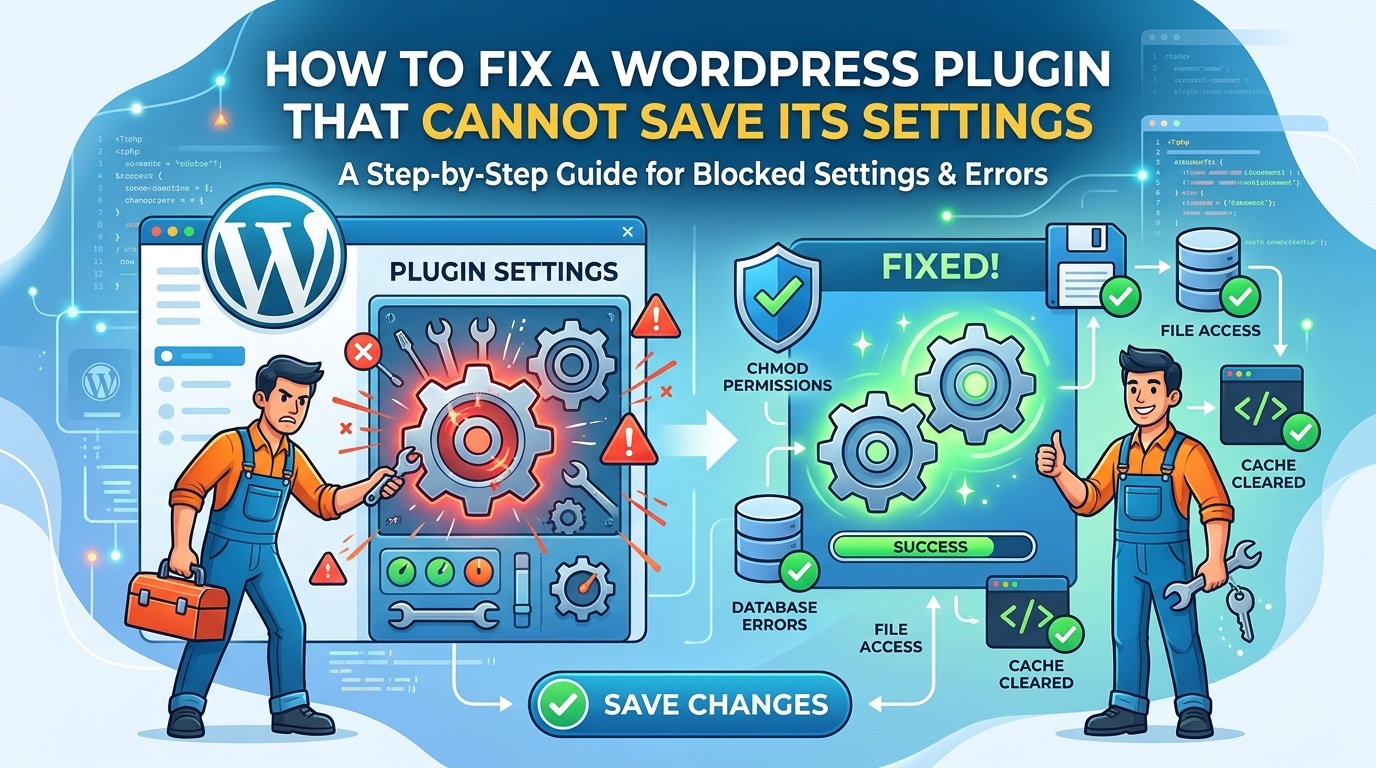
Have you ever changed a WordPress plugin setting, clicked the Save Changes button, and discovered that your changes were not saved? This problem can be frustrating, especially when a plugin appears to work correctly but refuses to remember your configuration.
A WordPress plugin that cannot save its settings may display an error message, reload the settings page without applying changes, return to its previous values, or show a success notification even though nothing has changed. In some cases, the Save Changes button does not respond at all.
Several issues can cause this behavior, including incorrect user permissions, database errors, security plugin restrictions, caching problems, JavaScript conflicts, REST API failures, and bugs in the plugin’s settings implementation.
The good news is that most settings-saving problems can be diagnosed systematically without reinstalling WordPress or rebuilding your website.
In this guide, you will learn how to fix a WordPress plugin that cannot save its settings, identify the most common causes, test possible solutions safely, and prevent the problem from happening again.
Why Can’t a WordPress Plugin Save Its Settings?
Before applying a fix, it helps to understand how WordPress plugins store configuration data.
Depending on its design, a plugin may save settings in the WordPress options table, a custom database table, a configuration file, or an external service. Many plugins use WordPress’s Settings API, while others use custom forms, AJAX requests, or REST API endpoints.
When you click Save Changes, the browser submits the form or sends a request to the server. WordPress then checks permissions, validates the submitted values, processes the request, and stores the data.
If any part of this process fails, your settings may not be saved.
Common causes include:
- Insufficient permissions for the current WordPress user.
- Incorrect file or directory permissions.
- Database connection failures or database write errors.
- Security plugins or web application firewalls blocking requests.
- JavaScript errors preventing form submission.
- Caching that displays outdated settings.
- REST API or AJAX requests returning errors.
- PHP errors caused by plugin or theme conflicts.
- Incorrect nonce verification or capability checks.
- Plugin bugs involving validation, sanitization, or database updates.
Identifying the actual cause is more effective than randomly changing settings or reinstalling plugins.
1. Confirm That You Have the Required WordPress Permissions
One of the first things to check is whether your account has permission to manage the plugin’s settings.
WordPress uses user roles and capabilities to control access to administrative features. A user with the Administrator role normally has extensive site-management permissions, while Editors, Authors, and other roles have more limited access.
Some plugins require a specific capability, such as manage_options, before allowing settings to be saved.
How to check user permissions
- Log in to your WordPress dashboard.
- Navigate to Users → Profile or Users → All Users.
- Confirm which account you are using and whether it has the appropriate role.
- If you manage the website, test the settings page using an authorized Administrator account.
- Return to the plugin settings page and save a small, reversible change.
If the settings save successfully under an Administrator account but fail under another account, the issue may involve role permissions or the plugin’s capability checks.
For more information, consult the official WordPress Roles and Capabilities documentation.
What if you are already an Administrator?
An Administrator role does not guarantee that every request will succeed. A plugin may use an incorrect capability check, a multisite installation may require Super Admin privileges for certain operations, or a security rule may block the request.
Do not grant every user administrative privileges simply to work around the problem. Correct the plugin’s permissions or capability checks instead.
2. Check Whether the Plugin Displays an Error Message
Error messages often reveal what prevents a plugin from saving its settings.
After clicking Save Changes, look carefully at the settings page for messages such as:
- You do not have permission to perform this action.
- The link you followed has expired.
- The request failed.
- Invalid nonce.
- REST API request failed.
- Database error.
- Internal Server Error (500).
- Forbidden (403).
- Bad Request (400).
Different messages suggest different causes.
For example, a 403 response may indicate a permissions problem or a security rule. A 500 response suggests a server-side failure, which could be caused by a PHP exception, fatal error, or another server problem. A nonce error may indicate an expired form, an invalid security token, or a request handled incorrectly by the plugin.
Refresh the settings page carefully
If the page reports that the link has expired, reload the settings page to obtain a fresh form and security token. Re-enter your changes and try again.
Before refreshing, copy your unsaved values somewhere safe. Reloading the page may discard them.
If the error continues, investigate the plugin’s request handling rather than repeatedly submitting the same form.
3. Check the Browser Console for JavaScript Errors
Some plugins use JavaScript to validate settings, display dynamic fields, submit forms, or communicate with WordPress through AJAX and REST API requests.
If JavaScript fails, the Save Changes button may stop working even though the rest of the dashboard appears normal.
How to inspect browser errors
In Microsoft Edge or Google Chrome:
- Open the WordPress plugin settings page.
- Press
F12to open Developer Tools. - Select the Console tab.
- Click Save Changes again.
- Look for newly appearing errors, especially red messages.
- Check whether any scripts fail to load or report an undefined function or variable.
Next, select the Network tab and repeat the save operation. Inspect requests that return errors or remain pending.
Look for requests involving admin-ajax.php, the WordPress REST API under /wp-json/, or the plugin’s own administrative endpoints.
A JavaScript error involving a different plugin does not automatically prove that plugin is responsible. Identify which script fails and whether the error occurs during the save operation.
How to fix JavaScript conflicts
- Update the affected plugin if a compatible fix is available.
- Check whether the plugin supports your current WordPress and PHP versions.
- Temporarily test for conflicts using a staging environment.
- Remove obsolete or incorrectly loaded scripts if you maintain the plugin.
- Review browser console errors after disabling a suspected conflicting feature.
Avoid editing WordPress core JavaScript files. Core-file modifications are difficult to maintain and may disappear during updates.
For official development guidance, see the WordPress JavaScript documentation.
4. Investigate Plugin Conflicts
A conflict between plugins is another common reason for settings-saving failures.
Two plugins may register the same JavaScript library, modify the same database option, interfere with an administrative request, or introduce incompatible PHP functions. A security or optimization plugin may also interfere with the request used to save settings.
How to identify a conflicting plugin
The safest method is to test on a staging website.
- Create a recent backup of your website.
- Set up a staging copy if your hosting provider offers one.
- Temporarily deactivate nonessential plugins.
- Leave the affected plugin active.
- Open its settings page and try saving a test value.
- If saving works, reactivate the other plugins one at a time.
- Test again after each activation.
When the issue returns, investigate the most recently activated plugin and any interactions involving it.
If you have many plugins installed, test them in groups and narrow down the responsible group before testing individual plugins.
Pay particular attention to these plugins
- Caching and performance optimization plugins.
- Security and firewall plugins.
- Plugins that modify user roles and capabilities.
- Plugins that customize the WordPress administration area.
- Plugins that modify REST API behavior.
- Plugins that optimize or defer JavaScript execution.
Do not leave essential security or backup plugins disabled on a live website just to make a settings form work.
The official WordPress troubleshooting documentation provides additional guidance for investigating common website problems.
5. Clear Caches and Test in a Private Browser Window
Caching can make a plugin settings page appear as though it has ignored your changes.
For example, a browser may retain an older JavaScript file, an optimization plugin may serve outdated administrative assets, or an object cache may return stale data.
However, caching is not always the cause. WordPress normally excludes many administrative operations from page caching, so clearing caches should be treated as a diagnostic step rather than a guaranteed solution.
Follow these steps
- Copy any unsaved settings.
- Clear your browser cache or open the settings page in an InPrivate window in Microsoft Edge.
- Log in again and revisit the plugin settings page.
- Clear the relevant WordPress cache if your site uses a caching plugin.
- Clear the hosting provider’s cache if the host provides one.
- Retry saving a harmless test setting.
If the plugin uses persistent object caching, ask your hosting provider or administrator to investigate whether stale option values are being returned.
Do not delete database tables or flush production caches indiscriminately. Some sites rely on caches for performance, and clearing every cache may temporarily affect the website.
If the setting saves correctly in a private window, investigate browser extensions, stored assets, and session-related behavior.
6. Check WordPress REST API and AJAX Requests
Modern WordPress plugins often save settings through background requests rather than traditional page submissions.
A plugin might send an AJAX request to wp-admin/admin-ajax.php or use a REST API endpoint such as /wp-json/plugin-namespace/v1/settings.
If the request fails, the settings may remain unchanged.
How to diagnose REST API problems
Open Developer Tools, select Network, and save the settings again. Find the request responsible for the operation and inspect its status code and response.
Common examples include:
- 401 Unauthorized: The request lacks valid authentication or is not accepted as authenticated.
- 403 Forbidden: The request is rejected because of permissions or a security rule.
- 404 Not Found: The endpoint may be missing or incorrectly registered.
- 400 Bad Request: The submitted data may be invalid or malformed.
- 429 Too Many Requests: A rate limit may be blocking requests.
- 500 Internal Server Error: The server encountered an error while processing the request.
These are clues rather than definitive diagnoses. The same status code can have different causes depending on the hosting environment and plugin implementation.
Check the WordPress REST API
Visit the REST API root in your browser:
Replace example.com with your domain.
On a normally configured site, the root endpoint should generally return JSON describing the available API routes. If it returns an error, redirect loop, security challenge, or unexpected HTML page, investigate the server configuration and security rules.
For background information, read the official WordPress REST API Handbook.
Review AJAX implementation
If you develop or maintain a plugin, confirm that the AJAX handler is registered correctly for the intended user type. Verify authentication, capability checks, nonce verification, input validation, and the response format.
A request that returns a successful HTTP status does not necessarily mean the settings were saved. Inspect the response body and verify the stored value independently.
7. Verify Database Connectivity and Write Operations
WordPress stores many plugin settings in the database, often in the wp_options table. Plugins can also use custom tables or external storage.
If the database is unavailable, has reached a resource limit, or rejects a write operation, settings may not be saved.
Signs of a database problem
- Multiple plugins cannot save their settings.
- WordPress displays a database connection error.
- The hosting control panel reports database resource limits.
- The PHP error log contains SQL errors.
- The problem occurs intermittently during periods of heavy traffic.
- The plugin reports a database update failure.
If only one plugin is affected, its database query or settings implementation may be responsible rather than the database server itself.
What to do
- Check whether other WordPress settings can be saved.
- Review your hosting provider’s database status and resource usage.
- Inspect the PHP and database logs for relevant errors.
- Confirm that the database account has the privileges WordPress requires.
- Contact your hosting provider if database writes are failing across the site.
If you have database access, verify that the relevant option or custom-table record changes after a save attempt.
For example, many plugins store settings in an option with a plugin-specific name. The exact option name varies by plugin, so do not assume that every setting is stored under a predictable name.
Important: Back up the database before changing records manually. Do not delete rows from wp_options or run arbitrary SQL queries to force a setting to save.
8. Check File and Directory Permissions
Incorrect filesystem permissions can prevent a plugin from saving settings if it writes configuration files, creates directories, or updates generated assets.
However, most standard WordPress plugin settings are stored in the database, not directly in plugin files. If a plugin uses the WordPress Options API, changing file permissions is unlikely to fix a database-write failure.
How to investigate permissions
- Determine whether the plugin is attempting to write a file.
- Check whether the relevant directory exists.
- Confirm that the PHP process has the required access.
- Review hosting error logs for permission-denied messages.
- Ask your hosting provider to verify file ownership and permissions.
Do not set every file and directory to unrestricted permissions such as 777. That creates unnecessary security risks.
For a deeper explanation, consult the official WordPress file permissions guide.
If the plugin stores its settings in the database and there are no filesystem errors, investigate the database, request handling, and plugin code instead.
9. Enable WordPress Debug Logging
When the cause remains unclear, WordPress debugging can help reveal PHP warnings, fatal errors, and other problems that occur during the save operation.
Before enabling debugging, create a backup and preferably use a staging environment. Avoid displaying detailed errors to public visitors.
Configure debug logging
Open your wp-config.php file and locate the line that says:
/* That's all, stop editing! Happy publishing. */Add the following configuration above that line, taking care not to duplicate existing constants:
define( 'WP_DEBUG', true );
define( 'WP_DEBUG_LOG', true );
define( 'WP_DEBUG_DISPLAY', false );
If these constants already exist, update the existing definitions rather than adding duplicates.
Now revisit the plugin settings page, reproduce the issue, and inspect:
wp-content/debug.log
Look for entries created at the time of the failed save. The log may reveal a PHP fatal error, deprecated function usage, database error, or incorrect callback.
Keep in mind that not every failed save produces a WordPress debug-log entry. Server-level errors and web application firewall blocks may appear only in hosting logs.
Turn debugging off afterward
Once you have collected the necessary information, disable debugging or restore the previous configuration. Protect the log file because it may contain sensitive technical information.
For complete guidance, see the official WordPress debugging documentation.
10. Check PHP Compatibility and Server Resources
A plugin may stop saving settings after a PHP upgrade or when the server runs out of memory or other resources.
For example, an outdated plugin may use a function that is no longer supported, or a request may exceed the server’s execution limits.
Check your PHP environment
In WordPress, navigate to Tools → Site Health → Info and review the server information. Depending on your permissions and hosting configuration, you may also find the PHP version in your hosting control panel.
Compare the installed version with the plugin’s documented requirements.
Investigate these possible problems:
- PHP fatal errors.
- Insufficient PHP memory.
- Request timeouts.
- Database connection exhaustion.
- Hosting resource limits.
- Incompatible plugin dependencies.
If the problem started immediately after a PHP upgrade, check the error logs first. Update the plugin to a compatible release if one is available.
Do not downgrade PHP blindly. Older versions may be unsupported and expose the website to security risks. If a PHP version change is necessary for diagnosis, test it on staging and choose a supported version compatible with the entire site.
11. Validate WordPress Nonce and Capability Checks
WordPress plugins often use nonces to help protect administrative requests against cross-site request forgery (CSRF). They also use capability checks to confirm that the current user is authorized to change settings.
If a nonce is missing, expired, or verified incorrectly, the plugin may reject a legitimate save request.
Common causes
- A settings page remains open for too long.
- A cached form contains an expired nonce.
- The plugin generates a nonce using one action name but verifies another.
- The request fails to include the expected nonce field.
- The plugin checks the wrong user capability.
- A custom AJAX or REST API handler does not follow the correct security pattern.
Refreshing the page can resolve an expired nonce. If the problem continues, inspect the plugin’s request and security implementation.
For plugin developers, the official WordPress nonce documentation explains how to generate and verify nonces.
Remember that a nonce is not a substitute for authorization. A secure settings handler should verify the user’s capability and validate the submitted values as well as verify the nonce.
12. Check the Plugin’s Settings API Implementation
If you develop WordPress plugins, the problem may originate in the code that registers, processes, or stores settings.
WordPress provides the Settings API to standardize settings pages and form processing. A custom implementation can also work, but it must correctly handle form submission, permissions, validation, and persistence.
Confirm that the settings are registered correctly
For plugins using the Settings API, inspect whether the relevant option is registered and whether the form submits to the expected administrative endpoint.
A simplified example of registering an option is shown below:
add_action( 'admin_init', 'example_register_settings' );

function example_register_settings() {
    register_setting(
        'example_settings_group',
        'example_plugin_options',
        array(
            'type'              => 'array',
            'sanitize_callback' => 'example_sanitize_options',
            'default'           => array(),
        )
    );
}

function example_sanitize_options( $input ) {
    if ( ! is_array( $input ) ) {
        return array();
    }

    $output = array();

    if ( isset( $input['enabled'] ) ) {
        $output['enabled'] = (bool) $input['enabled'];
    }

    if ( isset( $input['label'] ) ) {
        $output['label'] = sanitize_text_field(
            $input['label']
        );
    }

    return $output;
}
This example illustrates settings registration and sanitization; it is not a complete settings page. The form, settings fields, group name, and registered option name must be wired together correctly.
When investigating a real plugin, check the following:
- The option name matches the option being read and updated.
- The settings group is registered and submitted correctly.
- The form uses the expected action and hidden fields.
- The sanitization callback returns the intended data structure.
- The plugin does not overwrite valid values with empty defaults.
- The database update result is handled appropriately.
For official implementation details, consult the WordPress Settings API documentation.
Avoid silent failures in custom save handlers
A custom handler should report validation failures clearly and confirm successful updates accurately. It should not display a success message merely because the form was submitted.
For example, a developer should distinguish between a rejected request, invalid input, a failed database operation, and a successful save. This makes debugging much easier for both administrators and support teams.
13. Update or Reinstall the Affected Plugin Safely
If the problem began after a plugin update, the new version may contain a bug or introduce an incompatibility.
Check the plugin’s changelog, support forum, and compatibility information. Install available maintenance updates after reviewing their relevance to your environment.
If the plugin’s files appear corrupted, reinstalling a clean copy may help. Before doing so:
- Back up your website and database.
- Determine whether the plugin stores settings in the database or in files.
- Check whether deactivation or deletion removes configuration data.
- Download a clean copy from the official developer or trusted distribution source.
- Reinstall the plugin and test the settings page.
Do not delete the plugin’s database records unless the developer’s documentation specifically instructs you to do so.
Reinstalling does not fix every problem. If the underlying issue is a permission check, security rule, database failure, or incompatible plugin, the same error may return.
14. Contact the Plugin Developer or Hosting Provider
If the previous steps do not resolve the issue, collect evidence before requesting support.
Provide the plugin developer with:
- The plugin name and installed version.
- Your WordPress and PHP versions.
- The exact steps needed to reproduce the issue.
- The error message or failed request status.
- Relevant sanitized log entries.
- Whether the problem occurs on staging.
- Whether other plugins can save settings.
- Whether the issue began after an update.
Do not send passwords, authentication cookies, secret API keys, database credentials, or an unredacted debug log containing private information.
Contact your hosting provider when the logs point to database connectivity, PHP resource limits, filesystem ownership, server configuration, or firewall restrictions.
Clear diagnostic information helps the developer determine whether the problem is in the plugin or the hosting environment.
How to Prevent WordPress Plugin Settings Problems
Once the issue has been resolved, follow these practices to reduce the likelihood of another failure.
Keep WordPress components updated
Use supported WordPress, PHP, plugin, and theme versions. Test major updates on staging before applying them to important websites.
Maintain regular backups
Back up both the database and website files. A database backup is especially important when settings are stored in WordPress options or custom tables.
Test changes on staging
Use a staging site when changing PHP versions, installing security software, or updating plugins that control important website functions.
Monitor errors and server resources
Review error logs after significant updates and investigate repeated database failures, PHP fatal errors, and resource-limit warnings.
Follow secure plugin development practices
Plugin developers should use appropriate capability checks, nonce verification, validation, sanitization, and reliable error handling. They should also verify that the stored values match the intended settings after a save operation.
Document plugin configuration
Keep a record of important configuration choices. This makes it easier to restore settings or compare behavior after an update.
Frequently Asked Questions
Why does my WordPress plugin show a success message but not save settings?
The plugin may display a success message before confirming that the database update succeeded. It may also be reading stale values, saving to a different option, or silently rejecting the submitted data. Inspect the network response, plugin logs, and actual stored values to determine the cause.
Why does the Save Changes button do nothing?
Possible causes include JavaScript errors, an unresponsive browser script, form validation problems, or a button that is not correctly connected to the form submission handler. Inspect the browser Console and Network tabs to identify what happens when you click the button.
Can a security plugin prevent settings from saving?
Yes. A security plugin or web application firewall can block administrative requests that resemble suspicious activity. Review security logs and test the suspected rule on staging before changing any protection on a live site.
Will reinstalling WordPress fix a plugin settings problem?
Usually, reinstalling WordPress is not the first or best solution. The issue may be limited to the plugin, a database operation, permissions, or a server rule. Diagnose the failing request before considering major repairs.
Are plugin settings stored in the WordPress database?
Many plugins store settings in the wp_options table, but some use custom database tables, configuration files, external APIs, or other storage systems. The plugin’s documentation or source code can help identify where its settings are saved.
Why did my plugin stop saving settings after a PHP update?
The plugin may use incompatible PHP code, trigger a fatal error, or exceed a server resource limit. Check the plugin’s compatibility information and review PHP error logs before changing your PHP version.
Should I change file permissions to fix the issue?
Only when evidence points to a filesystem permission problem. Standard WordPress options are normally stored in the database, so changing file permissions will not solve most database-related settings failures.
Conclusion
A WordPress plugin that cannot save its settings can be affected by user permissions, JavaScript errors, plugin conflicts, caching, REST API failures, database problems, PHP incompatibilities, or faulty settings-handling code.
The most effective approach is to reproduce the issue, inspect error messages, examine browser requests, review server logs, and test potential conflicts in a controlled environment. Once the root cause is identified, apply the smallest safe correction rather than reinstalling WordPress or changing unrelated configuration.
Website administrators should maintain backups, use staging environments, and keep their software updated. Plugin developers should implement reliable settings registration, security checks, validation, sanitization, and error reporting.
With a structured troubleshooting process, you can usually determine why a plugin is failing to save its settings and restore its normal operation without unnecessary disruption to your WordPress website.
Leave a Reply