Introduction
WordPress shortcodes provide a simple way to add dynamic functionality to pages, posts, widgets, and other areas of a website without writing extensive code. They can display image sliders, contact forms, product listings, galleries, testimonials, pricing tables, and many other interactive elements.
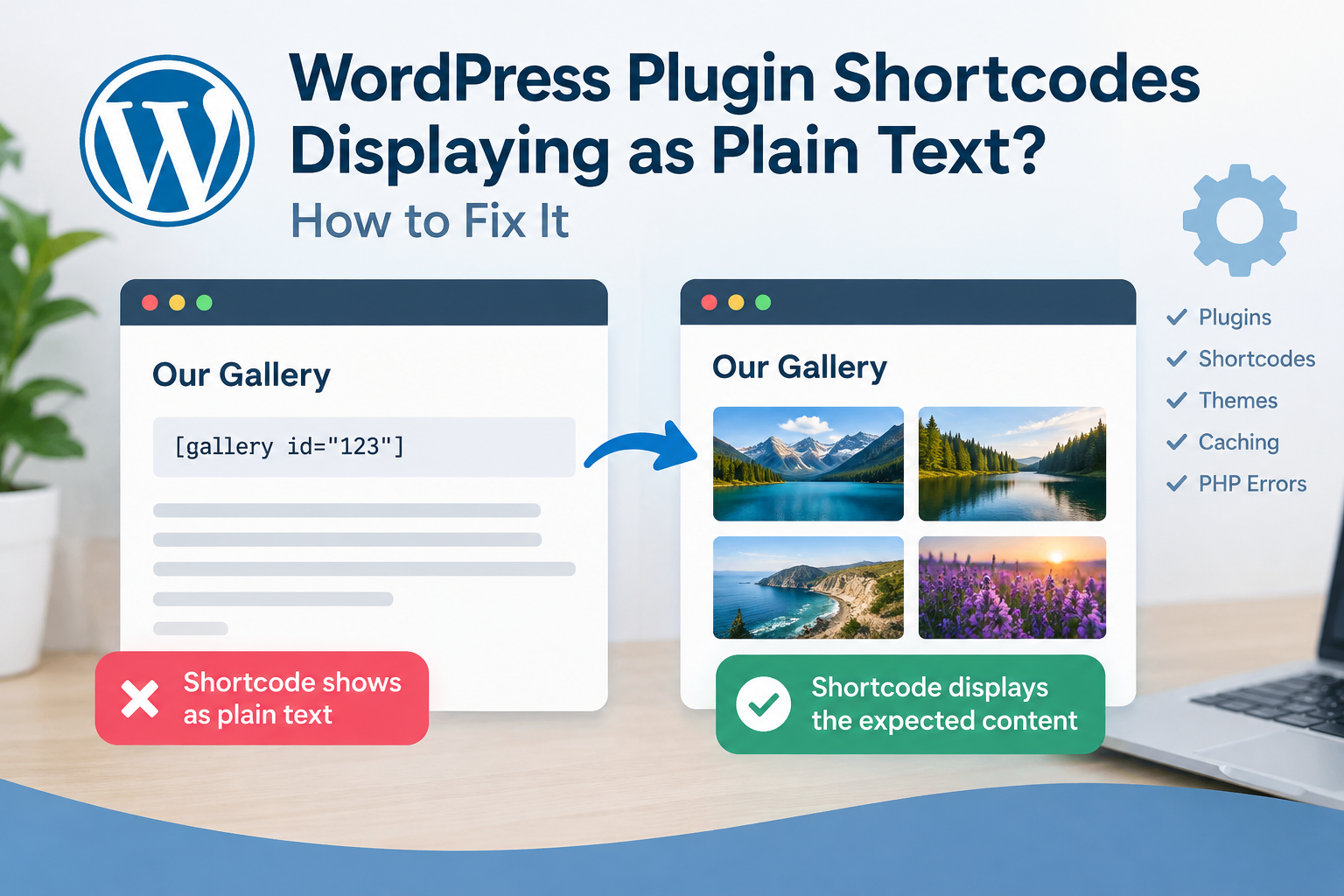
However, WordPress users sometimes encounter a frustrating problem: instead of displaying the expected content, a shortcode appears as ordinary text on the frontend.
For example, you might add the following shortcode to a WordPress page:
Instead of displaying a gallery, the website shows the shortcode exactly as it was entered. A similar issue can occur with plugin-specific shortcodes, such as those used for image sliders, forms, booking systems, or other custom features.
This problem can affect a website’s appearance, functionality, and user experience. It may also occur after a plugin update, theme change, WordPress migration, or modification to a page’s content.
Fortunately, WordPress plugin shortcodes displaying as plain text can usually be fixed by identifying why WordPress is not processing the shortcode correctly.
In this guide, you will learn why shortcodes appear as text, how to troubleshoot the problem step by step, how to identify plugin conflicts, and how to prevent the issue from happening again.
What Is a WordPress Shortcode?
A shortcode is a small text-based instruction that WordPress or a plugin recognizes and replaces with generated content.
Shortcodes are commonly enclosed in square brackets. For example:
[contact-form-7 id="123" title="Contact form"]
When WordPress recognizes a registered shortcode and processes it in a supported context, the shortcode callback generates the corresponding output.
Depending on the plugin, this output might contain HTML, images, form fields, scripts, or other content.
Shortcodes are registered using WordPress functions such as add_shortcode(). Developers can learn more about the process in the official WordPress Shortcode API documentation.
A shortcode generally requires three things to work correctly:
- The plugin or theme responsible for the shortcode must be active and functioning.
- The shortcode must use the correct name and syntax.
- WordPress must process the shortcode in the location where it has been inserted.
If any of these requirements is missing, the shortcode may fail to produce the expected result.
Why Are WordPress Plugin Shortcodes Displaying as Plain Text?
Before applying a solution, it helps to understand the possible causes. Different problems can produce the same visible symptom, so identifying the underlying cause can save time.
1. The Required Plugin Is Deactivated
Many shortcodes are registered by plugins rather than WordPress itself.
For example, an image slider plugin might provide a shortcode such as:
[my_image_slider]
If the plugin is deactivated, deleted, or unable to initialize correctly, WordPress may no longer recognize that shortcode. Consequently, the shortcode may appear as plain text.
This can happen after a website administrator deactivates plugins while troubleshooting another issue, changes hosting providers, or restores an older website backup.
How to fix it:
- Sign in to your WordPress dashboard.
- Navigate to Plugins → Installed Plugins.
- Find the plugin responsible for the shortcode.
- Check whether it is active.
- Activate it if necessary.
- Visit the affected page in a new browser tab and test the result.
If the plugin is active but the shortcode still fails, check whether the plugin reports an error or requires additional configuration.
Do not assume that activating any similar plugin will restore the shortcode. The exact plugin that registers it may be required.
2. The Shortcode Name Is Incorrect
WordPress shortcodes must use the registered shortcode name. Even a small spelling mistake can prevent the expected output from appearing.
Suppose a plugin registers this shortcode:
[example_slider]
Entering the following instead may not work:
[examples_slider]
The extra letter changes the shortcode name.
Other common mistakes include missing brackets, incorrect quotation marks, misspelled attribute names, and accidentally adding spaces within the shortcode tag.
How to fix it:
Open the affected page in the WordPress editor and compare the shortcode with the syntax provided by the plugin developer.
Copy the shortcode directly from the plugin’s settings page or official documentation whenever possible.
Check the following:
- The shortcode name is spelled correctly.
- Both opening and closing square brackets are present.
- Required attributes have been included.
- Attribute values use valid quotation marks.
- The shortcode has not been accidentally altered by another editor or content-processing tool.
Also verify whether the shortcode requires an ID, category, post ID, or other parameter.
3. The Shortcode Was Inserted Into an Unsupported Block
The WordPress block editor provides several types of blocks, and not every block processes shortcodes in the same way.
For example, entering a shortcode into a Code block is intended to display code as text rather than execute it. A shortcode inserted into a block or field that treats its contents as literal text may therefore remain visible.
How to fix it:
- Edit the affected post or page.
- Locate the block containing the shortcode.
- If it is inside a Code or Preformatted block, move the shortcode into an appropriate block.
- Add a dedicated Shortcode block using the block inserter.
- Paste the shortcode into that block.
- Save or update the page and preview it on the frontend.
The official WordPress Shortcode block documentation explains how to insert shortcodes using the block editor.
If you are using a page builder, consult its documentation to determine which widget or element supports shortcodes.
4. The Plugin Does Not Support the Selected Location
A shortcode may work in the main content area but fail in a sidebar, footer, header, custom field, or page-builder template.
This can happen because the selected location does not process shortcodes automatically or because the plugin was designed for use only in particular contexts.
For example, a theme might display a custom field using a template function that prints its value without executing shortcodes.
How to fix it:
First, place the same shortcode in a standard Shortcode block on a test page.
If it works there, the shortcode itself is probably valid, and the original location may be the problem.
Next, check whether the theme, widget, page builder, or custom field supports shortcode processing. Review its documentation before adding code.
For classic widget areas, WordPress provides a setting that enables shortcode processing in text widgets in some contexts, but the behavior depends on the widget implementation and WordPress version.
For custom templates, developers should use the appropriate WordPress functions and hooks rather than assuming every content field automatically executes shortcodes.
Important: Avoid adding shortcode execution indiscriminately to every field on your website. Doing so may create security, performance, or unexpected output problems.
5. A Theme or Plugin Conflict Is Preventing Execution
WordPress websites often use multiple plugins and a theme that interact with the same content.
A conflict can occur when a plugin filters content, replaces editor behavior, modifies shortcode handling, or changes how a page is rendered.
For example, a page optimization plugin might alter content output, while a page builder or theme introduces a separate rendering process.
The shortcode might work in one template but appear as text in another.
How to fix it:
Use a controlled troubleshooting process:
- Back up your website.
- Test the affected page in a staging environment if available.
- Temporarily switch to a standard WordPress theme, such as Twenty Twenty-Five if compatible with your installation.
- Check whether the shortcode works.
- If the problem remains, temporarily deactivate nonessential plugins.
- Test the shortcode after each change.
- Restore your original theme and plugins once the cause has been identified.
Avoid deactivating plugins on a busy production website without considering the impact on forms, payments, security, caching, and other critical functionality.
If the problem disappears after disabling a particular plugin, investigate its settings and compatibility before deciding whether to replace it.
6. The Plugin Was Updated or Reinstalled
A plugin update can introduce changes to shortcode registration, attributes, rendering behavior, or compatibility with the installed WordPress version.
A shortcode might also stop working after a plugin is reinstalled if its settings were reset or the installed version differs from the previous one.
However, an update is not necessarily the cause simply because the problem appeared afterward.
How to fix it:
- Check the plugin’s changelog and release notes.
- Confirm that you are using the correct shortcode for the installed version.
- Review any migration or setup instructions.
- Check whether the plugin requires a new configuration step.
- Review PHP error logs if the plugin appears to fail during initialization.
If the problem began immediately after an update, test the previous version only in a staging environment, using a trusted source and a backup. Avoid leaving an outdated or vulnerable plugin installed on a production site.
For development and compatibility guidance, see the WordPress Plugin Developer Handbook.
7. Cached Content Is Showing an Old Version
Caching can make troubleshooting confusing. Your website may continue to display an older page even after you have corrected the shortcode or changed a plugin setting.
Cached content may be stored by a WordPress caching plugin, your hosting provider, a reverse proxy, or a content delivery network (CDN).
Caching is not the only explanation for plain-text shortcodes, but it is worth checking after you have made a correction.
How to fix it:
- Save the updated page.
- Clear the cache in your WordPress caching plugin.
- Purge the hosting or server cache if applicable.
- Purge the relevant CDN cache if one is enabled.
- Open the page in a private browser window.
- Test again after a hard refresh.
If the shortcode continues to appear as text on a fresh page load, continue investigating the plugin, shortcode syntax, and rendering context.
8. PHP Errors Prevent the Plugin From Initializing
Some plugins require particular PHP versions, extensions, or compatible dependencies.
If a plugin encounters a fatal PHP error during initialization, it may fail to register its shortcodes. The page may then display the shortcode text instead of the expected output.
Other symptoms may include missing plugin features, blank areas, warning messages, or errors in the WordPress administration dashboard.
How to fix it:
Check the PHP error log provided by your hosting company. Look for errors associated with the plugin or the time when the page was requested.
You can also enable WordPress debugging in a development or staging environment.
The official WordPress debugging documentation explains the available debugging options.
A typical configuration in wp-config.php for a controlled debugging session is:
define( 'WP_DEBUG', true );
define( 'WP_DEBUG_LOG', true );
define( 'WP_DEBUG_DISPLAY', false );
If these constants are already defined, edit the existing definitions rather than adding duplicates. Place the configuration before the line that says WordPress should stop editing.
This configuration can log certain errors to wp-content/debug.log, provided logging is supported and the file is writable. Hosting-level PHP logs may provide additional information.
Do not display raw errors to public visitors on a live website. Logs may contain sensitive paths or other technical details, so restrict access and remove or secure diagnostic files when troubleshooting is complete.
If you are not comfortable editing configuration files, ask your hosting provider or developer to help.
9. Custom Code Is Interfering With Shortcodes
A custom theme function, snippet plugin, or manually added code can interfere with shortcode registration or content processing.
For example, a developer might remove shortcode-related filters, change the content output pipeline, or register a different shortcode using the same name.
Custom code may also incorrectly escape square brackets or encode shortcode text so that WordPress treats it as ordinary content.
How to fix it:
Review recently added snippets, theme customizations, and custom plugins.
If you use a snippets plugin, temporarily disable the relevant snippet in a staging environment. If you suspect a theme modification, compare the affected template with the original theme files.
Developers can inspect shortcode registration and content-processing hooks using the WordPress Code Reference.
Avoid making direct edits to a parent theme’s files without a backup. Updates can overwrite those changes. Prefer a child theme or a small custom plugin for persistent customizations.
10. The Shortcode Is Escaped or Treated as Literal Text
Sometimes the shortcode is present in the page source, but WordPress is intentionally treating it as text.
This can happen when the shortcode is wrapped in code-formatting markup, escaped by a template, or inserted into a field designed to display literal text.
For example, a code-oriented element may show:
[my_image_slider]
exactly as written because its purpose is to display the syntax, not run it.
How to fix it:
Inspect the block or widget containing the shortcode. Remove unintended code formatting and place the shortcode in a supported context.
If the content is generated by custom PHP, inspect whether the output is escaped or passed through a function that processes shortcodes.
Do not blindly remove escaping from user-generated content. Escaping is an important security practice, and removing it without understanding the context can expose a website to cross-site scripting vulnerabilities.
Step-by-Step Guide to Fix WordPress Shortcodes Displaying as Plain Text
If you are unsure what caused the problem, follow this troubleshooting sequence.
Step 1: Identify the Plugin That Provides the Shortcode
Find the plugin that originally supplied the shortcode.
Check its settings page, documentation, or the page where the shortcode was created. Confirm that the plugin is installed, active, and compatible with your WordPress environment.
Step 2: Verify the Shortcode Syntax
Copy the shortcode from the plugin’s official instructions.
Compare it with the version on your page, including the name, brackets, attributes, and quotation marks.
If the shortcode requires an ID or another parameter, confirm that the referenced item still exists.
Step 3: Test a Shortcode Block
Create a temporary test page and insert the shortcode into a dedicated Shortcode block.
Publish the page only if appropriate for your website, or use a private or staging environment.
If the shortcode works on the test page, the original location may not support shortcode execution. If it fails there too, continue with plugin configuration and compatibility checks.
Step 4: Check the Frontend and Editor Separately
Some editors show shortcode syntax in the editing interface even though the frontend processes it correctly.
Open the actual published page in a new tab. Do not rely only on the visual editor’s appearance.
If the frontend also displays the shortcode as text, the issue is more likely to involve registration, syntax, rendering context, or a conflict.
Step 5: Clear Caches
Purge the WordPress, hosting, and CDN caches where applicable.
Then reload the page in a private browser window.
Step 6: Test for Plugin and Theme Conflicts
Back up the website and perform controlled testing in staging.
Temporarily switch to a default theme and disable nonessential plugins one at a time. After each change, test the same shortcode on the same page.
This process can help isolate a conflicting component without making unnecessary changes to the website.
Step 7: Inspect Error Logs
If the shortcode still does not work, review PHP and WordPress debug logs.
Look for fatal errors, missing dependencies, deprecated functions, or plugin initialization failures.
If the problem started after a server or PHP upgrade, check the plugin’s compatibility requirements.
Step 8: Contact the Plugin Developer
If the shortcode fails despite correct syntax and a compatible environment, contact the plugin developer.
Provide the shortcode name, plugin version, WordPress version, PHP version, affected page context, and relevant error messages. Remove passwords, API keys, personal information, and other secrets before sharing logs.
A concise, reproducible report makes it easier to identify a genuine plugin bug.
How to Fix Shortcodes That Do Not Work in Sidebars and Widgets
Shortcodes in widget areas require special attention because themes and widget types may process content differently.
If a shortcode works in a page but not in the sidebar, try the following:
- Edit the widget area using the WordPress Site Editor or Widgets screen, depending on your theme.
- Add a Shortcode block where supported.
- Paste the shortcode into the block.
- Save the changes and inspect the frontend.
- If it still fails, check the widget’s documentation and the theme’s rendering behavior.
For classic themes, the available widget types and shortcode behavior may differ from those in block-based themes.
If a widget displays literal shortcode text, do not immediately assume the plugin is broken. Test the shortcode in the main content area first to distinguish a shortcode problem from a widget-rendering problem.
How Developers Can Diagnose Shortcode Registration Problems
Developers can investigate whether the expected shortcode is registered and whether the plugin loads successfully.
For example, a plugin can register a shortcode using this pattern:
function example_slider_shortcode( $atts ) {
    $atts = shortcode_atts(
        array(
            'id' => 0,
        ),
        $atts,
        'example_slider'
    );

    $id = absint( $atts['id'] );

    if ( ! $id ) {
        return '';
    }

    return '<div class="example-slider">Slider ID: '
        . esc_html( (string) $id )
        . '</div>';
}

add_shortcode(
    'example_slider',
    'example_slider_shortcode'
);
This is a simplified demonstration, not a complete slider implementation. It registers [example_slider] and accepts an id attribute.
Developers should check that:
- The file containing
add_shortcode()is loaded. - The shortcode name matches the one used in the content.
- The callback is callable and does not terminate with a fatal error.
- The callback returns the output rather than unnecessarily printing it.
- Attributes are parsed and validated correctly.
- Dynamic output is escaped according to its context.
- The plugin does not depend on a hook or initialization condition that is never reached.
The WordPress add_shortcode() reference provides further technical details.
Check Whether a Shortcode Is Registered
During development, a temporary diagnostic can check whether a shortcode exists:
if ( shortcode_exists( 'example_slider' ) ) {
    // The shortcode is registered.
}
The WordPress shortcode_exists() reference explains this function.
Run diagnostics in an appropriate development context. A registered shortcode is not proof that it will render correctly, and an unregistered shortcode may simply indicate that the plugin responsible for it has not loaded.
Use Shortcodes in the Correct Content Context
Developers should not assume that every database field, template variable, or widget automatically processes shortcodes.
If a template intentionally needs to process a trusted shortcode-containing field, a developer may use do_shortcode() in the appropriate context. For example:
echo do_shortcode( '[example_slider id="123"]' );See the WordPress do_shortcode() reference.
Use this approach selectively. Do not apply shortcode execution indiscriminately to every field or to untrusted input. Ensure the data source, output handling, permissions, and security implications are understood.
Common Mistakes to Avoid When Troubleshooting Shortcodes
Several troubleshooting approaches can make the problem worse or obscure its actual cause.
Deactivating Every Plugin Without a Plan
Disabling all plugins on a live website can interrupt important functionality.
Use staging when possible, record the original configuration, and test components systematically.
Editing WordPress Core Files
Core-file modifications are not a reliable solution to shortcode problems. They can be overwritten during updates and may introduce security or stability issues.
Use documented APIs, theme hooks, and plugin-level customizations instead.
Installing Multiple Plugins That Provide Similar Features
Adding a second slider, form, or gallery plugin will not necessarily fix the original shortcode. The new plugin may register a different shortcode and require separate configuration.
Identify the shortcode’s actual owner before installing alternatives.
Ignoring PHP Errors
A shortcode that appears as plain text may be a symptom of a plugin initialization failure. Changing the shortcode repeatedly will not fix a fatal error.
Review relevant logs and resolve the underlying compatibility issue.
Repeatedly Clearing the Cache Without Testing the Cause
Caching can preserve old output, but it cannot repair an inactive plugin, incorrect shortcode name, or unsupported widget context.
Clear caches after making a relevant correction, not as a substitute for diagnosis.
Copying Unverified Code From Forums
Code that changes shortcode processing can have unexpected consequences. Review the source, understand the purpose, and test changes in staging before deploying them.
How to Prevent WordPress Shortcode Problems in the Future
Prevention is easier than troubleshooting a broken website after an update.
Follow these practices to reduce the likelihood of shortcode failures:
- Keep WordPress, plugins, themes, and PHP versions compatible and appropriately maintained.
- Review plugin documentation before changing shortcode syntax or attributes.
- Test major updates in staging when practical.
- Maintain recent backups of files and databases.
- Avoid unnecessary customizations to WordPress core files.
- Use the correct block or widget for each shortcode.
- Document custom shortcodes and their dependencies.
- Monitor error logs after significant changes.
- Remove unused plugins carefully, checking whether existing pages depend on their shortcodes.
- Keep a record of custom code snippets and changes made during troubleshooting.
For additional maintenance guidance, review the official WordPress support resources and the WordPress Developer Resources.
Frequently Asked Questions
Why is my WordPress shortcode showing instead of working?
The plugin may be inactive, the shortcode name may be incorrect, or the selected block, widget, or template may not process shortcodes. Plugin conflicts and PHP errors can also prevent the expected output from appearing.
Start by verifying the plugin and shortcode syntax, then test the shortcode in a dedicated Shortcode block.
Why are shortcodes visible in the WordPress editor but working on the website?
Some editor interfaces display shortcode syntax rather than its final output. The actual frontend may process the shortcode correctly.
Always check the published page before assuming that the shortcode is broken.
Why does my shortcode work on one page but not another?
The pages may use different templates, builders, widgets, or rendering methods. One location might process shortcodes automatically, while another treats them as plain text.
Test the same shortcode in a standard Shortcode block and compare the results.
Can a WordPress theme cause shortcodes to display as plain text?
Yes. A theme or template may alter content rendering or display a custom field without processing shortcodes. Switching temporarily to a standard theme in staging can help identify a theme-related conflict.
Can a plugin update break existing shortcodes?
Yes. An update may change shortcode names, attributes, initialization behavior, or compatibility requirements. Check the plugin’s release notes and documentation before changing existing content.
Will clearing the WordPress cache fix the problem?
It may help if cached output is outdated, but it will not correct an inactive plugin, invalid shortcode, or unsupported rendering context. Clear the relevant caches after correcting the underlying issue.
Is it safe to use do_shortcode() in a WordPress theme?
It can be appropriate when used deliberately with trusted content in the correct context. However, indiscriminate shortcode execution can cause security, performance, or output problems. Developers should understand the data source and escaping requirements before using it.
What should I do if none of the solutions works?
Test the shortcode on a clean staging page, verify the plugin’s compatibility, review error logs, and isolate plugin or theme conflicts. If the issue remains, contact the plugin developer with reproducible steps and relevant version information.
Conclusion
WordPress plugin shortcodes displaying as plain text can result from several different problems, including inactive plugins, incorrect syntax, unsupported blocks or widgets, theme conflicts, caching, and PHP errors.
The most effective solution is to troubleshoot systematically rather than immediately reinstalling plugins or editing theme files.
Start by confirming that the responsible plugin is active and that the shortcode is correct. Next, test it in a dedicated Shortcode block, inspect the frontend, clear relevant caches, and investigate conflicts or error logs if necessary.
For developers, checking shortcode registration, initialization, and the content-rendering context can help distinguish a registration problem from an output or compatibility issue.
With a structured troubleshooting process and routine website maintenance, you can restore shortcode functionality, improve the reliability of your WordPress website, and reduce the risk of similar problems in the future.