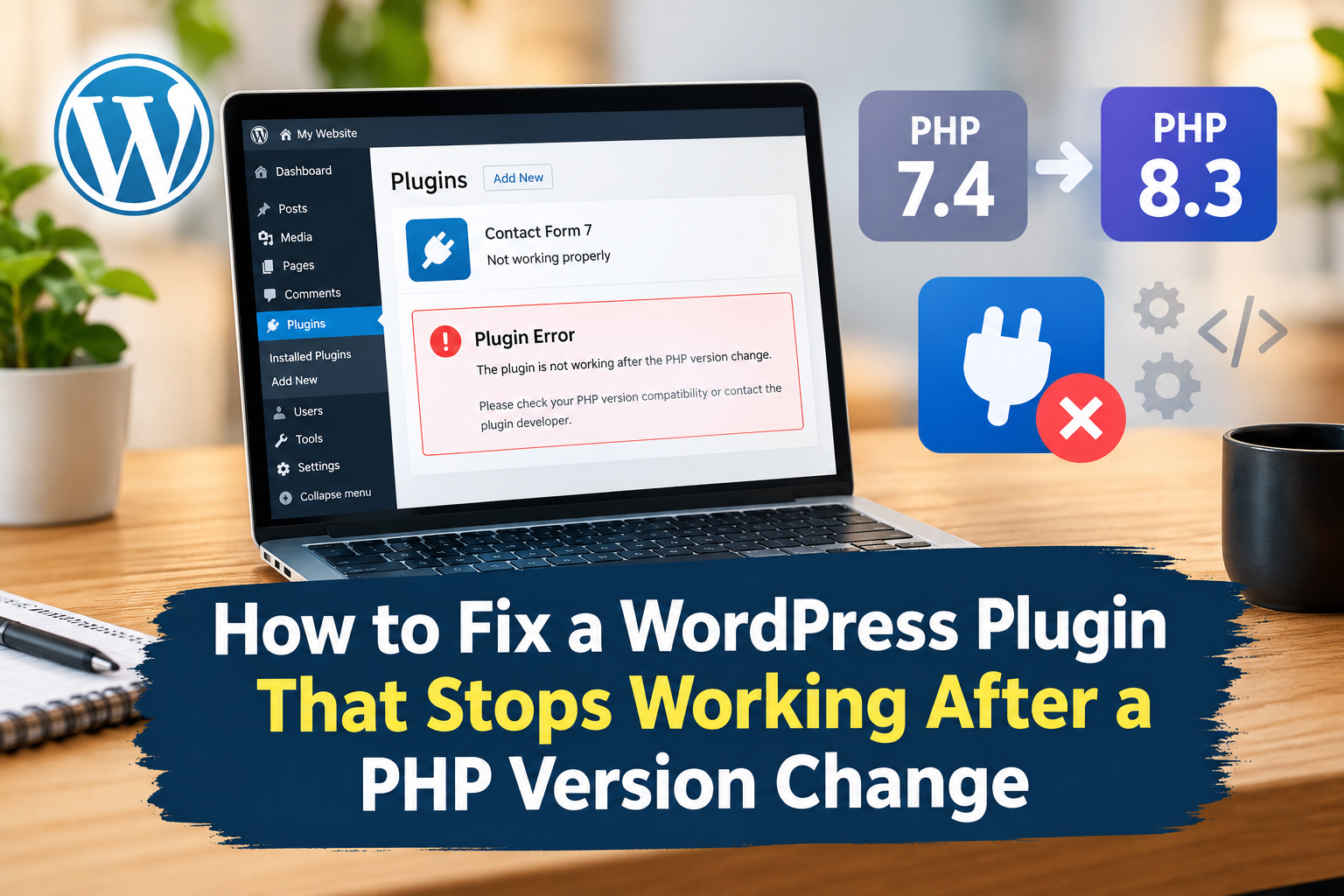
Updating PHP is an important part of maintaining a secure, fast, and reliable WordPress website. Newer PHP versions can improve performance, strengthen security, and provide better support for modern WordPress features. However, a PHP upgrade can sometimes introduce unexpected problems, especially when a WordPress plugin has not been updated to support the new version.
If a WordPress plugin stops working after a PHP version change, you might notice a broken website layout, missing functionality, error messages, failed forms, or even a white screen. In some cases, the entire WordPress dashboard becomes inaccessible.
The good news is that these problems are often fixable without rebuilding your website or losing your content. By identifying the underlying compatibility issue, checking error logs, and testing potential conflicts, you can usually restore the affected plugin and get your website working again.
In this guide, you’ll learn why WordPress plugins stop working after PHP updates and how to fix the problem step by step.
Why Does a WordPress Plugin Stop Working After a PHP Version Change?
WordPress plugins are written primarily in PHP, the server-side programming language that powers WordPress. Every PHP release introduces changes that can affect how existing code behaves.
A plugin developed for an older PHP version might rely on functions, behaviors, or coding practices that have changed or been removed in a newer release. When that happens, the plugin may generate warnings, encounter fatal errors, or fail to perform its intended functions.
Here are the most common reasons a WordPress plugin stops working after a PHP version change.
1. PHP Compatibility Issues
Not every plugin supports every PHP version. For example, an outdated plugin might work correctly on PHP 7.4 but encounter problems on PHP 8.2 or PHP 8.3.
PHP 8 introduced several changes to error handling, type checking, and language behavior. Code that previously generated a warning or continued running might now produce a fatal error under certain circumstances.
The exact problem depends on the plugin’s code and the PHP version installed on your server.
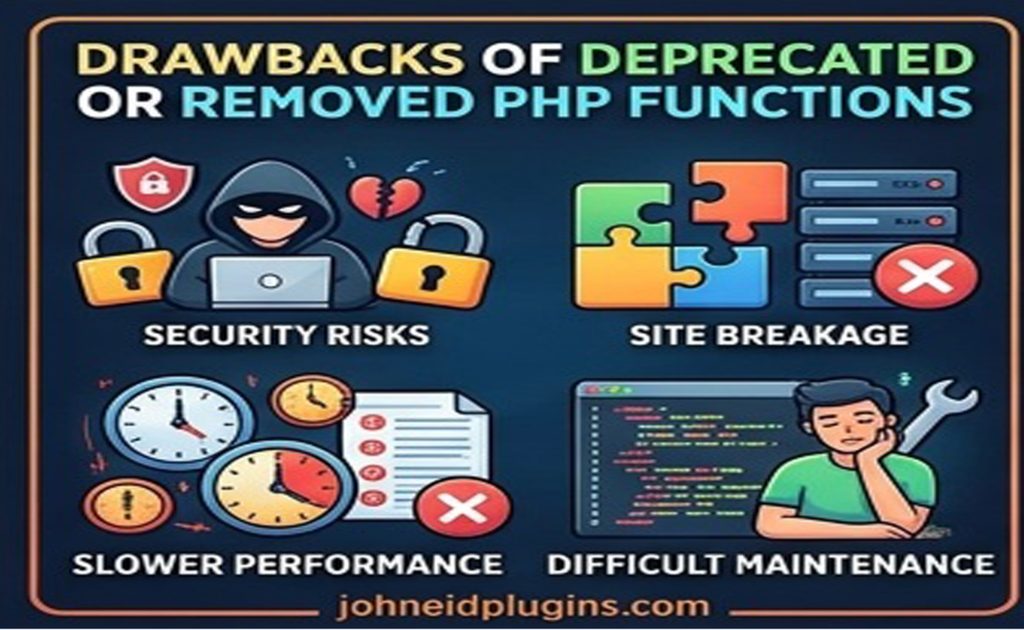
2. Deprecated or Removed PHP Functions
PHP periodically deprecates older functions and removes functionality that is no longer supported.
If a plugin depends on a removed function or an outdated programming pattern, it may fail after an upgrade. Some deprecated functions only generate warnings, while other incompatibilities can prevent a plugin from executing correctly.
3. Conflicts With WordPress Core or Other Plugins
A PHP upgrade can expose problems that were already present in your website’s code.
For instance, two plugins might define incompatible functions, rely on different versions of the same library, or use outdated code that behaves differently under the new PHP release.
A theme can also contribute to the problem, particularly if it includes custom PHP code or integrates directly with the affected plugin.
4. Server Configuration Changes
Changing PHP versions through your hosting control panel may also change the environment in which your website runs.
The new PHP version might use different extensions, memory settings, execution limits, or configuration options. If a plugin requires a PHP extension that is missing or disabled, its functionality may stop working.
5. An Outdated Plugin
Some plugin developers stop maintaining their products or release updates less frequently than PHP evolves.
When a plugin has not been tested against newer PHP versions, compatibility problems become more likely. This is particularly common with abandoned plugins, older premium extensions, and custom-built WordPress functionality.
Understanding these causes helps you choose the right troubleshooting method instead of making unnecessary changes to your website.
Step 1: Back Up Your WordPress Website
Before troubleshooting a plugin that stops working after a PHP upgrade, create a complete backup of your website.
Your backup should include two essential components:
- Website files: WordPress core files, plugins, themes, uploads, and configuration files.
- WordPress database: Posts, pages, user accounts, settings, plugin data, and other stored information.
You can create a backup through your hosting provider, a reputable WordPress backup plugin, or your hosting control panel.
If your hosting provider offers automatic backups, check whether a recent backup is available and whether it includes both files and the database.
A backup gives you a recovery option if a troubleshooting step makes the problem worse.
Important: Avoid performing major troubleshooting directly on a live website whenever possible. A staging environment allows you to test changes without disrupting visitors or customers.
Step 2: Confirm Which PHP Version Your Website Is Using
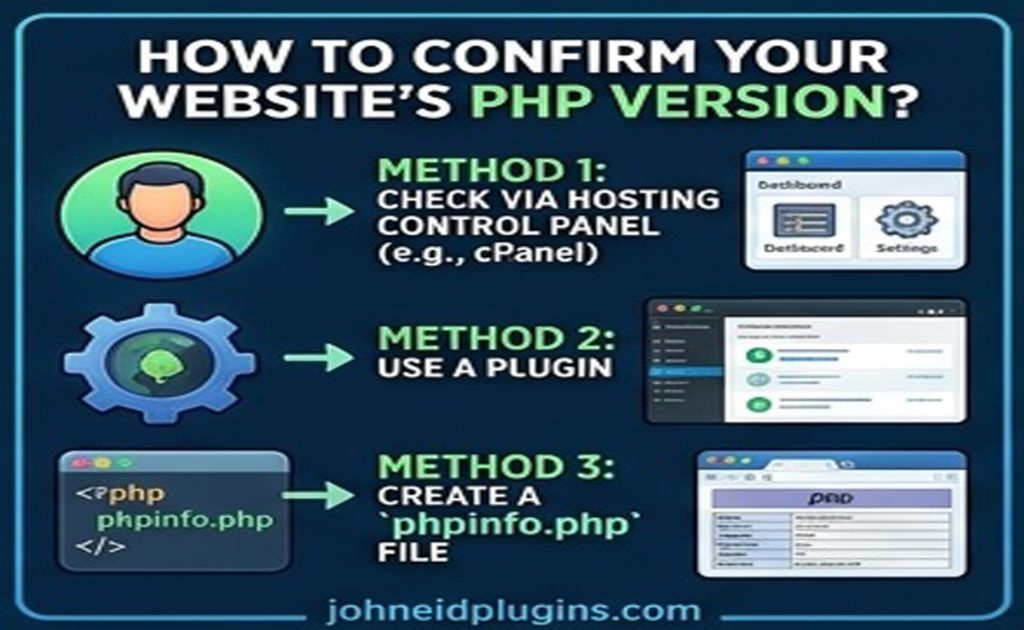
Before changing anything else, confirm the PHP version currently running on your WordPress website.
To check it through WordPress:
- Log in to your WordPress dashboard.
- Navigate to Tools > Site Health.
- Select the Info tab.
- Expand the Server section.
- Find the PHP version information.
If you cannot access the dashboard, open your hosting control panel and look for a PHP management tool. Depending on your hosting provider, it might be called PHP Selector, MultiPHP Manager, or PHP Configuration.
Confirm that the PHP version shown in your hosting account matches the version reported by WordPress.
This distinction matters because some hosting environments use different PHP versions for website requests and command-line operations.
Next, check the affected plugin’s documentation or official plugin page to determine which PHP versions it supports.
If your website uses PHP 8.3 but the plugin only supports an older PHP release, compatibility could be the underlying cause.
However, do not assume that every plugin error is caused by PHP incompatibility. Continue with the following steps to identify the actual problem.
Step 3: Enable WordPress Debugging to Identify the Error
One of the most effective ways to troubleshoot a WordPress plugin that stops working after a PHP version change is to inspect the error logs.
WordPress debugging can reveal whether the plugin is generating a fatal error, calling an undefined function, or encountering another PHP-related issue.
How to Enable WordPress Debugging
First, connect to your website using your hosting file manager or an SFTP client.
Locate the wp-config.php file in your WordPress installation’s root directory.
Before modifying it, save a copy of the original file.
Look for the following line:
/* That's all, stop editing! Happy publishing. */
Add these settings above that line:
define( 'WP_DEBUG', true );
define( 'WP_DEBUG_LOG', true );
define( 'WP_DEBUG_DISPLAY', false );
If these constants already exist, edit their existing values rather than defining them a second time.
Save the file and reproduce the problem by visiting the page or using the feature that triggers the plugin error.
Next, check the following file:
wp-content/debug.log
If WordPress can write to this location and the error is captured by its debugging system, the log may contain useful information about the failure.
Look for messages mentioning:
- The name of the affected plugin.
- A PHP fatal error.
- An undefined function or method.
- An incompatible argument type.
- A missing PHP extension.
- A specific plugin file and line number.
For example, an error might identify a PHP file inside the affected plugin and indicate that an incompatible argument was passed to a function.
That information can help you determine whether the issue involves outdated code, an unexpected input value, or a conflict with another component.
Security tip: Keep error display disabled on production websites. Error messages can reveal file paths and technical information that should not be exposed to visitors. Once troubleshooting is complete, disable debugging unless you have a specific reason to leave it enabled.
Step 4: Update the WordPress Plugin
An outdated plugin is one of the most common reasons for compatibility problems after a PHP upgrade.
Plugin developers frequently release updates to fix bugs, address security vulnerabilities, and support newer PHP versions.
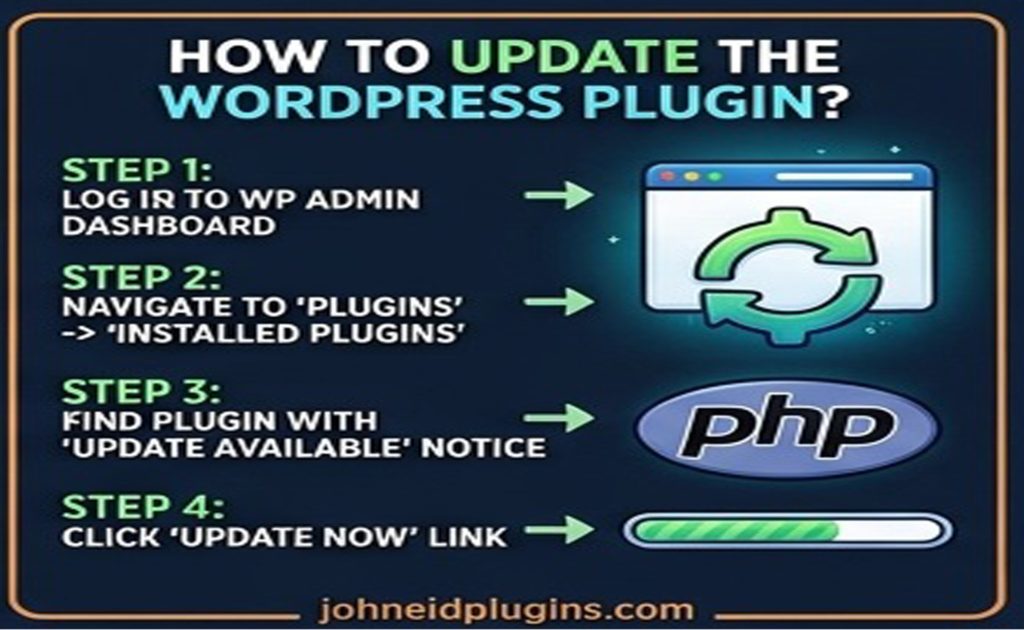
To update the affected plugin:
- Open your WordPress dashboard.
- Navigate to Plugins > Installed Plugins.
- Locate the plugin that stopped working.
- Check whether an update is available.
- Back up your website if you have not already done so.
- Install the update and test the affected functionality.
If the plugin does not appear to have an available update, visit its official WordPress.org listing or the developer’s website to check its latest release and compatibility information.
For premium plugins, make sure your license is active if a license is required to receive updates.
After updating, clear any relevant caches and test the website again.
If the plugin still fails, do not repeatedly reinstall it without investigating the error. The problem might involve a dependency, a server configuration issue, or code that the latest release has not corrected.
Step 5: Check for Conflicts With Other Plugins and Your Theme
Sometimes, the affected plugin is compatible with the current PHP version but conflicts with another component of your WordPress installation.
The most reliable way to investigate this possibility is to perform controlled conflict testing.
Test Other Plugins
If you can access your dashboard:
- Create a backup or use a staging website.
- Deactivate all plugins except the one experiencing problems.
- Test the affected functionality.
- If the plugin works, reactivate the other plugins one at a time.
- Test the website after each activation.
When the problem returns, investigate the most recently activated plugin.
This process can help identify a conflict involving shared libraries, overlapping functionality, or incompatible code.
If you cannot access the dashboard, use your hosting file manager or SFTP to rename the affected plugin’s directory temporarily. WordPress will generally deactivate the plugin when it can no longer locate its files.
For broader testing, you may need to rename individual plugin directories or use a staging environment.
Avoid renaming directories indiscriminately on a busy production website, because doing so may interrupt important functionality.
Test Your WordPress Theme
If the plugin still fails when other plugins are deactivated, test whether the active theme is responsible.
Switch temporarily to a current, unmodified default WordPress theme, such as Twenty Twenty-Five if it is available and appropriate for your installation.
Test the plugin again.
If the plugin works with the default theme, inspect your original theme for outdated PHP code, custom functions, or integration issues.
Restore the original theme after testing if the problem persists.
Remember that switching themes can affect your website’s appearance and functionality, so perform this test on a staging site whenever possible.
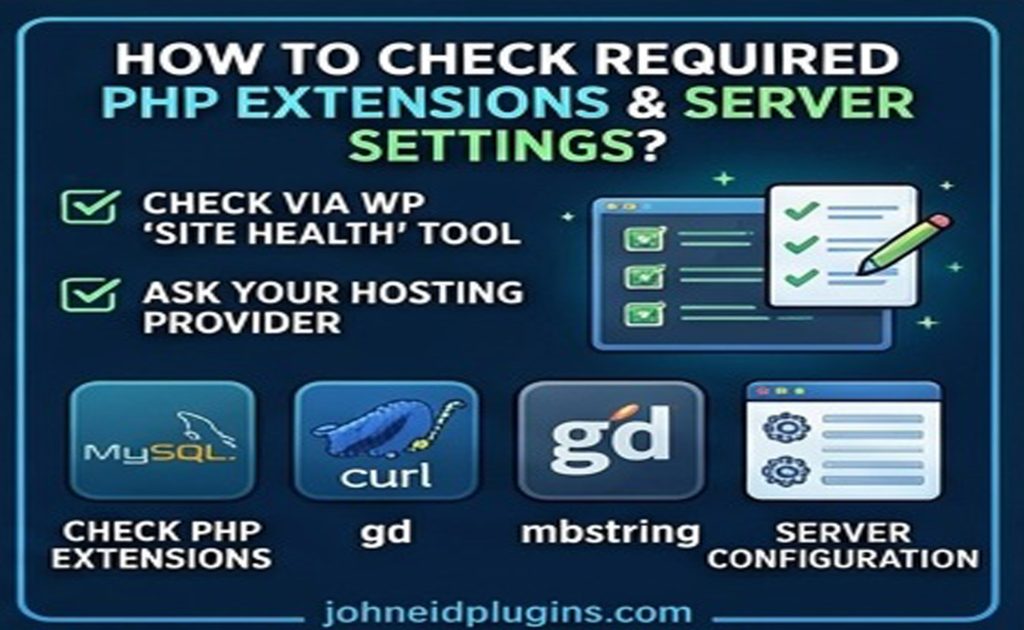
Step 6: Check Required PHP Extensions and Server Settings
A plugin may fail even when its PHP version is technically supported.
Many WordPress plugins rely on PHP extensions for tasks such as processing images, handling database connections, communicating with external services, or manipulating compressed files.
Depending on the plugin, required extensions may include:
- cURL.
- OpenSSL.
- mbstring.
- GD or Imagick.
- ZIP.
- XML-related extensions.
The exact requirements vary, so consult the plugin’s official documentation rather than enabling every available extension.
To check your server environment, navigate to Tools > Site Health > Info > Server in WordPress.
You can also review the PHP configuration tools provided by your hosting company.
If a required extension is missing, contact your hosting provider or enable it through the supported control panel if your hosting plan permits it.
Review the PHP Memory Limit
Some plugins perform resource-intensive operations, such as importing products, generating reports, processing large images, or creating backups.
If the PHP memory limit is too low, these operations may fail.
Check the error logs for messages such as:
Allowed memory size exhausted
If this error appears, review your current PHP memory limit and the plugin’s documented requirements.
Ask your hosting provider to adjust the limit if necessary.
Increasing memory will not resolve a genuine code incompatibility, so use the error message to distinguish resource limitations from PHP compatibility problems.
Step 7: Temporarily Roll Back to a Compatible PHP Version
If your website was working correctly before the PHP upgrade and immediately started failing afterward, temporarily restoring the previous PHP version can help confirm whether the new environment is responsible.
However, a rollback should be treated as a diagnostic measure or a short-term recovery option, not an automatic permanent solution.
How to Roll Back PHP
The exact process depends on your hosting provider, but the general steps are:
- Log in to your hosting control panel.
- Open the PHP version management section.
- Select the domain or website affected by the issue.
- Choose the previous PHP version, if it remains available and is appropriate for your environment.
- Apply the change.
- Test the website and the affected plugin.
Before making the change, verify that the previous PHP version is still supported and does not introduce unacceptable security risks.
Important: PHP 7.4 and older PHP 8.x releases have different support and security lifecycles. A version that restores compatibility may no longer receive security fixes. Check the current PHP support schedule before deciding to retain an older version.
If rolling back PHP restores the plugin’s functionality, you have stronger evidence of a compatibility issue.
Your next step should be to update the plugin, contact its developer, or find a supported alternative so that the website can eventually run on a secure PHP version.
Do not leave a vulnerable PHP version installed indefinitely simply because it makes an outdated plugin work.
Step 8: Clear WordPress, Server, and CDN Caches
Caching can sometimes make a repaired website appear broken even after the underlying issue has been resolved.
Depending on your setup, cached content may be stored by a WordPress caching plugin, your hosting provider, a reverse proxy, or a content delivery network.
After updating a plugin or changing PHP settings, clear the relevant caches.
Follow these steps:
- Purge the cache in your WordPress caching plugin.
- Clear your hosting provider’s server cache if one is enabled.
- Purge your CDN cache when necessary.
- Clear your browser cache or test the website in a private browsing window.
- Reload the affected page and test the plugin again.
Not every plugin problem is caused by caching, but clearing stale cached content can help ensure that you are testing the latest version of your website.
If the problem persists, return to the error logs rather than repeatedly clearing caches.
Step 9: Reinstall the Plugin if Its Files Are Damaged
Plugin files can occasionally become corrupted during an update, transfer, or manual modification.
If the plugin is compatible with your PHP version but still behaves unexpectedly, reinstalling a clean copy may help.
Before reinstalling, verify that the plugin’s settings and stored data will be preserved.
Some plugins save their configuration in the WordPress database, while others store important information in files or custom directories.
To reinstall safely:
- Create a fresh backup of your website.
- Confirm that you can obtain a legitimate copy of the plugin.
- Check whether the plugin has an export or backup option for its settings.
- Deactivate the plugin if you can access the dashboard.
- Reinstall it using the plugin’s official distribution source.
- Reactivate it and test its functionality.
Do not delete the plugin’s directory manually without checking its documentation. Some plugins remove database tables or stored settings when deleted, depending on their implementation.
If the plugin is a premium product, download the latest compatible version from the official developer account.
Avoid installing modified plugin packages from unofficial websites, because they may contain malicious code.
Step 10: Fix the Plugin’s PHP Code if You Have Development Experience
If the plugin is custom-built or no compatible update exists, a developer may need to modify its PHP code.
The correct fix depends on the actual error message.
For example, a fatal error involving a removed PHP function requires a different solution from an error caused by an incompatible argument type.
A developer should:
- Identify the exact failure in the PHP error log.
- Review the affected code and the relevant PHP migration documentation.
- Check whether the plugin uses deprecated or removed functions.
- Validate function arguments and return types.
- Review compatibility with the installed WordPress version and plugin dependencies.
- Test the changes against the intended PHP versions.
- Confirm that the fix does not introduce security vulnerabilities.
Avoid editing the original plugin files directly if you expect to receive future updates. Plugin updates can overwrite your modifications.
Where practical, work with the developer to release a corrected plugin version or implement the change through a supported extension mechanism.
If you maintain a custom plugin, automated tests and a staging environment can help catch PHP compatibility issues before changes reach your live website.
Step 11: Contact the Plugin Developer or Hosting Provider
If the previous steps do not resolve the issue, contact the appropriate technical support team.
The plugin developer is usually the best starting point when the logs identify an error inside the plugin’s code.
Your hosting provider is a better starting point when the problem appears to involve missing PHP extensions, server configuration, resource limits, or a hosting-level error.
To speed up troubleshooting, provide the following information:
- Your current PHP version.
- The previous PHP version, if known.
- Your WordPress version.
- The plugin name and installed version.
- The exact error message.
- Relevant error-log entries.
- The steps that reproduce the problem.
- Whether the issue occurs on a staging website.
- Any troubleshooting steps you have already completed.
Avoid sharing passwords, database credentials, private keys, or publicly accessible debugging logs.
Providing specific technical information makes it easier for developers and hosting support teams to identify the root cause.
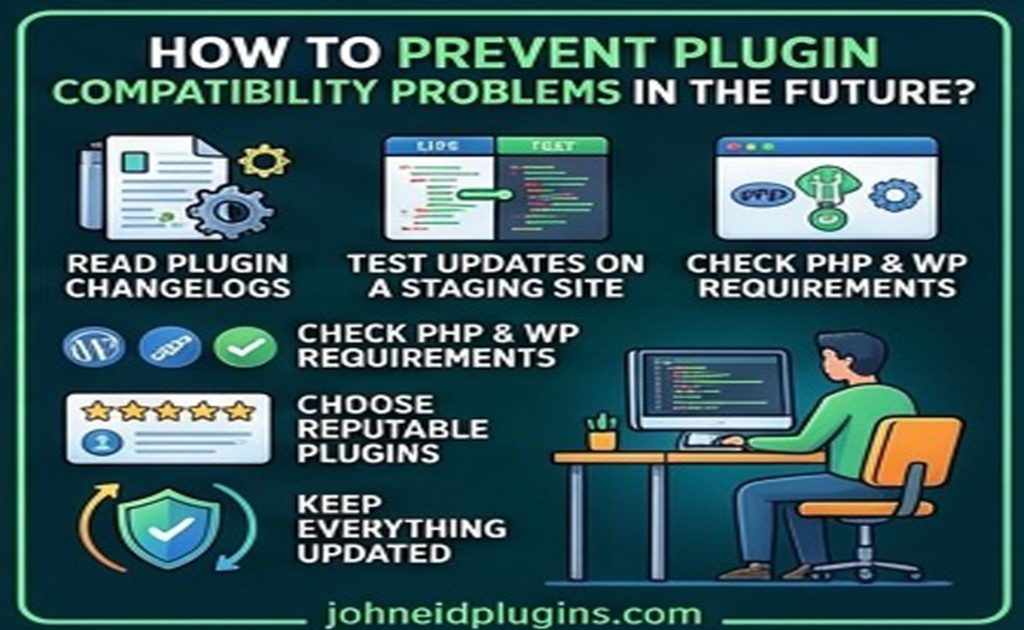
How to Prevent WordPress Plugin Compatibility Problems in the Future
Fixing a plugin after a PHP upgrade is useful, but preventing the same issue from happening again is even better.
Use these practices to reduce the risk of future compatibility problems.
Keep WordPress, Plugins, and Themes Updated
Regularly update WordPress core, plugins, and themes to receive security fixes, bug fixes, and compatibility improvements.
Before updating, review release notes and check whether the update introduces any known requirements or limitations.
Test PHP Upgrades on a Staging Website
A staging environment lets you test a new PHP version without immediately affecting your live website.
Before changing PHP in production, test important functions such as contact forms, checkout processes, membership systems, search features, and administrative tools.
This is particularly important for ecommerce stores and business websites that depend on multiple plugins.
Choose Actively Maintained Plugins
Before installing a new plugin, review its update history, support activity, compatibility information, and documentation.
A plugin that is regularly maintained is generally a safer long-term choice than one that has not received updates for several years.
However, update frequency alone does not guarantee quality or compatibility, so consider the overall maintenance record.
Monitor Error Logs After PHP Changes
After upgrading PHP, monitor your website’s logs and test its most important functions.
Address deprecation notices and compatibility warnings before they develop into more serious failures.
Maintain Regular Backups
Store reliable backups in a location separate from your live website where practical.
Test your recovery process periodically to make sure you can restore your site if an update or configuration change causes a major problem.
Frequently Asked Questions
Why did my WordPress plugin stop working after upgrading PHP?
The plugin may use outdated PHP functions, contain code that is incompatible with the new version, or depend on a missing PHP extension. Conflicts with other plugins or your active theme can also contribute to the problem.
Check the PHP error logs to identify the specific cause.
Can changing the PHP version break my WordPress website?
Yes. A PHP upgrade can expose compatibility issues in outdated plugins, themes, and custom code. Before upgrading, create a backup, test the new version on a staging site, and verify that critical website functions continue to work.
How do I know whether a plugin supports my PHP version?
Check the plugin’s official documentation, developer website, or WordPress.org listing. Review its declared requirements and release notes, and test it in a staging environment when possible.
Declared compatibility information is helpful, but testing is still important because a plugin can contain bugs even when it claims to support a particular PHP version.
Should I downgrade PHP if a plugin stops working?
A temporary rollback may restore functionality and help confirm that the new PHP environment caused the problem. However, downgrade only when appropriate, and avoid retaining an unsupported or insecure PHP version as a permanent solution.
The preferred long-term fix is to update the plugin, correct its code, or replace it with a maintained alternative.
Will reinstalling a WordPress plugin delete my settings?
Not necessarily. Many plugins store settings in the WordPress database, but some also use files or remove data during deletion. Check the plugin’s documentation and create a backup before reinstalling it.
What should I do if the WordPress dashboard becomes inaccessible?
Start by checking the PHP error logs through your hosting control panel. If a plugin is causing a fatal error, you may be able to deactivate it by renaming its directory through your hosting file manager or SFTP.
If the problem began immediately after a PHP upgrade, check your hosting control panel for a supported recovery option or contact your hosting provider.
Which PHP version should I use for WordPress?
Use a PHP version that is supported by WordPress, your hosting environment, and your installed plugins and themes. Prefer a currently supported PHP release that is compatible with your website’s software.
Before upgrading, check the current WordPress requirements and PHP support lifecycle rather than relying on outdated version recommendations.
Final Thoughts
A WordPress plugin that stops working after a PHP version change can disrupt your website, but the problem does not necessarily mean that your entire installation is damaged.
Start by backing up your website and confirming the PHP version. Next, inspect error logs, update the affected plugin, test for conflicts, and check the server configuration. If necessary, use a temporary PHP rollback to restore service while you work toward a secure, permanent solution.
The most important step is to identify the underlying cause rather than repeatedly changing settings without a clear diagnosis.
With regular backups, reliable plugins, staging tests, and a structured troubleshooting process, you can reduce downtime and keep your WordPress website compatible with modern PHP versions.