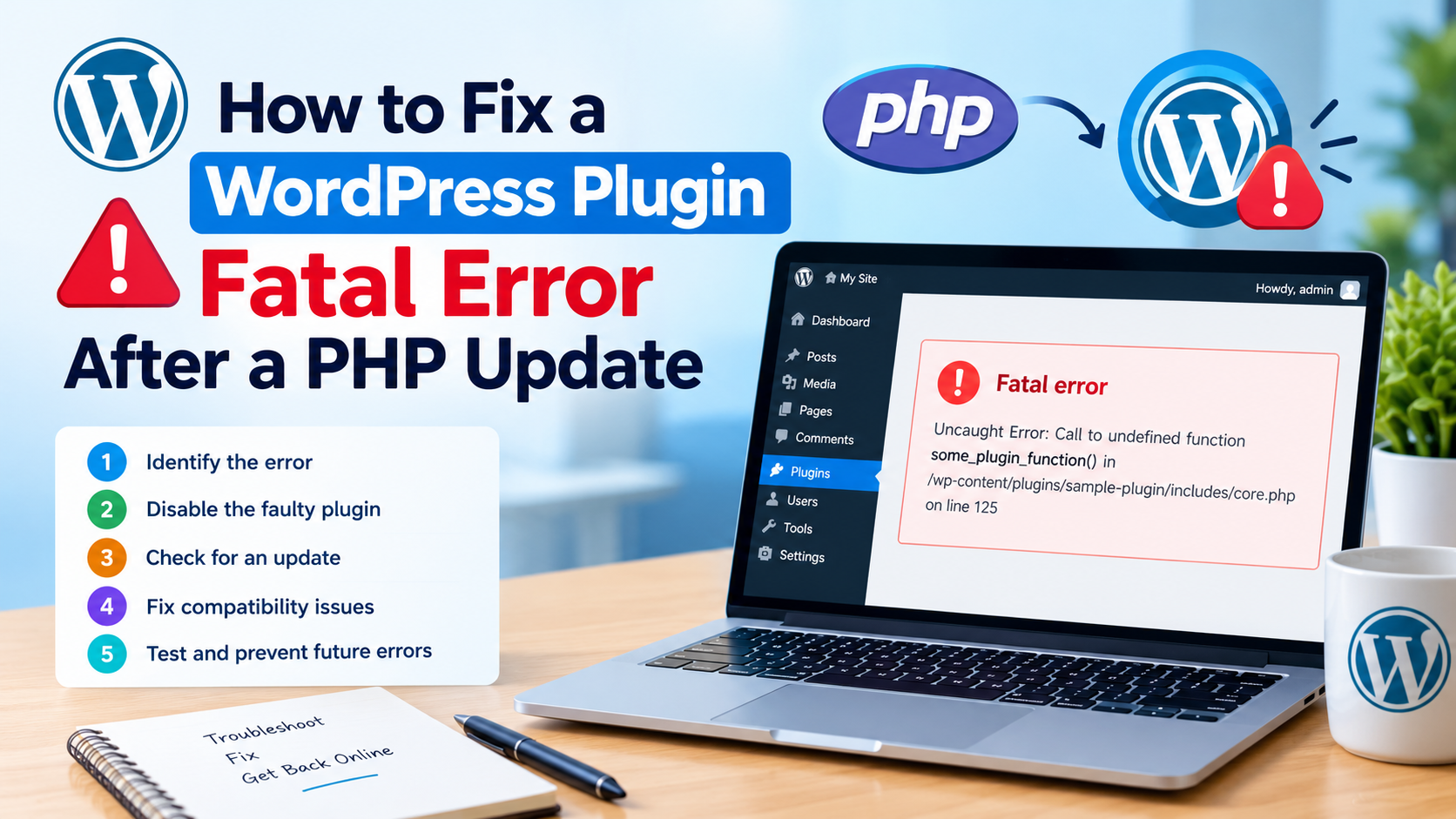
Updating PHP can improve your WordPress website’s performance, security, and compatibility with modern software. However, a PHP update can also expose problems in outdated plugins, custom code, or themes. In some cases, a website may display a critical error, return a blank page, or become inaccessible immediately after the server’s PHP version changes.
If your WordPress plugin causes a fatal error after a PHP update, the solution is not necessarily to reinstall WordPress or disable every plugin permanently. The correct approach is to identify the exact error, isolate the incompatible component, and apply a tested fix.
In this tutorial, you will learn how to troubleshoot a WordPress plugin fatal error after a PHP update, regain access to your website, examine PHP error logs, identify common compatibility problems, and prevent similar failures in the future.
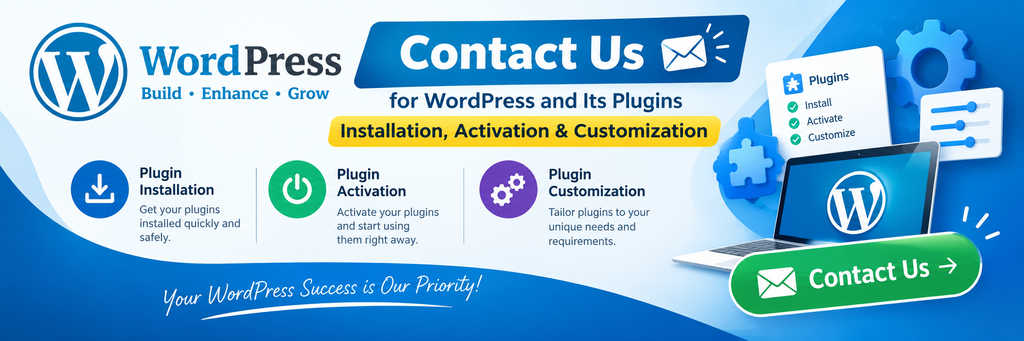
What Causes a WordPress Plugin Fatal Error After a PHP Update?
A PHP fatal error occurs when PHP encounters a problem that prevents the affected request from completing normally. Depending on the error and your WordPress configuration, visitors may see a critical-error message, a blank page, or a server error.
A PHP upgrade does not automatically mean that a plugin is defective. Instead, it may reveal code that relied on an older PHP behavior, used an incompatible function, or depended on a library that no longer works correctly.
Common causes include:
- Removed or changed PHP functionality: Older plugins may use functions or language features that are unavailable or behave differently in the new PHP version.
- Deprecated code: Code that was previously supported may require modification after newer PHP releases.
- Incompatible third-party libraries: A plugin may bundle an outdated library that conflicts with the updated runtime.
- Incorrect type handling: Newer PHP versions may expose problems involving invalid argument types, return values, or function parameters.
- Outdated plugin dependencies: A plugin may require a particular library, WordPress version, or PHP version that the website does not provide.
- Custom modifications: Manually edited plugin files may contain code that is incompatible with the new environment.
- Theme or plugin conflicts: The error may appear after a PHP update even when the real cause is another component loaded during the same request.
WordPress documentation identifies plugins, themes, and custom code as common sources of critical errors. Therefore, identifying the precise failure is more reliable than assuming every PHP upgrade requires the same fix.
Step 1: Back Up Your Website Before Making Changes
Before troubleshooting, create a complete backup of your WordPress website.
Your backup should include:
- The WordPress database.
- The
wp-contentdirectory, including plugins, themes, and uploads. - Important configuration files, including
wp-config.php. - Any additional files required by your website.
Use your hosting provider’s backup system or a trusted backup plugin. If your website is a business site, verify that you can restore the backup before proceeding.
If you changed PHP only moments ago and the website is completely unavailable, check whether your hosting provider offers a previous PHP version that is still supported, secure, and compatible with your WordPress installation. A temporary rollback can help restore service while you investigate, but it should not become a permanent substitute for fixing the underlying compatibility issue.
Avoid switching to an unsupported PHP version simply to keep an outdated plugin running. Older runtimes may no longer receive security updates.
Step 2: Identify the Exact PHP Error
The most important step is to find out which file and line caused the fatal error.
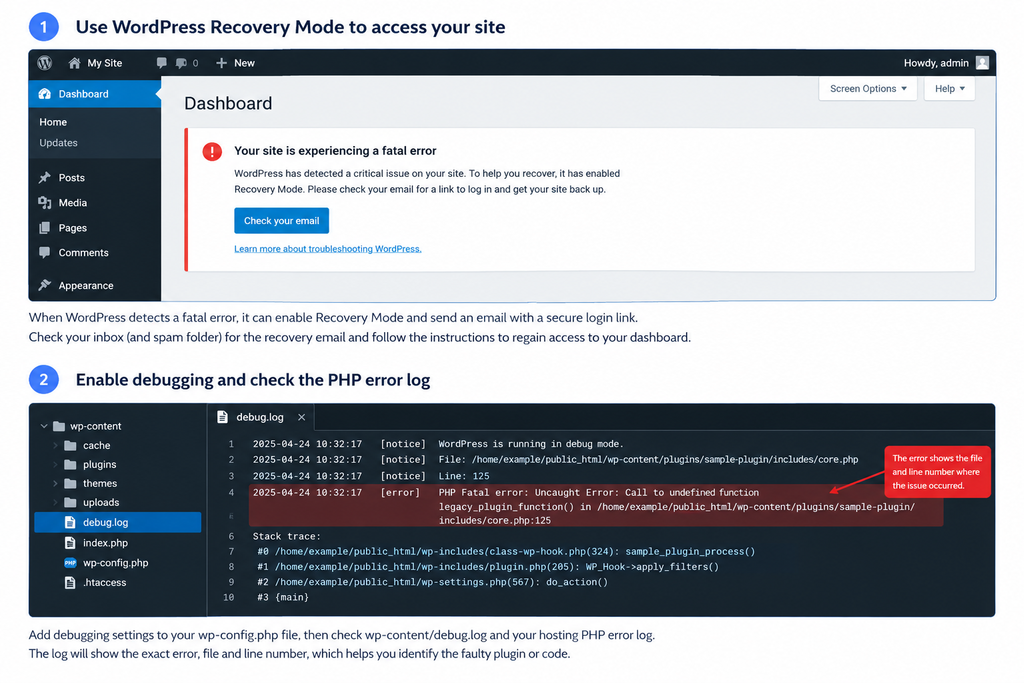
Check the WordPress recovery email
WordPress includes a Recovery Mode feature that can help administrators regain access after certain fatal errors.
When Recovery Mode is triggered, WordPress may send an email to the site administrator containing information about the affected component and a special login link.
Open that email, follow the recovery link, and sign in. Look for the plugin or theme identified in the error notice. You may be able to pause the faulty component for your administrative session and deactivate or update it.
If no email arrives, check your spam folder and confirm that the administrator email address is correct. Recovery Mode does not cover every possible failure, so you may need to inspect the server logs or use FTP.
Enable WordPress debugging safely
If you cannot identify the cause, you can enable logging in your wp-config.php file.
Add the following settings before the line that says /* That's all, stop editing! Happy publishing. */, if that line exists:
define( 'WP_DEBUG', true );
define( 'WP_DEBUG_LOG', true );
define( 'WP_DEBUG_DISPLAY', false );
If WP_DEBUG or either of the other constants is already defined, edit the existing definition instead of adding a duplicate.
These settings enable WordPress debugging, write eligible debug messages to wp-content/debug.log, and prevent WordPress debug messages from being displayed directly on the public page.
Important: PHP fatal errors are not guaranteed to appear in the WordPress debug log. Check your hosting provider’s PHP error log as well. The server log may contain the decisive message even when debug.log is empty.
Reproduce the error once, then inspect the relevant log entries. Avoid repeatedly refreshing a broken production website unnecessarily.
After troubleshooting, disable debugging on the live website and remove or securely archive diagnostic logs. Logs can contain file paths, request details, and other sensitive information.
Step 3: Read the Fatal Error Message Correctly
A PHP error message often identifies the file and line where execution failed.
For example, a log might contain:
PHP Fatal error: Uncaught Error: Call to undefined function
legacy_plugin_function() in
/home/example/public_html/wp-content/plugins/sample-plugin/includes/core.php:125
This example indicates that PHP attempted to call a function that was unavailable in that execution context.
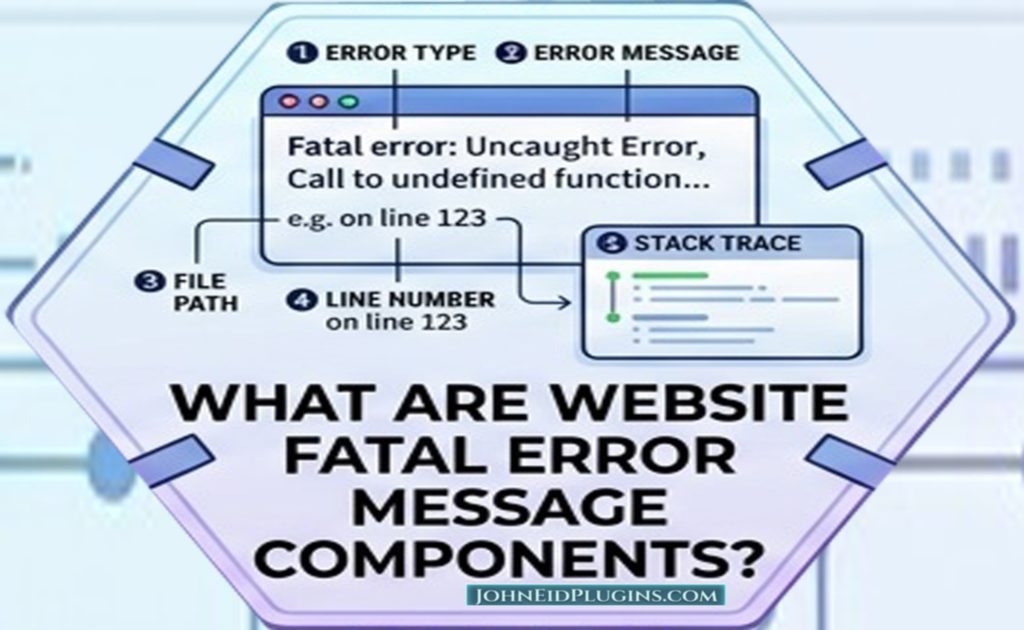
The relevant details are:
- Error type:
Uncaught Error. - Problem: A function could not be found.
- File:
sample-plugin/includes/core.php. - Line:
125.
The file path points toward the component to investigate. However, the line shown is where PHP detected the failure, not necessarily where the original programming mistake occurred.
Other common messages include:
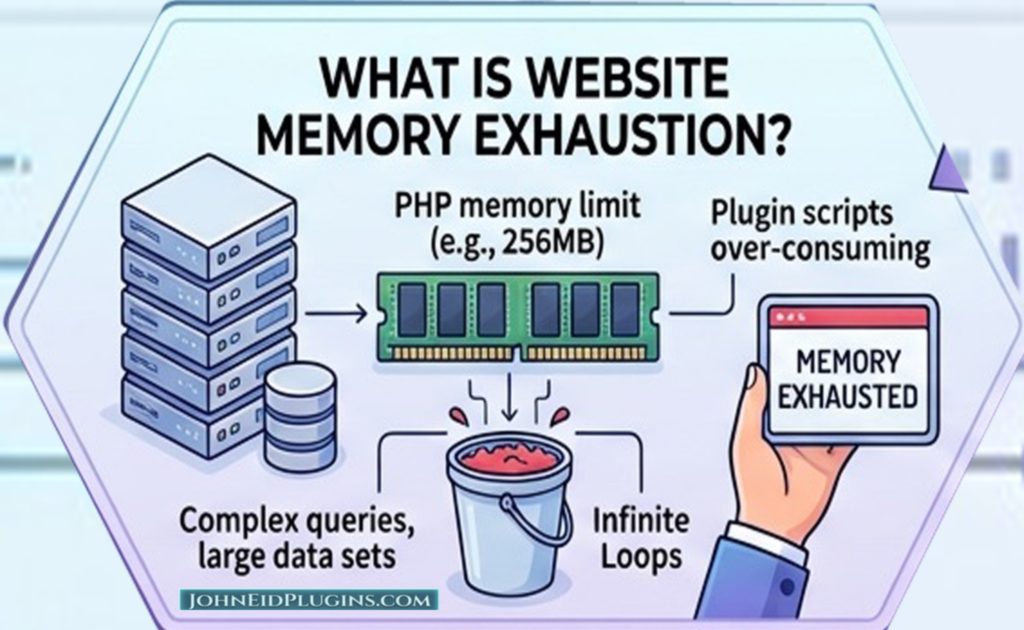
Call to undefined function: A function is missing, a dependency was not loaded, or an incompatible function call exists.Call to undefined method: The code expects a method that the available object or class does not provide.Uncaught TypeError: A function received an invalid argument type or returned a value that violated a type requirement.Class not found: A class or dependency was not loaded, was renamed, or is unavailable.Parse error: PHP could not interpret the source code.Allowed memory size exhausted: The request exceeded its PHP memory limit; this is not necessarily a PHP-version compatibility problem.
Do not modify code based only on the error category. Read the complete message, inspect the surrounding code, and determine why the failure occurs under the new PHP version.
Step 4: Deactivate the Faulty Plugin
If the error log identifies a specific plugin, deactivate that plugin temporarily.
Method A: Use WordPress Recovery Mode
If the recovery email provides a working login link, enter Recovery Mode and open the Plugins screen. Deactivate the affected plugin, then check whether the website returns to normal operation.
Method B: Rename the plugin directory using FTP
If you cannot access the dashboard, use your hosting file manager or an FTP client.
- Open your WordPress installation directory.
- Navigate to
wp-content/plugins/. - Locate the affected plugin folder.
- Rename the folder, for example, from
sample-plugintosample-plugin-disabled. - Reload the website and test the administration area.
WordPress will generally treat the renamed plugin as unavailable and deactivate it. If a managed hosting platform has special filesystem or deployment behavior, follow its procedures instead.
Renaming a plugin folder is a temporary diagnostic step. It does not repair the plugin, and it may disable features that your website depends on.
If the website works after the plugin is disabled, that is useful evidence, but further testing may still be necessary to distinguish a plugin defect from a conflict with another component.
Step 5: Update the Plugin and Check Its PHP Requirements
Once you regain access, check whether the plugin developer has released a compatibility update.
Follow this process:
- Record the PHP version currently running on the server.
- Open Dashboard → Updates or Plugins → Installed Plugins.
- Check for an available plugin update.
- Review the plugin’s changelog and compatibility information.
- Read the developer’s instructions for the target PHP version.
- Test the updated plugin on a staging website before restoring it to production.
You can check the PHP version reported to WordPress under Tools → Site Health → Info → Server. Your hosting control panel may also show the PHP version assigned to the website.
Remember that the PHP version used by the web server can differ from the PHP version used by the command line. If you use WP-CLI, confirm the runtime for that environment separately.
If no compatible update exists, contact the plugin developer with the exact fatal error, the PHP version, the plugin version, and relevant log lines. If the plugin is abandoned, evaluate a maintained alternative before deciding whether to keep it.
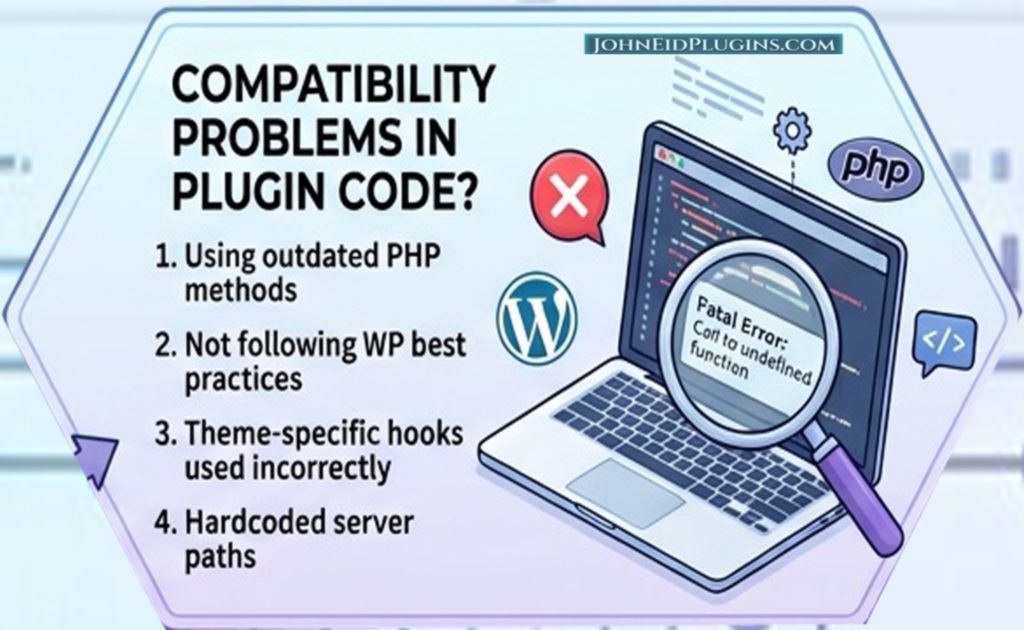
Step 6: Check for Compatibility Problems in the Plugin Code
Developers should reproduce the error in a controlled environment running the same PHP version as the affected website.
Inspect the failing function or method and check whether the code relies on outdated PHP behavior, unavailable dependencies, or invalid assumptions about input data.
For example, an old plugin might call a function that has been removed or was never loaded:
function sample_plugin_process() {
    legacy_plugin_function();
}
The correct repair is not necessarily to suppress the error with an @ operator or to check whether the function exists and silently skip essential functionality.
Instead, investigate why the function is unavailable. It may require a replacement API, a missing dependency, or a compatibility layer. Implement the appropriate fix and test the resulting behavior.
For third-party functions, confirm that the required library is installed and loaded correctly. For PHP functions, consult the official PHP manual to establish whether the function exists in the target version and whether its signature has changed.
Check PHP syntax and language features
Code written for a newer PHP version may fail on an older runtime, while code written for an older version may depend on behavior that has since changed.
A useful compatibility review includes:
- Function and method availability.
- Changed function signatures and argument requirements.
- Type declarations and return types.
- Removed language features.
- Dependency version constraints.
- Warnings and deprecations that reveal likely future incompatibilities.
If you maintain the plugin, run static analysis and syntax checks against the PHP versions you intend to support. A syntax check can detect parse errors, but it cannot prove that the plugin will behave correctly at runtime.
Step 7: Test Whether Another Plugin or Theme Is Involved
Sometimes the failure is caused by an interaction between components rather than by one plugin in isolation.
If the error persists after disabling the suspected plugin, or if the log does not clearly identify the cause, test on a staging copy.
A practical isolation procedure is:
- Disable all nonessential plugins.
- Activate a maintained default WordPress theme.
- Confirm that the basic website loads.
- Reactivate plugins one at a time.
- Test the affected pages and functionality after each activation.
- Restore the original theme and investigate any newly introduced failure.
On a production website, do not deactivate all plugins without considering the impact on checkout, security, backups, membership access, or other essential services. Use staging whenever possible.
If the error returns only when two particular plugins are active together, investigate their shared dependencies, hooks, filters, and API interactions.
Step 8: Fix Common PHP Compatibility Issues
The correct repair depends on the actual error. These examples illustrate common categories of fixes rather than universal solutions.
Undefined functions or methods
Check whether the function or method was removed, renamed, moved into a dependency, or called before the required code was loaded. Replace obsolete APIs with supported alternatives where necessary.
Invalid argument types
A newer PHP version may expose invalid assumptions about values passed to a function. Validate the input and use the expected data type. Do not cast values blindly if doing so could change application behavior or hide invalid data.
Removed or incompatible PHP features
Consult the official PHP migration guide for the versions between the previous and current runtime. Update affected code and test it against the plugin’s minimum supported PHP version.
Memory exhaustion
Investigate unusually large queries, unbounded loops, excessive image processing, or other resource-intensive operations. Increasing the memory limit may help in some situations, but it does not fix a memory leak or inefficient algorithm.
Dependency conflicts
Check the dependency’s supported PHP range and installed version. Update the dependency or adjust the plugin’s integration code according to the library’s migration guidance.
After applying a fix, test both the failing request and related functionality. A page that loads without an error is not sufficient proof that the plugin works correctly.
Step 9: Verify the Fix Before Restoring the Plugin
Before reactivating the plugin on the live website, confirm that the repair resolves the original problem.
Use this verification checklist:
- The website homepage and administration dashboard load normally.
- The original error no longer appears in the relevant logs.
- The plugin activates without a fatal error.
- The plugin’s main functionality works as expected.
- Forms, AJAX requests, REST API endpoints, scheduled tasks, and integrations still work where applicable.
- No new PHP warnings or deprecations appear during testing.
- The plugin works with the intended WordPress, PHP, theme, and dependency versions.
If you edited plugin files directly, remember that a plugin update may overwrite those changes. Prefer an official fixed release or a maintainable code change that can be applied through the plugin’s normal development and release process.
Once the website is stable, turn off debugging on production and monitor the site for recurring errors.
Step 10: Prevent Future WordPress Plugin Fatal Errors
The best long-term solution is to test PHP upgrades before deploying them to a live website.
Maintain a staging environment
Create a staging copy of your website and test the target PHP version before changing production. Include important plugins, themes, integrations, and realistic test data.
Keep WordPress and plugins updated
Install maintained plugin releases and review their compatibility notes. Updates can address bugs, security vulnerabilities, and changes in supported PHP versions.
Declare the minimum PHP requirement
Plugin developers can specify a minimum PHP version in the main plugin header. For example:
/**
 * Plugin Name: Sample Plugin
 * Version: 1.0.0
 * Requires at least: 6.8
 * Requires PHP: 8.2
 */
The values above are illustrative. Set the WordPress and PHP requirements according to the versions the plugin has actually been tested against.
The Requires PHP field communicates a minimum requirement; it does not guarantee compatibility with every newer PHP release.
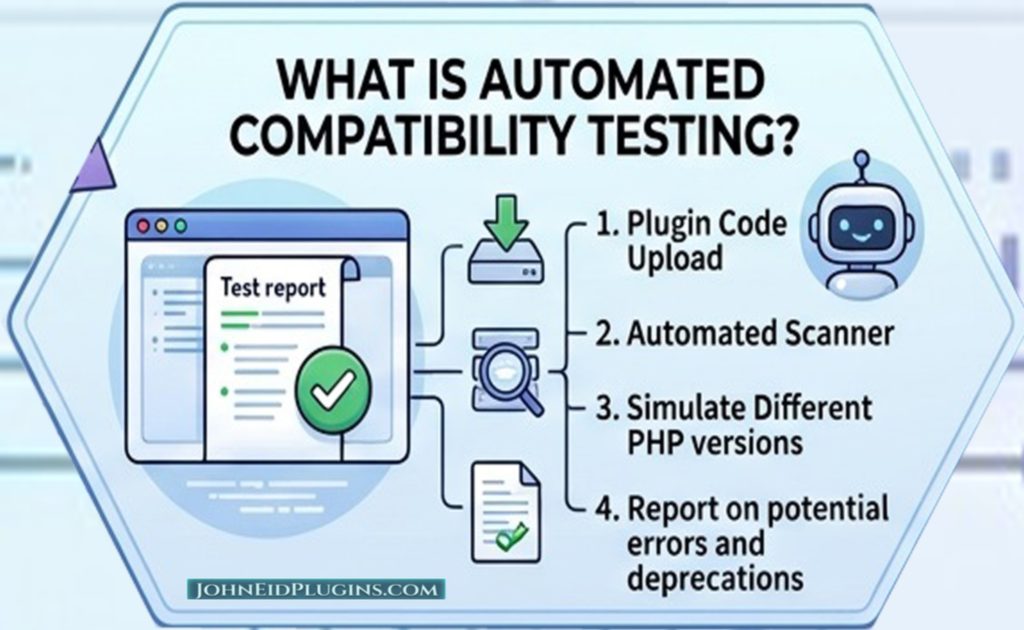
Use automated compatibility testing
For plugins that support multiple PHP versions, incorporate syntax checks, automated tests, and static analysis into the development workflow. Test the minimum supported version and the newer versions you intend to support.
Monitor logs and provide clear diagnostics
Use structured error logging and avoid exposing internal server details to visitors. Record enough information to diagnose failures while protecting sensitive data.
Document compatibility clearly
Publish tested WordPress and PHP versions, dependencies, upgrade instructions, and known limitations. Clear documentation helps website owners make safer upgrade decisions.
Frequently Asked Questions
Why did my WordPress website break after a PHP update?
The update may have exposed incompatible plugin or theme code, a missing dependency, changed PHP behavior, or a configuration issue. Check the fatal error log to identify the component and cause.
Can I fix a WordPress plugin fatal error without accessing the dashboard?
Yes. If you have authorized hosting file access, you can temporarily rename the suspected plugin directory to disable it. You can also use WordPress Recovery Mode when available. Always back up important files before making changes.
Should I downgrade PHP to fix the plugin?
A temporary rollback to a supported and secure version may restore service while you investigate. However, the long-term fix is to update or replace the incompatible code. Do not leave the website on an unsupported PHP release simply to preserve an outdated plugin.
Does every PHP warning mean the plugin is broken?
No. Warnings and deprecations differ from fatal errors. They can still indicate code that needs attention, but the correct response depends on the message, the PHP version, and the effect on the website.
How can plugin developers prevent PHP compatibility problems?
Developers should declare realistic minimum requirements, test supported PHP versions, maintain dependencies, use static analysis, run automated tests, and reproduce reported errors in a controlled environment.
Where can I find the exact cause of a WordPress fatal error?
Start with the WordPress Recovery Mode email, the PHP error log provided by your host, and wp-content/debug.log when WordPress debugging is configured. The full error message and file path usually provide the best starting point.
Conclusion
A WordPress plugin fatal error after a PHP update can be disruptive, but a systematic troubleshooting process makes it easier to identify and resolve the problem.
Start with a backup, collect the exact error message, isolate the affected plugin, and check for a compatible update. If the issue requires a code change, reproduce it on staging, repair the underlying incompatibility, and test the plugin against the PHP versions you intend to support.
For website owners, these steps help restore service safely. For WordPress plugin developers, they demonstrate why compatibility testing, maintained dependencies, clear requirements, and reliable diagnostics should be part of every plugin release.
Need help with a WordPress plugin? If a plugin on your website is producing a PHP fatal error, document the error message, PHP version, and plugin version before contacting a developer. These details make diagnosis faster and help avoid unnecessary changes to your website.
One response to “How to Fix a WordPress Plugin That Causes a Fatal Error After a PHP Update?”
[…] debugging can reveal whether the plugin is generating a fatal error, calling an undefined function, or encountering another PHP-related […]