Website performance is one of the most important factors in maintaining a successful WordPress website. Visitors expect pages to load quickly, navigation to feel responsive, and website functionality to work smoothly across desktop computers, tablets, and mobile devices.
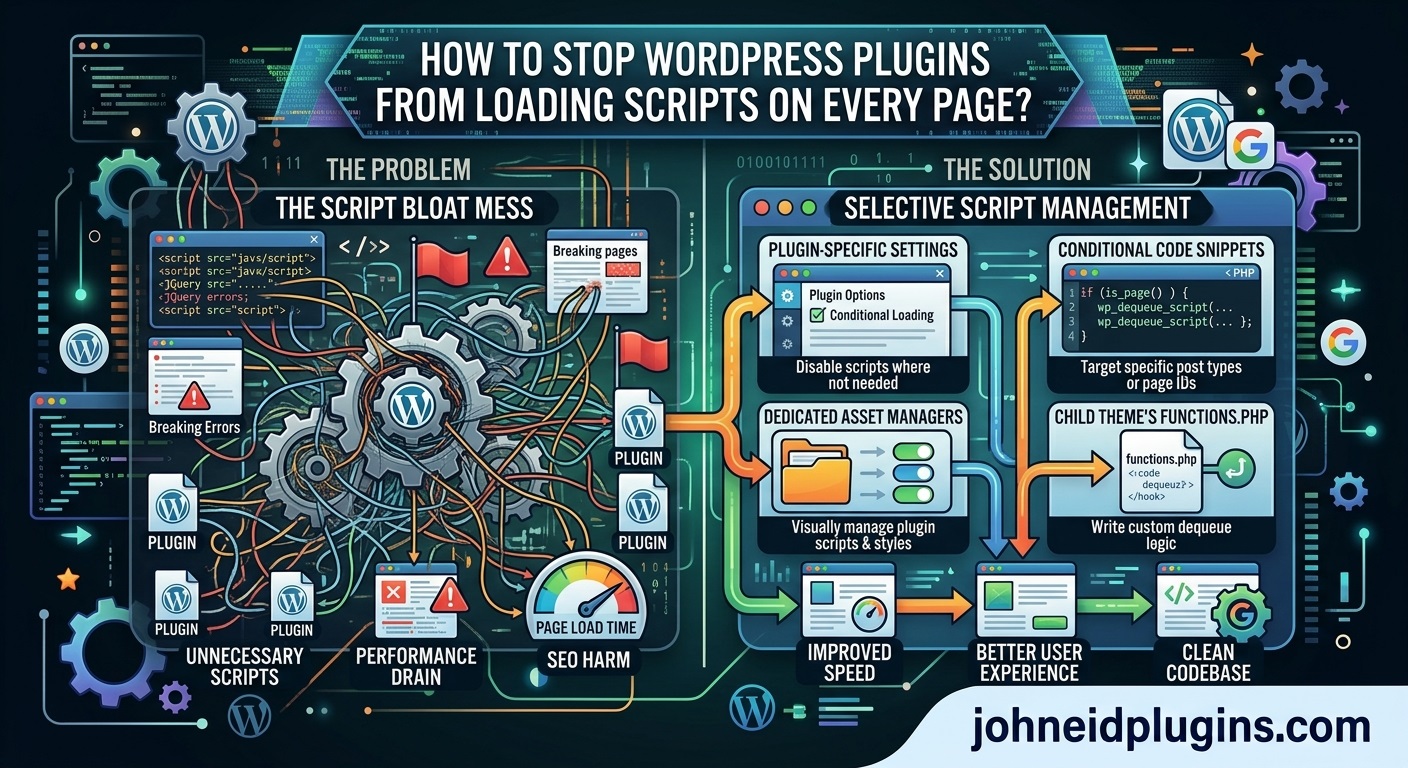
However, many WordPress websites experience unnecessary performance overhead because plugins load JavaScript and CSS files on every page, even when their functionality is not required.
For example, a contact form plugin may load its JavaScript files on blog posts, category archives, and product pages where no contact form exists. Similarly, an image slider plugin may enqueue slider scripts throughout the website even though the slider appears only on the homepage.
These unnecessary assets increase HTTP requests, consume bandwidth, add browser processing work, and potentially affect page loading performance.
The good news is that WordPress provides several mechanisms for controlling how and when plugin scripts and stylesheets are loaded. Developers can use conditional logic, WordPress enqueue functions, page-specific checks, and asset management techniques to load resources only where they are needed.
In this comprehensive guide, we will explain how to stop WordPress plugins from loading scripts on every page, including practical PHP examples, recommended development techniques, common mistakes, and performance optimization strategies.
1. Understand Why WordPress Plugins Load Scripts on Every Page
WordPress plugins often need JavaScript and CSS files to provide their functionality.
For example:
- Contact form plugins require JavaScript for validation and submission.
- Image slider plugins require scripts for animations and navigation.
- Gallery plugins need JavaScript for image interactions and lightboxes.
- Popup plugins use scripts to display and control popup windows.
- WooCommerce extensions may require frontend scripts for shopping functionality.
- Booking plugins may load calendar and date-picker libraries.
Developers normally register and enqueue these resources using WordPress functions.
The most common functions are:
wp_register_script()wp_enqueue_script()wp_register_style()wp_enqueue_style()
These functions allow WordPress to manage JavaScript and CSS resources.
A common problem occurs when developers enqueue assets globally without checking whether the current page actually needs them.
For example:
function myplugin_load_scripts() {

    wp_enqueue_script(
        'myplugin-script',
        plugin_dir_url( __FILE__ ) . 'assets/js/script.js',
        array( 'jquery' ),
        '1.0.0',
        true
    );

    wp_enqueue_style(
        'myplugin-style',
        plugin_dir_url( __FILE__ ) . 'assets/css/style.css',
        array(),
        '1.0.0'
    );
}

add_action(
    'wp_enqueue_scripts',
    'myplugin_load_scripts'
);
This code loads the JavaScript and CSS files on every frontend page where the hook runs.
If the plugin only provides functionality on selected pages, loading its resources globally creates unnecessary overhead.
A better approach is to identify where the functionality is required and enqueue the corresponding assets conditionally.
2. Understand the WordPress Enqueue System
Before optimizing plugin assets, it is important to understand how WordPress manages scripts and stylesheets.
WordPress provides dedicated enqueue systems for frontend and administrative resources.
For frontend scripts and styles, developers generally use the wp_enqueue_scripts action.
Example:
add_action(
    'wp_enqueue_scripts',
    'myplugin_load_frontend_assets'
);
For administration dashboard assets, use:
add_action(
    'admin_enqueue_scripts',
    'myplugin_load_admin_assets'
);
For scripts required on the login screen, WordPress provides:
add_action(
    'login_enqueue_scripts',
    'myplugin_load_login_assets'
);
Using the appropriate hook helps keep assets limited to the environment where they are required.
For example, a frontend image slider should not load its JavaScript inside the WordPress administration dashboard unless the plugin also provides an administrative preview that needs it.
You can explore the official documentation for wp_enqueue_script(), wp_enqueue_style(), and WordPress script loading.
3. Use Conditional Logic to Load Scripts Only on Specific Pages
One of the simplest ways to prevent unnecessary script loading is to use WordPress conditional tags.
Conditional tags allow developers to determine which type of page is currently being displayed.
Common conditional functions include:
| Conditional function | Purpose |
|---|---|
is_front_page() | Checks whether the homepage is being displayed. |
is_home() | Checks whether the main posts page is displayed. |
is_page() | Checks whether a static page is displayed. |
is_single() | Checks whether an individual post is displayed. |
is_singular() | Checks whether an individual post or page is displayed. |
is_category() | Checks category archive pages. |
is_tag() | Checks tag archive pages. |
is_archive() | Checks archive pages. |
is_search() | Checks search result pages. |
is_404() | Checks the not-found page. |
For example, suppose your plugin provides an image slider that appears only on the homepage.
You can load its resources conditionally:
function myplugin_load_slider_assets() {

    if ( ! is_front_page() ) {
        return;
    }

    wp_enqueue_script(
        'myplugin-slider',
        plugin_dir_url( __FILE__ ) . 'assets/js/slider.js',
        array( 'jquery' ),
        '1.0.0',
        true
    );

    wp_enqueue_style(
        'myplugin-slider-style',
        plugin_dir_url( __FILE__ ) . 'assets/css/slider.css',
        array(),
        '1.0.0'
    );
}

add_action(
    'wp_enqueue_scripts',
    'myplugin_load_slider_assets'
);
Now the slider files will only be enqueued on the site’s front page.
This technique is particularly useful for plugins that provide functionality on a limited number of pages.
Important: WordPress conditional tags should generally be evaluated during the appropriate frontend lifecycle, such as the wp_enqueue_scripts hook, after the main query has been initialized. Avoid evaluating them too early during plugin file loading.
4. Load Scripts Only on Pages Containing a Specific Shortcode
Many WordPress plugins use shortcodes to display functionality inside posts and pages.
Examples include:
- Contact forms.
- Image sliders.
- Logo carousels.
- Pricing tables.
- Booking forms.
- Product galleries.
- Testimonials.
If a plugin uses a shortcode, its scripts and styles should ideally load only when that shortcode is present.
WordPress provides has_shortcode() to check whether post content contains a particular shortcode.
Consider this example:
function myplugin_load_shortcode_assets() {

    if ( ! is_singular() ) {
        return;
    }

    global $post;

    if ( ! $post instanceof WP_Post ) {
        return;
    }

    if ( has_shortcode(
        $post->post_content,
        'myplugin_slider'
    ) ) {

        wp_enqueue_script(
            'myplugin-slider',
            plugin_dir_url( __FILE__ ) . 'assets/js/slider.js',
            array( 'jquery' ),
            '1.0.0',
            true
        );

        wp_enqueue_style(
            'myplugin-slider-style',
            plugin_dir_url( __FILE__ ) . 'assets/css/slider.css',
            array(),
            '1.0.0'
        );
    }
}

add_action(
    'wp_enqueue_scripts',
    'myplugin_load_shortcode_assets'
);
In this example, the JavaScript and CSS files are loaded only when the current singular post or page contains the [myplugin_slider] shortcode.
This is a useful approach for plugin developers who want to optimize shortcode-based functionality.
However, there are some limitations.
The shortcode may be inserted through a widget, a reusable block, a page builder, or another dynamic rendering mechanism rather than appearing directly in the main post content.
In those situations, has_shortcode() may not detect every occurrence.
For more advanced plugins, consider registering assets when the shortcode is processed or using a dedicated asset-management mechanism.
5. Load Scripts Only When a Specific Gutenberg Block Exists
Modern WordPress websites frequently use Gutenberg blocks instead of shortcodes.
A plugin might provide a custom block for displaying:
- Image galleries.
- Testimonials.
- Product grids.
- Pricing tables.
- Interactive maps.
- Contact forms.
- Logo carousels.
If a plugin provides a custom Gutenberg block, its frontend assets should ideally load only when that block is present.
WordPress provides the has_block() function for checking whether post content contains a particular block.
Example:
function myplugin_load_block_assets() {

    if ( ! is_singular() ) {
        return;
    }

    global $post;

    if ( ! $post instanceof WP_Post ) {
        return;
    }

    if ( ! has_block( 'myplugin/image-slider', $post ) ) {
        return;
    }

    wp_enqueue_script(
        'myplugin-slider',
        plugin_dir_url( __FILE__ ) . 'assets/js/slider.js',
        array(),
        '1.0.0',
        true
    );

    wp_enqueue_style(
        'myplugin-slider',
        plugin_dir_url( __FILE__ ) . 'assets/css/slider.css',
        array(),
        '1.0.0'
    );
}

add_action(
    'wp_enqueue_scripts',
    'myplugin_load_block_assets'
);
In this example, the assets are loaded only when the specified block appears in the current post or page content.
The block identifier must match the name registered by your plugin.
For example:
myplugin/image-sliderThis method is useful for block-based plugins because it avoids loading frontend resources on unrelated pages.
However, if blocks are rendered dynamically, nested inside other blocks, or inserted through template parts, checking the main post content alone may not detect every possible usage.
For more complex implementations, consider using block-specific asset registration through block.json and WordPress’s block asset-loading facilities.
You can explore the official WordPress Block Editor Handbook for information about block registration and development.
6. Use Custom Post Type Conditions
Some plugins provide functionality for specific custom post types.
For example, a real estate plugin may create a property post type, while an event management plugin may register an event post type.
There is no reason to load property gallery scripts on ordinary blog posts if they are only needed on property detail pages.
WordPress provides is_singular() to check whether a particular post type is being displayed.
Example:
function myplugin_load_property_assets() {

    if ( ! is_singular( 'property' ) ) {
        return;
    }

    wp_enqueue_script(
        'myplugin-property',
        plugin_dir_url( __FILE__ ) . 'assets/js/property.js',
        array(),
        '1.0.0',
        true
    );

    wp_enqueue_style(
        'myplugin-property-style',
        plugin_dir_url( __FILE__ ) . 'assets/css/property.css',
        array(),
        '1.0.0'
    );
}

add_action(
    'wp_enqueue_scripts',
    'myplugin_load_property_assets'
);
This code loads the required resources only on individual property pages.
You can also check multiple post types:
if ( ! is_singular( array( 'property', 'event' ) ) ) {
    return;
}
This technique is particularly useful for directory plugins, real estate systems, event management applications, and custom content management tools.
For more information, see the WordPress is_singular() reference.
7. Register Scripts First and Enqueue Them When Required
Another effective asset-management technique is separating script registration from script enqueuing.
The wp_register_script() function registers a JavaScript file with WordPress without immediately loading it.
You can enqueue the registered script later when the required functionality is needed.
Example:
function myplugin_register_assets() {

    wp_register_script(
        'myplugin-gallery',
        plugin_dir_url( __FILE__ ) . 'assets/js/gallery.js',
        array(),
        '1.0.0',
        true
    );

    wp_register_style(
        'myplugin-gallery-style',
        plugin_dir_url( __FILE__ ) . 'assets/css/gallery.css',
        array(),
        '1.0.0'
    );
}

add_action(
    'wp_enqueue_scripts',
    'myplugin_register_assets'
);
Now you can enqueue the resources when required:
function myplugin_load_gallery_assets() {

    wp_enqueue_script( 'myplugin-gallery' );

    wp_enqueue_style( 'myplugin-gallery-style' );
}
You can call myplugin_load_gallery_assets() from the appropriate shortcode, block-rendering callback, or template integration.
This approach is useful when a plugin has several independent features.
For example, an image slider and a lightbox might use separate JavaScript files. Registering both allows the plugin to load only the resources required by the current functionality.
Registered dependencies can also be loaded automatically when an enqueued script depends on them.
Read the official wp_register_script() documentation for further details. WordPress Developer Resources+1
8. Remove Unnecessary Scripts from Specific Pages
Sometimes you may need to optimize an existing plugin rather than modify its original source code.
For example, a third-party plugin may load a JavaScript library globally even though you only use its functionality on one page.
WordPress provides functions such as:
wp_dequeue_script()wp_deregister_script()wp_dequeue_style()wp_deregister_style()
These functions allow developers to remove previously enqueued or registered assets.
Consider the following example:
function myplugin_remove_unnecessary_assets() {

    if ( is_page( 'contact' ) ) {
        return;
    }

    wp_dequeue_script( 'contact-form-script' );

    wp_dequeue_style( 'contact-form-style' );
}

add_action(
    'wp_enqueue_scripts',
    'myplugin_remove_unnecessary_assets',
    100
);
In this example, the contact form resources are removed from pages other than the Contact page, provided the handles match the actual registered assets and the dequeue callback runs after they have been enqueued.
Important distinction:
wp_dequeue_script()removes a script from the loading queue.wp_deregister_script()removes its registration.
Dequeueing is generally preferable when you only want to prevent an asset from loading on a particular page.
Deregistering can have broader consequences because another script may depend on the registered handle.
The same distinction applies to stylesheets.
Always investigate script dependencies before removing an asset.
If another plugin requires the same JavaScript library, removing it could break unrelated functionality.
You can explore the official references for wp_dequeue_script(), wp_deregister_script(), and wp_dequeue_style().
9. Optimize Scripts in the WordPress Administration Dashboard
Frontend optimization is important, but plugin developers should also avoid loading administrative scripts on every dashboard screen.
For example, an image slider plugin may provide a settings page with a media uploader, color picker, and preview functionality.
These resources should not necessarily load on the Posts, Pages, Users, or Settings screens.
WordPress provides the admin_enqueue_scripts hook, which passes the current administration page’s hook suffix to the callback.
Example:
function myplugin_admin_assets( $hook_suffix ) {

    if ( 'settings_page_myplugin-settings' !== $hook_suffix ) {
        return;
    }

    wp_enqueue_script(
        'myplugin-admin',
        plugin_dir_url( __FILE__ ) . 'assets/js/admin.js',
        array( 'jquery' ),
        '1.0.0',
        true
    );

    wp_enqueue_style(
        'myplugin-admin-style',
        plugin_dir_url( __FILE__ ) . 'assets/css/admin.css',
        array(),
        '1.0.0'
    );
}

add_action(
    'admin_enqueue_scripts',
    'myplugin_admin_assets'
);
The example assumes that the plugin registered its settings page using a corresponding settings_page_myplugin-settings hook suffix.
The actual value depends on how the administration page was registered.
For a custom post type editor, the callback might check a different hook suffix or inspect the current screen using get_current_screen().
For example:
function myplugin_editor_assets() {

    $screen = get_current_screen();

    if ( ! $screen || 'property' !== $screen->post_type ) {
        return;
    }

    wp_enqueue_script(
        'myplugin-property-editor',
        plugin_dir_url( __FILE__ ) . 'assets/js/editor.js',
        array(),
        '1.0.0',
        true
    );
}

add_action(
    'admin_enqueue_scripts',
    'myplugin_editor_assets'
);
This loads the editor script only when the relevant custom post type screen is active.
For more information, consult the admin_enqueue_scripts documentation.
10. Load Assets Dynamically When Shortcodes Are Rendered
For plugins with advanced shortcode functionality, checking the main post content may not always be sufficient.
A shortcode could be generated dynamically by another plugin, a widget, or a template.
An alternative is to enqueue the necessary assets when the shortcode callback actually runs.
Example:
function myplugin_slider_shortcode( $atts ) {

    wp_enqueue_script( 'myplugin-gallery' );

    wp_enqueue_style( 'myplugin-gallery-style' );

    return '<div class="myplugin-slider">
        <p>Slider content goes here.</p>
    </div>';
}

add_shortcode(
    'myplugin_slider',
    'myplugin_slider_shortcode'
);
In this example, the assets are enqueued when WordPress processes the shortcode.
This can work well for ordinary frontend shortcode rendering.
However, the scripts and styles must be registered before the shortcode attempts to enqueue them. Also, enqueueing an asset during rendering can be problematic if the theme has already printed the relevant script or style output.
For that reason, a robust plugin should register its assets early and use a predictable rendering and enqueueing strategy.
If the plugin supports dynamically rendered content, AJAX responses, or page builders, test those integrations separately.
11. Use the Correct Script Loading Strategy
Stopping unnecessary scripts from loading is different from changing how necessary scripts execute.
Once you have ensured that a script is required on the current page, you can consider using modern JavaScript loading strategies.
WordPress supports defer and async through the script registration and enqueue functions.
For example:
wp_enqueue_script(
    'myplugin-frontend',
    plugin_dir_url( __FILE__ ) . 'assets/js/frontend.js',
    array(),
    '1.0.0',
    array(
        'in_footer' => true,
        'strategy'  => 'defer',
    )
);
The defer strategy allows the browser to download the script without immediately blocking HTML parsing and execute it after the document has been parsed.
The async strategy allows the browser to execute the script as soon as it becomes available, without guaranteeing execution order relative to other asynchronous scripts.
Choose the strategy carefully.
For example, if your plugin’s JavaScript depends on jQuery or another library, you must consider execution order and dependencies.
Using async on scripts that depend on other scripts can introduce unpredictable errors.
WordPress considers the dependency tree when determining the most appropriate loading strategy. See the official script loading documentation. WordPress Developer Resources+1
12. Avoid Loading Duplicate JavaScript Libraries
Another common performance issue occurs when multiple plugins load their own copies of the same JavaScript library.
For example, two plugins may independently include separate versions of a carousel library.
This can increase the number of downloaded resources and create potential compatibility problems.
Before adding a JavaScript dependency, investigate whether WordPress already provides a suitable registered library.
WordPress includes several commonly used JavaScript libraries that plugins can reference through registered script handles.
For example, if your script requires jQuery, specify it as a dependency:
wp_enqueue_script(
    'myplugin-script',
    plugin_dir_url( __FILE__ ) . 'assets/js/script.js',
    array( 'jquery' ),
    '1.0.0',
    true
);
WordPress can then ensure that the required dependency is included before your script.
Avoid independently loading another copy of jQuery unless there is a compelling and carefully tested reason.
The same principle applies to other shared libraries.
Using registered dependencies makes plugin assets easier to manage and reduces the possibility of conflicts.
13. Use Asset Management for Complex Plugins
A large WordPress plugin may contain several independent features.
For example, a business management plugin might include:
- Booking calendars.
- Customer dashboards.
- Payment forms.
- Interactive charts.
- Reporting tools.
- Image galleries.
- Frontend submission forms.
Loading every JavaScript file on every page is inefficient.
A better architecture separates assets according to functionality.
Example directory structure:
myplugin/
    myplugin.php
    assets/
        js/
            booking.js
            payment.js
            dashboard.js
            charts.js
            gallery.js
        css/
            booking.css
            payment.css
            dashboard.css
            charts.css
            gallery.css
    includes/
        class-booking.php
        class-payment.php
        class-dashboard.php
        class-assets.php
You can create a dedicated asset-management class to control which files are loaded.
For example:
class MyPlugin_Assets {

    public function __construct() {

        add_action(
            'wp_enqueue_scripts',
            array( $this, 'register_assets' )
        );
    }

    public function register_assets() {

        wp_register_script(
            'myplugin-booking',
            plugins_url( 'assets/js/booking.js', __FILE__ ),
            array(),
            '1.0.0',
            true
        );

        wp_register_style(
            'myplugin-booking',
            plugins_url( 'assets/css/booking.css', __FILE__ ),
            array(),
            '1.0.0'
        );
    }

    public function load_booking_assets() {

        wp_enqueue_script( 'myplugin-booking' );

        wp_enqueue_style( 'myplugin-booking' );
    }
}
This structure keeps asset management separate from the plugin’s business logic.
Individual features can request their required resources instead of loading everything globally.
For larger plugins, this approach can improve maintainability and make future performance optimization easier.
14. Measure the Performance Improvement
After implementing conditional asset loading, test your website to determine whether the changes have improved performance.
Do not assume that removing a few JavaScript files automatically makes every page faster. Actual improvements depend on the size of the files, their execution cost, network conditions, and the rest of the website.
Several tools can help you inspect frontend resources.
Google PageSpeed Insights
Use
to evaluate page performance and identify opportunities for improvement.
Chrome DevTools
Use the Network panel in Chrome or Microsoft Edge to inspect:
- JavaScript files loaded on each page.
- CSS files loaded on each page.
- File sizes.
- Loading times.
- HTTP requests.
- Failed resource requests.
WebPageTest
The
platform can help you examine website loading behavior and identify performance bottlenecks.
Query Monitor
The
plugin provides useful information about WordPress queries, hooks, scripts, styles, and other debugging details.
A practical testing process is:
- Open a page where the plugin functionality is required.
- Inspect the Network panel and identify the plugin’s JavaScript and CSS files.
- Open a page where the functionality is not required.
- Check whether those resources are still being downloaded.
- Compare loading behavior before and after optimization.
- Verify that all plugin functionality continues to work.
For accurate comparisons, test pages under similar caching and network conditions.
15. Common Mistakes to Avoid When Optimizing Plugin Scripts
Although conditional asset loading is relatively straightforward, incorrect implementation can break website functionality.
Here are some common mistakes developers should avoid.
Removing scripts without checking dependencies: A JavaScript file may be required by another plugin or theme. Removing it can cause unexpected errors.
Using incorrect script handles: WordPress identifies registered scripts through handles. A dequeue operation will not work if the handle does not match the actual registered name.
Checking shortcodes too early: A shortcode may be generated dynamically rather than appearing in the main post content.
Loading scripts on every administrative screen: Plugin-specific JavaScript should generally be restricted to the relevant dashboard pages.
Using async without checking dependencies: Asynchronous execution can introduce JavaScript errors when scripts depend on other libraries.
Modifying third-party plugin files: Editing another plugin’s original source files is not a reliable long-term solution because updates may overwrite your changes.
Removing jQuery unnecessarily: Other website components may depend on it.
Ignoring page builders: Elementor and other page builders may generate content dynamically, so ordinary post-content checks may not detect every plugin feature.
Testing only the homepage: Always test different page types, including posts, archives, custom post types, and pages using shortcodes or blocks.
Forgetting mobile testing: Some plugin features behave differently on mobile devices and require additional JavaScript functionality.
A good optimization strategy should improve performance without sacrificing website functionality.
16. Best Practices for WordPress Plugin Developers
If you are developing and distributing WordPress plugins, conditional asset loading should be part of your development process from the beginning.
Consider adopting these practices:
- Register scripts and styles using unique, properly prefixed handles.
- Use the correct WordPress enqueue hooks.
- Load frontend resources only when the associated functionality is required.
- Separate administrative assets from frontend assets.
- Use shortcode and block detection where appropriate.
- Organize resources according to individual plugin features.
- Avoid unnecessary JavaScript dependencies.
- Use WordPress-provided libraries when suitable.
- Specify script dependencies correctly.
- Use
deferorasynconly when appropriate. - Test compatibility with popular themes and page builders.
- Document asset-loading behavior for users and developers.
You should also consider making asset loading configurable when a plugin supports advanced integration requirements.
For example, an administrator might need to load a particular stylesheet globally because the plugin’s output is generated by a custom theme template.
Providing a carefully designed option can improve compatibility without making global asset loading the default.
The goal should be to balance performance, flexibility, and reliability.
Conclusion
Loading unnecessary JavaScript and CSS files on every WordPress page can increase network requests, consume bandwidth, and introduce additional browser processing overhead.
Fortunately, WordPress provides several tools that allow plugin developers to control when frontend and administrative resources are loaded.
Using conditional tags, shortcode detection, Gutenberg block detection, custom post type checks, script registration, and selective asset enqueuing can significantly improve the efficiency of WordPress plugins.
Developers can also use wp_dequeue_script() and wp_dequeue_style() to remove unnecessary resources from specific pages when working with existing plugin configurations.
However, optimization should never come at the expense of functionality. Always check script dependencies, test page builders and dynamic content, and verify that all required features continue working after making changes.
Whether you are developing a contact form, image slider, logo carousel, booking system, or advanced business management plugin, implementing conditional asset loading is an important part of professional WordPress development.
A well-optimized plugin should load only the resources it needs, on the pages where those resources are actually required. This approach helps create faster, cleaner, and more efficient WordPress websites while providing a better experience for visitors.